

Hardware switch
A hardware switch is a virtual switch interface that groups different ports together so that the FortiGate can use the group as a single interface. Supported FortiGate models have a default hardware switch called either internal or lan. The hardware switch is supported by the chipset at the hardware level.
Ports that are connected to the same hardware switch behave like they are on the same physical switch in the same broadcast domain. Ports can be removed from a hardware switch and assigned to another switch or used as standalone interfaces.
Some of the difference between hardware and software switches are:
|
Feature |
Hardware switch |
Software switch |
|---|---|---|
|
Processing |
Packets are processed in hardware by the hardware switch controller, or SPU where applicable. |
Packets are processed in software by the CPU. |
|
STP |
Supported |
Not Supported |
|
802.1x |
Supported on the following NP6 platforms: FG-30xE, FG-40xE, and FG-110xE |
Supported on a virtual switch when added to a software switch |
|
Wireless SSIDs |
Not Supported |
Supported |
|
Intra-switch traffic |
Allowed by default. |
Allowed by default. Can be explicitly set to require a policy. |
After ports are added to a virtual switch with STP or 802.1x enabled, you can enable or disable STP or 802.1x for each member port.
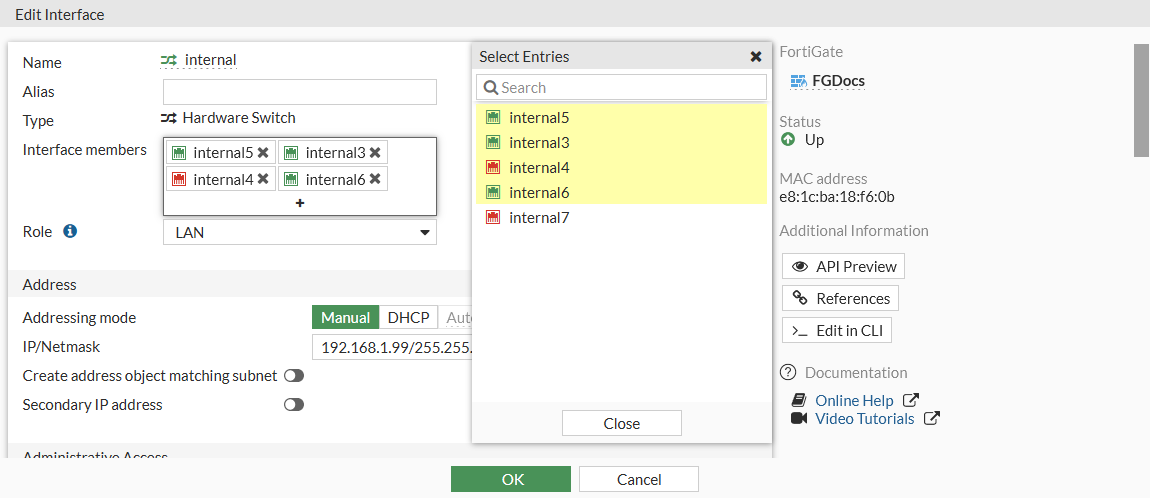
To change the ports in a hardware switch in the GUI:
-
Go to Network > Interface and edit the hardware switch.
-
Click inside the Interface members field.
-
Select interfaces to add or remove them from the hardware switch, then click Close.
To add an interface to a hardware switch, it cannot be referenced by an existing configuration and its IP address must be set to 0.0.0.0/0.0.0.0.
-
Click OK.
Removed interfaces will now be listed as standalone interfaces in the Physical Interface section.
To remove ports from a hardware switch in the CLI:
config system virtual-switch
    edit "internal"
        config port
            delete internal2
            delete internal7
            ...
        end
    next
end
To add ports to a hardware switch in the CLI:
config system virtual-switch
    edit "internal"
        set physical-switch "sw0"
        config port
            edit "internal3"
            next
            edit "internal5"
            next
            edit "internal4"
            next
            edit "internal6"
            next
        end
    next
end
To add an interface to a hardware switch, it cannot be referenced by an existing configuration and its IP address must be set to 0.0.0.0/0.0.0.0.
Example of using 802.1X on virtual switches
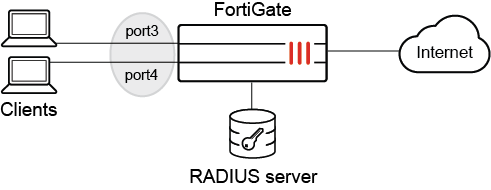
In this example, port3 and port4 are part of a hardware switch interface. The hardware switch acts as a virtual switch so that devices can connect directly to these ports and perform 802.1X authentication on the port.
Prerequisites:
-
Configure a RADIUS server (see RADIUS servers).
-
Define a user group named test to use the remote RADIUS server and for 802.1X authentication (see User definition, groups, and settings).
-
Configure a hardware switch (named 18188) with port3 and port4 as the members.
-
Configure a firewall policy that allows traffic from the 18188 hardware switch to go to the internet.
-
Enable 802.1X authentication on the client devices.
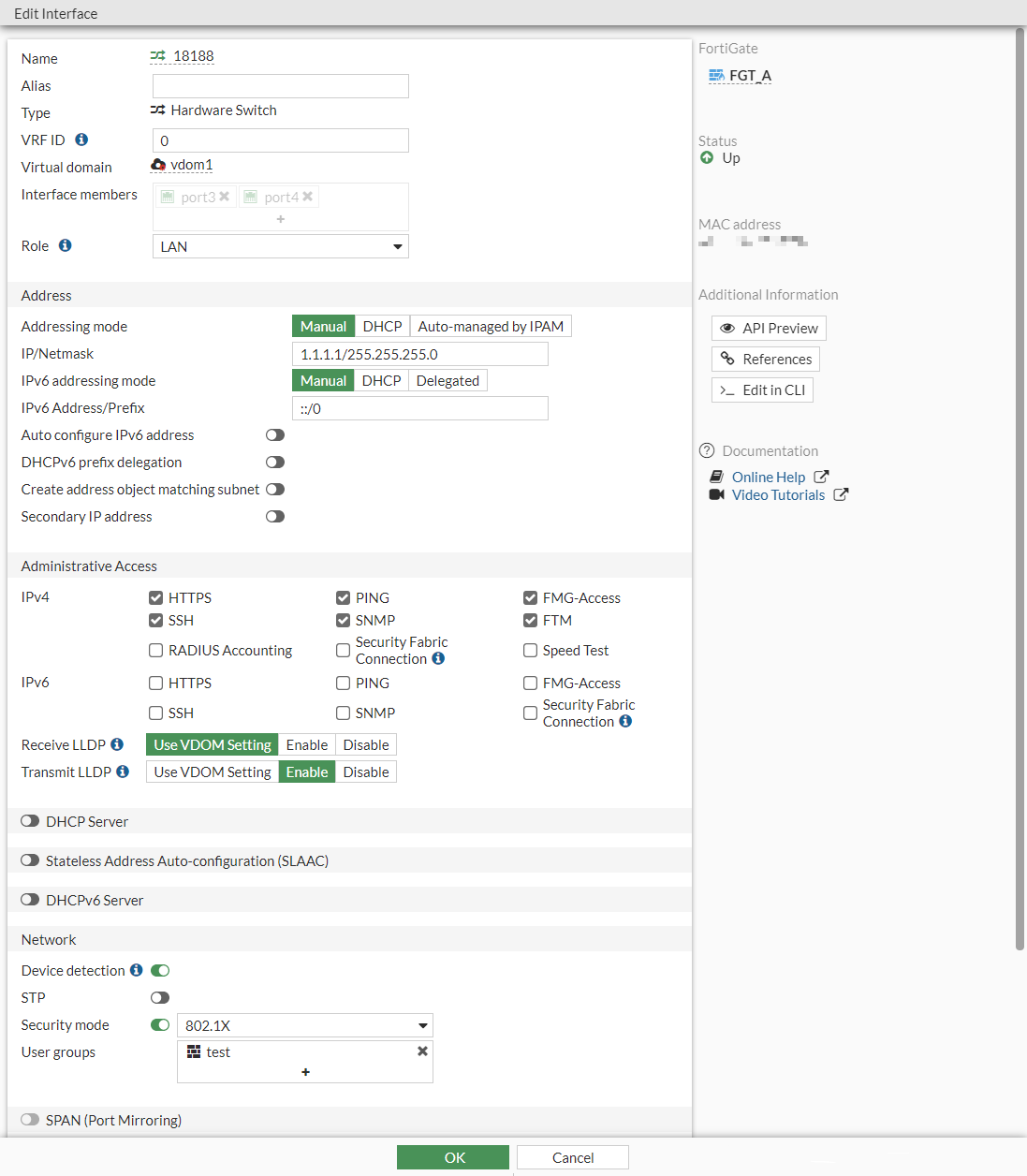
To configure 802.1X authentication on a hardware switch in the GUI:
-
Go to Network > Interfaces and edit the hardware switch.
-
In the Network section, enable Security mode and select 802.1X.
-
Click the + to add the User group.
-
Click OK.
To configure 802.1X authentication on a hardware switch in the CLI:
-
Configure the virtual hardware switch interfaces:
config system virtual-switch edit "18188" set physical-switch "sw0" config port edit "port3" next edit "port4" next end next end -
Configure 802.1X authentication:
config system interface
    edit "18188"
        set vdom "vdom1"
        set ip 1.1.1.1 255.255.255.0
        set allowaccess ping https ssh snmp fgfm ftm
        set type hard-switch
        set security-mode 802.1X
        set security-groups "test"
        set device-identification enable
        set lldp-transmission enable
        set role lan
        set snmp-index 52
    next
end
To verify the that the 802.1X authentication was successful:
-
Get a client connected to port3 to authenticate to access the internet.
-
In FortiOS, verify the 802.1X authentication port status:
# diagnose sys 802-1x status

Virtual switch '18188' (default mode) 802.1x member status:
  port3: Link up, 802.1X state: authorized
  port4: Link up, 802.1X state: unauthorized
Example of using 802.1X on a virtual switch when added to a software switch
802.1X authentication can be enabled under a virtual switch when it's added to a software switch. Customers can use firewall policies to regulate traffic within an 802.1X dynamic VLAN when setting software switch's intra-switch-policy to explicit.
To enable 802.1X authentication on a virtual switch:
-
From the FortiGate, create a hardware switch.
config system virtual-switch edit "trust" set physical-switch "sw0" config port edit "port5" next end next edit "vlan0200" set physical-switch "sw0" next end -
Create a software switch with
intra-switch-policyset toexplicit.config system switch-interface edit "SW-switch" set vdom "vdom1" set member "port3" "trust" "vlan0200" set intra-switch-policy explicit next end -
Add the hardware switch you created as a member of the FortiGate.
config system interface edit "SW-switch" set vdom "vdom1" set ip 6.6.6.1 255.255.255.0 set allowaccess ping https ssh snmp fgfm ftm set type switch set snmp-index 22 next end -
Enable 802.1x authentication for the hardware switch.
config system interface edit "trust" set vdom "vdom1" set type hard-switch set security-mode 802.1X set security-8021x-mode dynamic-vlan set security-groups "group_radius" set snmp-index 20 next end config system interface edit "vlan0200" set vdom "vdom1" set type hard-switch set security-mode 802.1X set security-8021x-mode slave set security-8021x-master "trust" set security-8021x-dynamic-vlan-id 200 set snmp-index 21 next end -
Verify that 802.1x is enabled and the port state is
unauthorized.# diagnose sys 802-1x status Virtual switch 'vlan0200' (slave mode) 802.1x member status: Virtual switch 'trust' (dynamic vlan mode) 802.1x member status: port5: Link up, 802.1X state: unauthorized
-
Configure a firewall policy to allow traffic between the software switch members.
config firewall policy edit 1 set srcintf "vlan0200" set dstintf "port3" set action accept set srcaddr "all" set dstaddr "all" set schedule "always" set service "ALL" next end -
Verify that a client device connected to the hardware switch cannot reach other software switch members without authentication.
fos@switch_pc01:~$ ping 6.6.6.3 -c 3
PING 6.6.6.3 (6.6.6.3): 56 data bytes
92 bytes from switch_pc01 (6.6.6.16): Destination Host Unreachable
92 bytes from switch_pc01 (6.6.6.16): Destination Host Unreachable
92 bytes from switch_pc01 (6.6.6.16): Destination Host Unreachable
--- 6.6.6.3 ping statistics ---
3 packets transmitted, 0 packets received, 100% packet loss
-
Perform 802.1x authentication on a client device.
EAPOL: Supplicant port status: Authorized
EAPOL: SUPP_BE entering state RECEIVE
EAPOL: SUPP_BE entering state SUCCESS
EAPOL: SUPP_BE entering state IDLE
EAPOL authentication completed - result=SUCCESS
-
After successful authentication, verify the port is authorized and moved to secondary switch (
slave mode) on the FortiGate.A (vdom1) (Interim)# diagnose sys 802-1x status Virtual switch 'vlan0200' (slave mode) 802.1x member status: port5: Link up, 802.1X state: authorized Virtual switch 'trust' (dynamic vlan mode) 802.1x member status:
-
The client device can now reach other software switch members.
fos@switch_pc01:~$ ping 6.6.6.3 -c 3
PING 6.6.6.3 (6.6.6.3): 56 data bytes
64 bytes from 6.6.6.3: icmp_seq=0 ttl=255 time=0.310 ms
64 bytes from 6.6.6.3: icmp_seq=1 ttl=255 time=0.297 ms
64 bytes from 6.6.6.3: icmp_seq=2 ttl=255 time=0.192 ms
--- 6.6.6.3 ping statistics ---
3 packets transmitted, 3 packets received, 0% packet loss
round-trip min/avg/max/stddev = 0.192/0.266/0.310/0.053 ms
Example of disabling 802.1x on one port
In this example, FortiGate is connected to two switches, and a virtual switch named hw1 is configured with two port members: port3 and port5. 802.1x authentication is enabled for port3 and disabled for port5.

To configure 802.1x authentication for individual ports:
-
Configure a virtual switch to use port3 and port5:
config system virtual-switch edit "hw1" set physical-switch "sw0" config port edit "port3" next edit "port5" next end next end -
Enable 802.1x authentication for the virtual switch:
config system interface edit "hw1" set vdom "vdom1" set ip 6.6.6.1 255.255.255.0 set allowaccess ping https ssh set type hard-switch set security-mode 802.1X set security-groups "group_radius" set device-identification enable set lldp-transmission enable set role lan set snmp-index 55 set ip-managed-by-fortiipam disable next end -
Disable 802.1x authentication on port5:
config system interface
    edit "port5"
        set vdom "vdom1"
        set type physical
        set security-8021x-member-mode disable
        set snmp-index 9
    next
end
802.1x authentication is disabled on port5 and remains enabled on port3.
Example of disabling STP on one port
In this example, FortiGate is connected to two switches, and a virtual switch named hw1 is configured with two port members: port3 and port5. STP is enabled for port3 and disabled for port5. Any STP sent to port5 is silently ignored. Port3 remains enabled for STP.

To configure STP for individual ports:
-
Configure a virtual switch to use port3 and port5:
config system virtual-switch edit "hw1" set physical-switch "sw0" config port edit "port3" next edit "port5" next end next end -
Enable STP for the virtual switch:
config system interface edit "hw1" set vdom "vdom1" set ip 6.6.6.1 255.255.255.0 set allowaccess ping https ssh set type hard-switch set stp enable set device-identification enable set lldp-transmission enable set role lan set snmp-index 55 set ip-managed-by-fortiipam disable next end -
Disable STP on port5 by enabling it as an STP edge port:
config system interface
    edit "port5"
        set vdom "vdom1"
        set type physical
        set stp-edge enable
        set snmp-index 9
    next
end
Port5 is enabled as an edge port with STP disabled. Port3 remains enabled for STP.