

Assets and filtering
The Assets widget contains a series of summary charts that provide an overview of the operating system, vulnerability level, status, and interfaces. You can use these clickable charts to simplify filtering among your devices.
To view the device inventory and apply a filter:
-
Go to Dashboard > Assets & Identities. Hover over the Assets widget, and click Click to expand. The Assets monitor opens.
-
Alternatively, if you are using the Comprehensive dashboard template, go directly to Device Inventory Monitor.
-
You can also go directly to Security Fabric > Asset Identity Center to view the Assets.
-
-
To filter a chart, click an item in the legend or chart area. The table displays the filter results.
-
To combine filters, hover over a column heading and click Filter/Configure Column.

-
Click the filter icon in the top-right corner of the chart to remove the filter.
Filter examples
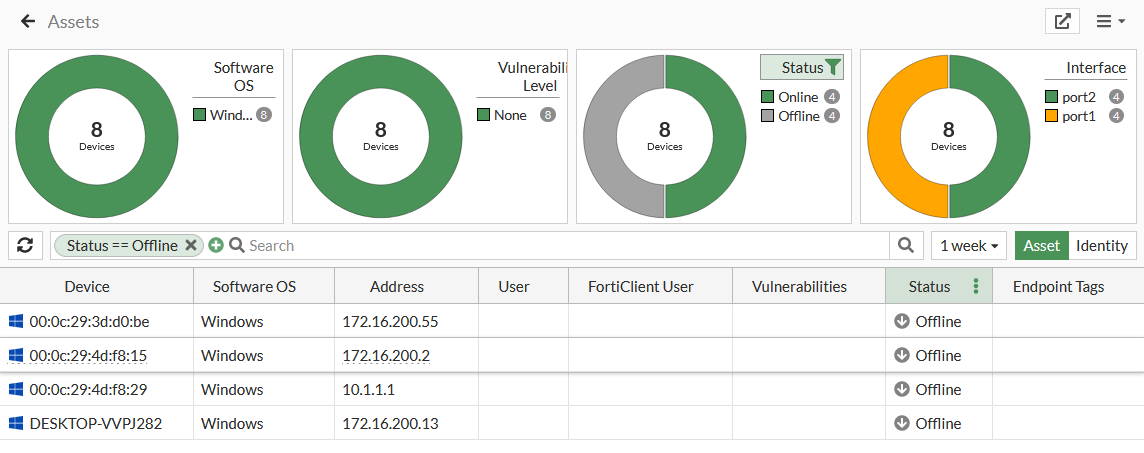
To filter all offline devices:
-
In the Status chart, click Offline in the legend or on the chart itself.
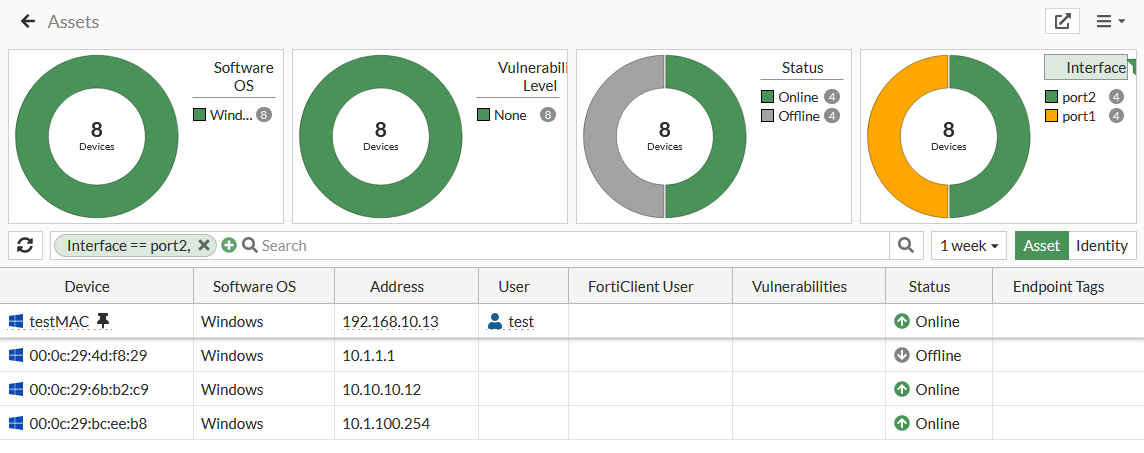
To filter all devices discovered on port2:
-
In the Interfaces chart, click port2.
To perform a free-style keyword search:
-
In the search bar, type in your search string. For example, Windows.
A search is performed on all fields, and returns devices where Software OS contains Windows.
Note that if multiple strings are entered, they are searched as a single keyword.