
Fortinet white logo
Fortinet white logo

Administration Guide

Nutanix SDN connector using server credentials

Nutanix SDN connector using server credentials

FortiOS automatically updates dynamic addresses for Nutanix using an Nutanix SDN connector, including mapping the following attributes from Nutanix instances to dynamic address groups in FortiOS:

  • Cluster name

  • Cluster UUID

  • Description

  • Host name

  • Host UUID

  • Hypervisor type

  • Image name

  • Image UUID

  • Subnet name

  • Subnet UUID

  • VM name

  • VM UUID

To configure a Nutanix connector using the GUI:
  1. Configure the Nutanix SDN connector:

    1. Go to Security Fabric > External Connectors.

    2. Select Nutanix.

    3. In the IP address field, enter the IP address for your Nutanix environment.

    4. In the Port field, enter the desired port.

    5. In the Username and Password fields, enter the credentials for your Nutanix environment.

    6. Click OK.

  2. Create a dynamic firewall address for the configured Nutanix SDN connector:

    1. Go to Policy & Objects > Addresses and select Address.

    2. Click Create new.

    3. From the Type dropdown list, select Dynamic.

    4. From the Sub Type dropdown list, select Fabric Connector Address.

    5. From the SDN Connector dropdown list, select the Nutanix connector.

    6. From the Filter dropdown list, select the desired filters.

    7. Click OK.

  3. Ensure that the Nutanix SDN connector resolves dynamic firewall IP addresses:

    1. Go to Policy & Objects > Addresses.

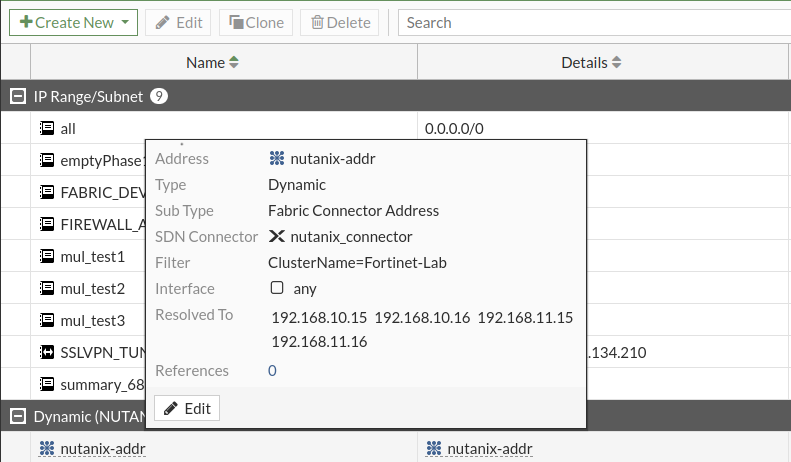
    2. Hover over the address created in step 2 to see a list of IP addresses for instances that satisfy the filter requirements configured in step 2. In this example, the configured filter is "ClusterName=Fortinet-Lab":
To configure a Nutanix connector using the CLI:
  1. Configure the Nutanix SDN connector:

    config system sdn-connector
        edit "nutanix_connector"
            set status disable
            set type nutanix
            set server "172.18.33.59"
            set server-port 9440
            set username "admin"
            set password **********
            set update-interval 60
        next
    end
  2. Create a dynamic firewall address for the configured Nutanix SDN connector:

    config firewall address
        edit "nutanix-addr"
            set uuid 382ceafe-8e72-51eb-7300-0807ee907946
            set type dynamic
            set sdn "nutanix_connector"
            set color 2
            set filter "ClusterName=Fortinet-Lab"
        next
    end
  3. Ensure that the Nutanix SDN connector resolves dynamic firewall IP addresses:

    config firewall address
        edit "nutanix-addr"
            set uuid 382ceafe-8e72-51eb-7300-0807ee907946
            set type dynamic
            set sdn "nutanix_connector"
            set color 2
            set filter "ClusterName=Fortinet-Lab"
            config list
                edit "192.168.10.15"
                next
                edit "192.168.10.16"
                next
                edit "192.168.11.15"
                next
                edit "192.168.11.16"
                next
            end
        next
    end

Nutanix SDN connector using server credentials

Nutanix SDN connector using server credentials

FortiOS automatically updates dynamic addresses for Nutanix using an Nutanix SDN connector, including mapping the following attributes from Nutanix instances to dynamic address groups in FortiOS:

  • Cluster name

  • Cluster UUID

  • Description

  • Host name

  • Host UUID

  • Hypervisor type

  • Image name

  • Image UUID

  • Subnet name

  • Subnet UUID

  • VM name

  • VM UUID

To configure a Nutanix connector using the GUI:
  1. Configure the Nutanix SDN connector:

    1. Go to Security Fabric > External Connectors.

    2. Select Nutanix.

    3. In the IP address field, enter the IP address for your Nutanix environment.

    4. In the Port field, enter the desired port.

    5. In the Username and Password fields, enter the credentials for your Nutanix environment.

    6. Click OK.

  2. Create a dynamic firewall address for the configured Nutanix SDN connector:

    1. Go to Policy & Objects > Addresses and select Address.

    2. Click Create new.

    3. From the Type dropdown list, select Dynamic.

    4. From the Sub Type dropdown list, select Fabric Connector Address.

    5. From the SDN Connector dropdown list, select the Nutanix connector.

    6. From the Filter dropdown list, select the desired filters.

    7. Click OK.

  3. Ensure that the Nutanix SDN connector resolves dynamic firewall IP addresses:

    1. Go to Policy & Objects > Addresses.

    2. Hover over the address created in step 2 to see a list of IP addresses for instances that satisfy the filter requirements configured in step 2. In this example, the configured filter is "ClusterName=Fortinet-Lab":

To configure a Nutanix connector using the CLI:
  1. Configure the Nutanix SDN connector:

    config system sdn-connector
        edit "nutanix_connector"
            set status disable
            set type nutanix
            set server "172.18.33.59"
            set server-port 9440
            set username "admin"
            set password **********
            set update-interval 60
        next
    end
  2. Create a dynamic firewall address for the configured Nutanix SDN connector:

    config firewall address
        edit "nutanix-addr"
            set uuid 382ceafe-8e72-51eb-7300-0807ee907946
            set type dynamic
            set sdn "nutanix_connector"
            set color 2
            set filter "ClusterName=Fortinet-Lab"
        next
    end
  3. Ensure that the Nutanix SDN connector resolves dynamic firewall IP addresses:

    config firewall address
        edit "nutanix-addr"
            set uuid 382ceafe-8e72-51eb-7300-0807ee907946
            set type dynamic
            set sdn "nutanix_connector"
            set color 2
            set filter "ClusterName=Fortinet-Lab"
            config list
                edit "192.168.10.15"
                next
                edit "192.168.10.16"
                next
                edit "192.168.11.15"
                next
                edit "192.168.11.16"
                next
            end
        next
    end