Administrator account options
Options to further define the access and abilities of an administrator account include:
Multi-factor authentication
Multi-factor authentication (MFA) requires authenticating administrators to supply more than one factor to identify themselves in addition to their password, such as a FortiToken.

|
Before enabling MFA, it is recommended that you create second administrator account that is configured to guarantee administrator access to the FortiGate if you are unable to authenticate on the main account for any reason. |
Multi-factor authentication options include:
FortiToken
To associate a FortiToken to an administrator account using the GUI:
-
Ensure that you have successfully added your FortiToken serial number to FortiOS and that its status is Available.
-
Go to System > Administrators. Edit the admin account. This example assumes that the account is fully configured except forMFA.
-
Enable Two-factor Authentication and for Authentication Type, select FortiToken.
-
From the Token dropdown list, select the FortiToken serial number.
-
In the Email Address field, enter the administrator's email address.
-
Click OK.

|
For a mobile token, click Send Activation Code to send the activation code to the configured email address. The admin uses this code to activate their mobile token. You must have configured an email service in System > Settings to send the activation code. |
To associate a FortiToken to an administrator account using the CLI:
config system admin
    edit <username>
        set password "myPassword"
        set two-factor fortitoken
        set fortitoken <serial_number>
        set email-to "username@example.com"
    next
end
The fortitoken keyword is not visible until you select fortitoken for the two-factor option.
|
|
Before you can use a new FortiToken, you may need to synchronize it due to clock drift. |
FortiIdentity Cloud
FortiIdentity Cloud (formerly FortiToken Cloud) is an Identity and Access Management as a Service (IDaaS) cloud service provided by Fortinet. It enables FortiGate and FortiAuthenticator customers to add MFA for their users using Mobile or Hard tokens.
For more information, see Getting started—FGT-FTC users in the FortiIdentity Cloud Administration Guide.
Enter an email address to send an MFA code to that address.
SMS
Enable SMS then select the Country Dial Code and enter the Phone Number (sms-phone in the CLI) to send an MFA code to.
SMS messages can also be sent to the FortiGuard SMS server or a custom server.
config system admin
    edit "admin"
        ...
        set sms-server {fortiguard | custom}
        set sms-server-custom <string>
        ...
    next
end
Restricting logins to trusted hosts
Administrator accounts can be configured to only be accessible to a user using a trusted host. You can set a specific IP address for the trusted host, or use a subnet. Up to ten trusted hosts can be specified for an administrator.
When trusted hosts are defined for all of the administrators on the FortiGate, the administrative access on each interface will be restricted to the trusted hosts that are defined for the administrator, except for ping. If ping is enabled on an interface, it works regardless of the trusted hosts.
Configuring a trusted host for SSO administrator accounts
Trusted Hosts can only be configured for local and REST API administrator accounts. It is not possible to directly configure trusted hosts on SAML-based SSO administrator accounts, but an SSO administrator account must be able to access the FortiGate GUI in order to login.
A scenario could arise where local administrators all have trusted hosts defined for a particular management subnet and an SSO administrator needs to log in from a different subnet but is unable to define a trusted host.
Instead, create another local administrator account that has trusted hosts configured but no actual administrative access to anything (that is, a dummy account). The general steps to do this are:
-
Create an administrator profile in System > Admin Profile called no-access that has all of its permissions set to None.
-
Create a dummy local administrator account in System > Administrator and assign it the no-access administrator profile. Give the administrator a long, random password to secure the account, even though this account does not have access to anything.
-
Configure trusted hosts (enable Restrict login to trusted hosts) and add the source subnets/addresses that the SSO administrator will access the FortiGate from.
-
Save the configuration.
Restricting administrators to guest account provisioning
To simplify guest account creation, an administrator account can be created exclusively for guest user management. This allows new accounts to be created without requiring full administrative access to FortiOS.
When enabling this option, a guest group must be specified for the administrator to provision new accounts to. See Configuring guest user groups for information about creating such a group.
Global and VDOM administrators
When a FortiGate is in multi-VDOM mode, it can be managed by either global or per-VDOM administrators. Each type of administrator will have a different view of the GUI that corresponds to their role. For more information, see Administrator roles and views.
For information about configuring per-VDOM administrators, see Create per-VDOM administrators.
Using FortiAuthenticator and FortiToken for 2FA
FortiAuthenticator can be used to centralize identity and access management and to enforce 2FA with FortiTokens.
In this example, FortiAuthenticator has local users configured with a FortiToken applied to each user. A remote user group is configured on the FortiGate to connect to the FortiAuthenticator via MSCHAPv2. This user group is applied to the Administrator account.
|
|
If you encounter the error No Message-Authenticator attribute when you test your RADIUS connection, ensure that your FortiAuthenticator is running a version that resolves CVE-2024-3596. See RADIUS Connection for details. |
To configure the FortiAuthenticator:
-
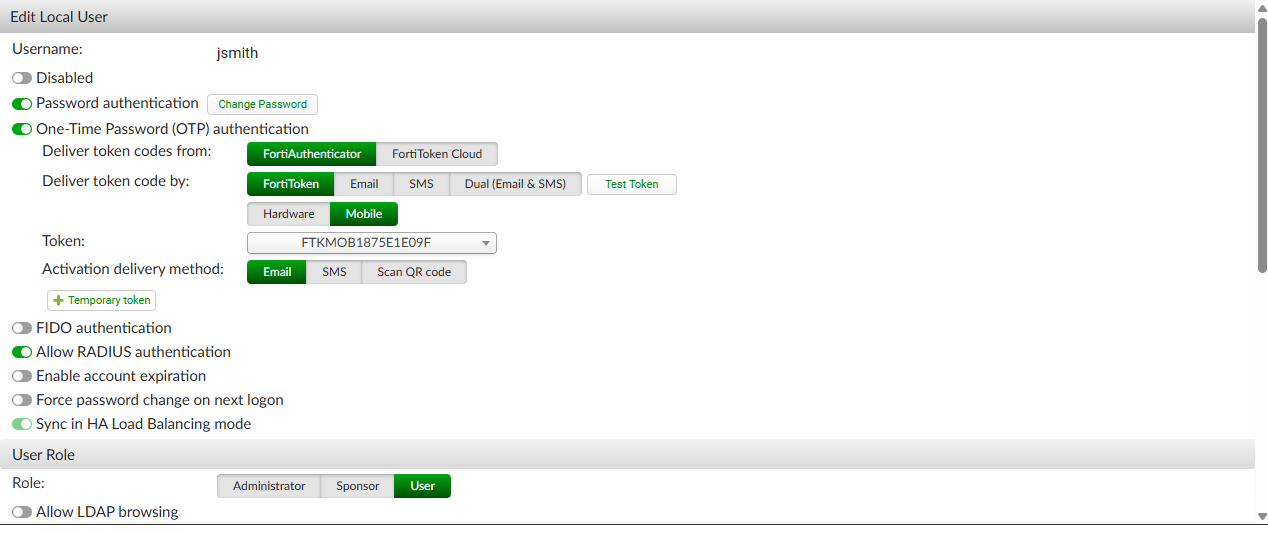
Go to Authentication > User Management > Local Users to define a Local User.
-
Enable One-Time Password (OTP) authentication.
-
Save the user.
-
Go to Authentication > RADIUS Service > Clients to create a new client:
-
Enter the IP of the connecting FortiGate.
-
Create a Secret.
-
Save the client.
-
-
Go to Authentication > RADIUS Service > Policies to create a new policy:
-
Select the newly created RADIUS Client.
-
Set Identity Source to local for Local Users.
-
Save the policy.
-
To configure the FortiGate:
-
Add a RADIUS server:
-
Go to User & Authentication > RADIUS Servers and click Create New.
-
Optionally, specify your Authentication method. For example, specify MS-CHAP-v2.
-
For the Primary Server, set IP/Name to the IP address of the FortiAuthenticator and enter the Secret.
-
Click OK.
-
-
Create a user group:
-
Go to User & Authentication > User Groups and click Create New.
-
In the Remote Groups table, click Add.
-
Add the Remote Server that was just created and click OK.
-
Click OK.
-
-
Create a new admin user:
-
Go to System > Administrators and click Create New > Administrator.
-
Set Type to Match all users in a remote server group.
-
Choose an Administrator profile.
-
Set Remote User Group to the new group that was just created.
-
Click OK.
-
-
Log out and then back into the FortiGate.
-
When prompted, enter the user credentials for the FAC users.
-
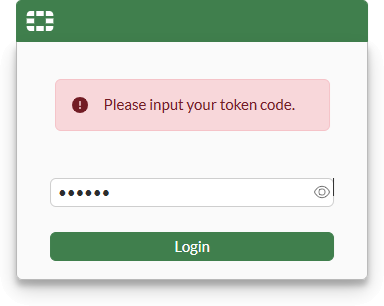
If the password is correct, you will be prompted for the FortiToken key.
-
Enter the key or approve the push notification.
You are now logged into the FortiGate.
-
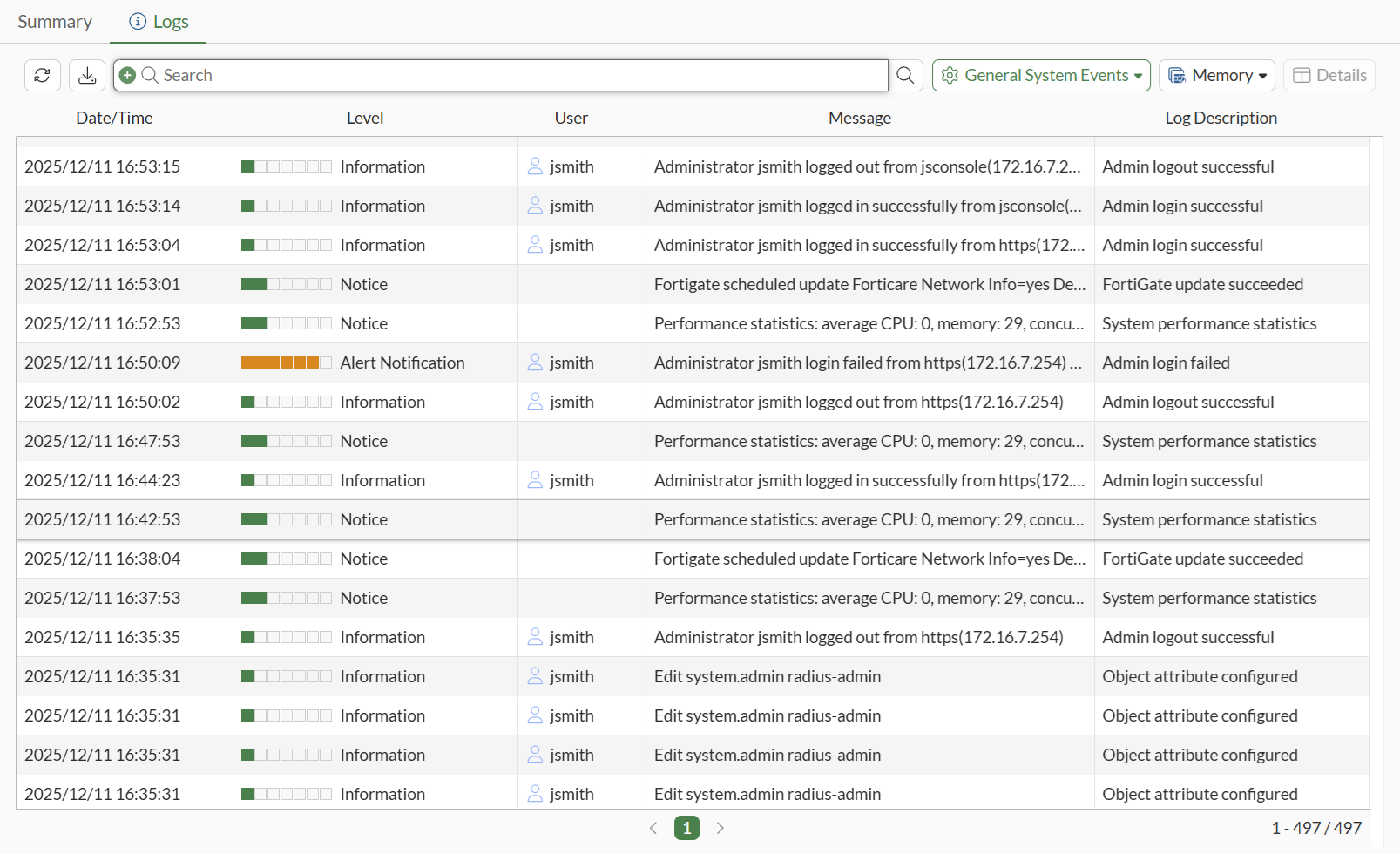
Go to Log & Events > System Events and find the user logs indicating the remote user has logged in successfully.
FGT-Corp $ execute log filter category event

 FGT-Corp $ execute log display
 1028 logs found.
 10 logs returned.

 1: date=2025-12-11 time=19:38:34 eventtime=1765510714165848638 tz="-0800" logid="0100032001" type="event" subtype="system" level="information" vd="root" logdesc="Admin login successful" sn="1765510714" user="jsmith" ui="jsconsole(172.16.7.254)" method="jsconsole" srcip=172.16.7.254 dstip=172.16.7.1 action="login" status="success" reason="none" profile="prof_admin" msg="Administrator jsmith logged in successfully from jsconsole(172.16.7.254)"
|
|
When using MSCHAP or MSCHAPv2, the FortiToken must be managed by the FortiAuthenticator. It will not function when using FortiTokens managed by FortiIdentity Cloud. When the token code is entered by the user, this code is encoded into the MSCHAP message as it is sent to FortiAuthenticator. FortiAuthenticator cannot decode the original code, but it can perform a comparison by calculating the hash from the FortiToken seed that resides on the FortiAuthenticator. To work with FortiIdentity Cloud, PAP must be used, preferably with RadSec. |
Changing your remote user password after expiry
When a user password expires on the FortiAuthenticator, the FortiGate can force the admin user to change their password. To support this feature, the FortiGate must use MSCHAP or MSCHAPv2 to communicate with the FortiAuthenticator.
When a password is expired and an administrator logs into the FortiGate, after passing authentication and 2FA, they will be prompted to change their password.
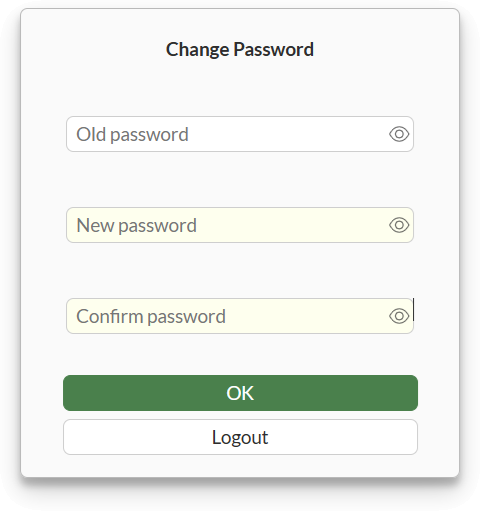
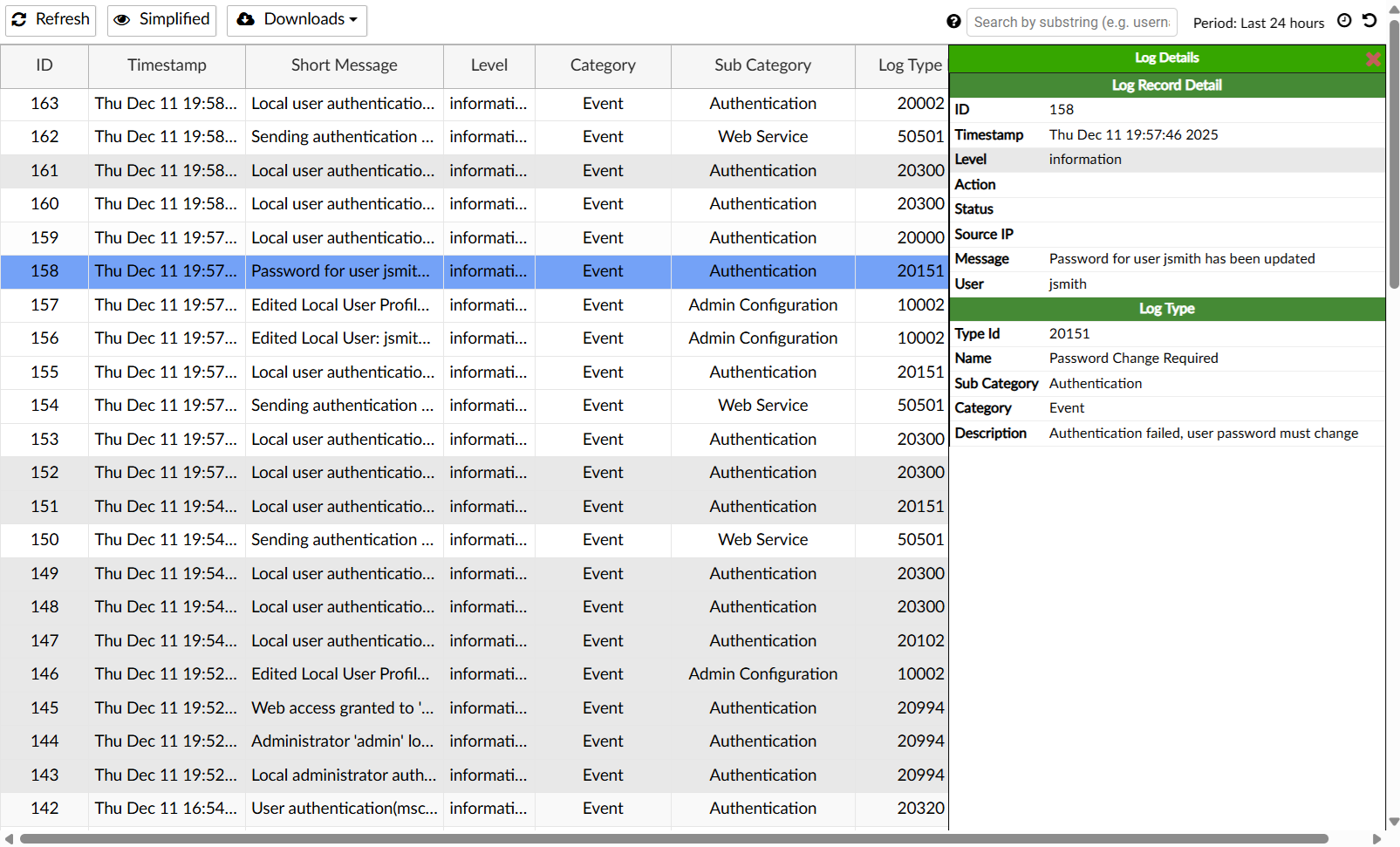
On the FortiAuthenticator, find the logs for the password change in Logging > Log Access > Logs.