
Fortinet white logo
Fortinet white logo

Administration Guide

Telemetry addresses and address groups

Telemetry addresses and address groups

This topic applies only to a FortiGate acting as a FortiTelemetry Controller with FortiTelemetry enabled on the System > Feature Visibility page. For a summary of FortiTelemetry-related tasks that you can do in FortiOS, see FortiTelemetry. See also FortiTelemetry Administration Guide.

After a FortiTelemetry agent is authorized in FortiOS, a dynamic telemetry address is automatically created. The name of the telemetry address is the serial number of the FortiTelemetry agent. See Connecting to FortiTelemetry agents for more information.

A static telemetry address group named TELEMETRY is also available. The telemetry address from each approved FortiTelemetry agent is automatically added to the TELEMETRY group.

You can view telemetry addresses and address groups in the GUI or CLI.

In the GUI, go to the Policy & Objects > Addresses pane, and click the Telemetry tab to view telemetry addresses and telemetry address groups.

In the CLI, use the config firewall address command for telemetry addresses:

config firewall address
    edit <FortiTelemetry agent serial number>
        set type dynamic
        set sub-type {telemetry} 
        set agent-id <FortiTelemetry agent serial number>
    next
end

Option

Description

sub-type {telemetry}

Dynamic telemetry address.

agent-id <FortiTelemetry agent serial number>

Serial number of the FortiTelemetry agent, for example, FT100GTK24000001.

Use the config firewall addrgrp command for telemetry address groups:

config firewall addrgrp
    edit "telemetry-group"
        set category telemetry
        set member FT100GTK24000001
    next
end

Option

Description

category {telemetry}

Members must be telemetry groups or telemetry addresses. Can be used to determine telemetry policy.

Use the config telemetry-controller global command to control whether telemetry addresses are automatically added to the TELEMETRY address group:

config telemetry-controller global
    set auto-group-telemetry-addr {enable | disable}
end

Option

Description

auto-group-telemetry-addr {enable | disable}

Enable/disable automatically adding the telemetry address to the default address group named TELEMETRY (default = enable).

  • enable: Automatically add telemetry address to the default addrgrp TELEMETRY.

  • disable: Do not automatically add telemetry address to the default addrgrp TELEMETRY.

Note

In FortiOS 7.6.3, FortiTelemetry agents were represented as firewall addresses of type ipmask. The firewall address name started with the reserved prefixes "FT100G" or "FTLWIN" and included the agent's serial number. The telemetry address could not be renamed, and the firewall addresses were dynamically updated by telemetryd.

When upgrading from FortiOS 7.6.3 to 7.6.4 or later:

  • The ipmask firewall address is automatically migrated to the new address type. Starting in FortiOS 7.6.4, telemetry firewall objects no longer require the "FT100G" or "FTLWIN" prefixes. Although the telemetry firewall objects can be renamed in the CLI, it is not recommended to rename the objects.

  • All existing telemetry addresses are added to the TELEMETRY address group.

This topic includes the following examples:

Viewing telemetry addresses

To view telemetry addresses in the GUI:
  1. Go to Policy & Objects > Addresses > Telemetry. The Telemetry Address pane is displayed.

    This example lists three telemetry addresses.
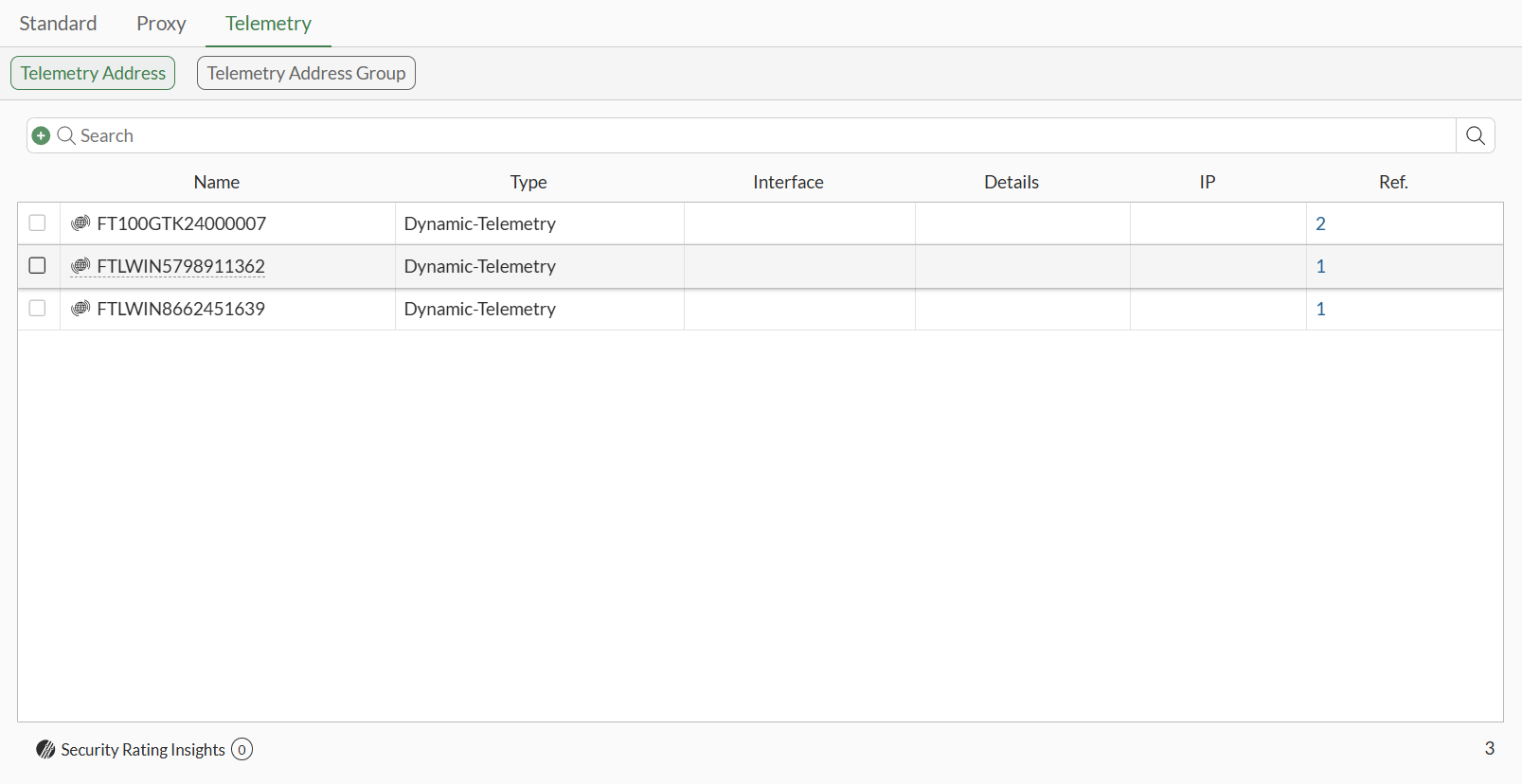
    Name

    Name of the address is the serial number of the FortiTelemetry agent.

    Hover over the name to display a tooltip of additional information and buttons, such as Edit, Show in list, and View Matched Addresses.

    Type

    Displays Dynamic-Telemetry to indicate a dynamic type of address with sub-type telemetry.

    Ref.

    Displays the number of references to the address. Click the number to view current usage details and possible uses.

  2. Click a telemetry address to display a tooltip of additional information and more buttons.
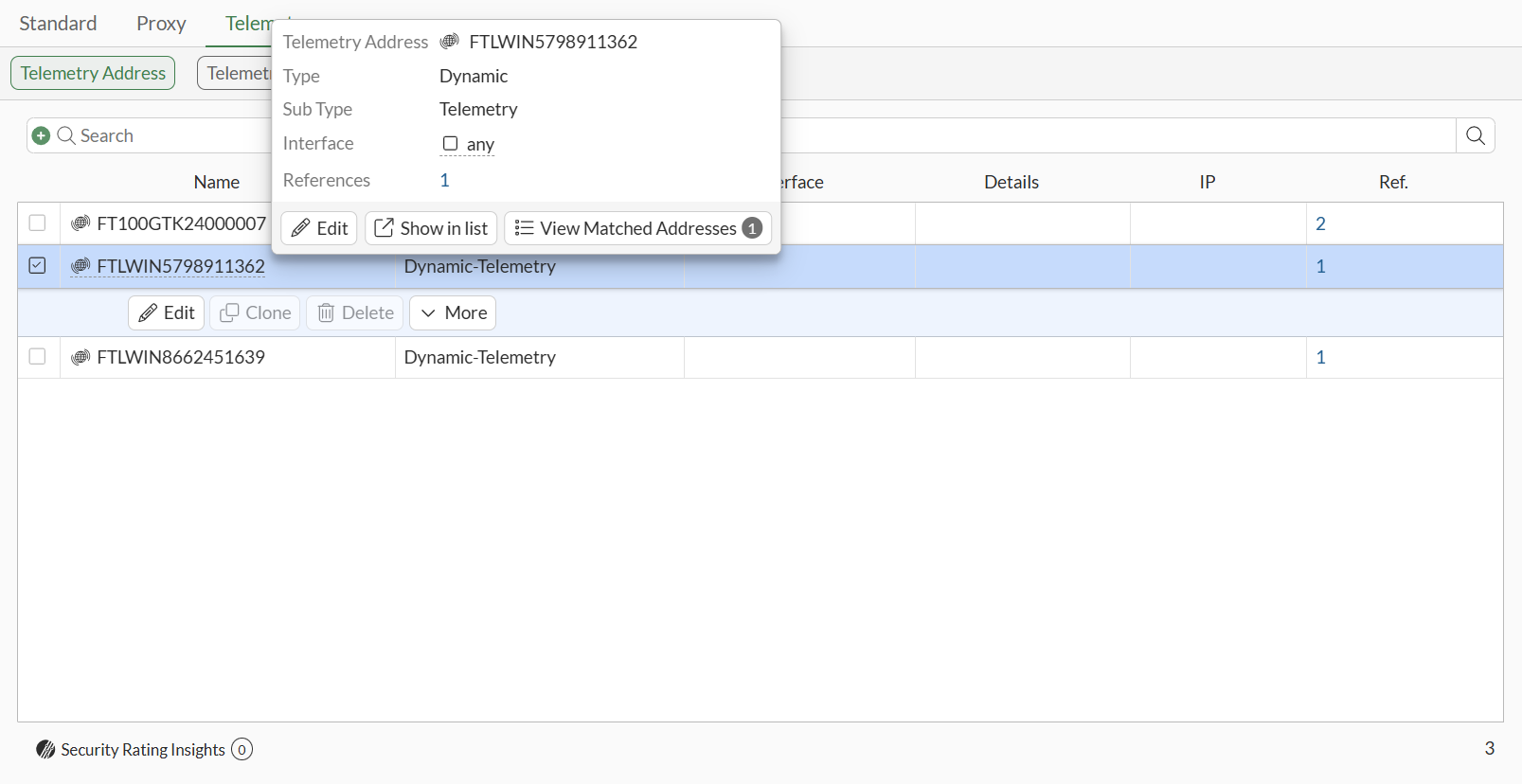
    Edit

    Click to display the Edit Address pane and edit the address object.

    More

    Click to select >_Edit in the CLI.

    View Matched Addresses

    Click to view the resolved IP address for the FortiTelemetry agent.

  3. Click the View Matched Addresses button to view the resolved IP address.

    The Resolved Addresses pane is displayed and shows the IP address (10.1.100.106) of the FortiTelemetry agent.

To view a telemetry address in the CLI:
  1. View the telemetry address.

    The type is dynamic, the sub-type is telemetry, and the agent-id is the serial number of the FortiTelemetry agent:

    show full firewall address FTLWIN5798911362
    config firewall address
        edit "FTLWIN5798911362"
            set uuid 8e6e691a-4ba6-51f0-5a93-9e03e58c5a19
            set type dynamic
            set sub-type telemetry
            set comment ''
            set associated-interface ''
            set color 0
            set fabric-object disable
            set agent-id "FTLWIN5798911362"
        next
    end
  2. View the IP address (10.1.100.106) of the FortiTelemetry agent.

    # diagnose firewall dynamic address FTLWIN5798911362
    CMDB name: FTLWIN5798911362
    FTLWIN5798911362: ID(250)
            ADDR(10.1.100.106)
    Total IP dynamic range blocks: 0.
    Total IP dynamic addresses: 1. 

Adding telemetry addresses to TELEMETRY address group

By default, FortiOS automatically adds the telemetry address from each approved FortiTelemetry agent to the default, static TELEMETRY group. Then you can select the TELEMETRY address group in a firewall policy to use all approved agents.

To automatically add telemetry addresses to the TELEMETRY address group:
config telemetry-controller global
    set auto-group-telemetry-addr enable
end

Creating telemetry address groups

You can create telemetry address groups in the GUI or CLI.

To create a telemetry address group in the GUI:
  1. Go to Policy & Objects > Addresses > Telemetry > Telemetry Address Group.

    Create new

    Click to create a new telemetry address group.

    Name

    Name of the telemetry address group. A default TELEMETRY address group is provided.

    Hover over the name to display a tooltip of additional information and buttons, such as Edit and Show in list.

    By default, FortiOS adds the telemetry address for each approved FortiTelemetry agent to the TELEMETRY address group.

    Type

    Displays Group to indicate a group of telemetry addresses.

    Members

    Lists the members of the group. Members must be telemetry addresses or telemetry address groups.

    Ref.

    Displays the number of references to the address group. Click the number to view current usage details and possible uses.

  2. Click the Create new button. The New Address Group pane is displayed.

  3. Set the following options and click OK.

    • Set Name to a unique name.

    • Set Type to Group.

    • Click Members, select Telemetry Address, and select one or more telemetry addresses or telemetry address groups. Click Close when done.
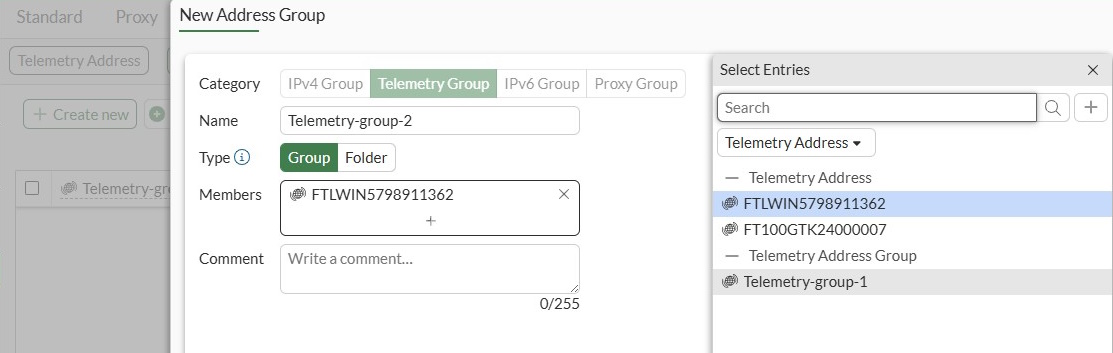
    The telemetry group contains the selected telemetry addresses.

  4. Click OK to save the new address group.

To create a telemetry address group in the CLI:
  1. Create a telemetry address group.

    The example Telemetry-group-1 is for a hardware agent. The type can be default or folder, and the category is telemetry. The member is the FT100GTK24000007 telemetry address:

    config firewall addrgrp
        edit "Telemetry-group-1"
            set type default
            set category telemetry
            set member "FT100GTK24000007"
            set comment ''
            set uuid 4f197cee-4d65-51f0-2942-8214af708a17
            set exclude disable
            set color 0
            set fabric-object disable
        next
    end
  2. Create a new telemetry address group.

    The example Telemetry-group-2 is for a software agent. The category is telemetry, and the member is the FTLWIN5798911362 telemetry address:

    config firewall addrgrp
        edit Telemetry-group-2
            set category telemetry 
            set member FTLWIN5798911362
        next
    end
    

Viewing telemetry addresses before and after upgrade

During upgrade from FortiOS 7.6.3 to 7.6.4 or later, the ipmask telemetry address is migrated to the new telemetry type.

To view the telemetry address:
  1. In FortiOS 7.6.3, view the configuration before upgrading to 7.6.4:

    show firewall address 
    config firewall address
        edit "FTLWIN5798911362"
            set uuid adfe7cd2-4d6f-51f0-5f30-08450239a4e7
            set subnet 10.1.100.106 255.255.255.255
        next
        edit "FTLWIN8662451639"
            set uuid ae9083b6-4d6f-51f0-b13d-a61ffcd634e9
            set subnet 10.1.100.108 255.255.255.255
        next
        edit "FT100GTK24000007"
            set uuid cd9c80f2-4d6f-51f0-4d5a-b160e44881d1
            set subnet 192.168.14.8 255.255.255.255
        next
    end
  2. Upgrade FortiOS to 7.6.4 or later.
  3. In FortiOS 7.6.4, view the configuration.

    For each address, the type is dynamic, the sub-type is telemetry, and the agent-id is the serial number for the FortiTelemetry agent.

    show firewall address 
    config firewall address
        edit "FTLWIN5798911362"
            set uuid 8489a542-4d70-51f0-327e-e91bd439cf25
            set type dynamic
            set sub-type telemetry
            set agent-id "FTLWIN5798911362"
        next
        edit "FTLWIN8662451639"
            set uuid 8489a9d4-4d70-51f0-153f-e36cde5329d0
            set type dynamic
            set sub-type telemetry
            set agent-id "FTLWIN8662451639"
        next
        edit "FT100GTK24000007"
            set uuid 8489ae5c-4d70-51f0-1617-716c6bd9df2a
            set type dynamic
            set sub-type telemetry
            set agent-id "FT100GTK24000007"
        next
    end

Telemetry addresses and address groups

Telemetry addresses and address groups

This topic applies only to a FortiGate acting as a FortiTelemetry Controller with FortiTelemetry enabled on the System > Feature Visibility page. For a summary of FortiTelemetry-related tasks that you can do in FortiOS, see FortiTelemetry. See also FortiTelemetry Administration Guide.

After a FortiTelemetry agent is authorized in FortiOS, a dynamic telemetry address is automatically created. The name of the telemetry address is the serial number of the FortiTelemetry agent. See Connecting to FortiTelemetry agents for more information.

A static telemetry address group named TELEMETRY is also available. The telemetry address from each approved FortiTelemetry agent is automatically added to the TELEMETRY group.

You can view telemetry addresses and address groups in the GUI or CLI.

In the GUI, go to the Policy & Objects > Addresses pane, and click the Telemetry tab to view telemetry addresses and telemetry address groups.

In the CLI, use the config firewall address command for telemetry addresses:

config firewall address
    edit <FortiTelemetry agent serial number>
        set type dynamic
        set sub-type {telemetry} 
        set agent-id <FortiTelemetry agent serial number>
    next
end

Option

Description

sub-type {telemetry}

Dynamic telemetry address.

agent-id <FortiTelemetry agent serial number>

Serial number of the FortiTelemetry agent, for example, FT100GTK24000001.

Use the config firewall addrgrp command for telemetry address groups:

config firewall addrgrp
    edit "telemetry-group"
        set category telemetry
        set member FT100GTK24000001
    next
end

Option

Description

category {telemetry}

Members must be telemetry groups or telemetry addresses. Can be used to determine telemetry policy.

Use the config telemetry-controller global command to control whether telemetry addresses are automatically added to the TELEMETRY address group:

config telemetry-controller global
    set auto-group-telemetry-addr {enable | disable}
end

Option

Description

auto-group-telemetry-addr {enable | disable}

Enable/disable automatically adding the telemetry address to the default address group named TELEMETRY (default = enable).

  • enable: Automatically add telemetry address to the default addrgrp TELEMETRY.

  • disable: Do not automatically add telemetry address to the default addrgrp TELEMETRY.

Note

In FortiOS 7.6.3, FortiTelemetry agents were represented as firewall addresses of type ipmask. The firewall address name started with the reserved prefixes "FT100G" or "FTLWIN" and included the agent's serial number. The telemetry address could not be renamed, and the firewall addresses were dynamically updated by telemetryd.

When upgrading from FortiOS 7.6.3 to 7.6.4 or later:

  • The ipmask firewall address is automatically migrated to the new address type. Starting in FortiOS 7.6.4, telemetry firewall objects no longer require the "FT100G" or "FTLWIN" prefixes. Although the telemetry firewall objects can be renamed in the CLI, it is not recommended to rename the objects.

  • All existing telemetry addresses are added to the TELEMETRY address group.

This topic includes the following examples:

Viewing telemetry addresses

To view telemetry addresses in the GUI:
  1. Go to Policy & Objects > Addresses > Telemetry. The Telemetry Address pane is displayed.

    This example lists three telemetry addresses.

    Name

    Name of the address is the serial number of the FortiTelemetry agent.

    Hover over the name to display a tooltip of additional information and buttons, such as Edit, Show in list, and View Matched Addresses.

    Type

    Displays Dynamic-Telemetry to indicate a dynamic type of address with sub-type telemetry.

    Ref.

    Displays the number of references to the address. Click the number to view current usage details and possible uses.

  2. Click a telemetry address to display a tooltip of additional information and more buttons.

    Edit

    Click to display the Edit Address pane and edit the address object.

    More

    Click to select >_Edit in the CLI.

    View Matched Addresses

    Click to view the resolved IP address for the FortiTelemetry agent.

  3. Click the View Matched Addresses button to view the resolved IP address.

    The Resolved Addresses pane is displayed and shows the IP address (10.1.100.106) of the FortiTelemetry agent.

To view a telemetry address in the CLI:
  1. View the telemetry address.

    The type is dynamic, the sub-type is telemetry, and the agent-id is the serial number of the FortiTelemetry agent:

    show full firewall address FTLWIN5798911362
    config firewall address
        edit "FTLWIN5798911362"
            set uuid 8e6e691a-4ba6-51f0-5a93-9e03e58c5a19
            set type dynamic
            set sub-type telemetry
            set comment ''
            set associated-interface ''
            set color 0
            set fabric-object disable
            set agent-id "FTLWIN5798911362"
        next
    end
  2. View the IP address (10.1.100.106) of the FortiTelemetry agent.

    # diagnose firewall dynamic address FTLWIN5798911362
    CMDB name: FTLWIN5798911362
    FTLWIN5798911362: ID(250)
            ADDR(10.1.100.106)
    Total IP dynamic range blocks: 0.
    Total IP dynamic addresses: 1. 

Adding telemetry addresses to TELEMETRY address group

By default, FortiOS automatically adds the telemetry address from each approved FortiTelemetry agent to the default, static TELEMETRY group. Then you can select the TELEMETRY address group in a firewall policy to use all approved agents.

To automatically add telemetry addresses to the TELEMETRY address group:
config telemetry-controller global
    set auto-group-telemetry-addr enable
end

Creating telemetry address groups

You can create telemetry address groups in the GUI or CLI.

To create a telemetry address group in the GUI:
  1. Go to Policy & Objects > Addresses > Telemetry > Telemetry Address Group.

    Create new

    Click to create a new telemetry address group.

    Name

    Name of the telemetry address group. A default TELEMETRY address group is provided.

    Hover over the name to display a tooltip of additional information and buttons, such as Edit and Show in list.

    By default, FortiOS adds the telemetry address for each approved FortiTelemetry agent to the TELEMETRY address group.

    Type

    Displays Group to indicate a group of telemetry addresses.

    Members

    Lists the members of the group. Members must be telemetry addresses or telemetry address groups.

    Ref.

    Displays the number of references to the address group. Click the number to view current usage details and possible uses.

  2. Click the Create new button. The New Address Group pane is displayed.

  3. Set the following options and click OK.

    • Set Name to a unique name.

    • Set Type to Group.

    • Click Members, select Telemetry Address, and select one or more telemetry addresses or telemetry address groups. Click Close when done.

    The telemetry group contains the selected telemetry addresses.

  4. Click OK to save the new address group.

To create a telemetry address group in the CLI:
  1. Create a telemetry address group.

    The example Telemetry-group-1 is for a hardware agent. The type can be default or folder, and the category is telemetry. The member is the FT100GTK24000007 telemetry address:

    config firewall addrgrp
        edit "Telemetry-group-1"
            set type default
            set category telemetry
            set member "FT100GTK24000007"
            set comment ''
            set uuid 4f197cee-4d65-51f0-2942-8214af708a17
            set exclude disable
            set color 0
            set fabric-object disable
        next
    end
  2. Create a new telemetry address group.

    The example Telemetry-group-2 is for a software agent. The category is telemetry, and the member is the FTLWIN5798911362 telemetry address:

    config firewall addrgrp
        edit Telemetry-group-2
            set category telemetry 
            set member FTLWIN5798911362
        next
    end
    

Viewing telemetry addresses before and after upgrade

During upgrade from FortiOS 7.6.3 to 7.6.4 or later, the ipmask telemetry address is migrated to the new telemetry type.

To view the telemetry address:
  1. In FortiOS 7.6.3, view the configuration before upgrading to 7.6.4:

    show firewall address 
    config firewall address
        edit "FTLWIN5798911362"
            set uuid adfe7cd2-4d6f-51f0-5f30-08450239a4e7
            set subnet 10.1.100.106 255.255.255.255
        next
        edit "FTLWIN8662451639"
            set uuid ae9083b6-4d6f-51f0-b13d-a61ffcd634e9
            set subnet 10.1.100.108 255.255.255.255
        next
        edit "FT100GTK24000007"
            set uuid cd9c80f2-4d6f-51f0-4d5a-b160e44881d1
            set subnet 192.168.14.8 255.255.255.255
        next
    end
  2. Upgrade FortiOS to 7.6.4 or later.
  3. In FortiOS 7.6.4, view the configuration.

    For each address, the type is dynamic, the sub-type is telemetry, and the agent-id is the serial number for the FortiTelemetry agent.

    show firewall address 
    config firewall address
        edit "FTLWIN5798911362"
            set uuid 8489a542-4d70-51f0-327e-e91bd439cf25
            set type dynamic
            set sub-type telemetry
            set agent-id "FTLWIN5798911362"
        next
        edit "FTLWIN8662451639"
            set uuid 8489a9d4-4d70-51f0-153f-e36cde5329d0
            set type dynamic
            set sub-type telemetry
            set agent-id "FTLWIN8662451639"
        next
        edit "FT100GTK24000007"
            set uuid 8489ae5c-4d70-51f0-1617-716c6bd9df2a
            set type dynamic
            set sub-type telemetry
            set agent-id "FT100GTK24000007"
        next
    end