

Speed test examples
This topic includes examples that show various tests based on different modes (auto, TCP, UDP), latency thresholds, and test servers. Some test protocols and servers are manually configured, while others are chosen by the FortiGate.
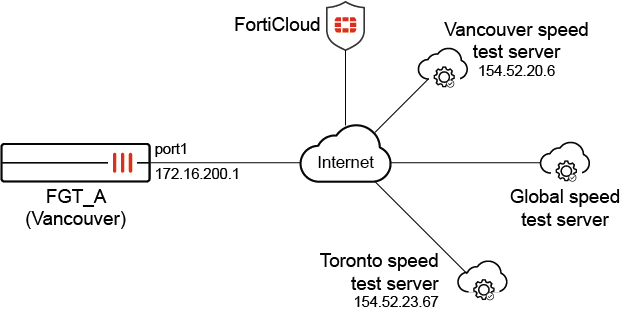
These examples assume the FortiGate is connected to the internet, has a valid SD-WAN Underlay and Application Monitoring license, and has downloaded the server list of speed tests from FortiCloud. See CLI speed test for more information.
-
Example 1: executing a speed test without specifying the interface, server, and mode
-
Example 2: executing a speed test with a lower latency threshold setting
-
Example 3: executing the speed test with diagnose netlink interface speed-test
-
Example 4: executing the speed test according to the schedule
-
Example 5: executing multiple speed tests with TCP and UDP connections
Example 1: executing a speed test without specifying the interface, server, and mode
Geographically, the Vancouver server (154.52.20.6) has the smallest latency (around 7 ms) to FGT_A, so it will be automatically selected for the speed test because the latency 7 ms to 154.52.20.6 is less than the default latency-threshold of 60 ms. Meanwhile, four TCP connections will be initiated to perform the test since the default multiple-tcp-stream is 4.
To execute the speed test without specifying parameters:
-
Configure the speed test settings:
config system speed-test-setting set latency-threshold 60 set multiple-tcp-stream 4 end -
Execute a ping to the closest test server, 154.52.20.6, to learn the latency for the connection:
# execute ping 154.52.20.6
PING 154.52.20.6 (154.52.20.6): 56 data bytes
64 bytes from 154.52.20.6: icmp_seq=0 ttl=50 time=7.5 ms
64 bytes from 154.52.20.6: icmp_seq=1 ttl=50 time=7.2 ms
64 bytes from 154.52.20.6: icmp_seq=2 ttl=50 time=7.1 ms
64 bytes from 154.52.20.6: icmp_seq=3 ttl=50 time=7.1 ms
64 bytes from 154.52.20.6: icmp_seq=4 ttl=50 time=9.1 ms

--- 154.52.20.6 ping statistics ---
5 packets transmitted, 5 packets received, 0% packet loss
round-trip min/avg/max = 7.1/7.6/9.1 ms
-
Run the speed test with no parameters:
# execute speed-test
Initializing speed test.
current vdom=root
Run in uploading mode.
Connecting to host 154.52.20.6, port 5203
[  7] local 172.16.200.1 port 21219 connected to 154.52.20.6 port 5203
[  9] local 172.16.200.1 port 21220 connected to 154.52.20.6 port 5203
[ 11] local 172.16.200.1 port 21221 connected to 154.52.20.6 port 5203
[ 13] local 172.16.200.1 port 21222 connected to 154.52.20.6 port 5203
[ ID] Interval           Transfer     Bitrate         Retr  Cwnd
[  7]   0.00-1.00   sec  22.4 MBytes   188 Mbits/sec   17    140 KBytes
[  9]   0.00-1.00   sec  9.71 MBytes  81.4 Mbits/sec    6   73.5 KBytes
[ 11]   0.00-1.00   sec  18.5 MBytes   155 Mbits/sec   12    117 KBytes
...
[SUM]   0.00-5.02   sec   321 MBytes   536 Mbits/sec                  receiver

speed test Done.
Run in reverse downloading mode.
Connecting to host 154.52.20.6, port 5203
Reverse mode, remote host 154.52.20.6 is sending
[  7] local 172.16.200.1 port 21228 connected to 154.52.20.6 port 5203
[ 11] local 172.16.200.1 port 21229 connected to 154.52.20.6 port 5203
...
[SUM]   0.00-5.00   sec   331 MBytes   555 Mbits/sec                  receiver

speed test Done.
The tested upload/download speed for port1 is 536 Mbps/555 Mbps when connecting to the closest server with four TCP connections.
Example 2: executing a speed test with a lower latency threshold setting
The latency-threshold setting is changed to 5 ms, which is less than the latency 7 ms to 154.52.20.6. When executing the speed test, one UDP connection will be initiated as expected.
To execute the speed test with a lower latency threshold setting:
-
Edit the speed test settings:
config system speed-test-setting set latency-threshold 5 end -
Run the speed test:
# execute speed-test
Speed test quota for 7/19 is 4
current vdom=root
Run in uploading mode.
Connecting to host 154.52.20.6, port 5202
[  7] local 172.16.200.1 port 5315 connected to 154.52.20.6 port 5202
[ ID] Interval           Transfer     Bitrate         Total Datagrams
[  7]   0.00-1.00   sec   111 MBytes   931 Mbits/sec  80337
[  7]   1.00-2.00   sec   111 MBytes   932 Mbits/sec  80476
[  7]   2.00-3.00   sec   111 MBytes   932 Mbits/sec  80451
[  7]   3.00-4.00   sec   111 MBytes   932 Mbits/sec  80460
[  7]   4.00-5.00   sec   111 MBytes   934 Mbits/sec  80640
- - - - - - - - - - - - - - - - - - - - - - - - -
[ ID] Interval           Transfer     Bitrate         Jitter    Lost/Total Datagrams
[  7]   0.00-5.00   sec   556 MBytes   932 Mbits/sec  0.000 ms  0/402364 (0%)  sender
[  7]   0.00-5.04   sec   550 MBytes   917 Mbits/sec  0.017 ms  3787/402339 (0.94%)  receiver

speed test Done.
Run in reverse downloading mode.
Connecting to host 154.52.20.6, port 5202
Reverse mode, remote host 154.52.20.6 is sending
[  7] local 172.16.200.1 port 19940 connected to 154.52.20.6 port 5202
[ ID] Interval           Transfer     Bitrate         Jitter    Lost/Total Datagrams
[  7]   0.00-1.00   sec  72.4 MBytes   607 Mbits/sec  0.013 ms  59813/112240 (53%)
[  7]   1.00-2.00   sec  70.9 MBytes   595 Mbits/sec  0.015 ms  58130/109486 (53%)
[  7]   2.00-3.00   sec  69.2 MBytes   581 Mbits/sec  0.012 ms  60192/110329 (55%)
[  7]   3.00-4.00   sec  71.3 MBytes   598 Mbits/sec  0.012 ms  58107/109710 (53%)
[  7]   4.00-5.00   sec  71.1 MBytes   596 Mbits/sec  0.014 ms  58786/110260 (53%)
- - - - - - - - - - - - - - - - - - - - - - - - -
[ ID] Interval           Transfer     Bitrate         Jitter    Lost/Total Datagrams
[  7]   0.00-5.04   sec   764 MBytes  1.27 Gbits/sec  0.000 ms  0/553023 (0%)  sender
[SUM]  0.0- 5.0 sec  2 datagrams received out-of-order
[  7]   0.00-5.00   sec   355 MBytes   595 Mbits/sec  0.014 ms  295028/552025 (53%)  receiver

speed test Done.
The tested upload/download speed for port1 is 917 Mbps/595 Mbps when connecting to the closest server with one UDP connection.
Example 3: executing the speed test with diagnose netlink interface speed-test
After running this diagnose command, the results are recorded in the interface settings for reference as measured-upstream-bandwidth and measured-downstream-bandwidth.
To execute the speed test:
# diagnose netlink interface speed-test port1 FTNT_CA_Vancouver TCP
speed-test test ID is b0066
...
To view the interface settings:
show system interface port1
config system interface
    edit "port1"
        ...
        set measured-upstream-bandwidth 735682
        set measured-downstream-bandwidth 746573
        set bandwidth-measure-time 1689811319
        ...
    next
end
Example 4: executing the speed test according to the schedule
In this example, a speed test is configure to occur within a three hour window, with a specific server group selected to prioritize that server (the default is FTNT_Auto). A retry mechanism is configured for failed speed tests, and minimum in and out bandwidths are specified for the speed test results. The results of the speed test are then applied to the in and out bandwidths in memory so that QoS can use them.
To execute the speed test according to the schedule:
-
Configure the recurring schedule:
config firewall schedule recurring
    edit "speedtest_recurring"
        set start 17:07
        set day sunday monday tuesday wednesday thursday friday saturday
        set label-day midday
    next
end
Midday is configured as the three hour window to run the speed test. The test will be initiated between 10 AM and 1 PM.
-
Configure the speed test schedule:
config system speed-test-schedule
    edit "port1"
        set server-name “FTNT_CA_Burnaby”
        set schedules "speedtest_recurring"
        set retries 2
        set retry-pause 60
        set update-interface-shaping enable
        set update-inbandwidth-minimum 80000
        set update-outbandwidth-minimum 400000
    next
end
The speed test server
FTNT_CA_Burnabyis configured as the first server that the speed test will be performed against.
Use the
diagnose test app forticron 9command to display the list of speed-test servers and the order in which they will be tested.The speed test will attempt 2 connections (
retries), then wait 60 seconds (retry-pause). This repeats 3 times for a total of 6 connection attempts. If all 6 connections fail, select the next server from the list and repeat the 6 attempts, then continue to the next server if that server fails all tests. -
Check the results of the speed test applied to the interface:
# show sys interface port1
config system interface
    edit "port1"
       ...
        set measured-upstream-bandwidth 425252
        set measured-downstream-bandwidth 97319
        set bandwidth-measure-time 1689811759
        ...
    next
end
The interface reflects the results of the speed test. The actual test results are applied because they are more than the minimum considered downloading/uploading bandwidth.
-
Verify that the bandwidth is applied in memory so that QoS can utilize the values:
# diagnose netlink interface list port1
...
inbandwidth=97319(kbps)         total_bytes=587645K     drop_bytes=522341K
outbandwidth=425252(kbps)
        priority=0      allocated-bandwidth=13(kbps)    total_bytes=517765K     drop_bytes=235786K
        priority=1      allocated-bandwidth=0(kbps)     total_bytes=0   drop_bytes=0
        priority=2      allocated-bandwidth=0(kbps)     total_bytes=0   drop_bytes=0
        priority=3      allocated-bandwidth=0(kbps)     total_bytes=1330        drop_bytes=0
        priority=4      allocated-bandwidth=425238(kbps)        total_bytes=0   drop_bytes=0
...
Example 5: executing multiple speed tests with TCP and UDP connections
A speed test is executed to the closest server using 64 TCP connections and another speed test is executed using one UDP connection. The results can be checked with a third-party platform (such as Ookla), which returns comparable results.
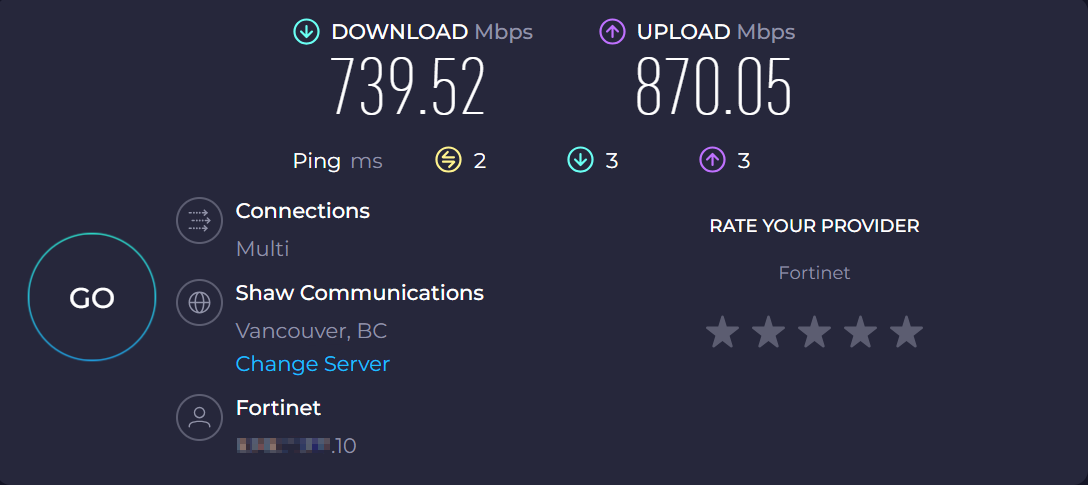
To execute multiple speed tests with TCP and UDP connections:
-
Edit the speed test settings:
config system speed-test-setting set multiple-tcp-stream 64 end -
Run the TCP speed test:
# execute speed-test port1 FTNT_CA_Vancouver TCP
...
Run in uploading mode.
...
[SUM]   0.00-5.00   sec   559 MBytes   938 Mbits/sec  2165             sender
[SUM]   0.00-5.01   sec   558 MBytes   933 Mbits/sec                  receiver

speed test Done.
Run in reverse downloading mode.
...
[SUM]   0.00-5.01   sec   505 MBytes   846 Mbits/sec  9329             sender
[SUM]   0.00-5.00   sec   491 MBytes   823 Mbits/sec                  receiver
-
Run the UDP speed test:
# execute speed-test port1 FTNT_CA_Vancouver UDP
...
Run in uploading mode.
...
[  7]   0.00-5.00   sec   556 MBytes   933 Mbits/sec  0.000 ms  0/402727 (0%)  sender
[  7]   0.00-5.04   sec   556 MBytes   925 Mbits/sec  0.020 ms  393/402717 (0.098%)  receiver
...
Run in reverse downloading mode.
...
[  7]   0.00-5.04   sec   869 MBytes  1.45 Gbits/sec  0.000 ms  0/629383 (0%)  sender
[SUM]  0.0- 5.0 sec  2 datagrams received out-of-order
[  7]   0.00-5.00   sec   489 MBytes   821 Mbits/sec  0.005 ms  274103/628393 (44%)  receiver

speed test Done.
Example 6: executing a manual speed test for debugging New
This example provides the steps to enable debug output and manually initiate a speed-test. The debug process is reset to avoid debug output from other applications.
To execute a manual speed test with debugging:
-
Enable debug for speed test:
# diagnose debug reset
# diagnose debug application speedtest -1
# diagnose debug enable
-
Execute a manual speed test and review the debug output:
# diagnose netlink interface speed-test port1 FTNT_US_Miami UDP
speed-test test ID is 630000
[speedtest(8798)] [ 26]   1.00-2.00   sec  96.2 MBytes   807 Mbits/sec  69680
[speedtest(8798)] [ 26]   2.00-3.00   sec  96.5 MBytes   809 Mbits/sec  69848
[speedtest(8798)] [ 26]   3.00-4.00   sec  96.2 MBytes   807 Mbits/sec  69670
[speedtest(8798)] [ 26]   4.00-5.00   sec  96.4 MBytes   809 Mbits/sec  69830
[speedtest(8798)] [ ID] Interval           Transfer     Bitrate         Jitter    Lost/Total Datagrams
[speedtest(8798)] [ 26]   0.00-5.00   sec   480 MBytes   804 Mbits/sec  0.000 ms  0/347479 (0%)  sender
[speedtest(8798)] [ 26]   0.00-5.13   sec   260 MBytes   425 Mbits/sec  0.015 ms  159066/347240 (46%)  receiver
[speedtest(8798)] client(sender): bytes_recv=272475952, bytes_sent=503149592, sender_time=5.004, recver_time=5.126
[speedtest(8798)] client(sender): up_speed:  425 Mbits/sec
[speedtest(8798)]
[speedtest(8798)] speed test Done.
[speedtest(8798)] Run in reverse downloading mode.
[speedtest(8798)] Connecting to host 208.97.222.31, port 5200
[speedtest(8798)] Reverse mode, remote host 208.97.222.31 is sending
[speedtest(8798)] [ 26] local 172.16.206.1 port 17904 connected to 208.97.222.31 port 5200
[speedtest(8798)] [ ID] Interval           Transfer     Bitrate         Jitter    Lost/Total Datagrams
[speedtest(8798)] [ 26]   0.00-1.00   sec  11.7 MBytes  97.4 Mbits/sec  0.071 ms  56797/65238 (87%)
[speedtest(8798)] [ 26]   1.00-2.00   sec  11.4 MBytes  95.8 Mbits/sec  0.057 ms  100853/109121 (92%)
[speedtest(8798)] [ 26]   2.00-3.00   sec  11.6 MBytes  97.7 Mbits/sec  0.077 ms  104724/113158 (93%)
[speedtest(8798)] [ 26]   3.00-4.00   sec  11.7 MBytes  97.8 Mbits/sec  0.064 ms  106371/114809 (93%)
[speedtest(8798)] [ 26]   4.00-5.00   sec  11.7 MBytes  98.0 Mbits/sec  0.013 ms  108068/116528 (93%)
[speedtest(8798)] [ ID] Interval           Transfer     Bitrate         Jitter    Lost/Total Datagrams
[speedtest(8798)] [ 26]   0.00-5.12   sec   731 MBytes  1.20 Gbits/sec  0.000 ms  0/529586 (0%)  sender
[speedtest(8798)] [SUM]  0.0- 5.1 sec  1 datagrams received out-of-order
[speedtest(8798)] [ 26]   0.00-5.00   sec  58.1 MBytes  97.3 Mbits/sec  0.013 ms  476813/518854 (92%)  receiver
[speedtest(8798)] client(recver): bytes_recv=60875368, bytes_sent=766840528, sender_time=5.121, recver_time=5.004
[speedtest(8798)] client(recver): down_speed: 97.3 Mbits/sec
[speedtest(8798)]
[speedtest(8798)] speed test Done.
fcron_speedtest_notify_func()-1592: Speed test pid=8798 done

fcron_speedtest_on_test_finish()-1519: Test 630000 for 'port1' succeed with up=425252, down=97319
-
Disable and reset the debug once finished:
# diagnose debug reset
# diagnose debug disable