
Fortinet white logo
Fortinet white logo

Administration Guide

ISDB record for SOCaaS

ISDB record for SOCaaS

The Fortinet-FortiGuard.SOCaaS Internet service database (ISDB) entry for Fortinet SOCaaS enables policies to be configured for devices to forward data to SOCaaS collectors without relying on DNS. Eliminating the dependency on DNS reduces the risk of DNS mapping failures and helps ensure a more reliable and seamless data forwarding processing.

To check that the new entry is added to the ISDB:
  1. Update the object versions:

    # diagnose autoupdate versions
    
    Internet-service Full Database
    ---------
    Version: 7.03917 signed
    Contract Expiry Date: n/a
    Last Updated using manual update on Wed Oct 30 10:33:22 2024
    Last Update Attempt: Wed Oct 30 10:33:22 2024
    Result: Updates Installed
  2. Check the Internet service database for the entry:

    # diagnose internet-service id 1245514
    
    Internet Service: 1245514(Fortinet-FortiGuard.SOCaaS)
    Version: 00007.03917
    Timestamp: 202410291605
    Number of Entries: 14
    66.35.19.120-66.35.19.120 country(840) region(283) city(23352) blocklist(0x0) reputation(5), popularity(5) domain(5225) botnet(0) proto(6) port(514)
    149.5.234.172-149.5.234.172 country(250) region(1509) city(24955) blocklist(0x0) reputation(5), popularity(5) domain(0) botnet(0) proto(6) port(514)
    154.52.2.164-154.52.2.164 country(276) region(697) city(7844) blocklist(0x0) reputation(5), popularity(5) domain(0) botnet(0) proto(6) port(514)
    154.52.2.169-154.52.2.169 country(276) region(697) city(7844) blocklist(0x0) reputation(5), popularity(5) domain(0) botnet(0) proto(6) port(514)
    154.52.2.182-154.52.2.182 country(276) region(697) city(7844) blocklist(0x0) reputation(5), popularity(5) domain(0) botnet(0) proto(6) port(514)
    154.52.4.160-154.52.4.160 country(840) region(283) city(21092) blocklist(0x0) reputation(5), popularity(5) domain(0) botnet(0) proto(6) port(514)
    154.52.4.192-154.52.4.192 country(840) region(283) city(21092) blocklist(0x0) reputation(5), popularity(5) domain(0) botnet(0) proto(6) port(514)
    154.52.4.195-154.52.4.195 country(840) region(283) city(21092) blocklist(0x0) reputation(5), popularity(5) domain(0) botnet(0) proto(6) port(514)
    154.52.4.197-154.52.4.197 country(840) region(283) city(21092) blocklist(0x0) reputation(5), popularity(5) domain(0) botnet(0) proto(6) port(514)
    154.52.4.204-154.52.4.204 country(840) region(283) city(21092) blocklist(0x0) reputation(5), popularity(5) domain(0) botnet(0) proto(6) port(514)
    154.52.4.224-154.52.4.224 country(840) region(283) city(21092) blocklist(0x0) reputation(5), popularity(5) domain(5225) botnet(0) proto(6) port(514)
    154.52.6.181-154.52.6.181 country(840) region(2039) city(1106) blocklist(0x0) reputation(5), popularity(5) domain(0) botnet(0) proto(6) port(514)
    154.52.22.161-154.52.22.161 country(36) region(1287) city(23487) blocklist(0x0) reputation(5), popularity(5) domain(0) botnet(0) proto(6) port(514)
    154.52.29.66-154.52.29.66 country(840) region(482) city(25915) blocklist(0x0) reputation(5), popularity(5) domain(0) botnet(0) proto(6) port(514)
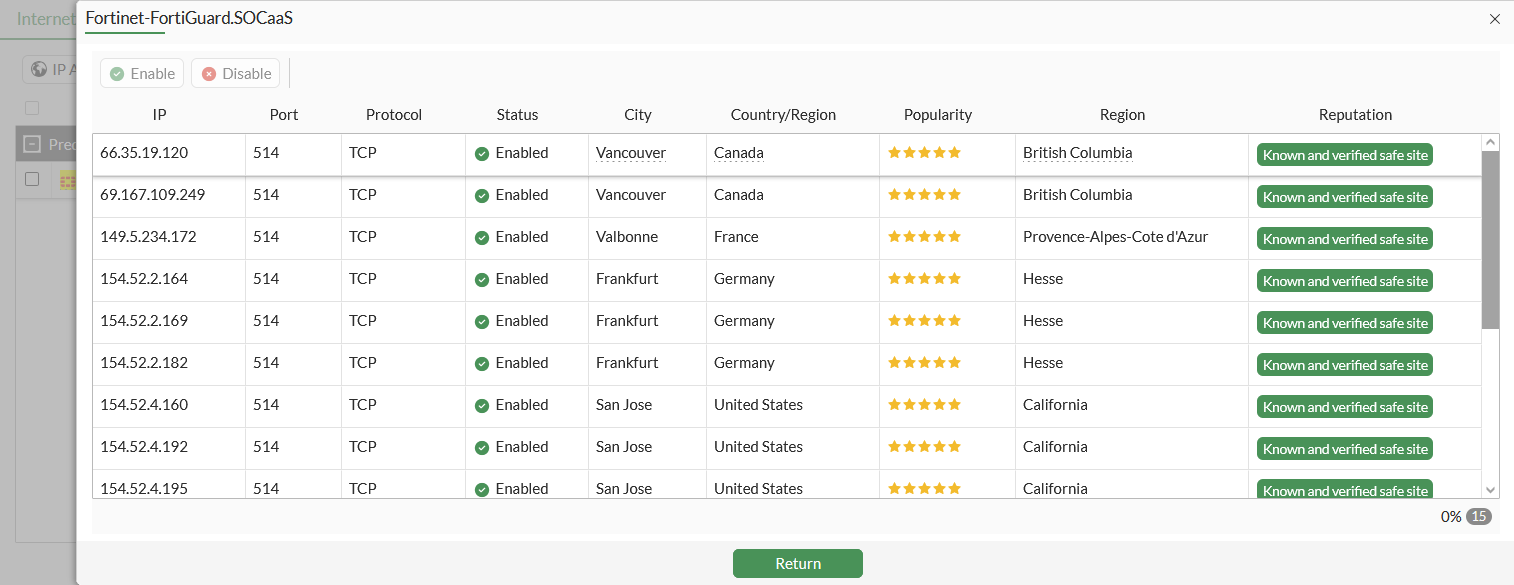
  3. Check the entry in the GUI:

    1. Go to Policy & Objects > Internet Service Database and select the Internet Service tab.

    2. Search for Fortinet-FortiGuard.SOCaaS.

    3. Hover over the result, and click View/Edit Entries.
To use the new entry in a firewall policy:
  1. Configure a firewall policy:

    config firewall policy
        edit 99
            set name "ISDB_Policy"
            set srcintf "wan2"
            set dstintf "wan1"
            set action accept
            set srcaddr "all"
            set internet-service enable
            set internet-service-name "Fortinet-FortiGuard.SOCaaS"
            set schedule "always"
            set logtraffic all
            set auto-asic-offload disable
            set nat enable
        next
    end
  2. Generate and then check a log generated by traffic hitting the policy:

    1: date=2024-10-29 time=17:52:49 eventtime=1730249569310005321 tz="-0700" logid="0000000013" type="traffic" subtype="forward" level="notice" vd="root" srcip=10.1.100.42 srcport=38380 srcintf="wan2" srcintfrole="lan" dstip=66.35.19.120 dstport=514 dstintf="wan1" dstintfrole="undefined" srcuuid="70a3388c-dfec-51ea-f8dd-88267a721f36" srccountry="Reserved" dstinetsvc="Fortinet-FortiGuard.SOCaaS" dstcountry="United States" dstregion="California" dstcity="Sunnyvale" dstreputation=5 sessionid=474401 proto=6 action="close" policyid=99 policytype="policy" poluuid="ac8e35a2-dffd-51ea-9df6-e3860c663d3b" policyname="ISDB_Policy" service="Fortinet-FortiGuard.SOCaaS" trandisp="snat" transip=172.16.200.10 transport=38380 appcat="unscanned" duration=2 sentbyte=300 rcvdbyte=172 sentpkt=5 rcvdpkt=4 mastersrcmac="00:0c:29:6e:3a:47" srcmac="00:0c:29:6e:3a:47" srcserver=0

ISDB record for SOCaaS

ISDB record for SOCaaS

The Fortinet-FortiGuard.SOCaaS Internet service database (ISDB) entry for Fortinet SOCaaS enables policies to be configured for devices to forward data to SOCaaS collectors without relying on DNS. Eliminating the dependency on DNS reduces the risk of DNS mapping failures and helps ensure a more reliable and seamless data forwarding processing.

To check that the new entry is added to the ISDB:
  1. Update the object versions:

    # diagnose autoupdate versions
    
    Internet-service Full Database
    ---------
    Version: 7.03917 signed
    Contract Expiry Date: n/a
    Last Updated using manual update on Wed Oct 30 10:33:22 2024
    Last Update Attempt: Wed Oct 30 10:33:22 2024
    Result: Updates Installed
  2. Check the Internet service database for the entry:

    # diagnose internet-service id 1245514
    
    Internet Service: 1245514(Fortinet-FortiGuard.SOCaaS)
    Version: 00007.03917
    Timestamp: 202410291605
    Number of Entries: 14
    66.35.19.120-66.35.19.120 country(840) region(283) city(23352) blocklist(0x0) reputation(5), popularity(5) domain(5225) botnet(0) proto(6) port(514)
    149.5.234.172-149.5.234.172 country(250) region(1509) city(24955) blocklist(0x0) reputation(5), popularity(5) domain(0) botnet(0) proto(6) port(514)
    154.52.2.164-154.52.2.164 country(276) region(697) city(7844) blocklist(0x0) reputation(5), popularity(5) domain(0) botnet(0) proto(6) port(514)
    154.52.2.169-154.52.2.169 country(276) region(697) city(7844) blocklist(0x0) reputation(5), popularity(5) domain(0) botnet(0) proto(6) port(514)
    154.52.2.182-154.52.2.182 country(276) region(697) city(7844) blocklist(0x0) reputation(5), popularity(5) domain(0) botnet(0) proto(6) port(514)
    154.52.4.160-154.52.4.160 country(840) region(283) city(21092) blocklist(0x0) reputation(5), popularity(5) domain(0) botnet(0) proto(6) port(514)
    154.52.4.192-154.52.4.192 country(840) region(283) city(21092) blocklist(0x0) reputation(5), popularity(5) domain(0) botnet(0) proto(6) port(514)
    154.52.4.195-154.52.4.195 country(840) region(283) city(21092) blocklist(0x0) reputation(5), popularity(5) domain(0) botnet(0) proto(6) port(514)
    154.52.4.197-154.52.4.197 country(840) region(283) city(21092) blocklist(0x0) reputation(5), popularity(5) domain(0) botnet(0) proto(6) port(514)
    154.52.4.204-154.52.4.204 country(840) region(283) city(21092) blocklist(0x0) reputation(5), popularity(5) domain(0) botnet(0) proto(6) port(514)
    154.52.4.224-154.52.4.224 country(840) region(283) city(21092) blocklist(0x0) reputation(5), popularity(5) domain(5225) botnet(0) proto(6) port(514)
    154.52.6.181-154.52.6.181 country(840) region(2039) city(1106) blocklist(0x0) reputation(5), popularity(5) domain(0) botnet(0) proto(6) port(514)
    154.52.22.161-154.52.22.161 country(36) region(1287) city(23487) blocklist(0x0) reputation(5), popularity(5) domain(0) botnet(0) proto(6) port(514)
    154.52.29.66-154.52.29.66 country(840) region(482) city(25915) blocklist(0x0) reputation(5), popularity(5) domain(0) botnet(0) proto(6) port(514)
  3. Check the entry in the GUI:

    1. Go to Policy & Objects > Internet Service Database and select the Internet Service tab.

    2. Search for Fortinet-FortiGuard.SOCaaS.

    3. Hover over the result, and click View/Edit Entries.

To use the new entry in a firewall policy:
  1. Configure a firewall policy:

    config firewall policy
        edit 99
            set name "ISDB_Policy"
            set srcintf "wan2"
            set dstintf "wan1"
            set action accept
            set srcaddr "all"
            set internet-service enable
            set internet-service-name "Fortinet-FortiGuard.SOCaaS"
            set schedule "always"
            set logtraffic all
            set auto-asic-offload disable
            set nat enable
        next
    end
  2. Generate and then check a log generated by traffic hitting the policy:

    1: date=2024-10-29 time=17:52:49 eventtime=1730249569310005321 tz="-0700" logid="0000000013" type="traffic" subtype="forward" level="notice" vd="root" srcip=10.1.100.42 srcport=38380 srcintf="wan2" srcintfrole="lan" dstip=66.35.19.120 dstport=514 dstintf="wan1" dstintfrole="undefined" srcuuid="70a3388c-dfec-51ea-f8dd-88267a721f36" srccountry="Reserved" dstinetsvc="Fortinet-FortiGuard.SOCaaS" dstcountry="United States" dstregion="California" dstcity="Sunnyvale" dstreputation=5 sessionid=474401 proto=6 action="close" policyid=99 policytype="policy" poluuid="ac8e35a2-dffd-51ea-9df6-e3860c663d3b" policyname="ISDB_Policy" service="Fortinet-FortiGuard.SOCaaS" trandisp="snat" transip=172.16.200.10 transport=38380 appcat="unscanned" duration=2 sentbyte=300 rcvdbyte=172 sentpkt=5 rcvdpkt=4 mastersrcmac="00:0c:29:6e:3a:47" srcmac="00:0c:29:6e:3a:47" srcserver=0