Fortinet white logo
Fortinet white logo

Administration Guide

ZTNA SaaS application access control with Inline CASB

ZTNA SaaS application access control with Inline CASB

The FortiGate ZTNA application gateway can be configured to act as an inline cloud access security broker (CASB) by providing access control to software-as-a-service (SaaS) traffic using ZTNA access control rules and an inline CASB profile. A CASB sits between users and their cloud service to enforce security policies as they access cloud-based resources.

The following components are required to use the ZTNA inline CASB feature:

  • The FortiGuard Inline CASB Database (ICDB) used by the FortiGate and FortiClient EMS.

    This database includes all FQDNs related to specific SaaS applications and corresponding FortiGuard packages for FortiOS and FortiClient.

  • A FortiGate ZTNA TCP forwarding access proxy configuration that specifies SaaS application destinations using application names defined in the ICDB.

  • ZTNA connection rules for SaaS traffic that are provisioned using FortiClient EMS (version 7.2.2 and later).

  • FortiClient (version 7.2.0 and later) installed on the user's machine to receive the ZTNA connection rules for SaaS traffic from FortiClient EMS.

Syntax

Users can configure the ZTNA application gateway using the SaaS proxy access type and conveniently specify SaaS application destinations by application name or by application group name without needing to manually search for and enter FQDNs specific to each SaaS application. This can be configured in the GUI or in the CLI.

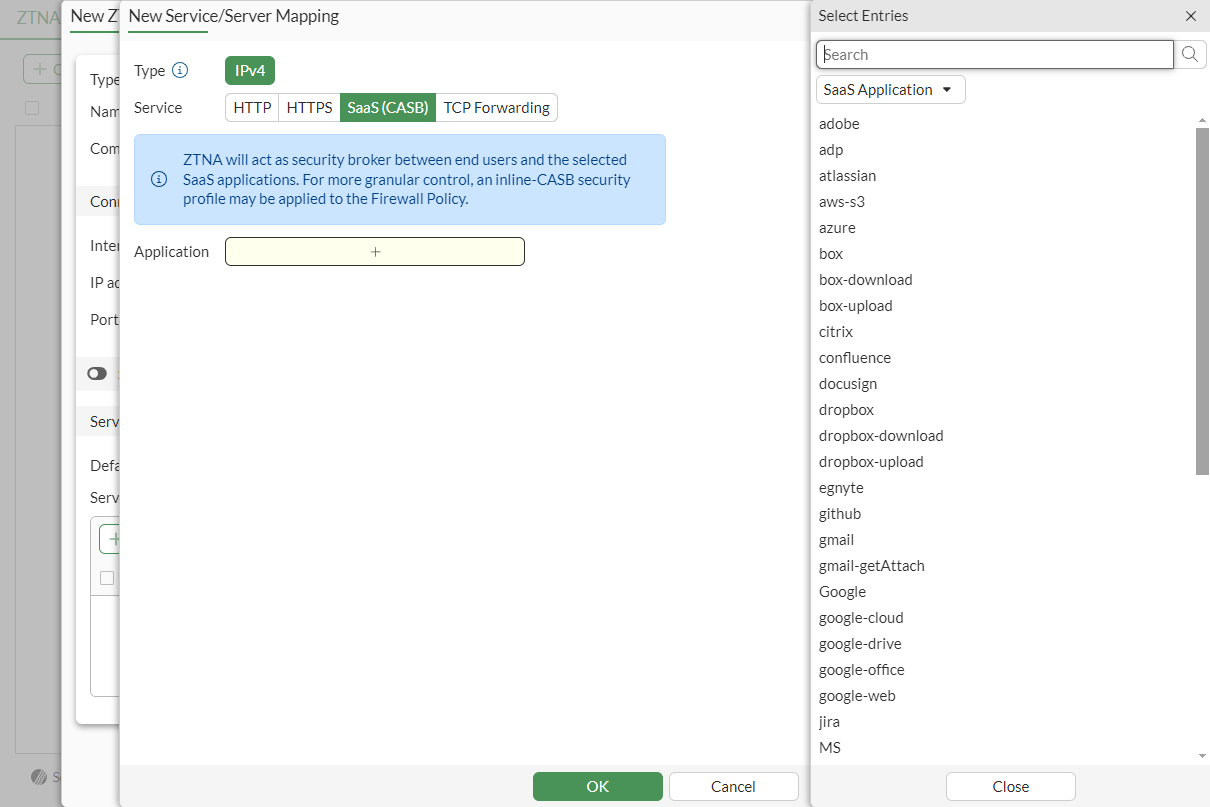
To configure a ZTNA service/server mapping to use SaaS from the GUI:
To configure a ZTNA application gateway to use SaaS from the CLI:
config firewall access-proxy
    edit <name>
        config api-gateway
            edit <ID>
                set url-map "/saas"
                set service saas
                set application <app 1> [app 2] ...
            next
        end
    next
end

Example

In this example, the FortiGate is configured as a ZTNA application gateway with a VIP of 10.0.3.15 and uses the SaaS access proxy type. SaaS application Gmail is allowed, but the action of uploading an attachment on Gmail is blocked.
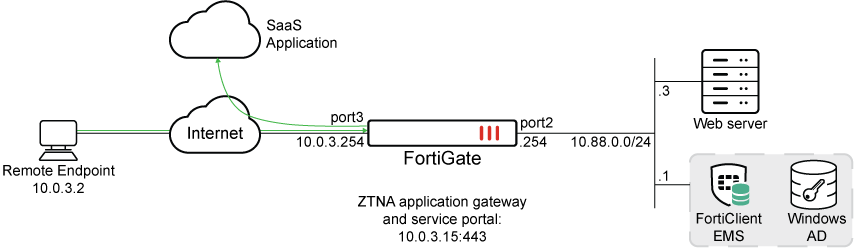
To configure the ZTNA server object from in the GUI:
  1. Go to Policy & Objects > ZTNA.

  2. Under ZTNA Server, click Create new.

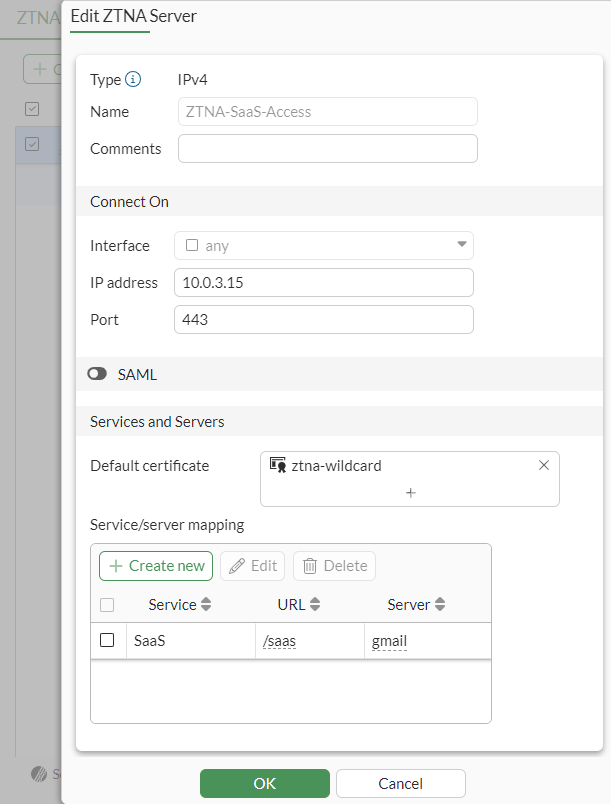
  3. Input the following:

    Name ZTNA-SaaS-Access
    Interface Any
    IP Address 10.0.3.15
    Port 443
    Default Certificate <choose a default certificate>
  4. Under Service/server mapping, click Create new.

    1. Change the Service to SaaS (CASB).

    2. Pick your Application(s). In this case, we will use the gmail application.
    3. Click OK.

  5. Click OK.

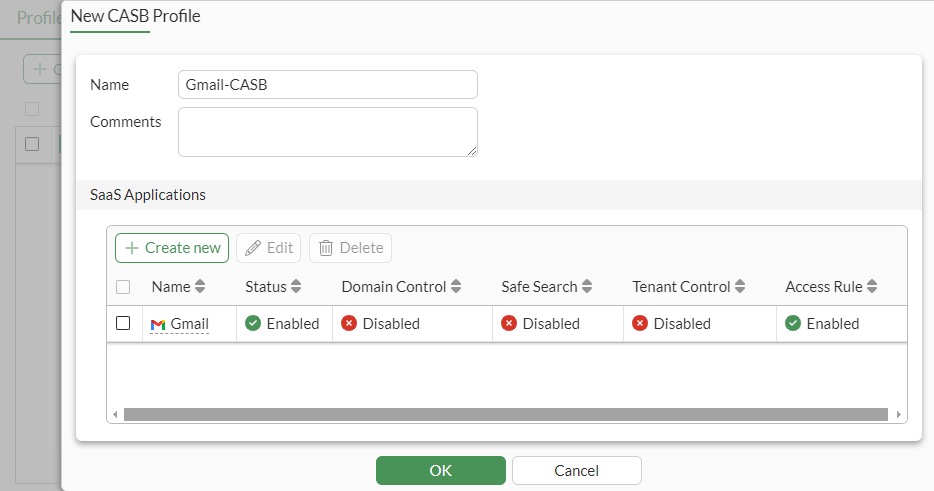
To configure the Inline CASB profile from the GUI:
  1. Go to System > Feature Visibility.

  2. Under Security Features, enable Inline-CASB.

  3. Go to Security Profiles > Inline-CASB and click Create new.

  4. Name the new profile Gmail-CASB.

  5. Under SaaS Applications, click Create new.

  6. In Select application – select Gmail.

  7. Click Next

  8. In Choose CASB control – block uploading file by:

    1. Under Privilege Control, select upload-file, and Set Action to Block.

    2. Click OK.

  9. Click OK.

To configure the ZTNA policy from the GUI:
  1. Go to Policy & Objects > Firewall Policy.

  2. Click Create new.

  3. Enter the following:

    Name ZTNA-SaaS-Access
    Type ZTNA
    Incoming Interface WAN (port3)
    Source All
    User/group <include, if needed>
    Security posture tag <include, if needed>
    ZTNA server ZTNA-SaaS-Access
    Inspection mode Proxy-based

    Inline-CASB

    Enabled (Select Gmail-CASB)

    SSL inspection

    custom-deep-inspection

    Log allowed traffic

    Enabled (All sessions)

  4. Click OK.

  5. Click OK to confirm the use of full SSL Inspection. Ensure that your clients trust the CA that is used in the SSL Inspection profile.

Optionally, if user authentication is configured, the ZTNA rule (set users or set groups), configure the authentication scheme and rule (see Applying user authentication in the ZTNA Deployment guide).

Before connecting, the users must have corresponding ZTNA Destinations in FortiClient. In FortiClient EMS, configure SaaS applications in Endpoint Profiles > ZTNA Destinations and push application destinations to FortiClient.

To configure the FortiClient EMS:
  1. On FortiClient EMS, go to Endpoint Profiles > ZTNA Destinations.

  2. Edit the Default profile.

  3. Besides Name, click Advanced.

  4. Click the eye icon beside ZTNA Destination Profile to enable this profile to be viewed on the FortiClient.

  5. Under Destinations, click Add . The Add New Gateway dialog is displayed.

  6. In Proxy Gateway, enter the following:

    Enter the gateway proxy address 10.0.3.15:443
    Select browser user-agent for SAML login Use FortiClient embedded browser
    Alias gmail
  7. Click Next.

  8. In Private Applications, click Next.

  9. In SaaS Applications, expand Google and then select gmail.
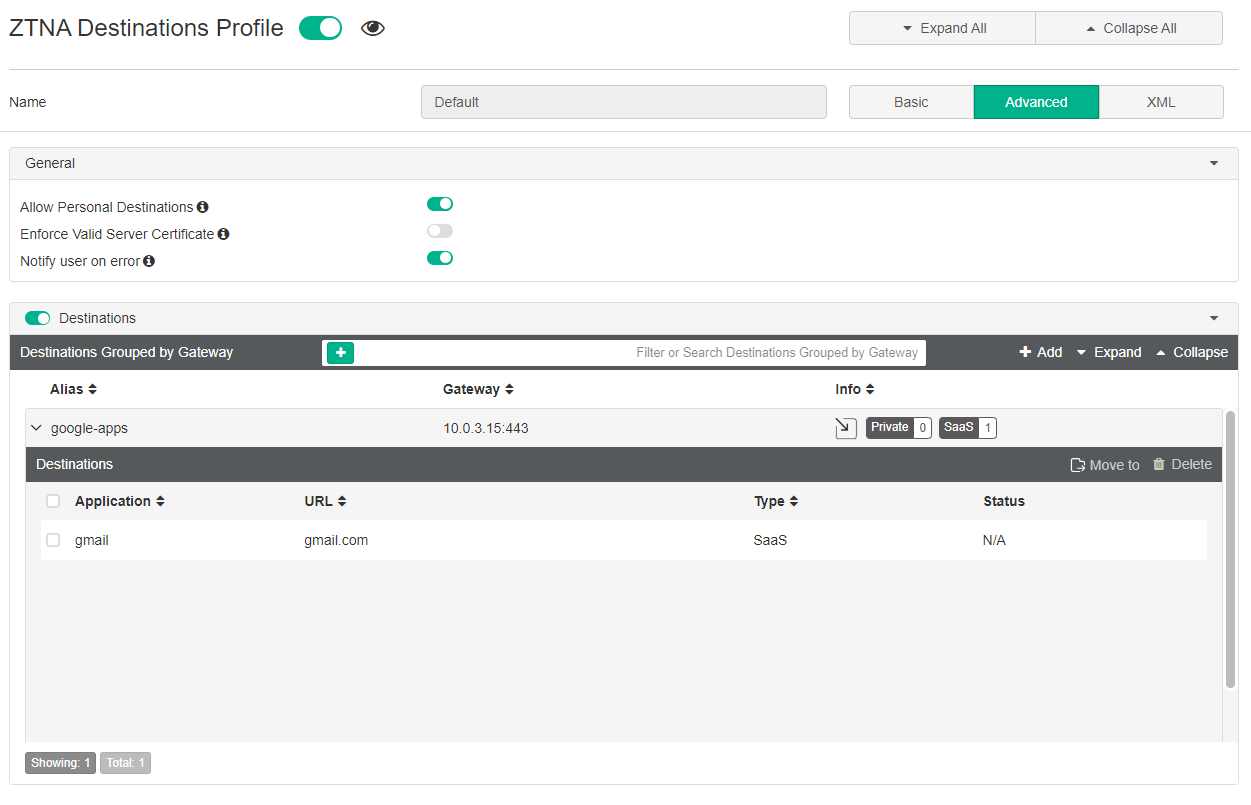
  10. Click Finish.

  11. Click Save.

    The FortiClient endpoints will synchronize the destination from EMS.

Testing and results

Once connected, the FortiClient retrieves the list of hosted ZTNA services, including the SaaS service, and adds corresponding ZTNA connection rules for the configured SaaS applications.

Connect to Gmail from a browser. The traffic is allowed.

After closing the session, the corresponding traffic logs can be viewed from the FortiGate GUI or from the CLI.

# execute log filter field subtype ztna
# exec log display
61 logs found.
10 logs returned.
 
1: date=2024-07-17 time=16:10:04 eventtime=1721257803289978959 tz="-0700" logid="0005000024" type="traffic" subtype="ztna" level="notice" vd="root" srcip=10.0.3.2 srcport=8726 srcintf="port3" srcintfrole="wan" dstcountry="United States" srccountry="Reserved" dstip=172.217.14.238 dstport=443 dstintf="port3" dstintfrole="wan" sessionid=6589 srcuuid="b458a65a-f759-51ea-d7df-ef2e750026d1" service="HTTPS" proxyapptype="http" proto=6 action="accept" policyid=17 policytype="policy" poluuid="a9c0d3a6-4490-51ef-e074-b05fba951bc7" policyname="ZTNA-SaaS-Access" duration=0 gatewayid=1 vip="ZTNA-SaaS-Access" accessproxy="ZTNA-SaaS-Access" clientdevicemanageable="manageable" saasname="gmail" clientcert="yes" wanin=0 rcvdbyte=0 wanout=556 lanin=4261 sentbyte=4261 lanout=3125 appcat="unscanned"

Connect to Gmail from a browser again. This time, compose an email and attach a file. This action will be blocked.
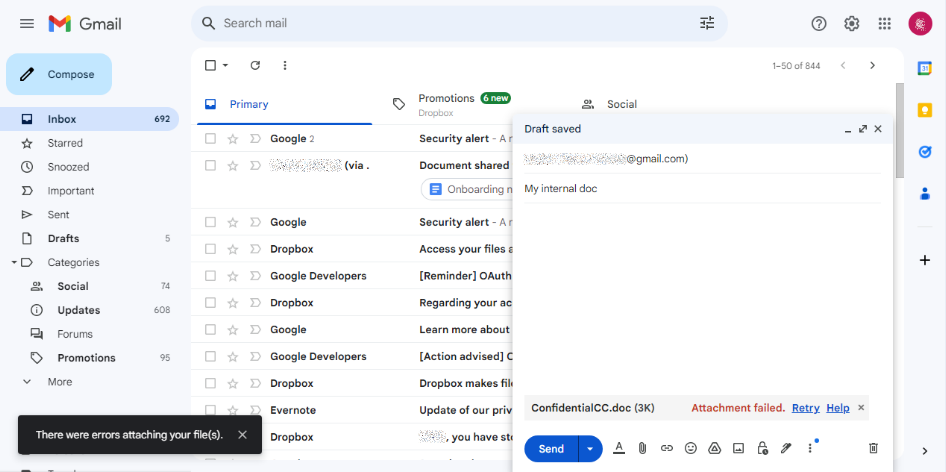
After closing the session, the corresponding UTM > CASB logs can be viewed from the FortiGate GUI or from the CLI.

# exec log filter reset
# exec log filter category utm-casb
# exec log display
1 logs found.
1 logs returned.
 
1: date=2024-07-17 time=16:15:24 eventtime=1721258124179495732 tz="-0700" logid="2500010000" type="utm" subtype="casb" eventtype="casb" level="warning" vd="root" policyid=17 poluuid="a9c0d3a6-4490-51ef-e074-b05fba951bc7" policytype="policy" sessionid=6634 srcip=10.0.3.2 dstip=142.250.217.69 srcport=8770 dstport=443 srcintf="port3" srcintfrole="wan" srcuuid="b458a65a-f759-51ea-d7df-ef2e750026d1" dstintf="port3" dstintfrole="wan" proto=6 url="https://mail.google.com/_/upload?authuser=0&dcp=asu-n" action="block" profile="Gmail-CASB" saasapp="google-gmail" useractivity="google-gmail-upload-file" activitycategory="activity-control" msg="CASB access was blocked because it contained banned activity."

ZTNA SaaS application access control with Inline CASB

ZTNA SaaS application access control with Inline CASB

The FortiGate ZTNA application gateway can be configured to act as an inline cloud access security broker (CASB) by providing access control to software-as-a-service (SaaS) traffic using ZTNA access control rules and an inline CASB profile. A CASB sits between users and their cloud service to enforce security policies as they access cloud-based resources.

The following components are required to use the ZTNA inline CASB feature:

  • The FortiGuard Inline CASB Database (ICDB) used by the FortiGate and FortiClient EMS.

    This database includes all FQDNs related to specific SaaS applications and corresponding FortiGuard packages for FortiOS and FortiClient.

  • A FortiGate ZTNA TCP forwarding access proxy configuration that specifies SaaS application destinations using application names defined in the ICDB.

  • ZTNA connection rules for SaaS traffic that are provisioned using FortiClient EMS (version 7.2.2 and later).

  • FortiClient (version 7.2.0 and later) installed on the user's machine to receive the ZTNA connection rules for SaaS traffic from FortiClient EMS.

Syntax

Users can configure the ZTNA application gateway using the SaaS proxy access type and conveniently specify SaaS application destinations by application name or by application group name without needing to manually search for and enter FQDNs specific to each SaaS application. This can be configured in the GUI or in the CLI.

To configure a ZTNA service/server mapping to use SaaS from the GUI:
To configure a ZTNA application gateway to use SaaS from the CLI:
config firewall access-proxy
    edit <name>
        config api-gateway
            edit <ID>
                set url-map "/saas"
                set service saas
                set application <app 1> [app 2] ...
            next
        end
    next
end

Example

In this example, the FortiGate is configured as a ZTNA application gateway with a VIP of 10.0.3.15 and uses the SaaS access proxy type. SaaS application Gmail is allowed, but the action of uploading an attachment on Gmail is blocked.

To configure the ZTNA server object from in the GUI:
  1. Go to Policy & Objects > ZTNA.

  2. Under ZTNA Server, click Create new.

  3. Input the following:

    Name ZTNA-SaaS-Access
    Interface Any
    IP Address 10.0.3.15
    Port 443
    Default Certificate <choose a default certificate>
  4. Under Service/server mapping, click Create new.

    1. Change the Service to SaaS (CASB).

    2. Pick your Application(s). In this case, we will use the gmail application.

    3. Click OK.

  5. Click OK.

To configure the Inline CASB profile from the GUI:
  1. Go to System > Feature Visibility.

  2. Under Security Features, enable Inline-CASB.

  3. Go to Security Profiles > Inline-CASB and click Create new.

  4. Name the new profile Gmail-CASB.

  5. Under SaaS Applications, click Create new.

  6. In Select application – select Gmail.

  7. Click Next

  8. In Choose CASB control – block uploading file by:

    1. Under Privilege Control, select upload-file, and Set Action to Block.

    2. Click OK.

  9. Click OK.

To configure the ZTNA policy from the GUI:
  1. Go to Policy & Objects > Firewall Policy.

  2. Click Create new.

  3. Enter the following:

    Name ZTNA-SaaS-Access
    Type ZTNA
    Incoming Interface WAN (port3)
    Source All
    User/group <include, if needed>
    Security posture tag <include, if needed>
    ZTNA server ZTNA-SaaS-Access
    Inspection mode Proxy-based

    Inline-CASB

    Enabled (Select Gmail-CASB)

    SSL inspection

    custom-deep-inspection

    Log allowed traffic

    Enabled (All sessions)

  4. Click OK.

  5. Click OK to confirm the use of full SSL Inspection. Ensure that your clients trust the CA that is used in the SSL Inspection profile.

Optionally, if user authentication is configured, the ZTNA rule (set users or set groups), configure the authentication scheme and rule (see Applying user authentication in the ZTNA Deployment guide).

Before connecting, the users must have corresponding ZTNA Destinations in FortiClient. In FortiClient EMS, configure SaaS applications in Endpoint Profiles > ZTNA Destinations and push application destinations to FortiClient.

To configure the FortiClient EMS:
  1. On FortiClient EMS, go to Endpoint Profiles > ZTNA Destinations.

  2. Edit the Default profile.

  3. Besides Name, click Advanced.

  4. Click the eye icon beside ZTNA Destination Profile to enable this profile to be viewed on the FortiClient.

  5. Under Destinations, click Add . The Add New Gateway dialog is displayed.

  6. In Proxy Gateway, enter the following:

    Enter the gateway proxy address 10.0.3.15:443
    Select browser user-agent for SAML login Use FortiClient embedded browser
    Alias gmail
  7. Click Next.

  8. In Private Applications, click Next.

  9. In SaaS Applications, expand Google and then select gmail.

  10. Click Finish.

  11. Click Save.

    The FortiClient endpoints will synchronize the destination from EMS.

Testing and results

Once connected, the FortiClient retrieves the list of hosted ZTNA services, including the SaaS service, and adds corresponding ZTNA connection rules for the configured SaaS applications.

Connect to Gmail from a browser. The traffic is allowed.

After closing the session, the corresponding traffic logs can be viewed from the FortiGate GUI or from the CLI.

# execute log filter field subtype ztna
# exec log display
61 logs found.
10 logs returned.
 
1: date=2024-07-17 time=16:10:04 eventtime=1721257803289978959 tz="-0700" logid="0005000024" type="traffic" subtype="ztna" level="notice" vd="root" srcip=10.0.3.2 srcport=8726 srcintf="port3" srcintfrole="wan" dstcountry="United States" srccountry="Reserved" dstip=172.217.14.238 dstport=443 dstintf="port3" dstintfrole="wan" sessionid=6589 srcuuid="b458a65a-f759-51ea-d7df-ef2e750026d1" service="HTTPS" proxyapptype="http" proto=6 action="accept" policyid=17 policytype="policy" poluuid="a9c0d3a6-4490-51ef-e074-b05fba951bc7" policyname="ZTNA-SaaS-Access" duration=0 gatewayid=1 vip="ZTNA-SaaS-Access" accessproxy="ZTNA-SaaS-Access" clientdevicemanageable="manageable" saasname="gmail" clientcert="yes" wanin=0 rcvdbyte=0 wanout=556 lanin=4261 sentbyte=4261 lanout=3125 appcat="unscanned"

Connect to Gmail from a browser again. This time, compose an email and attach a file. This action will be blocked.

After closing the session, the corresponding UTM > CASB logs can be viewed from the FortiGate GUI or from the CLI.

# exec log filter reset
# exec log filter category utm-casb
# exec log display
1 logs found.
1 logs returned.
 
1: date=2024-07-17 time=16:15:24 eventtime=1721258124179495732 tz="-0700" logid="2500010000" type="utm" subtype="casb" eventtype="casb" level="warning" vd="root" policyid=17 poluuid="a9c0d3a6-4490-51ef-e074-b05fba951bc7" policytype="policy" sessionid=6634 srcip=10.0.3.2 dstip=142.250.217.69 srcport=8770 dstport=443 srcintf="port3" srcintfrole="wan" srcuuid="b458a65a-f759-51ea-d7df-ef2e750026d1" dstintf="port3" dstintfrole="wan" proto=6 url="https://mail.google.com/_/upload?authuser=0&dcp=asu-n" action="block" profile="Gmail-CASB" saasapp="google-gmail" useractivity="google-gmail-upload-file" activitycategory="activity-control" msg="CASB access was blocked because it contained banned activity."