
Fortinet white logo
Fortinet white logo

Administration Guide

Showing the Agentless VPN web portal login page in the browser's language

Showing the Agentless VPN web portal login page in the browser's language

By default, the browser's language preference is automatically detected and used by the Agentless VPN web portal login page. The system language can be used by changing the settings on the Agentless VPN Settings page of the GUI or disabling browser-language-detection in the CLI:

config vpn ssl settings
    set browser-language-detection disable
end
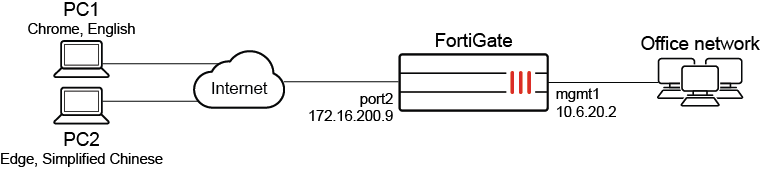
In this example, the agentlessvpnadmin user account is used for Agentless VPN connections on the testportal1 Agentless VPN portal. The account is shared by users from different countries that use different browsers and different languages in their browsers. The user on PC1 uses Chrome in English, and the user on PC2 uses Edge in Simplified Chinese. When a user logs in to the Agentless VPN portal, all pages are shown in the same language as their browser.

To configure the Agentless VPN portal to use the client's browser language:
  1. Ensure Agentless VPN is enabled on testportal1 portal.

    config vpn ssl web portal edit "testportal1" set web-mode enable next end

  2. Set the language preference:

    1. Go to VPN > Agentless VPN Settings.

    2. Set Language to Browser Preference.

    3. Click Apply.

  3. Add the agentlessvpnadmin user to the policy used by the Agentless VPN portal.

  4. Confirm that the configuration works:

    • When the user on PC1 logs in to the Agentless VPN portal using Chrome in English, all of the pages are shown in English.

    • When the user on PC2 logs in to the Agentless VPN portal using Edge in Simplified Chinese, all of the pages are shown in Simplified Chinese.

Showing the Agentless VPN web portal login page in the browser's language

Showing the Agentless VPN web portal login page in the browser's language

By default, the browser's language preference is automatically detected and used by the Agentless VPN web portal login page. The system language can be used by changing the settings on the Agentless VPN Settings page of the GUI or disabling browser-language-detection in the CLI:

config vpn ssl settings
    set browser-language-detection disable
end

In this example, the agentlessvpnadmin user account is used for Agentless VPN connections on the testportal1 Agentless VPN portal. The account is shared by users from different countries that use different browsers and different languages in their browsers. The user on PC1 uses Chrome in English, and the user on PC2 uses Edge in Simplified Chinese. When a user logs in to the Agentless VPN portal, all pages are shown in the same language as their browser.

To configure the Agentless VPN portal to use the client's browser language:
  1. Ensure Agentless VPN is enabled on testportal1 portal.

    config vpn ssl web portal edit "testportal1" set web-mode enable next end

  2. Set the language preference:

    1. Go to VPN > Agentless VPN Settings.

    2. Set Language to Browser Preference.

    3. Click Apply.

  3. Add the agentlessvpnadmin user to the policy used by the Agentless VPN portal.

  4. Confirm that the configuration works:

    • When the user on PC1 logs in to the Agentless VPN portal using Chrome in English, all of the pages are shown in English.

    • When the user on PC2 logs in to the Agentless VPN portal using Edge in Simplified Chinese, all of the pages are shown in Simplified Chinese.