

Disable the clipboard for Agentless VPN RDP connections
In Agentless VPN portals, the clipboard can be disabled for RDP/VNC connections, and the user will be unable to copy and paste content to or from the internal server.
Example
In this example, two groups of users are using Agentless VPN to access internal servers with RDP/VNC. One group is allowed to copy and paste content to and from the internal server using the clipboard, while the other is not.

To configure Agentless VPN portals in the GUI:
-
Go to VPN > Agentless VPN Portals and click Create New.
-
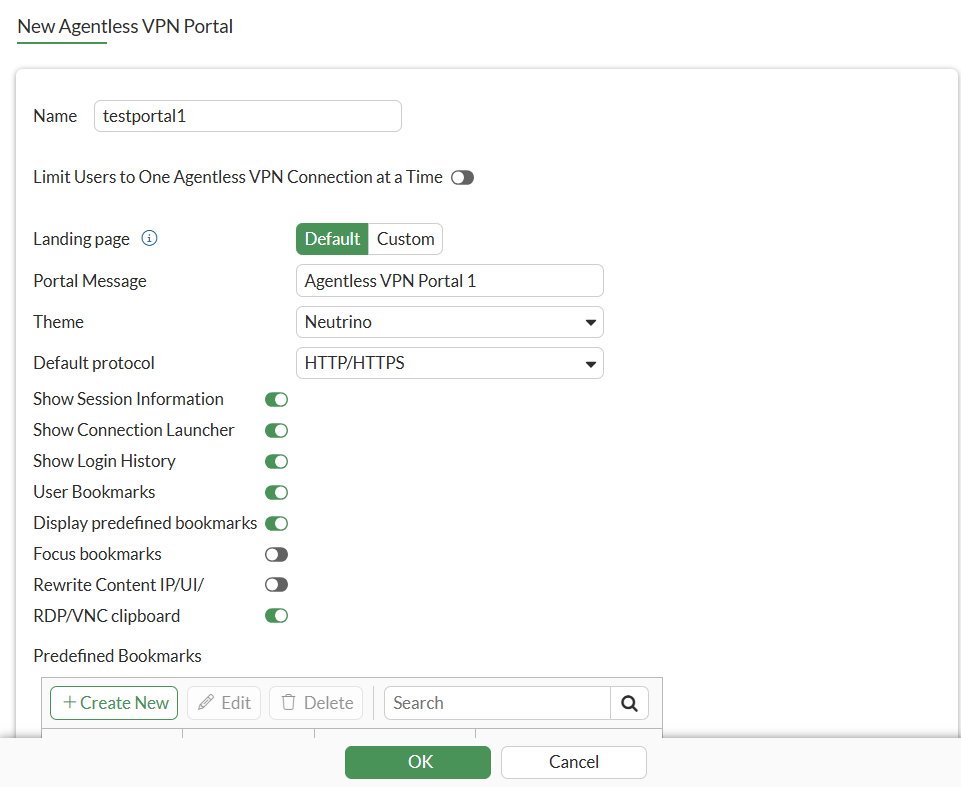
Enter a name for the portal, such as testportal1.
-
Enable RDP/VNC clipboard to allow copying and pasting.
-
Configure the remaining settings as needed.
-
Click OK.
-
Click Create New again.
-
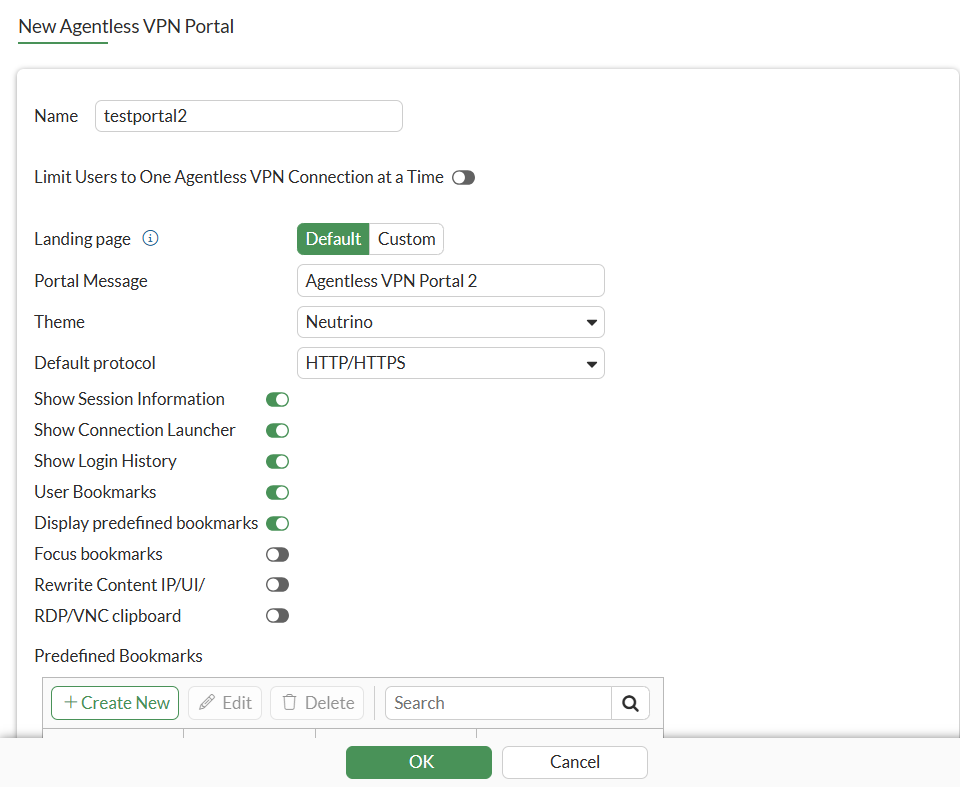
Enter a name for the portal, such as testportal2.
-
Disable RDP/VNC clipboard to prevent copying and pasting.
-
Configure the remaining settings as needed.
-
Click OK.
-
Click Create New again, and enter Name as portal-access-disabled.
-
Disable Agentless VPN on the portal using CLI.
config vpn ssl web portal
    edit "portal-access-disabled"
        set web-mode disable
    next
end
To configure the Agentless VPN settings in the GUI:
-
Go to VPN > Agentless VPN Settings.
-
Set Agentless VPN status to Enable.
-
Set Listen on Interface to port2.
-
In the Authentication/Portal Mapping table, add the users to each of the portals:
-
Click Create New.
-
Set Users/Groups to u1 and Portal to testportal1.
-
Click OK, then click Create New again.
-
Set Users/Groups to u2 and Portal to testportal2.
-
Click OK.
-
Set all Other User/Groups to portal-access-disabled.
-
-
Configure the remaining settings as needed.
-
Click Apply.
To configure a firewall policy for Agentless VPN in the GUI:
-
Go to Policy & Objects > Firewall Policy and click Create New.
-
Set a name for the policy, such as policy_to_agentlessvpn.
-
Set Incoming Interface to the Agentless VPN tunnel interface (ss.root) and Outgoing Interface to port1.
-
Set Source to all and Users/groups to u1 and u2.
-
Set Destination to all addresses.
-
Set Schedule to always, Service to All, and Action to Accept.
-
Configure the remaining settings as needed.
-
Click OK.
To test the if the users can use the clipboard:
-
On the PC, open a web browser and log in to the web portal as user u1.
-
Access the internal server using RDP/VNC.
-
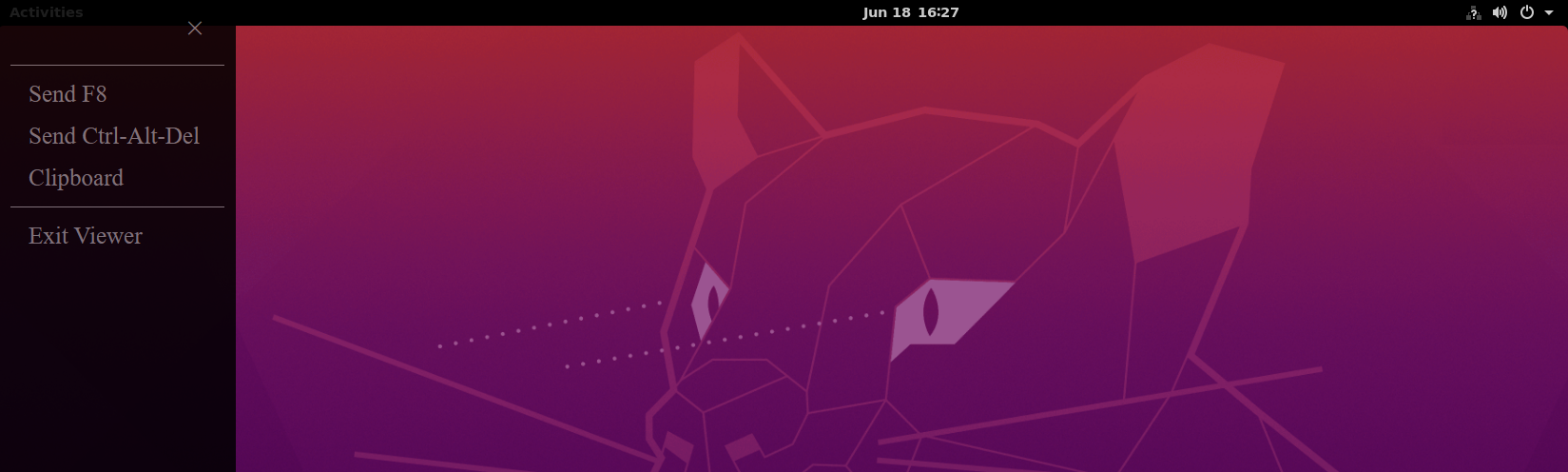
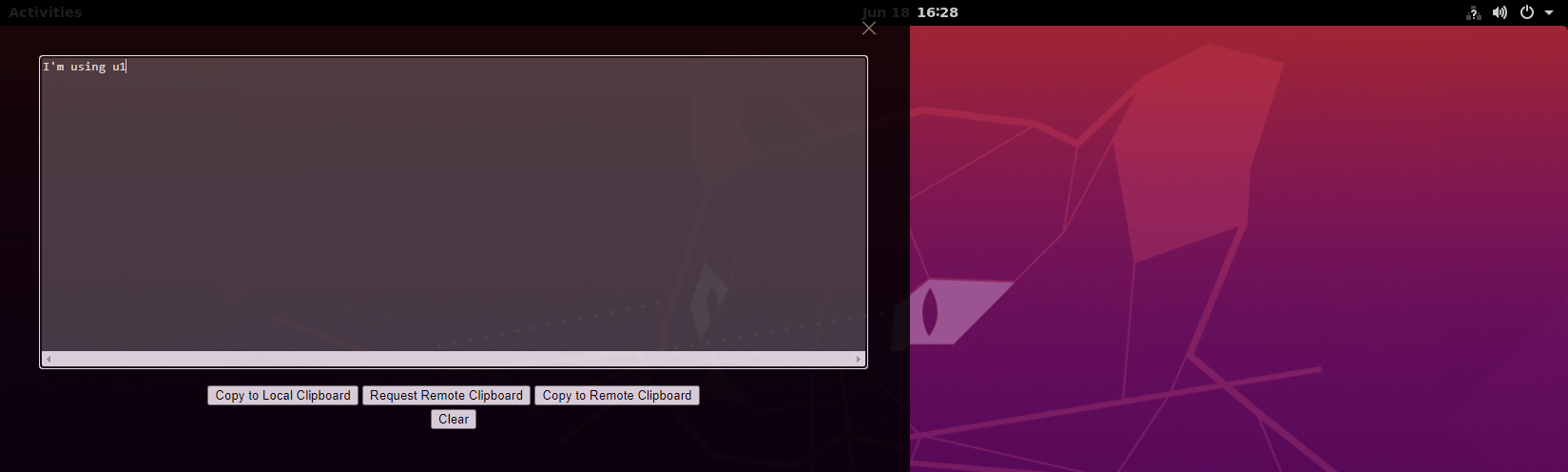
The clipboard is available and you can copy and paste content to and from the remote server.
-
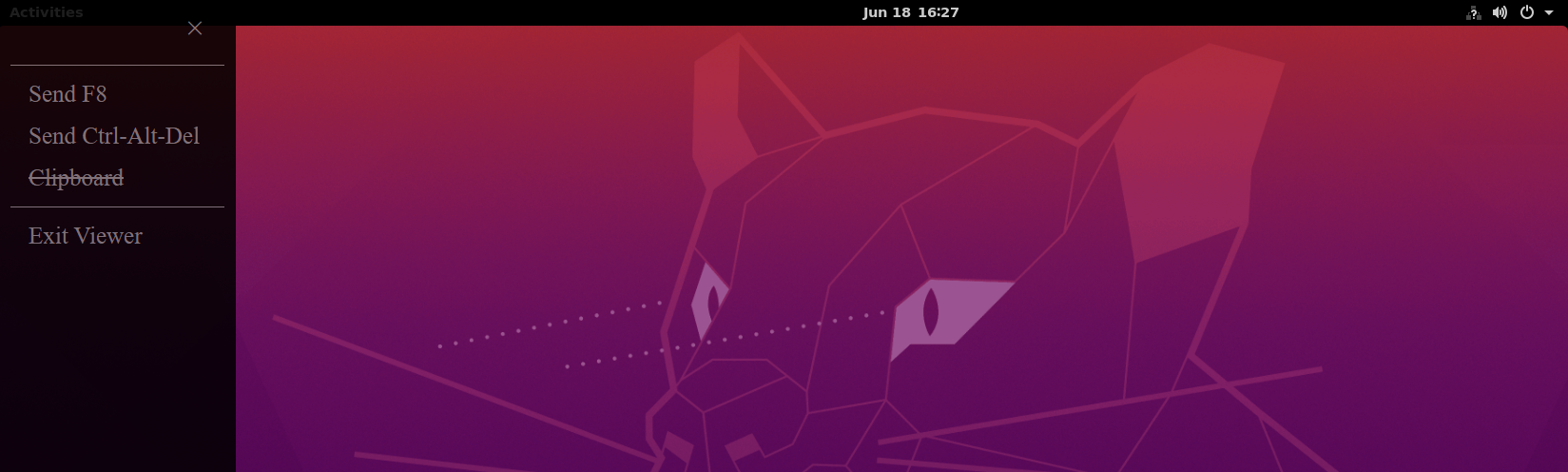
Log out of the web portal, then log back in as user u2 and access the internal server using RDP/VNC.
The clipboard is disabled.
To configure the Agentless VPN portals and settings in the CLI:
-
Configure the Agentless VPN portals:
config vpn ssl web portal edit "testportal1" set web-mode enable set clipboard enable ... next edit "testportal2" set web-mode enable set clipboard disable ... next end -
Configure the Agentless VPN settings:
config vpn ssl settings set banned-cipher SHA1 SHA256 SHA384 set servercert "Server_Certificate " set login-attempt-limit 0 set port 1443 set source-interface "port2" set source-address "all" set source-address6 "all" set default-portal "portal-access-disabled" config authentication-rule edit 1 set users "u1" set portal "testportal1" next edit 2 set users "u2" set portal "testportal2" next end end -
Configure a firewall policy for Agentless VPN:
config firewall policy edit 1 set name "policy_to_Agentless_VPN" set srcintf "ssl.root" set dstintf "port1" set action accept set srcaddr "all" set dstaddr "all" set schedule "always" set service "ALL" set nat enable set users "u1" "u2" next end -
On the PC, open a web browser, log in to the web portal as user u1, access the internal server using RDP/VNC, and use the clipboard.
-
Check the Agentless VPN session monitor using FortiOS CLI:
# get vpn ssl monitor
Agentless VPN Login Users:
 Index   User    Group   Auth Type      Timeout         Auth-Timeout    From     HTTP in/out    HTTPS in/out    Two-factor Auth
 0       u1             1(1)             N/A     10.1.100.146   0/0     0/364   0

Agentless VPN sessions:
 Index   User    Group   Source IP      Duration        I/O Bytes       Tunnel/Dest IP
-
On the PC, open a web browser, log in to the web portal as user u2, access the internal server using RDP/VNC, and note that the clipboard is not available.
-
Check the Agentless VPN session monitor:
# get vpn ssl monitor
Agentless VPN Login Users:
 Index   User    Group   Auth Type      Timeout         Auth-Timeout    From     HTTP in/out    HTTPS in/out    Two-factor Auth
 0       u2             1(1)             N/A     10.1.100.146   0/0     0/2681  0

Agentless VPN sessions:
 Index   User    Group   Source IP      Duration        I/O Bytes       Tunnel/Dest IP