
Fortinet white logo
Fortinet white logo

Administration Guide

Completing the FortiGate Setup wizard

Completing the FortiGate Setup wizard

After logging in to FortiOS, meeting the password policy requirements, and registering the FortiGate to FortiCare (on some FortiGate models this is required), the FortiGate Setup wizard displays.

After the FortiGate Setup wizard, a FortiOS video is displayed to help you get familiar with the product.

To complete the FortiGate Setup wizard:
  1. Connect to the FortiGate GUI. The FortiGate Setup wizard appears and includes some or all of the following:

    1. Register with FortiCare

    2. Migrate Config with FortiConverter

    3. Automatic Patch Upgrades

    4. Dashboard Setup

    5. Change Your Password

    Completed steps are grayed out. For example, the Register with FortiCare step and Change your Password steps are grayed out when complete. Starting in FortiOS 7.6.5, the password policy is enabled and enforced after first login, and your password must meet the policy requirements. See Password policy for more information.
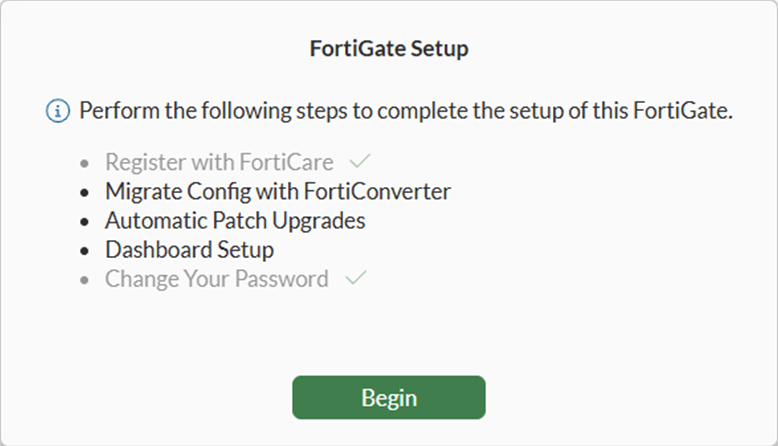
  2. Click Begin to start the FortiGate Setup wizard.

  3. If applicable, register the FortiGate to FortiCare, and click OK. See Registering FortiGate.

    Click Later to skip this step and proceed to the next step.

    The Migrate Config with FortiConverter page is displayed.

  4. Click Convert to migrate a configuration from another device to FortiGate using FortiConverter.

    Click Later to skip this step and proceed to the next step.

    Enable Don't show again to disable this option.

    The Automatic Patch Upgrades page is displayed.

  5. Decide whether to enable automatic patch upgrades, and click OK.

    The Dashboard Setup page is displayed.

  6. Choose what dashboards to display by default in FortiOS, and click OK.

    The FortiGate Setup is complete, and the FortiOS GUI is displayed.

  7. A FortiOS 7.6 What's new video is presented. Watch the video, and then click OK to proceed.

Related Videos

sidebar video

FortiOS 7.6 - What's new

  • 44,650 views
  • 1 years ago

Completing the FortiGate Setup wizard

Completing the FortiGate Setup wizard

After logging in to FortiOS, meeting the password policy requirements, and registering the FortiGate to FortiCare (on some FortiGate models this is required), the FortiGate Setup wizard displays.

After the FortiGate Setup wizard, a FortiOS video is displayed to help you get familiar with the product.

To complete the FortiGate Setup wizard:
  1. Connect to the FortiGate GUI. The FortiGate Setup wizard appears and includes some or all of the following:

    1. Register with FortiCare

    2. Migrate Config with FortiConverter

    3. Automatic Patch Upgrades

    4. Dashboard Setup

    5. Change Your Password

    Completed steps are grayed out. For example, the Register with FortiCare step and Change your Password steps are grayed out when complete. Starting in FortiOS 7.6.5, the password policy is enabled and enforced after first login, and your password must meet the policy requirements. See Password policy for more information.

  2. Click Begin to start the FortiGate Setup wizard.

  3. If applicable, register the FortiGate to FortiCare, and click OK. See Registering FortiGate.

    Click Later to skip this step and proceed to the next step.

    The Migrate Config with FortiConverter page is displayed.

  4. Click Convert to migrate a configuration from another device to FortiGate using FortiConverter.

    Click Later to skip this step and proceed to the next step.

    Enable Don't show again to disable this option.

    The Automatic Patch Upgrades page is displayed.

  5. Decide whether to enable automatic patch upgrades, and click OK.

    The Dashboard Setup page is displayed.

  6. Choose what dashboards to display by default in FortiOS, and click OK.

    The FortiGate Setup is complete, and the FortiOS GUI is displayed.

  7. A FortiOS 7.6 What's new video is presented. Watch the video, and then click OK to proceed.