Fortinet white logo
Fortinet white logo

Administration Guide

SD-WAN Setup wizard

SD-WAN Setup wizard

The SD-WAN Setup wizard helps you configure the following settings for a simple SD-WAN setup:

  • Interface

    The wizard supports a maximum of two interfaces.

  • Networking

  • Performance SLA

  • SD-WAN Rule

After completing the wizard, configure a default static route for the newly created SD-WAN interface.

FortiGate requires a valid SD-WAN Underlay and Application Monitoring license before the SD-WAN Setup wizard is visible.

See also FortiGuard SLA database for SD-WAN performance SLA .

Example

This example describes how to use the SD-WAN Setup wizard to create an SD-WAN configuration with one SD-WAN zone (named Test) and two SD-WAN members (agg1 and vlan100). The wizard also guides you to complete the networking, performance SLA, and SD-WAN rule. After the wizard completes, configure a default static route for the SD-WAN interface.
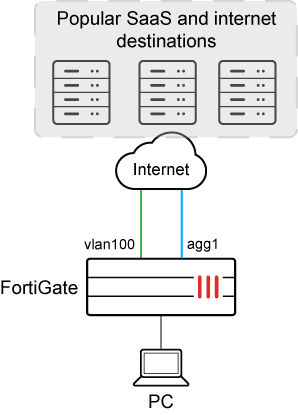
To use the SD-WAN Setup wizard to configure SD-WAN:
  1. Go to the Network > SD-WAN > SD-WAN Zones page to access the wizard:

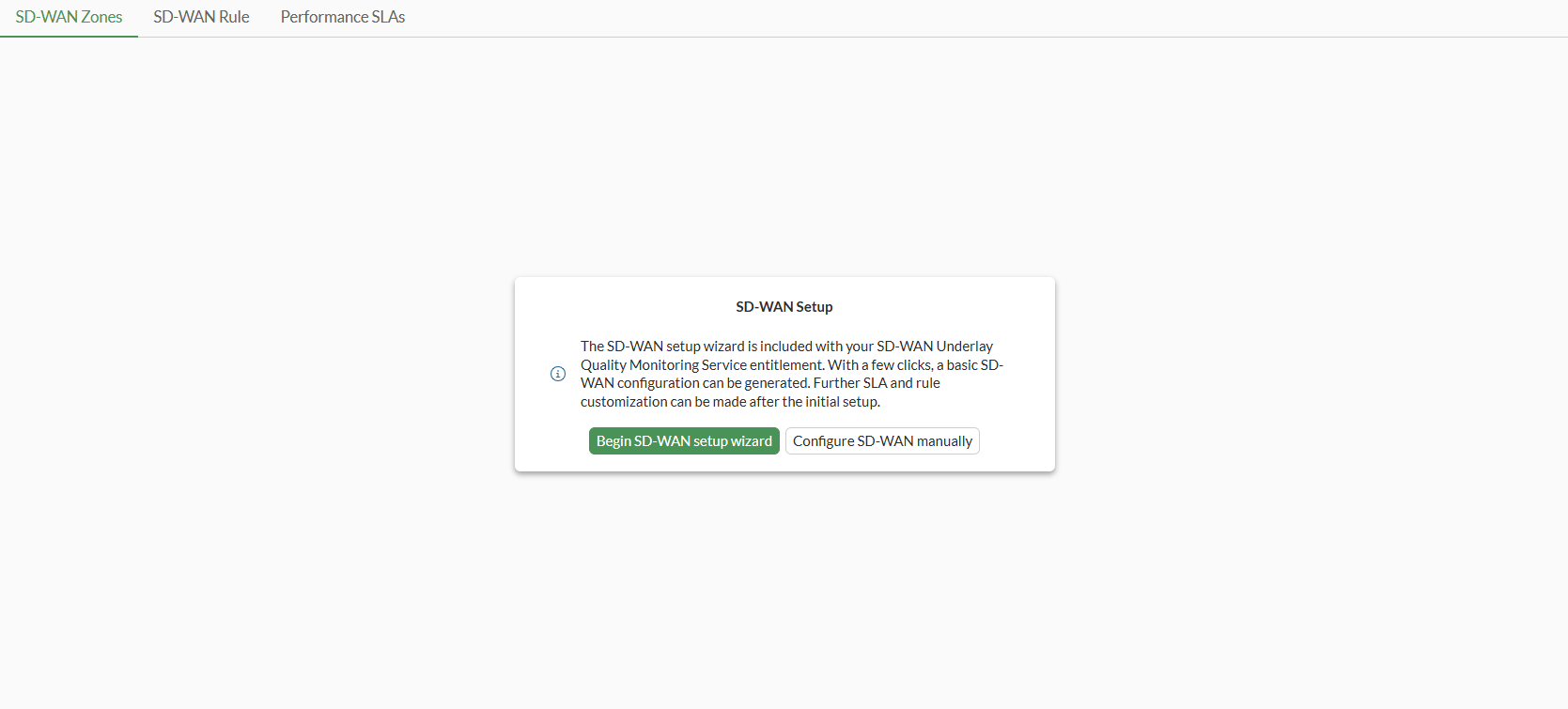
    • When no SD-WAN configuration exists, the following message is displayed. Click Begin SD-WAN setup wizard to access the wizard.
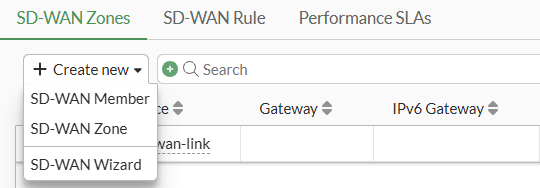
    • When an SD-WAN configuration exists, click Create New > SD-WAN Wizard to access the wizard.
    The SD-WAN Setup wizard opens on the Interface step.

  2. For the Interface step, identify a zone, and select one or two interfaces for the underlay:

    The selected interfaces become members of the SD-WAN zone. This example creates a zone named Test and uses two interfaces (agg1 and vlan100).

    1. Set SD-WAN Zone to:

      • Use Existing and select an existing SD-WAN zone.

        Or:

      • Create New and type a name for the new SD-WAN zone. In this example, a new zone named Test is created.
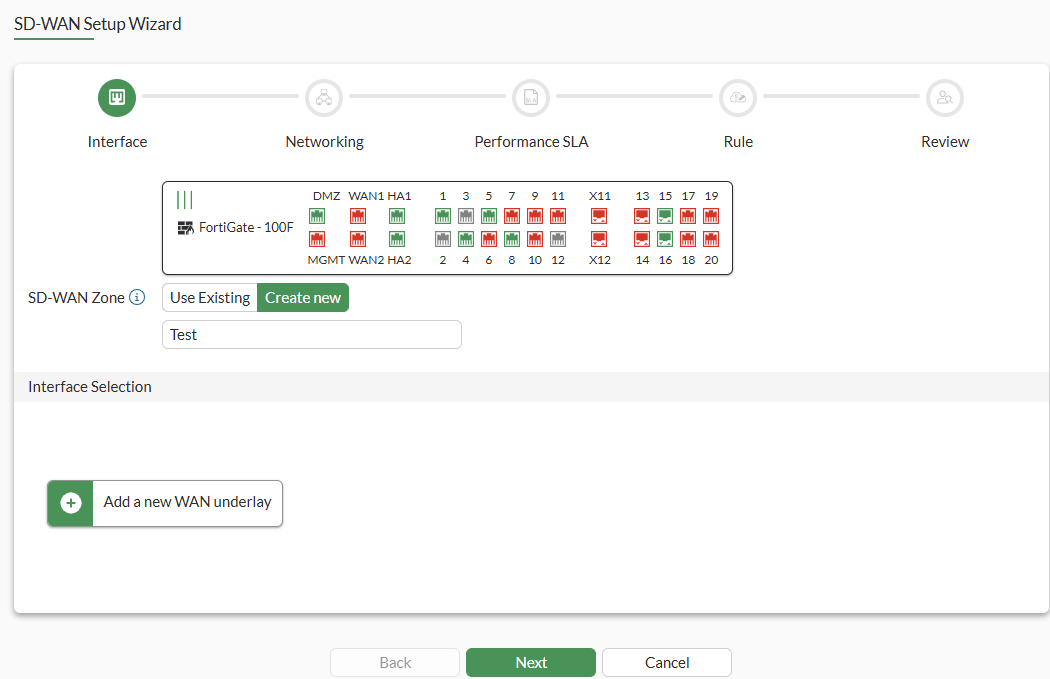
    2. Click Add a new WAN underlay, select an interface, and click Apply.
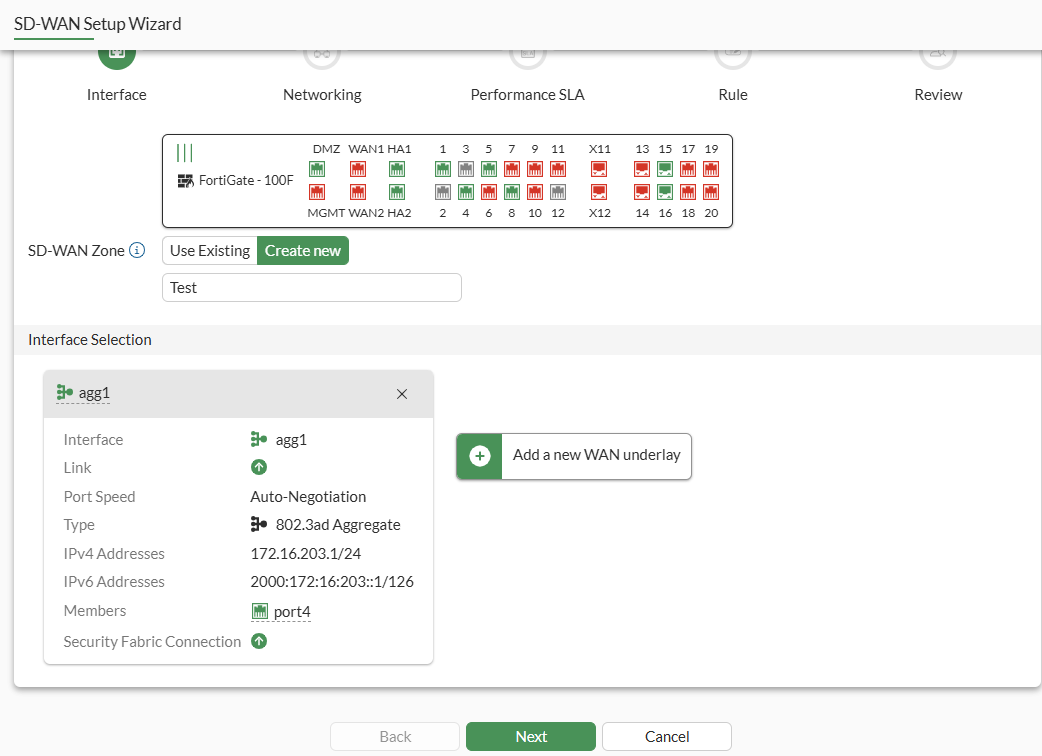
    3. Click Add a new WAN underlay again, select an interface, and click Apply.
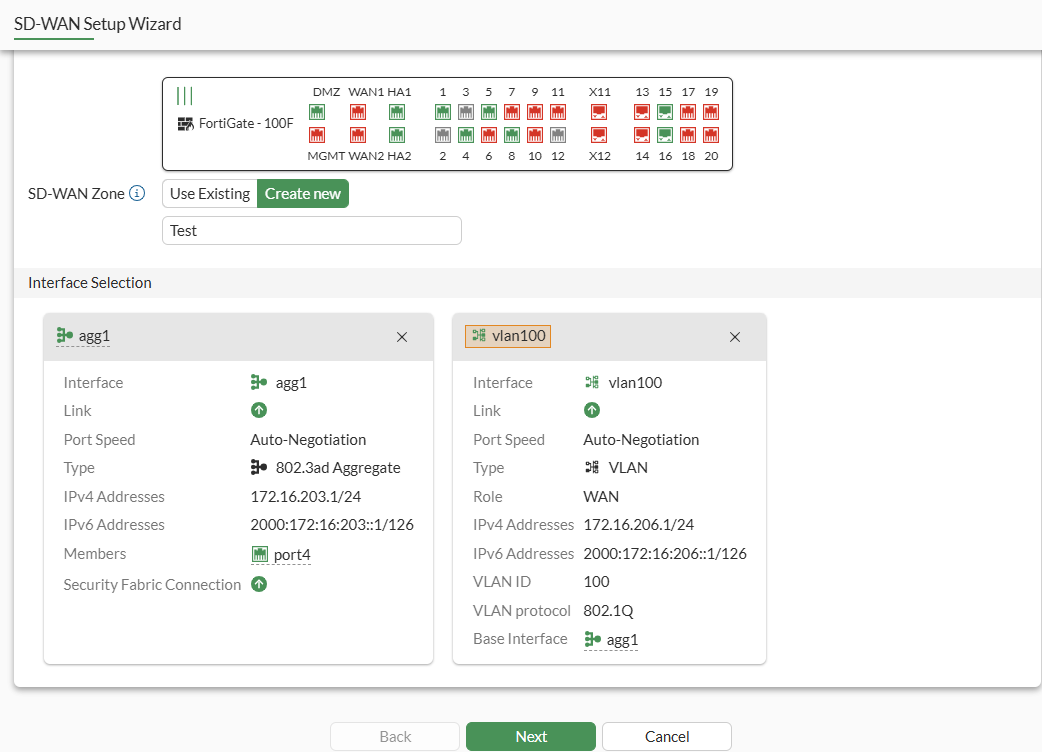
      You have added two interfaces to the SD-WAN zone.

    4. Click Next to proceed to the Networking step.

  3. For the Networking step, set the gateway and priority for each interface, and click Next:

    Gateway

    Select one of the following methods to assign a gateway IP address to the interface:

    • Dynamic: Select to leave the gateway undefined and proceed to the next screen. Can be used with interfaces set to use DHCP as a client.

    • Specify: Select to specify an IPv4 or IPv6 address for the gateway.

    Cost

    Used by the lowest-cost SLA strategy. The link with the lowest cost is chosen to pass traffic. The lowest possible cost is 0

    Fallback priority

    Select one of the following methods to define the priority of SD-WAN members:

    • Default: Select to use the default, which is the same priority for all SD-WAN members.

    • Specify: Select to specify a priority for the SD-WAN member in the Priority box.

    The priority is used in the static route created for the SD-WAN member interface and in SD-WAN rules (including the implicit rule). When priority is used to determine the best route, the lower value takes precedence.

    Priority

    Available when Fallback priority is set to Specify.

    Specify a priority for the SD-WAN member (1 - 65535, default = 1).
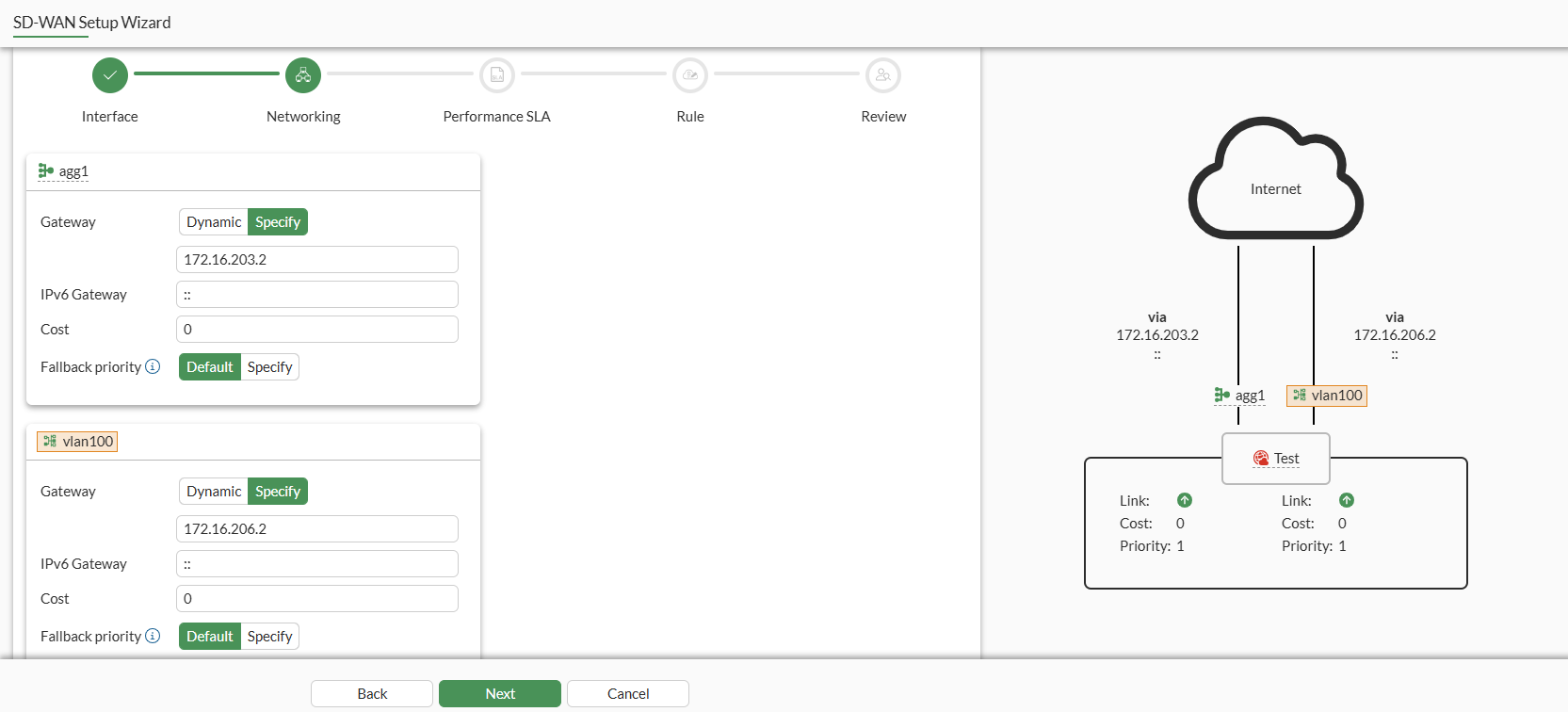
    The wizard moves to the Performance SLA step.

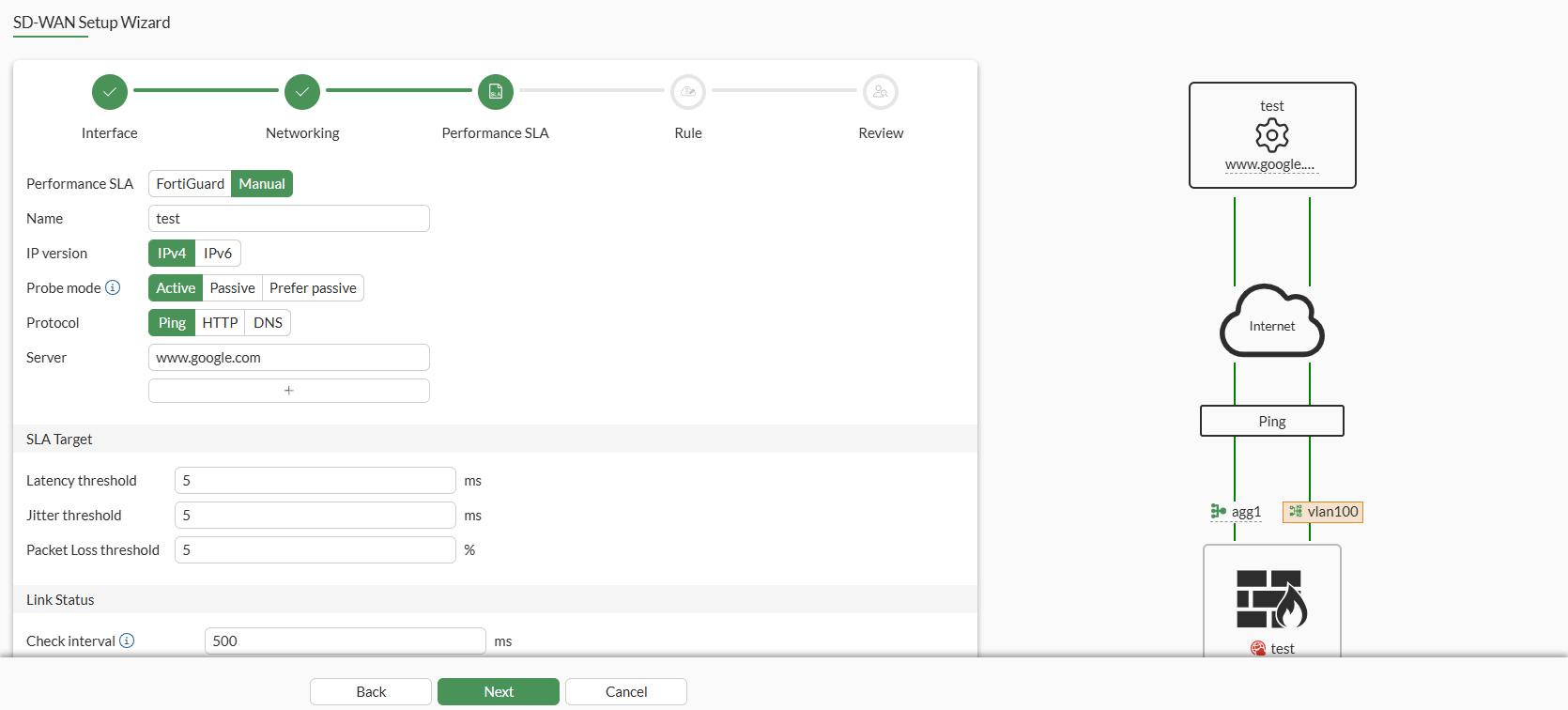
  4. For the Performance SLA step, configure health-check for SD-WAN members, and click Next:

    Only the fields that you must set before you can proceed are described.

    Performance SLA

    Select one of the following to choose how to define performance SLA:

    • FortiGuard: Select to use the FortiGuard SLA database. Select a predefined server from the Server list, and specify the protocol to use.

    • Manual: Select to manually define a server for the SLA.
    The wizard moves to the Rule step.

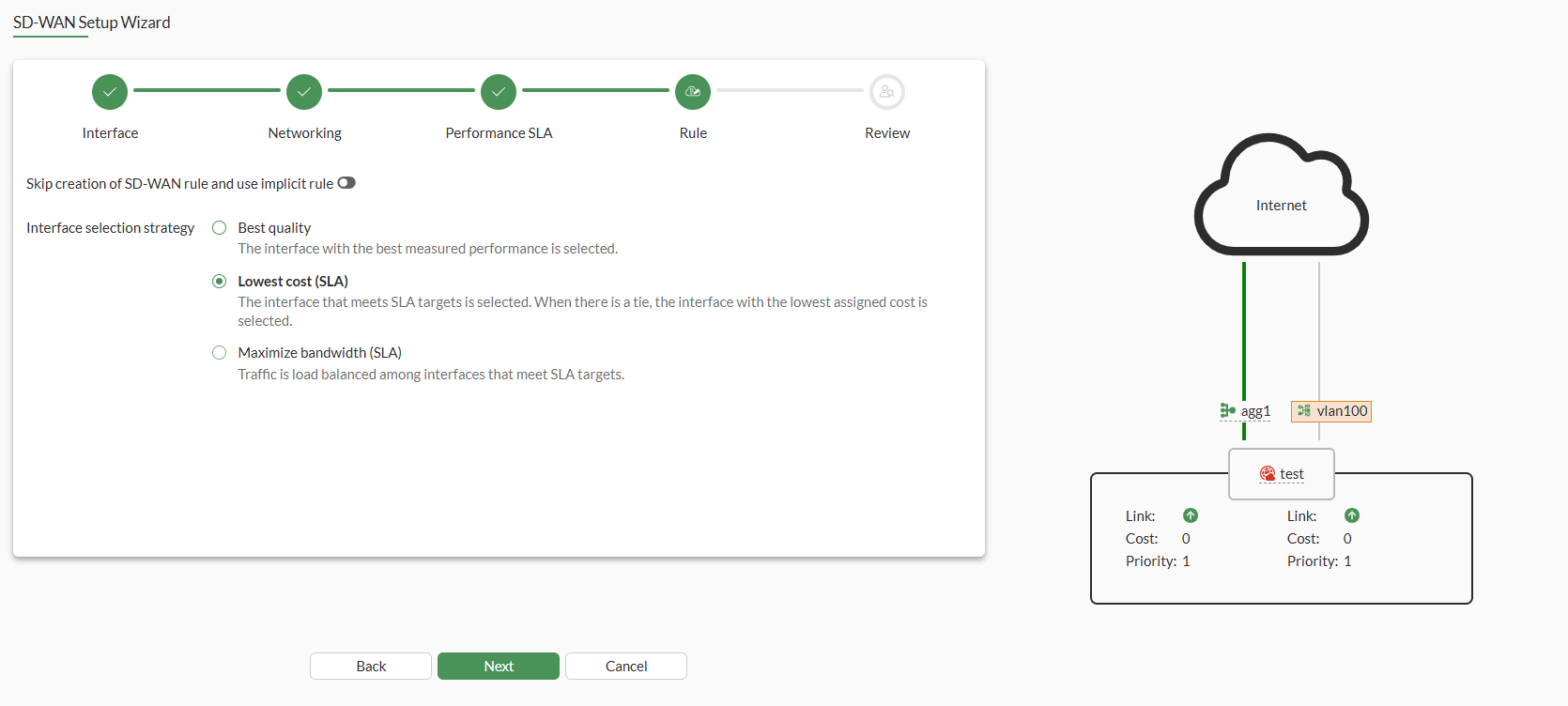
  5. For the Rule step, create a service rule, and click Next:

    Skip creation of SD-WAN rule and use implicit rule

    Enable to use the implicit rule instead of creating an SD-WAN rule.

    Interface selection strategy

    Available when Skip creation of SD-WAN rule and use implicit rule is disabled.

    Specify how SD-WAN should select an interface:

    • Best quality: Select to use the interface with the best measured performance.

    • Lowest cost (SLA): Select to use the interface that meets the defined performance SLA targets. When a tie occurs, the interface with the lowest assigned cost is selected.

    • Maximize bandwidth: Traffic is load balanced among interfaces that meet SLA targets.
    The wizard moves to the Review step.

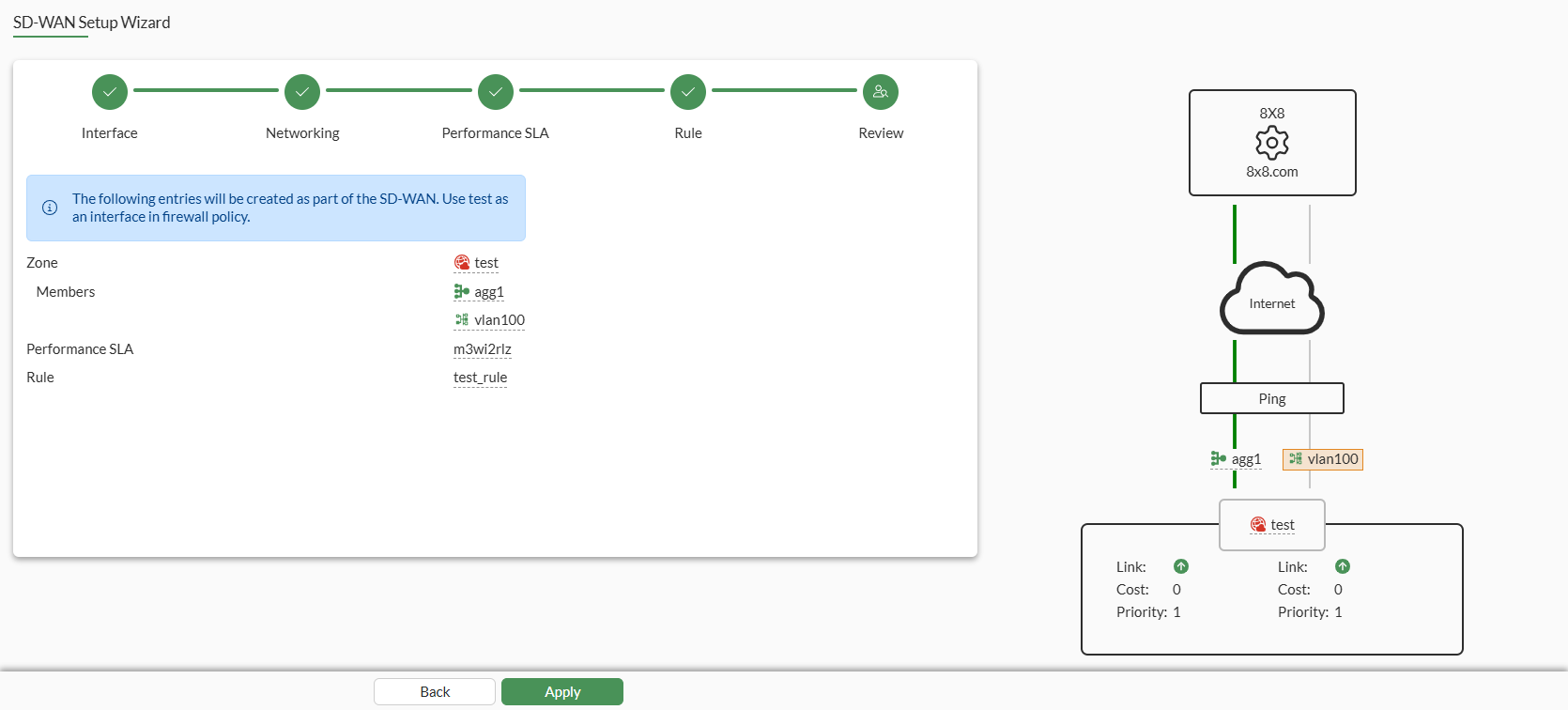
  6. For the Review step, review the entries, and click Apply to create them:

    Zone

    Displays the name of the SD-WAN zone that will be created.

    Members

    Displays the name of the interface members that will be added to the SD-WAN zone.

    Performance SLA

    Displays the name of the performance SLA configuration that will be used for the SD-WAN configuration.

    Rule

    Displays the name of the SD-WAN rule that will be used for the SD-WAN configuration
    The entries are created, and the wizard completes.

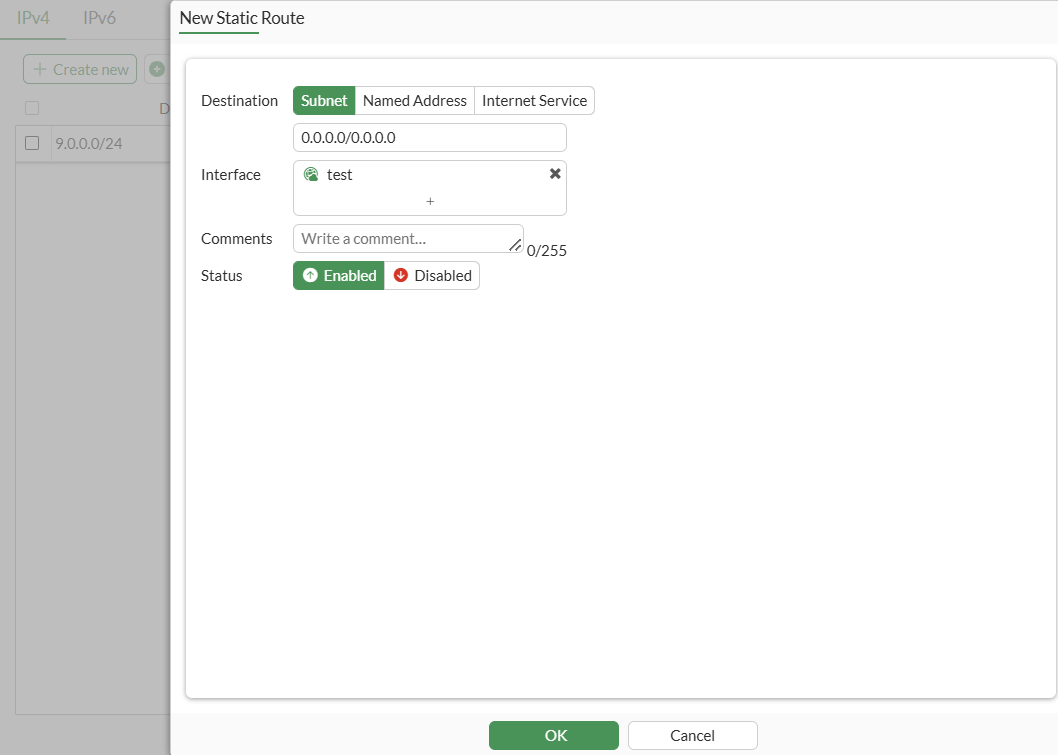
  7. Create a static route for the SD-WAN interface (that is the SD-WAN zone):

    1. Go to Network > Static Routes, and click Create new.

    2. Complete the options, and click OK.

  8. Review the SD-WAN configuration:

    1. Go to Network > SD-WAN > SD-WAN Zones, and view the zone and members that you created.

    2. On the SD-WAN Rule tab, view the rule that you created.

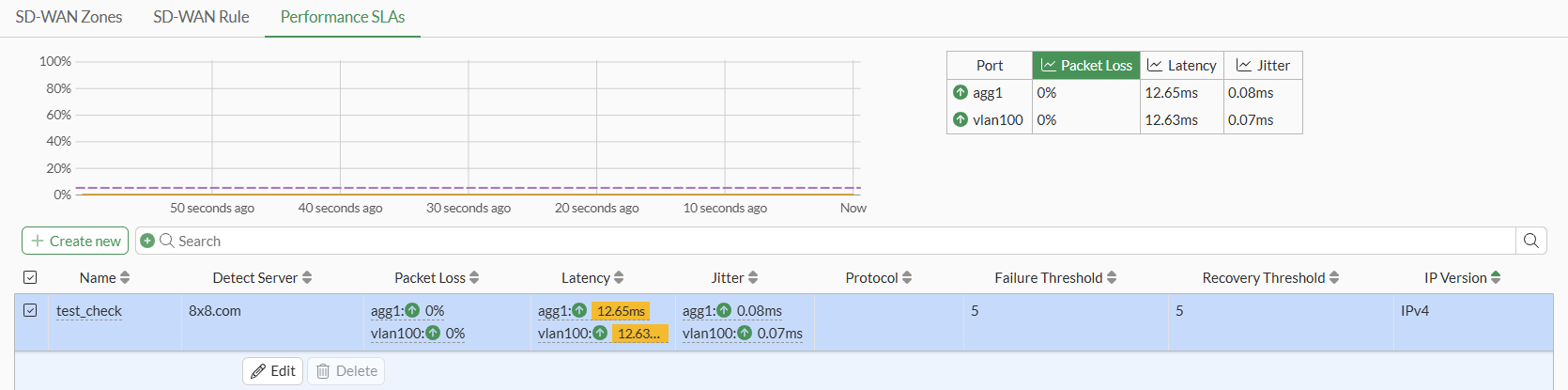
    3. On the Performance SLAs tab, view the SLA configuration that you created.
SD-WAN Setup wizard

SD-WAN Setup wizard

The SD-WAN Setup wizard helps you configure the following settings for a simple SD-WAN setup:

  • Interface

    The wizard supports a maximum of two interfaces.

  • Networking

  • Performance SLA

  • SD-WAN Rule

After completing the wizard, configure a default static route for the newly created SD-WAN interface.

FortiGate requires a valid SD-WAN Underlay and Application Monitoring license before the SD-WAN Setup wizard is visible.

See also FortiGuard SLA database for SD-WAN performance SLA .

Example

This example describes how to use the SD-WAN Setup wizard to create an SD-WAN configuration with one SD-WAN zone (named Test) and two SD-WAN members (agg1 and vlan100). The wizard also guides you to complete the networking, performance SLA, and SD-WAN rule. After the wizard completes, configure a default static route for the SD-WAN interface.

To use the SD-WAN Setup wizard to configure SD-WAN:
  1. Go to the Network > SD-WAN > SD-WAN Zones page to access the wizard:

    • When no SD-WAN configuration exists, the following message is displayed. Click Begin SD-WAN setup wizard to access the wizard.

    • When an SD-WAN configuration exists, click Create New > SD-WAN Wizard to access the wizard.

    The SD-WAN Setup wizard opens on the Interface step.

  2. For the Interface step, identify a zone, and select one or two interfaces for the underlay:

    The selected interfaces become members of the SD-WAN zone. This example creates a zone named Test and uses two interfaces (agg1 and vlan100).

    1. Set SD-WAN Zone to:

      • Use Existing and select an existing SD-WAN zone.

        Or:

      • Create New and type a name for the new SD-WAN zone. In this example, a new zone named Test is created.

    2. Click Add a new WAN underlay, select an interface, and click Apply.

    3. Click Add a new WAN underlay again, select an interface, and click Apply.

      You have added two interfaces to the SD-WAN zone.

    4. Click Next to proceed to the Networking step.

  3. For the Networking step, set the gateway and priority for each interface, and click Next:

    Gateway

    Select one of the following methods to assign a gateway IP address to the interface:

    • Dynamic: Select to leave the gateway undefined and proceed to the next screen. Can be used with interfaces set to use DHCP as a client.

    • Specify: Select to specify an IPv4 or IPv6 address for the gateway.

    Cost

    Used by the lowest-cost SLA strategy. The link with the lowest cost is chosen to pass traffic. The lowest possible cost is 0

    Fallback priority

    Select one of the following methods to define the priority of SD-WAN members:

    • Default: Select to use the default, which is the same priority for all SD-WAN members.

    • Specify: Select to specify a priority for the SD-WAN member in the Priority box.

    The priority is used in the static route created for the SD-WAN member interface and in SD-WAN rules (including the implicit rule). When priority is used to determine the best route, the lower value takes precedence.

    Priority

    Available when Fallback priority is set to Specify.

    Specify a priority for the SD-WAN member (1 - 65535, default = 1).

    The wizard moves to the Performance SLA step.

  4. For the Performance SLA step, configure health-check for SD-WAN members, and click Next:

    Only the fields that you must set before you can proceed are described.

    Performance SLA

    Select one of the following to choose how to define performance SLA:

    • FortiGuard: Select to use the FortiGuard SLA database. Select a predefined server from the Server list, and specify the protocol to use.

    • Manual: Select to manually define a server for the SLA.

    The wizard moves to the Rule step.

  5. For the Rule step, create a service rule, and click Next:

    Skip creation of SD-WAN rule and use implicit rule

    Enable to use the implicit rule instead of creating an SD-WAN rule.

    Interface selection strategy

    Available when Skip creation of SD-WAN rule and use implicit rule is disabled.

    Specify how SD-WAN should select an interface:

    • Best quality: Select to use the interface with the best measured performance.

    • Lowest cost (SLA): Select to use the interface that meets the defined performance SLA targets. When a tie occurs, the interface with the lowest assigned cost is selected.

    • Maximize bandwidth: Traffic is load balanced among interfaces that meet SLA targets.

    The wizard moves to the Review step.

  6. For the Review step, review the entries, and click Apply to create them:

    Zone

    Displays the name of the SD-WAN zone that will be created.

    Members

    Displays the name of the interface members that will be added to the SD-WAN zone.

    Performance SLA

    Displays the name of the performance SLA configuration that will be used for the SD-WAN configuration.

    Rule

    Displays the name of the SD-WAN rule that will be used for the SD-WAN configuration

    The entries are created, and the wizard completes.

  7. Create a static route for the SD-WAN interface (that is the SD-WAN zone):

    1. Go to Network > Static Routes, and click Create new.

    2. Complete the options, and click OK.

  8. Review the SD-WAN configuration:

    1. Go to Network > SD-WAN > SD-WAN Zones, and view the zone and members that you created.

    2. On the SD-WAN Rule tab, view the rule that you created.

    3. On the Performance SLAs tab, view the SLA configuration that you created.