

Agentless VPN bookmarks
The Bookmarks widget displays bookmarks configured by administrators and users. Administrator bookmarks cannot be edited, and they are configured in FortiOS. Users can add, edit, and delete their own bookmarks within the web portal.
The FortiGate forwards client requests to servers on the internet or internal network. To use the web portal applications, add the URL, IP address, or name of the server application to the Bookmarks list. Once a bookmark is created, click the bookmark icon to initiate a session.
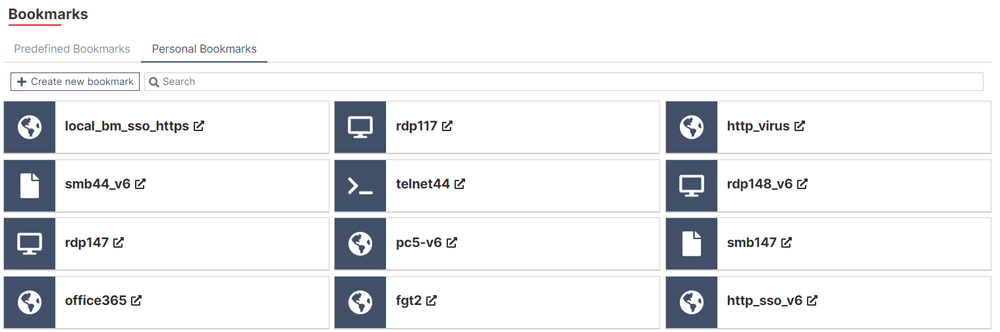

|
To access a destination without adding a bookmark to the Your Bookmarks list, use the Quick Connection tool. See Quick Connection tool for more details. |
Configuring bookmarks
The following table summarizes which options can be configured based on the bookmark type in the Agentless VPN web portal:
|
Setting |
HTTP/ HTTPS |
FTP |
SMB |
SFTP |
RDP |
VNC |
SSH |
Telnet |
|
|---|---|---|---|---|---|---|---|---|---|
|
URL |
✔ |
|
|
|
|
|
|
|
|
|
Folder |
|
✔ |
✔ |
✔ |
|
|
|
|
|
|
Host |
|
|
|
|
✔ |
✔ |
✔ |
✔ |
|
|
Domain |
|
|
✔ |
|
|
|
|
|
|
|
Port |
|
|
|
|
✔ |
✔ |
|
|
|
|
Description |
✔ |
✔ |
✔ |
✔ |
✔ |
✔ |
✔ |
✔ |
|
|
Password |
|
|
|
|
|
✔ |
|
|
|
|
SSO Credentials |
✔ |
✔ |
✔ |
✔ |
|
|
|
|
|
|
Agentless VPN Login |
✔ |
✔ |
✔ |
✔ |
|
|
|
|
|
|
SSO Form Data |
✔ |
|
|
|
|
|
|
|
|
|
|
Form Key |
✔ |
|
|
|
|
|
|
|
|
Form Value |
✔ |
|
|
|
|
|
|
|
|
|
Alternative |
✔ |
✔ |
✔ |
✔ |
|
|
|
|
|
|
|
Username |
✔ |
✔ |
✔ |
✔ |
|
|
|
|
|
|
Password |
✔ |
✔ |
✔ |
✔ |
|
|
|
|
|
Use Agentless VPN Credentials |
|
|
|
|
✔ |
|
|
|
|
|
|
Username |
|
|
|
|
✔ |
|
|
|
|
|
Password |
|
|
|
|
✔ |
|
|
|
|
Color Depth Per Pixel* |
|
|
|
|
✔ |
|
|
|
|
|
Screen Width* |
|
|
|
|
✔ |
|
|
|
|
|
Screen Height* |
|
|
|
|
✔ |
|
|
|
|
|
Keyboard Layout |
|
|
|
|
✔ |
|
|
|
|
|
Security |
|
|
|
|
✔ |
|
|
|
|
|
Preconnection ID |
|
|
|
|
✔ |
|
|
|
|
|
Preconnection Blob |
|
|
|
|
✔ |
|
|
|
|
|
Load Balancing Information |
|
|
|
|
✔ |
|
|
|
|
|
Restricted Admin Mode |
|
|
|
|
✔ |
|
|
|
|
* = This setting can only be configured by an administrator.
To create a user bookmark in the web portal:
-
Log in to the Agentless VPN web portal.
-
Under Bookmarks, click Create new bookmark for <username>.
-
Enter a Name.
-
Select a Protocol type, and configure the type-based settings using the table above.
-
Click OK.
To create a predefined administrator bookmark in FortiOS:
-
Go to VPN > Agentless VPN Portals, and double-click a portal to edit it.
-
In the Predefined Bookmarks table, click Create New. The New Bookmark pane appears.
-
Enter a Name.
-
Select a protocol Type, and configure the settings based on its type.
-
Click OK to save the bookmark settings.
-
Click OK to save the portal settings.
Configuring group-based Agentless VPN bookmarks
Administrators can add bookmarks for users in the same user group. Agentless VPN will only output the matched group name entry to the client. This setting can only be configured in the CLI.
To add bookmarks for users in the same user group:
-
Enable group bookmarks in the web portal settings:
config vpn ssl web portal edit <name> set user-group-bookmark enable next end -
Configure the user group bookmark:
config vpn ssl web user-group-bookmark
    edit <name>
        config bookmarks
            edit <name>
                ...
            next
        end
    next
end