

Local-in policy
While security profiles control traffic flowing through the FortiGate, local-in policies control inbound traffic that is going to a FortiGate interface.
Administrative access traffic (HTTPS, PING, SSH, and others) can be controlled by allowing or denying the service in the interface settings. Trusted hosts can be configured under an administrator to restrict the hosts that can access the administrative service.
Local-in policies allow administrators to granularly define the source and destination addresses, interface, and services. Traffic destined for the FortiGate interface specified in the policy that meets the other criteria is subject to the policies action.
Local-in policies can be used to restrict administrative access or other services, such as VPN, that can be specified as services. You can define source addresses or address groups to restrict access from. For example, by using a geographic type address you can restrict a certain geographic set of IP addresses from accessing the FortiGate. An IP Address external feed can also be used as either a source or destination address; see Applying an IP address external feed in a local-in policy for more information.
Local-in policies can also use virtual patching to mitigate known vulnerabilities targeted at the FortiGate. Vulnerability rules are scanned on local-in traffic on the specified interface, and all matched local-in traffic is dropped accordingly. See Virtual patching on the local-in management interface for more information.
This topic includes the following sections:
Default local-in policy
The default local-in policy has internet service source enabled for Malicious-Malicious.Server, Tor-Exit.Node, and Tor-Relay.Node ISDB sources. This policy is designed to utilize these three sources to identify known malicious threat actors and prevent them from accessing any interface on the FortiGate on any service and port.
The default local-in policy is automatically added when a FortiGate is in factory default setting, or a new VDOM is created. Resetting your device to factory default settings is not recommended, so you can manually add the policy on FortiOS versions that support ISDB as a local-in policy source (7.4.4 and higher).
To manually add the policy:
config firewall local-in-policy
    edit 1
        set intf "any"
        set dstaddr "all"
        set internet-service-src enable
        set internet-service-src-name "Malicious-Malicious.Server" "Tor-Exit.Node" "Tor-Relay.Node"
        set service "ALL"
        set schedule "always"
    next
end
To view the malicious sources that are blocked:
-
Go to Policy & Objects > Internet Service Database and select the Internet Service tab.
-
Search for Malicious-Malicious.Server, Tor-Exit.Node, or Tor-Relay.Node.
-
Hover over the entry and, in the pop-up, click View/Edit Entries.
The listed addresses are the sources that will be blocked.
Configuring the local-in policy
Local-in policies can be configured in the GUI and CLI.
To create an IPv4 local-in policy in the GUI:
-
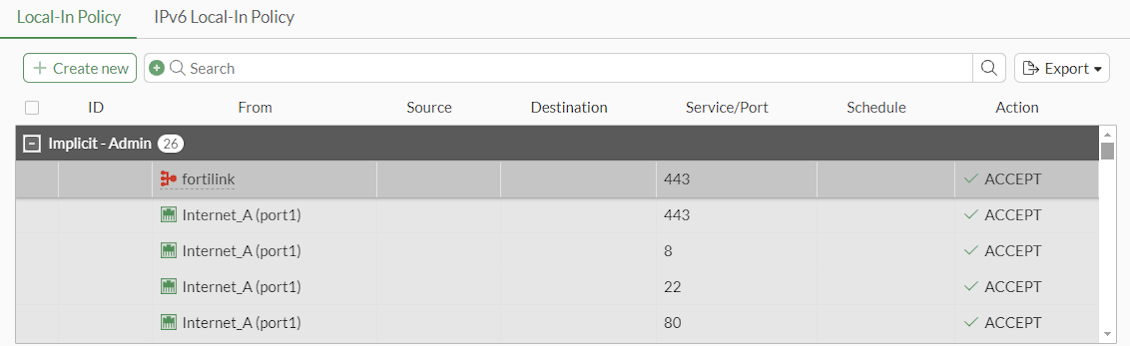
Go to Policy & Objects > Local-In Policy.
-
Go to the Local-In Policy tab.
-
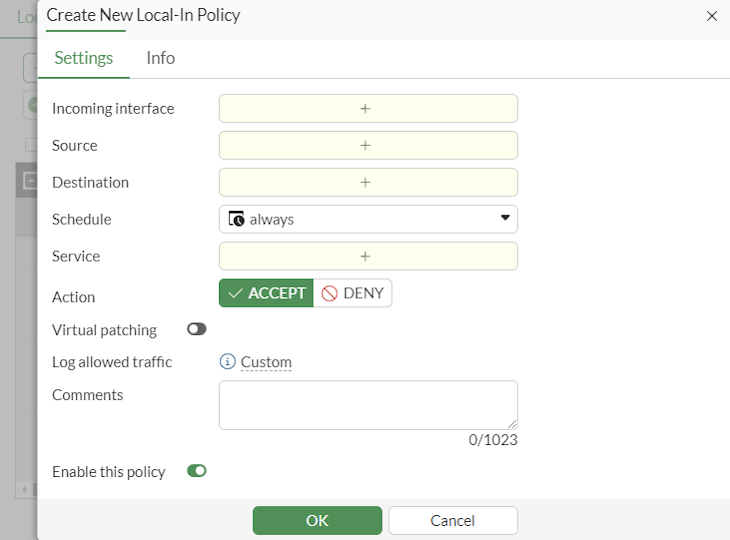
Click Create new. The Create New Local-In Policy pane is displayed.
-
Configure the policy parameters.
-
Click OK.
To create an IPv6 local-in policy in the GUI:
-
Go to Policy & Objects > Local-In Policy.
-
Go to the IPv6 Local-In Policy tab.

-
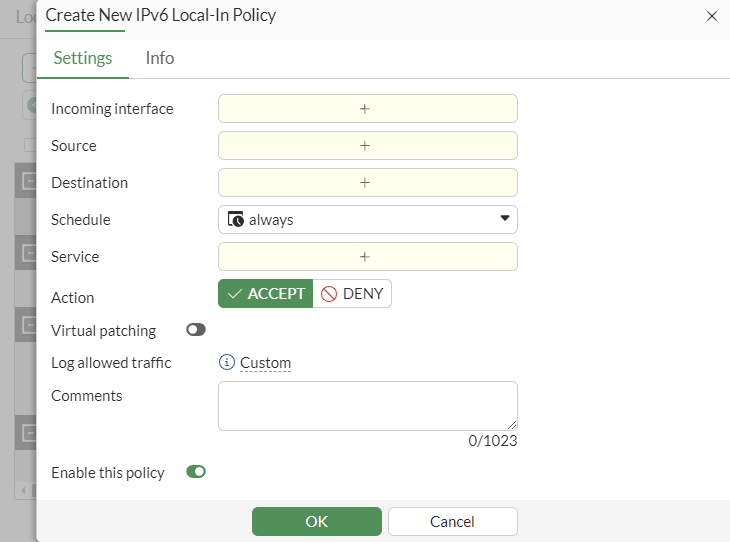
Click Create new. The Create New IPv6 Local-In Policy pane is displayed.
-
Configure the policy parameters.
-
Click OK.
To configure a local-in policy using the CLI:
config firewall {local-in-policy | local-in-policy6}
    edit <policy_number>
        set intf <interface>
        set srcaddr <source_address> [source_address] ...
        set dstaddr <destination_address> [destination_address] ...
        set action {accept | deny}
        set service <service_name> [service_name] ...
        set schedule <schedule_name>
        set virtual-patch {enable | disable}
        set comments <string>
    next
end
Example 1
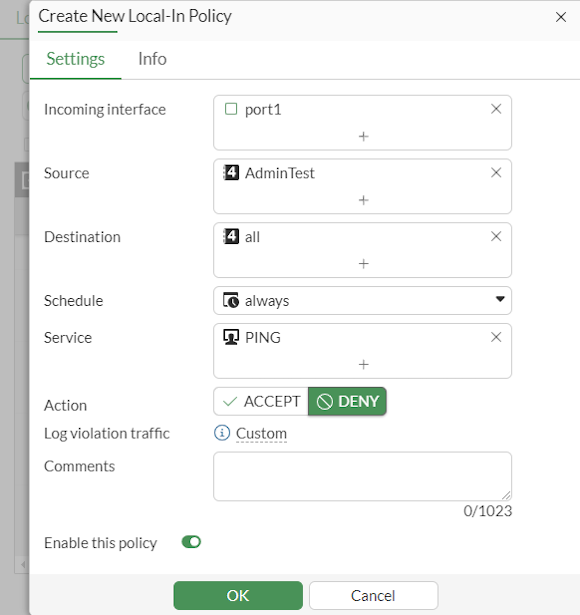
In this example, a local-in policy will be configured to prevent the source subnet 10.10.10.0/24 from pinging port1, but allow administrative access for PING on port1.
To configure the local-in policy for admin access in the CLI:
config firewall address
    edit "10.10.10.0"
        set subnet 10.10.10.0 255.255.255.0
    next
end
config firewall local-in-policy
    edit 1
        set intf "port1"
        set srcaddr "10.10.10.0"
        set dstaddr "all"
        set service "PING"
        set schedule "always"
    next
end
To configure the local-in policy for admin access:
-
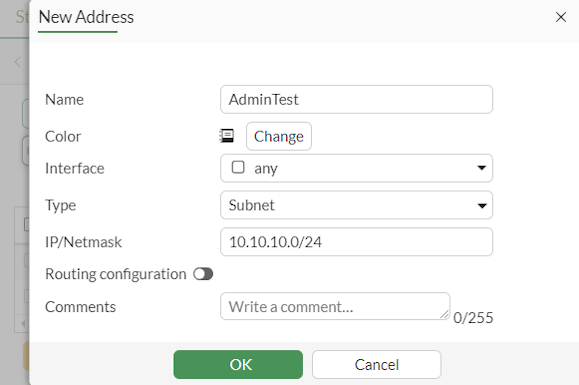
Configure the firewall address:
-
Go to Policy & Objects > Addresses.
-
Click Create new.
-
Enter a name for the address.
-
Set Type to Subnet.
-
Set IP/Netmask to 10.10.10.0/24.
-
Click OK.
-
-
Configure the local-in policy:
-
Go to Policy & Objects > Local-In Policy.
-
Click Create new.
-
Configure the following:
-
Set Interface to port1.
-
Set Source to the address created previously.
-
Set Destination to all.
-
Set Schedule to always.
-
Set Service to PING.
-
Set Action to DENY.
-
-
Click OK.
-
To test the configuration:
-
From the PC at 10.10.10.12, start a continuous ping to port1:
ping 192.168.2.5 –t
-
On the FortiGate, enable debug flow:
# diagnose debug flow filter addr 10.10.10.12
# diagnose debug flow filter proto 1
# diagnose debug enable
# diagnose debug flow trace start 10
-
The output of the debug flow shows that traffic is dropped by local-in policy 1:
# id=20085 trace_id=1 func=print_pkt_detail line=5746 msg="vd-root:0 received a packet(proto=1, 10.10.10.12:1->192.168.2.5:2048) from port1. type=8, code=0, id=1, seq=128."
id=20085 trace_id=1 func=init_ip_session_common line=5918 msg="allocate a new session-0017c5ad"
id=20085 trace_id=1 func=vf_ip_route_input_common line=2615 msg="find a route: flag=80000000 gw-192.168.2.5 via root"
id=20085 trace_id=1 func=fw_local_in_handler line=474 msg="iprope_in_check() check failed on policy 1, drop"
Example 2
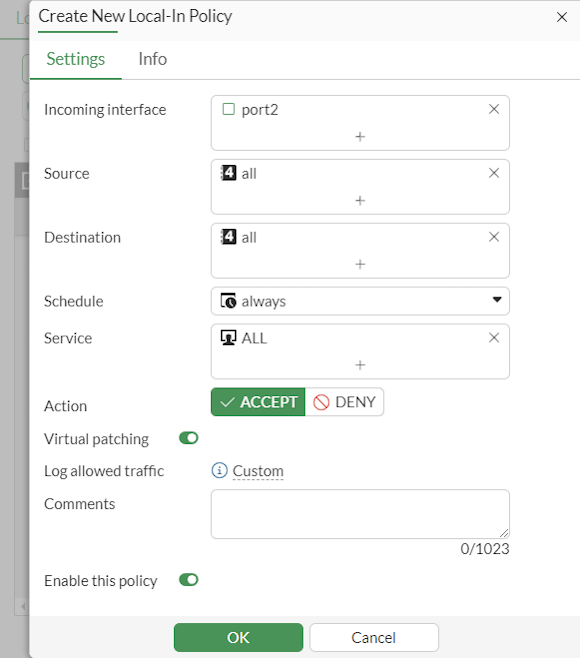
The following example demonstrates how to enable virtual patching on the port2 interface using a local-in policy. For information on enabling virtual patching in the CLI and observing the outcomes, see Virtual patching on the local-in management interface.
To enable virtual patching:
-
Go to Policy & Objects > Local-In Policy.
-
Click Create new.
-
Configure the following:
-
Set Interface to port2.
-
Set Source to all.
-
Set Destination to all.
-
Set Schedule to always.
-
Set Service to ALL.
-
Set Action to ACCEPT.
-
Enable Virtual patching.
-
-
Click OK.
Implicit deny rule
If a local-in-policy is not functioning correctly and traffic that should be blocked is being allowed through, the issue may be that the implicit deny local-in-policy has not been created. Unlike IPv4 policies, there is no default implicit deny policy. The implicit deny policy should be placed at the bottom of the list of local-in-policies. Local-in-policies are created for each interface, but if you want to create a general implicit deny rule for all interfaces for a specific service, source, address, or destination address, use the any interface.

|
When you define a local-in policy, if no action is set manually, then the action will default to |
For example, to allow only the source subnet 172.16.200.0/24 to ping port1:
config firewall address
    edit "172.16.200.0"
        set subnet 172.16.200.0 255.255.255.0
    next
end
config firewall local-in-policy
    edit 2
        set intf "port1"
        set srcaddr "172.16.200.0"
        set dstaddr "all"
        set action accept
        set service "PING"
        set schedule "always"
    next
    edit 3
        set intf "port1"
        set srcaddr "all"
        set dstaddr "all"
        set service "PING"
        set schedule "always"
    next
end
To test the configuration:
-
From the PC at 172.16.200.2, start a continuous ping to port1:
ping 172.16.200.1 –t
-
On the FortiGate, enable debug flow:
# diagnose debug flow filter proto 1
# diagnose debug enable
# diagnose debug flow trace start 10
-
The output of the debug flow shows that ping traffic coming from the 172.16.200.0 subnet is allowed:
# id=65308 trace_id=25 func=print_pkt_detail line=5939 msg="vd-root:0 received a packet(proto=1, 172.16.200.2:5->172.16.200.1:2048) tun_id=0.0.0.0 from port1. type=8, code=0, id=5, seq=0."
id=65308 trace_id=25 func=init_ip_session_common line=6121 msg="allocate a new session-00029409, tun_id=0.0.0.0"
id=65308 trace_id=25 func=__vf_ip_route_input_rcu line=2012 msg="find a route: flag=80000000 gw-0.0.0.0 via root"
id=65308 trace_id=25 func=ip_session_confirm_final line=3189 msg="npu_state=0x0, hook=1"
id=65308 trace_id=26 func=print_pkt_detail line=5939 msg="vd-root:0 received a packet(proto=1, 172.16.200.1:5->172.16.200.2:0) tun_id=0.0.0.0 from local. type=0, code=0, id=5, seq=0."
id=65308 trace_id=26 func=resolve_ip_tuple_fast line=6027 msg="Find an existing session, id-00029409, reply direction"
id=65308 trace_id=27 func=print_pkt_detail line=5939 msg="vd-root:0 received a packet(proto=1, 172.16.200.2:5->172.16.200.1:2048) tun_id=0.0.0.0 from port1. type=8, code=0, id=5, seq=1."
id=65308 trace_id=27 func=resolve_ip_tuple_fast line=6027 msg="Find an existing session, id-00029409, original direction"
id=65308 trace_id=28 func=print_pkt_detail line=5939 msg="vd-root:0 received a packet(proto=1, 172.16.200.1:5->172.16.200.2:0) tun_id=0.0.0.0 from local. type=0, code=0, id=5, seq=1."
-
From the PC at 172.20.120.13, start a continuous ping to port1:
ping 172.16.200.1 -t
-
The output of the debug flow shows that ping traffic coming from subnets other than 172.16.200.0 is dropped by local-in policy 3:
# id=65308 trace_id=21 func=print_pkt_detail line=5939 msg="vd-root:0 received a packet(proto=1, 172.20.120.13:1->172.16.200.1:2048) tun_id=0.0.0.0 from port2. type=8, code=0, id=1, seq=8."
id=65308 trace_id=21 func=init_ip_session_common line=6121 msg="allocate a new session-0002929d, tun_id=0.0.0.0"
id=65308 trace_id=21 func=__vf_ip_route_input_rcu line=2012 msg="find a route: flag=80000000 gw-0.0.0.0 via root"
id=65308 trace_id=21 func=__iprope_tree_check line=520 msg="gnum-100004, use int hash, slot=51, len=2"
id=65308 trace_id=21 func=fw_local_in_handler line=545 msg="iprope_in_check() check failed on policy 3, drop"
Additional options
To disable or re-enable the local-in policy, use the set status {enable | disable} command.
To dedicate the interface as an HA management interface, use the set ha-mgmt-intf-only enable command.
Example:
config firewall local-in-policy
    edit 1
        set ha-mgmt-intf-only enable
        set intf port4
        set srcaddr all
        set dstaddr all
        set service ALL
        set schedule always
        set action accept
        set status enable
    next
end
|
|
If a user tries to set the HA reserved management interface during the local-in policy an error is generated. Use the |
TTL policies
You can configure a time-to-live (TTL) policy to block attack traffic with high TTLs. This feature only applies to local-in traffic and does not apply to traffic passing through the FortiGate. You can use srcintf to set the interface that the local-in traffic hits. See config firewall ttl-policy.
To configure a TTL policy using the CLI:
config firewall ttl-policy
    edit <id>
        set status {enable | disable}
        set action {accept | deny}
        set srcintf <interface>
        set srcaddr <source_address> [source_address] ...
        set service <service_name> [service_name] ...
        set schedule <schedule_name>
        set ttl <value/range>
    next
end
Internet service as source addresses
An internet service can be used as the source address in a local-in policy. This allows for more flexibility and control when managing local traffic, enhancing network security and efficiency.
config firewall local-in-policy
    edit <id>
        set internet-service-src {enable | disable}
        set internet-service-src-name <string>
        set internet-service-src-group <string>
        set internet-service-src-custom <string>
        set internet-service-src-custom-group <string>
        set internet-service-src-negate {enable | disable}
    next
end
|
internet-service-src {enable | disable} |
Enable/disable use of Internet Services in source for this local-in policy. If enabled, the source address is not used. |
|
internet-service-src-name <string> |
Internet Service source name. |
|
internet-service-src-group <string> |
Internet Service source group name. |
|
internet-service-src-custom <string> |
Custom Internet Service source name. |
|
internet-service-src-custom-group <string> |
Custom Internet Service source group name. |
|
internet-service-src-negate {enable | disable} |
When enabled, |
Logging local traffic per local-in policy
Local traffic logging can be configured for each local-in policy. This enables more precise and targeted logging by focusing on specific local-in policies that are most relevant to your needs.
Logging can be configured per local-in policy in the Log & Report > Log Settings page or by using the following commands:
config log setting
    set local-in-policy-log {enable | disable}
end
config firewall local-in-policy
    edit <id>
        set logtraffic {enable | disable}
    next
end
config firewall local-in-policy6
    edit <id>
        set logtraffic {enable | disable}
    next
end
If per policy local-in traffic logging is enabled, the allowed traffic, denied unicast traffic, and denied broadcast traffic logging does not need to be configured for the log settings. When traffic logging is enabled for the local-in policy, the denied unicast traffic and denied broadcast traffic logs will be included.
To log local traffic per local-in policy in the GUI:
-
Enable local-in traffic logging per policy:
-
Go to Log & Report > Log Settings.
-
Go to the Global Settings tab.
-
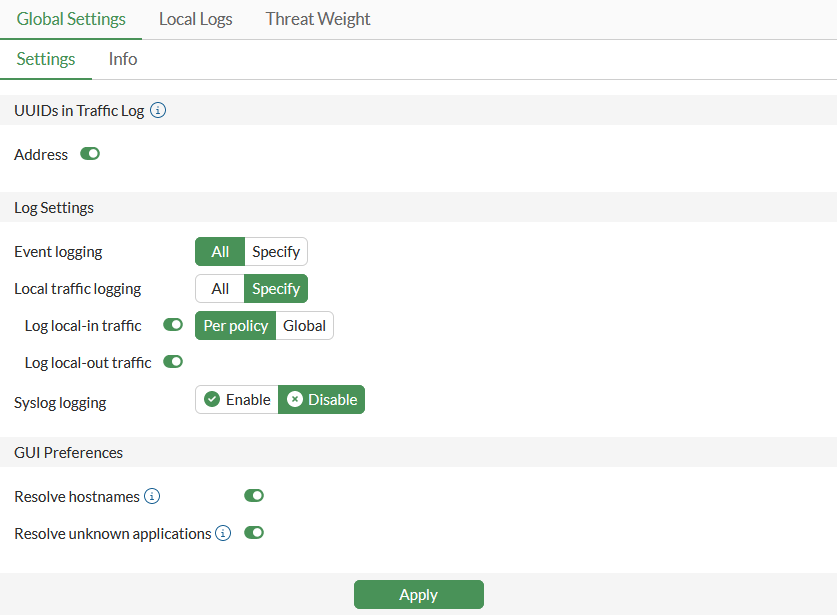
Set Local traffic logging to Specify.
-
Enable Log local-in traffic and set it to Per policy.
-
-
Log traffic in a local-in policy:
-
Go to Policy & Objects > Local-In Policy.
-
Select whether you want to configure a Local-In Policy or IPv6 Local-In Policy.
-
Create a new policy or edit an existing policy.
-
Enable traffic logging:
-
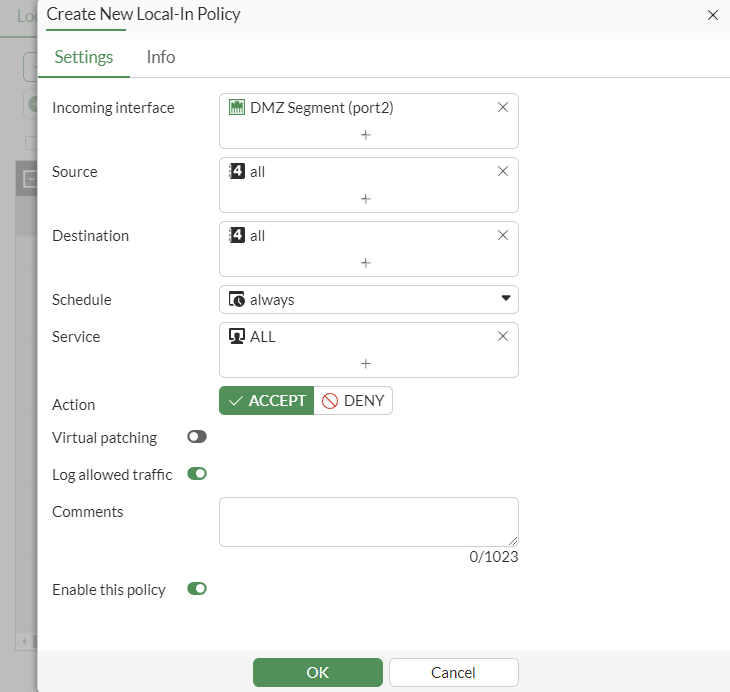
For policies with the Action set to ACCEPT, enable Log allowed traffic.
-
For policies with the Action set to DENY, enable Log violation traffic.
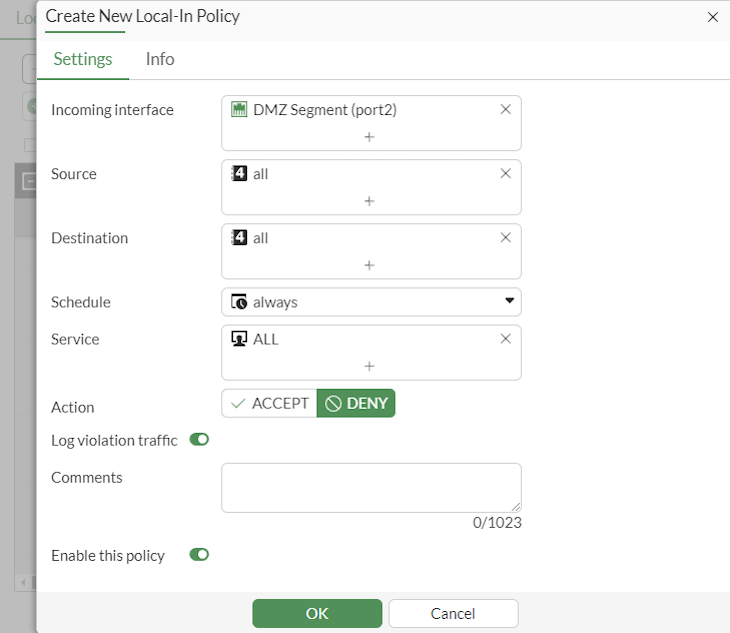
If traffic logging is enabled in the local-in policy, log denied unicast traffic and log denied broadcast traffic logs will display in Log & Report > Local Traffic.
-
-
To log local traffic per local-in policy in the CLI:
-
Enable logging local-in traffic per policy:
config log setting set local-in-policy-log enable end -
Enable local traffic logging in the policy:
config firewall local-in-policy edit 1 set logtraffic enable next end config firewall local-in-policy6 edit 2 set logtraffic enable next end -
Review local logs. Traffic is logged for the local-in policies and denied unicast traffic and denied broadcast traffic logs are included.
date=2024-04-17 time=12:32:02 eventtime=1713382322595245756 tz="-0700" logid="0001000014" type="traffic" subtype="local" level="notice" vd="vdom1" srcip=2000:10:1:100::11 identifier=28808 srcintf="port1" srcintfrole="undefined" dstip=2000:172:16:200::5 dstintf="vdom1" dstintfrole="undefined" sessionid=317 proto=58 action="deny" policyid=1 policytype="local-in-policy6" poluuid="a07ee45a-fcf0-51ee-7740-806252a3d358" srccountry="Reserved" dstcountry="Reserved" service="PING6" trandisp="noop" app="PING6" duration=0 sentbyte=0 rcvdbyte=0 sentpkt=0 rcvdpkt=0 appcat="unscanned" crscore=5 craction=262144 crlevel="low" msg="Connection Failed"

date=2024-04-17 time=14:32:15 eventtime=1713389535257923782 tz="-0700" logid="0001000014" type="traffic" subtype="local" level="notice" vd="vdom1" srcip=10.1.100.11 identifier=5747 srcintf="port1" srcintfrole="undefined" dstip=172.16.200.5 dstintf="vdom1" dstintfrole="undefined" srccountry="Reserved" dstcountry="Reserved" sessionid=11134 proto=1 action="deny" policyid=1 policytype="local-in-policy" poluuid="c9b22eda-fc51-51ee-c116-1f07e0898ea3" service="TIMESTAMP" trandisp="noop" app="TIMESTAMP" duration=0 sentbyte=0 rcvdbyte=0 sentpkt=0 rcvdpkt=0 appcat="unscanned" crscore=5 craction=262144 crlevel="low" msg="Connection Failed"

date=2024-04-17 time=14:35:29 eventtime=1713389729517452423 tz="-0700" logid="0001000014" type="traffic" subtype="local" level="notice" vd="vdom1" srcip=10.1.100.11 identifier=29479 srcintf="port1" srcintfrole="undefined" dstip=10.1.100.255 dstintf="unknown-0" dstintfrole="undefined" replysrcintf="vdom1" srccountry="Reserved" dstcountry="Reserved" sessionid=11180 proto=1 action="deny" policyid=1 policytype="local-in-policy" poluuid="c9b22eda-fc51-51ee-c116-1f07e0898ea3" service="PING" trandisp="noop" app="PING" duration=0 sentbyte=0 rcvdbyte=0 sentpkt=0 rcvdpkt=0 appcat="unscanned" msg="Connection Failed"
Global logging
Local-in traffic can also continue to be logged globally instead of per policy. To configure global local-in traffic logging in the CLI, disable local-in-policy-log.
To configure global local traffic logging in the GUI:
-
Enable local-in traffic logging per policy:
-
Go to Log & Report > Log Settings.
-
Go to the Global Settings tab.
-
Set Local traffic logging to Specify.
-
Enable Log local-in traffic and set it to Global.
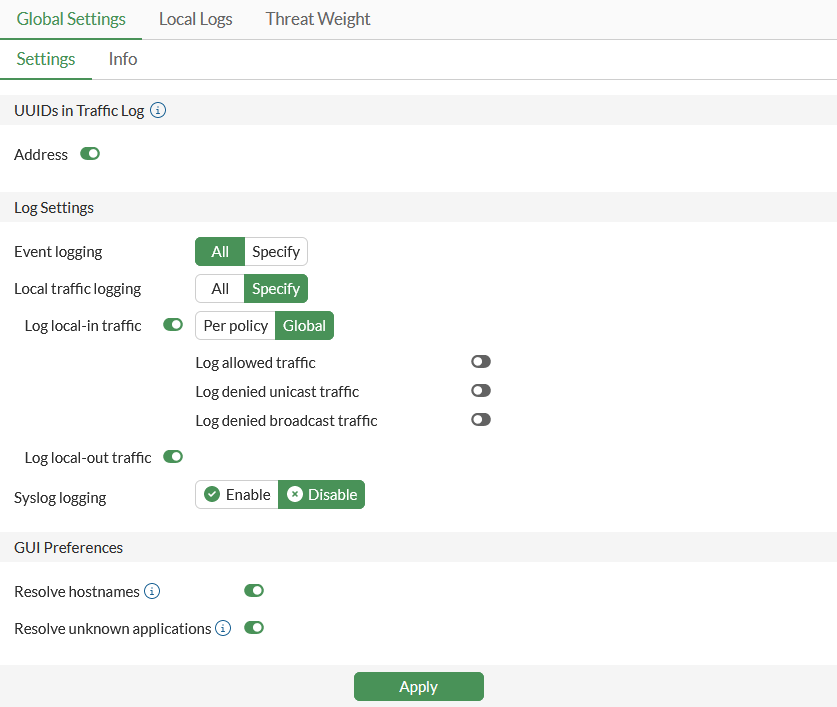
-
Enable the log events that should be globally logged.
-
-
Review logging in a local-in policy:
-
Go to Policy & Objects > Local-In Policy.
-
Select whether you want to configure a Local-In Policy or IPv6 Local-In Policy.
-
Create a new policy or edit an existing policy.
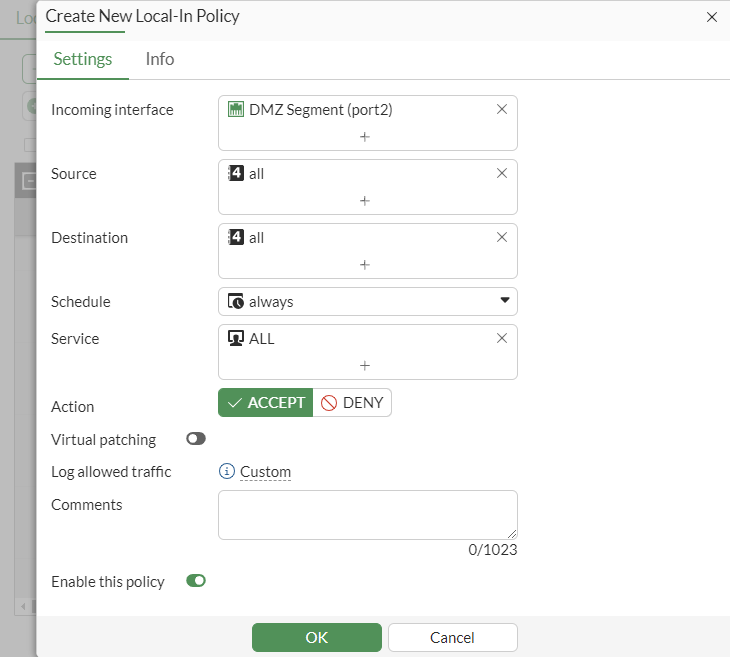
Log allowed traffic and Log violation traffic will be set to Custom and cannot be changed in the policy.
-