

Agentless VPN for remote users with MFA and user sensitivity
By default, remote LDAP and RADIUS user names are case sensitive. When a remote user object is applied to Agentless VPN authentication, the user must type the exact case that is used in the user definition on the FortiGate.
Case sensitivity and accents can be ignored by disabling the username-sensitivity CLI command, allowing the remote user object to match any case or accents that the end user types in.
In this example, a remote user is configured with multi-factor authentication (MFA). The user group includes the LDAP user and server and is applied to Agentless VPN authentication and the policy.
Topology
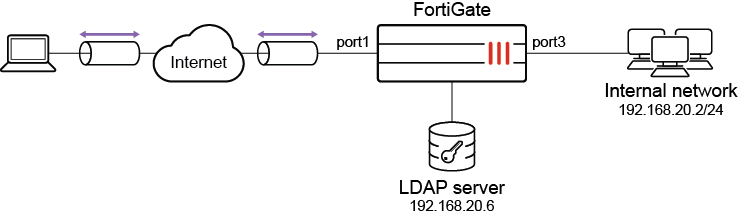
Example configuration
To configure the LDAP server:
-
Generate and export a CA certificate from the AD server .
-
Import the CA certificate into FortiGate:
-
Go to System > Features Visibility and ensure Certificates is enabled.
-
Go to System > Certificates and select Import > CA Certificate.
-
Select Local PC and then select the certificate file.
The CA certificate now appears in the list of External CA Certificates. In this example, it is called CA_Cert_1.
-
If you want, you can use CLI commands to rename the system-generated CA_Cert_1 to be more descriptive:
config vpn certificate ca
    rename CA_Cert_1 to LDAPS-CA
end
-
-
Configure the LDAP user:
-
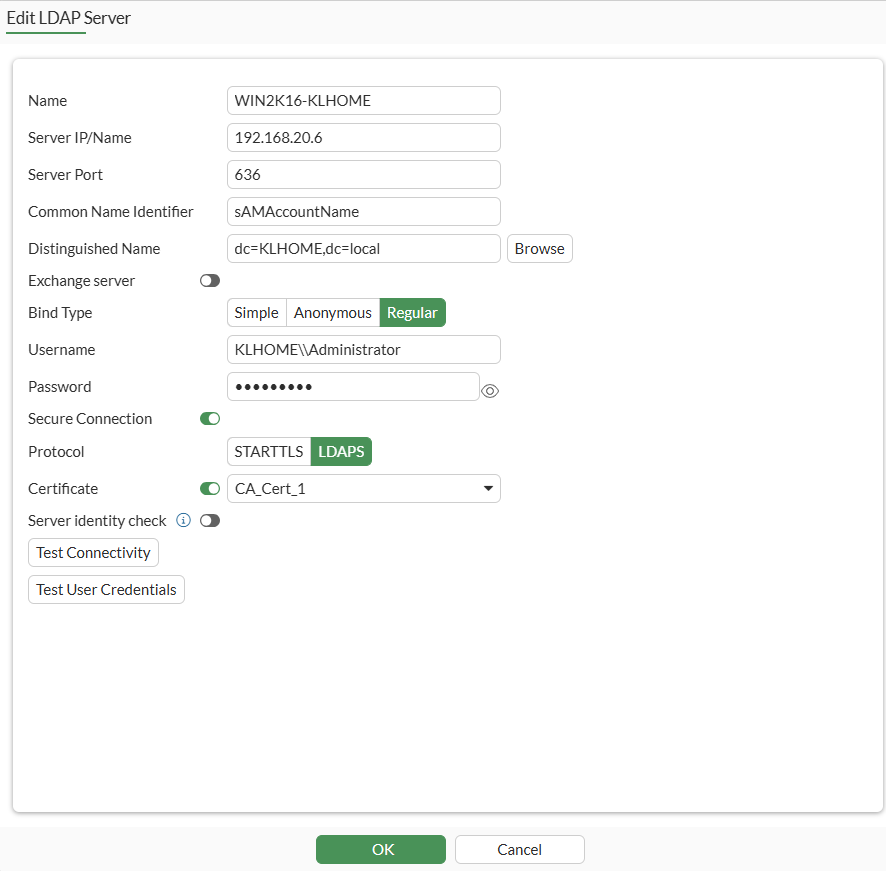
Go to User & Authentication > LDAP Servers and click Create New.
-
Configure the following options for this example:
Name
WIN2K16-KLHOME
Server IP/Name
192.168.20.6
Server Port
636
Common Name Identifier
sAMAccountName
Distinguished Name
dc=KLHOME,dc=local
Bind Type
Regular
Username
KLHOME\\Administrator
Password
*********
Secure Connection
Enable
Protocol
LDAPS
Certificate
CA_Cert_1
This is the CA certificate that you imported in step 2.
-
Click OK.
-
To configure an LDAP user with MFA:
-
Go to User & Authentication > User Definition and click Create New.
-
Select Remote LDAP User, then click Next.
-
Select the just created LDAP server, then click Next.

-
Right click to add the selected user, then click Submit.
-
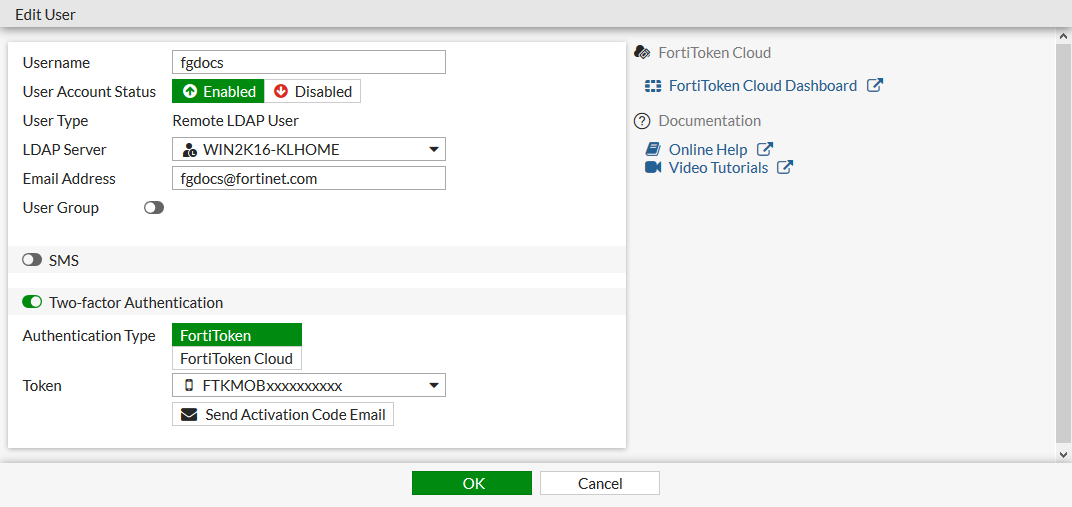
Edit the user that you just created.
The username will be pulled from the LDAP server with the same case as it has on the server.
-
Set the Email Address to the address that FortiGate will send the FortiToken to.
-
Enable Two-factor Authentication.
-
Set Authentication Type to FortiToken.
-
Set Token to a FortiToken device. See for more information.
-
Click OK.
To disable case and accent sensitivity on the remote user:
This can only be configured in the CLI.
config user local
    edit "fgdocs"
        set type ldap
        set two-factor fortitoken
        set fortitoken "FTKMOBxxxxxxxxxx"
        set email-to "fgdocs@fortinet.com"
        set username-sensitivity disable
        set ldap-server "WIN2K16-KLHOME"
    next
end
To configure a user group with the remote user and the LDAP server:
-
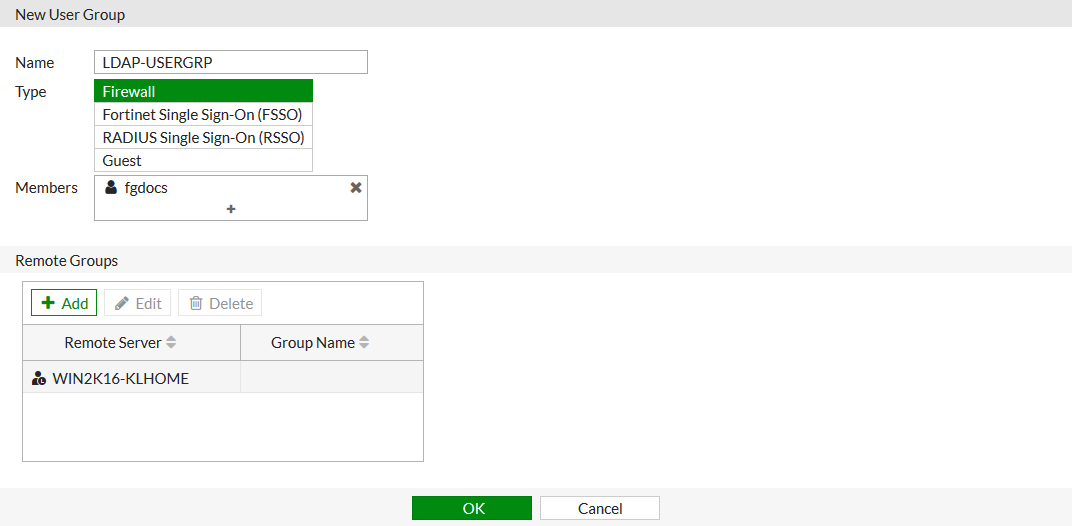
Go to User & Authentication > User Groups and click Create New.
-
Set the Name to LDAP-USERGRP.
-
Set Members to the just created remote user.
-
In the Remote Groups table, click Add:
-
Set Remote Server to the LDAP server.
-
Set the group or groups that apply, and right click to add them.
-
Click OK.
-
-
Click OK.
To configure Agentless VPN Portal:
-
Go to VPN > Agentless VPN Portals, and click Create New.
-
Enter a Name, such as agentless-portal.
-
Under Predefined Bookmarks, click Create New, and enter following details:
Field
Value
Name
Windows Server
Type
RDP
Host
192.168.1.114
Port
3389
Single Sign-On
Disable
Username
Set the username to login to Windows Server
Password
Set the password to login to Windows Server
Port
3389
-
Click OK to save the predefined bookmark.
-
Click OK to save the portal settings.
-
Create another Agentless VPN Portal and name it as portal-access-disabled.
-
Click OK to save the portal settings.
-
Disable Agentless VPN for the newly created portal (that is,
portal-access-disabled) using CLI:config vpn ssl web portal edit "portal-access-disabled" set web-mode disable next end
To configure Agentless VPN settings and apply the user group to the Agentless VPN portal:
-
Go to VPN > Agentless VPN Settings.
-
Set Agentless VPN status to Enable.
-
For Listen on Interface(s), select wan1.
-
Set Listen on Port to 10443.
-
Choose a certificate for Server Certificate. The default is Fortinet_Factory.
-
In Authentication/Portal Mapping, select All Other Users/Groups, and click Edit.
-
Use Portal dropdown to select portal-access-disabled.
-
Click OK.
-
In Authentication/Portal Mapping, click Create New.
-
Set Users/Groups to LDAP-USERGRP.
-
Set Portal to agentless-portal.
-
Click OK.
-
-
Click Apply to save the Agentless VPN settings.
To apply the user group to Agentless VPN firewall policy:
-
Go to Policy & Objects > Firewall Policy, and click Create New.
-
Set Name as Agentless VPN firewall policy.
-
Set Schedule to always and Action to Accept.
-
Set Incoming interface to Agentless VPN interface (ssl.root).
-
Choose an Outgoing Interface. This example uses port1.
-
Set the Source to all and User/group to LDAP-USERGRP.
-
In this example, the Destination is the internal, protected subnet 192.168.1.0.
-
Set Service to ALL.
-
Click OK.
To configure this example in the CLI:
-
Configure the LDAP server:
config user ldap edit "WIN2K16-KLHOME" set server "192.168.20.6" set cnid "sAMAccountName" set dn "dc=KLHOME,dc=local" set type regular set username "KLHOME\\Administrator" set password ********* set secure ldaps set ca-cert "CA_Cert_1" set port 636 next end -
Configure an LDAP user with MFA and disable case and accent sensitivity on the remote user:
config user local edit "fgdocs" set type ldap set two-factor fortitoken set fortitoken "FTKMOBxxxxxxxxxx" set email-to "fgdocs@fortinet.com" set username-sensitivity disable set ldap-server "WIN2K16-KLHOME" next end -
Configure a user group with the remote user and the LDAP server:
config user group edit "LDAP-USERGRP" set member "fgdocs" "WIN2K16-KLHOME" next end -
Configure Agentless VPN portal and predefine RDP bookmark for windows server.
config vpn ssl web portal edit "agentless-portal" set web-mode enable config bookmark-group edit "gui-bookmarks" config bookmarks edit "Windows Server" set apptype rdp set host "192.168.1.114" set port 3389 set logon-user "your-windows-server-user-name" set logon-password your-windows-server-password next end next end next end -
Configure another Agentless VPN portal and disable Agentless VPN on it.
config vpn ssl web portal edit "portal-access-disabled" set web-mode disable next end -
Apply the user group to the Agentless VPN portal:
config vpn ssl settings set servercert "Fortinet_Factory" set source-interface "wan1" set source-address "all" set default-portal "portal-access-disabled" config authentication-rule edit 1 set groups "LDAP-USERGRP" set portal "agentless-portal" next end end -
Configure one Agentless VPN firewall policy to allow the remote user to access the internal network. This policy does not allow traffic initiated from internal network to remote client:
config firewall policy
    edit 1
        set name "Agentless VPN firewall policy"
        set srcintf "ssl.root"
        set dstintf "port1"
        set action accept
        set srcaddr "all"
        set dstaddr "192.168.1.0"
        set schedule "always"
        set service "ALL"
        set nat enable
        set groups "LDAP-USERGRP"
    next
end
Verification
To test the connection with case sensitivity disabled:
-
From a remote device, use a web browser to log in to the Agentless VPN web portal https://172.20.120.123:10443.
-
Connect to the Agentless VPN:
-
Log in to the tunnel with the username, using the same case that it is on the FortiGate.
-
When prompted, enter your FortiToken code.
You should now be connected.
-
-
Check the web portal log in using the CLI:
# get vpn ssl monitor
Agentless VPN Login Users:
 Index   User    Group   Auth Type      Timeout         From     HTTP in/out   HTTPS in/out
 0       fgdocs          LDAP-USERGRP    16(1)           289     192.168.2.202 0/0      0/0

Agentless VPN sessions:
 Index   User    Group   Source IP      Duration        I/O Bytes       Tunnel/Dest IP
-
Log out from the Agentless VPN portal.
-
Reconnect to the Agentless VPN portal:
-
Log in to the Agentless VPN portal with the username, using a different case than on the FortiGate.
-
When prompted, enter your FortiToken code.
You should now be connected.
-
-
Check the web portal log in using the CLI:
# get vpn ssl monitor
Agentless VPN Login Users:
 Index   User    Group   Auth Type      Timeout         From     HTTP in/out   HTTPS in/out
 0       FGDOCS          LDAP-USERGRP    16(1)           289     192.168.2.202 0/0      0/0

Agentless VPN sessions:
 Index   User    Group   Source IP      Duration        I/O Bytes       Tunnel/Dest IP
In both cases, the remote user is matched against the remote LDAP user object and prompted for multi-factor authentication.
To test the connection with case and accent sensitivity enabled:
-
Enable case and accent sensitivity for the user:
config user local edit "fgdocs" set username-sensitivity enable next end -
Connect to the Agentless VPN portal:
-
Log in to the Agentless VPN portal with the username, using the same case that it is on the FortiGate.
-
When prompted, enter your FortiToken code.
You should now be connected.
-
-
Check the web portal log in using the CLI:
# get vpn ssl monitor
Agentless VPN Login Users:
 Index   User    Group   Auth Type      Timeout         From     HTTP in/out   HTTPS in/out
 0       fgdocs          LDAP-USERGRP    16(1)           289     192.168.2.202 0/0      0/0

Agentless VPN sessions:
 Index   User    Group   Source IP      Duration        I/O Bytes       Tunnel/Dest IP
 0       fgdocs          LDAP-USERGRP    192.168.2.202   45      99883/5572    10.212.134.200
-
Log out from Agentless VPN portal.
-
Reconnect to the Agentless VPN portal:
-
Log in to the Agentless VPN portal with the username, using a different case than on the FortiGate.
You will not be prompted for your FortiToken code. You should now be connected.
-
-
Check the web portal log in using the CLI:
# get vpn ssl monitor
Agentless VPN Login Users:
 Index   User    Group   Auth Type      Timeout         From     HTTP in/out   HTTPS in/out
 0       FGdocs          LDAP-USERGRP    16(1)           289     192.168.2.202 0/0      0/0

Agentless VPN sessions:
 Index   User    Group   Source IP      Duration        I/O Bytes       Tunnel/Dest IP
In this case, the user is allowed to log in without a FortiToken code because the entered user name did not match the name defined on the remote LDAP user object. Authentication continues to be evaluated against the LDAP server though, which is not case sensitive.