
Fortinet white logo
Fortinet white logo

Administration Guide

DNS translation

DNS translation

DNS translation is a technique that allows the translation of a DNS-resolved IP address to another specified IP address on a per-policy basis.

One of its use cases is as an alternative to hairpin NAT. By utilizing DNS translation, internal clients can access internal servers using external DNS names. This is achieved by translating DNS responses to internal IP addresses, which can streamline configurations and mitigate some of the complexities associated with Hairpin NAT. However, hairpin NAT can offer faster performance in certain scenarios by eliminating the need for DNS queries, thereby providing direct routing and potentially reducing overhead. The performance difference may not always be significant and largely depends on the specific network setup. For more information, see Hairpin NAT.

How DNS translation works:

  1. DNS Query Interception: When an internal client queries the DNS for the external IP address of an internal server the DNS server intercepts this request.

  2. DNS Response Modification: Instead of returning the external IP address, the DNS server responds with the internal IP address of the server.

  3. Direct Communication: The internal client then communicates directly with the internal server using its internal IP address, bypassing the need for NAT hairpinning.

DNS translation supports Service (SRV) records over the DNS filter profile for IPv4 and IPv6 and for flow and proxy inspection modes. The translation detects and logs DNS QTYP=SRV. You can view the records in the GUI by going to Log & Report > Security Events and filtering by Query Type = SRV.

A DNS filter profile can be applied in a policy to scan DNS traffic traversing the FortiGate (see Configuring a DNS filter profile), or applied on the DNS server interface (see Applying DNS filter to FortiGate DNS server).

Example

This configuration allows both internal and remote employees to use the same domain name to access the server, such as www.pochiya.com. DNS translation ensures consistency, avoiding confusion and complications in network configurations. This setup is particularly useful for companies that save bookmarks to internal web servers using public domain names in users’ profiles, ensuring access whether connected to the internal LAN or the internet.
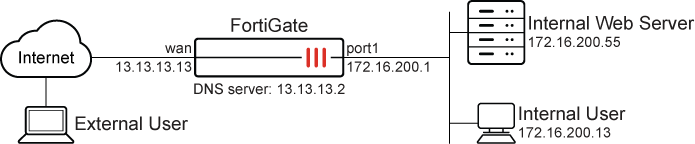
In this scenario, the user can access saved bookmarks containing public domain names from both their office computer on the internal network and their personal computer over the internet.

Before continuing, make sure that the port1 and wan interfaces have been configured with valid IP addresses and some publicly accessible domain names are saved as bookmarks in the user profile.

It is assumed that you have administrative access, the FortiGate is incorporated into your network, and the external IP address is the same as the FortiGate wan interface.

The configuration has three steps:

  1. Create and attach DNS translation object: Map the external IP address to the internal IP address and attach the DNS translation object to a DNS filter profile, allowing internal clients to receive the internal IP address when querying the external DNS name.

  2. Apply the DNS filter profile to a policy: DNS traffic is filtered through the DNS translation profile, allowing internal users to access the internal server using the external DNS name.

  3. Verify the result: Confirm that the employee can access the internal web server using the external DNS name.

To create and attach a DNS translation object in the GUI:
  1. Go to Security Profiles > DNS Filter and click Create New.

  2. Set the Name of the filter, such as Reflective DNS.

  3. Under Static Domain Filter, enable DNS Translation.

  4. In the DNS Translation table, click Create New and configure the new translation:

    Original Destination

    13.13.13.13

    Translated Destination

    172.16.200.55

    Network Mask

    255.255.255.255

    Status

    Enable
  5. Click OK.

  6. Enable Log all DNS queries and responses.

  7. Click OK.

To configure a firewall policy for DNS translation in the GUI:
  1. Go to Policy & Objects > Firewall Policy, and click Create New.

  2. Configure the following:

    Field

    Value

    Name

    lan-wan

    Schedule

    always

    Action

    ACCEPT

    Type

    Standard

    Incoming interface

    port1

    Outgoing interface

    wan

    Source

    all

    Destination

    all

    Service

    ALL

    NAT

    Enabled

    IP pool configuration

    Use Outgoing Interface Address

    DNS Filter

    Enable and select Reflective DNS

    Log allowed traffic

    All sessions

  3. Click OK.

To configure DNS translation in the CLI:
  1. Create and attach a DNS translation object :

    config dnsfilter profile
        edit "Reflective DNS" 
            set log-all-domain enable
            config dns-translation
                edit 1
                    set src 13.13.13.13
                    set dst 172.16.200.55
                    set netmask 255.255.255.255
                next
            end
        next
    end
  2. Configure a firewall policy for DNS translation:

    config firewall policy     
        edit 1         
            set name "lan-wan"         
            set srcintf "port1"         
            set dstintf "wan"         
            set action accept         
            set srcaddr "all"         
            set dstaddr "all"         
            set schedule "always"        
            set service "ALL" 
            set utm-status enable
            set dnsfilter-profile "Reflective DNS"
            set logtraffic all
            set nat enable    
       next 
    end
To verify the results:
  1. Access the internal machine and use the saved bookmarks that contain the public domain name of the internal web server to access it. This should be successful, and the web server should load correctly. On the FortiGate, this can be verified using the logs and session list

  2. On the FortiGate, go to Log & Report > Security Events, expand the DNS Query widget, and double click the desired log entry to view its details, or use the CLI to view the logs:

    #execute log filter category 15
    #execute log display
    1: date =2024-12-13 time=07:39:37 eventtime=1734032377518565638 tz="+1200" logid="1501054802" type="utm" subtype="dns" eventtype="dns-response" level="notice" vd="root" policyid=1 poluuid="62063350-b324-51ef-75c1-7c13a319762c" policytype="policy" sessionid=5147 srcip=172.16.200.13 srcport=60866 srccountry="Reserved" srcintf="port1" srcintfrole="undefined" dstip=13.13.13.2 dstport=53 dstcountry="United States" dstintf="wan" dstintfrole="undefined" proto=17 profile="Reflective DNS" xid=64 qname="www.pochiya.com" qtype="A" qtypeval=1 qclass="IN" ipaddr="172.16.200.55" msg="Domain is monitored" action="pass" cat==49 catdesc="Business" translationid=1
    
    2: date=2024-12-13 time=07:39:37 eventtime=1734032377517238918 tz="+1200" logid="1500054000" type="utm" subtype="dns" eventtype="dns-query" level="information" vd="root" policyid=1 poluuid="62063350-b324-51ef-75c1-7c13a319762c" policytype="policy" sessionid=5147 srcip=172.16.200.13 srcport=60866 srccountry="Reserved" srcintf="port1" srcintfrole="undefined" dstip=13.13.13.2 dstport=53 dstcountry="United States" dstintf="wan" dstintfrole="undefined" proto=17 profile="Reflective DNS" xid=64 qname="www.pochiya.com" qtype="A" qtypeval=1 qclass="IN"
    
    Note

    If the logs are missing, go to Log & Report > Forward Traffic and increase the time frame to ensure that all pertinent log entries are available.

DNS translation network mask

The following is an example of DNS translation that uses a network mask other than /32 (255.255.255.255):

To configure DNS translation in the CLI:
config dns-translation
        edit 1
           set src 93.184.216.34
           set dst 1.2.3.4
           set netmask 255.255.224.0
        next
    end
To check DNS translation using a command line tool after DNS translation:
# dig www.example.com
;; ->>HEADER<<- opcode: QUERY; status: NOERROR; id: 6736
;; Flags: qr rd ra; QUERY: 1; ANSWER: 1; AUTHORITY: 2; ADDITIONAL: 0

;; QUESTION SECTION:
;; www.example.com.             IN      A

;; ANSWER SECTION:
www.example.com.        29322   IN      A       1.2.24.34

;; AUTHORITY SECTION:
example.com.            13954   IN      NS      a.iana-servers.net.
example.com.            13954   IN      NS      b.iana-servers.net.

;; Received 97 B
;; Time 2019-04-08 12:04:30 PDT
;; From 172.16.95.16@53(UDP) in 2.0 ms

The binary arithmetic to convert 93.184.216.34 to 1.2.3.4 with the subnet mask is as follows:

  1. AND src(Original IP) with negative netmask (93.184.216.34 & ~255.255.224.0):

    01011101.10111000.11011000.00100010 93.184.216.34
    00000000.00000000.00011111.11111111 ~255.255.224.0
    -------------------------------------------------------- & 
    00000000.00000000.00011000.00100010 0.0.24.34
  2. AND dst(Translated IP) with netmask:

    00000001.00000010.00000011.00000100 1.2.3.4
    11111111.11111111.11100000.00000000 255.255.224.0
    -------------------------------------------------------- &
    00000001.00000010.00000000.00000000 1.2.0.0
  3. Final step 2 bitwise-OR 3:

    00000000.00000000.00011000.00100010 0.0.24.34
    00000001.00000010.00000000.00000000 1.2.0.0
    -------------------------------------------------------- |
    00000001.00000010.00011000.00100010 1.2.24.34

More Links

DNS translation

DNS translation

DNS translation is a technique that allows the translation of a DNS-resolved IP address to another specified IP address on a per-policy basis.

One of its use cases is as an alternative to hairpin NAT. By utilizing DNS translation, internal clients can access internal servers using external DNS names. This is achieved by translating DNS responses to internal IP addresses, which can streamline configurations and mitigate some of the complexities associated with Hairpin NAT. However, hairpin NAT can offer faster performance in certain scenarios by eliminating the need for DNS queries, thereby providing direct routing and potentially reducing overhead. The performance difference may not always be significant and largely depends on the specific network setup. For more information, see Hairpin NAT.

How DNS translation works:

  1. DNS Query Interception: When an internal client queries the DNS for the external IP address of an internal server the DNS server intercepts this request.

  2. DNS Response Modification: Instead of returning the external IP address, the DNS server responds with the internal IP address of the server.

  3. Direct Communication: The internal client then communicates directly with the internal server using its internal IP address, bypassing the need for NAT hairpinning.

DNS translation supports Service (SRV) records over the DNS filter profile for IPv4 and IPv6 and for flow and proxy inspection modes. The translation detects and logs DNS QTYP=SRV. You can view the records in the GUI by going to Log & Report > Security Events and filtering by Query Type = SRV.

A DNS filter profile can be applied in a policy to scan DNS traffic traversing the FortiGate (see Configuring a DNS filter profile), or applied on the DNS server interface (see Applying DNS filter to FortiGate DNS server).

Example

This configuration allows both internal and remote employees to use the same domain name to access the server, such as www.pochiya.com. DNS translation ensures consistency, avoiding confusion and complications in network configurations. This setup is particularly useful for companies that save bookmarks to internal web servers using public domain names in users’ profiles, ensuring access whether connected to the internal LAN or the internet.

In this scenario, the user can access saved bookmarks containing public domain names from both their office computer on the internal network and their personal computer over the internet.

Before continuing, make sure that the port1 and wan interfaces have been configured with valid IP addresses and some publicly accessible domain names are saved as bookmarks in the user profile.

It is assumed that you have administrative access, the FortiGate is incorporated into your network, and the external IP address is the same as the FortiGate wan interface.

The configuration has three steps:

  1. Create and attach DNS translation object: Map the external IP address to the internal IP address and attach the DNS translation object to a DNS filter profile, allowing internal clients to receive the internal IP address when querying the external DNS name.

  2. Apply the DNS filter profile to a policy: DNS traffic is filtered through the DNS translation profile, allowing internal users to access the internal server using the external DNS name.

  3. Verify the result: Confirm that the employee can access the internal web server using the external DNS name.

To create and attach a DNS translation object in the GUI:
  1. Go to Security Profiles > DNS Filter and click Create New.

  2. Set the Name of the filter, such as Reflective DNS.

  3. Under Static Domain Filter, enable DNS Translation.

  4. In the DNS Translation table, click Create New and configure the new translation:

    Original Destination

    13.13.13.13

    Translated Destination

    172.16.200.55

    Network Mask

    255.255.255.255

    Status

    Enable
  5. Click OK.

  6. Enable Log all DNS queries and responses.

  7. Click OK.

To configure a firewall policy for DNS translation in the GUI:
  1. Go to Policy & Objects > Firewall Policy, and click Create New.

  2. Configure the following:

    Field

    Value

    Name

    lan-wan

    Schedule

    always

    Action

    ACCEPT

    Type

    Standard

    Incoming interface

    port1

    Outgoing interface

    wan

    Source

    all

    Destination

    all

    Service

    ALL

    NAT

    Enabled

    IP pool configuration

    Use Outgoing Interface Address

    DNS Filter

    Enable and select Reflective DNS

    Log allowed traffic

    All sessions

  3. Click OK.

To configure DNS translation in the CLI:
  1. Create and attach a DNS translation object :

    config dnsfilter profile
        edit "Reflective DNS" 
            set log-all-domain enable
            config dns-translation
                edit 1
                    set src 13.13.13.13
                    set dst 172.16.200.55
                    set netmask 255.255.255.255
                next
            end
        next
    end
  2. Configure a firewall policy for DNS translation:

    config firewall policy     
        edit 1         
            set name "lan-wan"         
            set srcintf "port1"         
            set dstintf "wan"         
            set action accept         
            set srcaddr "all"         
            set dstaddr "all"         
            set schedule "always"        
            set service "ALL" 
            set utm-status enable
            set dnsfilter-profile "Reflective DNS"
            set logtraffic all
            set nat enable    
       next 
    end
To verify the results:
  1. Access the internal machine and use the saved bookmarks that contain the public domain name of the internal web server to access it. This should be successful, and the web server should load correctly. On the FortiGate, this can be verified using the logs and session list

  2. On the FortiGate, go to Log & Report > Security Events, expand the DNS Query widget, and double click the desired log entry to view its details, or use the CLI to view the logs:

    #execute log filter category 15
    #execute log display
    1: date =2024-12-13 time=07:39:37 eventtime=1734032377518565638 tz="+1200" logid="1501054802" type="utm" subtype="dns" eventtype="dns-response" level="notice" vd="root" policyid=1 poluuid="62063350-b324-51ef-75c1-7c13a319762c" policytype="policy" sessionid=5147 srcip=172.16.200.13 srcport=60866 srccountry="Reserved" srcintf="port1" srcintfrole="undefined" dstip=13.13.13.2 dstport=53 dstcountry="United States" dstintf="wan" dstintfrole="undefined" proto=17 profile="Reflective DNS" xid=64 qname="www.pochiya.com" qtype="A" qtypeval=1 qclass="IN" ipaddr="172.16.200.55" msg="Domain is monitored" action="pass" cat==49 catdesc="Business" translationid=1
    
    2: date=2024-12-13 time=07:39:37 eventtime=1734032377517238918 tz="+1200" logid="1500054000" type="utm" subtype="dns" eventtype="dns-query" level="information" vd="root" policyid=1 poluuid="62063350-b324-51ef-75c1-7c13a319762c" policytype="policy" sessionid=5147 srcip=172.16.200.13 srcport=60866 srccountry="Reserved" srcintf="port1" srcintfrole="undefined" dstip=13.13.13.2 dstport=53 dstcountry="United States" dstintf="wan" dstintfrole="undefined" proto=17 profile="Reflective DNS" xid=64 qname="www.pochiya.com" qtype="A" qtypeval=1 qclass="IN"
    
    Note

    If the logs are missing, go to Log & Report > Forward Traffic and increase the time frame to ensure that all pertinent log entries are available.

DNS translation network mask

The following is an example of DNS translation that uses a network mask other than /32 (255.255.255.255):

To configure DNS translation in the CLI:
config dns-translation
        edit 1
           set src 93.184.216.34
           set dst 1.2.3.4
           set netmask 255.255.224.0
        next
    end
To check DNS translation using a command line tool after DNS translation:
# dig www.example.com
;; ->>HEADER<<- opcode: QUERY; status: NOERROR; id: 6736
;; Flags: qr rd ra; QUERY: 1; ANSWER: 1; AUTHORITY: 2; ADDITIONAL: 0

;; QUESTION SECTION:
;; www.example.com.             IN      A

;; ANSWER SECTION:
www.example.com.        29322   IN      A       1.2.24.34

;; AUTHORITY SECTION:
example.com.            13954   IN      NS      a.iana-servers.net.
example.com.            13954   IN      NS      b.iana-servers.net.

;; Received 97 B
;; Time 2019-04-08 12:04:30 PDT
;; From 172.16.95.16@53(UDP) in 2.0 ms

The binary arithmetic to convert 93.184.216.34 to 1.2.3.4 with the subnet mask is as follows:

  1. AND src(Original IP) with negative netmask (93.184.216.34 & ~255.255.224.0):

    01011101.10111000.11011000.00100010 93.184.216.34
    00000000.00000000.00011111.11111111 ~255.255.224.0
    -------------------------------------------------------- & 
    00000000.00000000.00011000.00100010 0.0.24.34
  2. AND dst(Translated IP) with netmask:

    00000001.00000010.00000011.00000100 1.2.3.4
    11111111.11111111.11100000.00000000 255.255.224.0
    -------------------------------------------------------- &
    00000001.00000010.00000000.00000000 1.2.0.0
  3. Final step 2 bitwise-OR 3:

    00000000.00000000.00011000.00100010 0.0.24.34
    00000001.00000010.00000000.00000000 1.2.0.0
    -------------------------------------------------------- |
    00000001.00000010.00011000.00100010 1.2.24.34