
Fortinet white logo
Fortinet white logo

Administration Guide

Automatically provision a certificate

Automatically provision a certificate

The Automated Certificate Management Environment (ACME), as defined in RFC 8555, is used by the public Let's Encrypt certificate authority (https://letsencrypt.org) to provide free SSL server certificates. The FortiGate can be configured to use certificates that are managed by Let's Encrypt, and other certificate management services, that use the ACME protocol. The server certificates can be used for secure administrator log in to the FortiGate.

Note

ACME certificates do not support loopback interfaces.

  • The FortiGate must have a public IP address and a hostname in DNS (FQDN) that resolves to the public IP address.

  • The configured ACME interface must be publicly reachable, and port TCP/443 or TCP/80 must not be used by other services.

  • By default, the challenge is sent on TCP/80. By default, port 80 on the FortiGate redirects to TCP/443 for security purposes.

  • If TCP/443 is in use by a process on the FortiGate (such as HTTPS daemon), the ACME daemon will fall back to TCP/80 for the challenge.

  • If TCP/80 is also used by another service, the ACME process will fail.

  • If a VIP is in use on any of these ports, then the incoming ACME challenge will be processed by the VIP rather than the system/ACME daemon.

    A VIP can be intentionally used to allow servers behind the FortiGate to participate in the ACME process, and can also be used to forward ACME challenges to a management VDOM that is not directly reachable by the ACME service.

  • The Subject Alternative Name (SAN) field is automatically filled with the FortiGate DNS hostname. It cannot be edited, wildcards cannot be used, and multiple SANs cannot be added.

Security

FortiOS supports two forms of ACME challenge for Let's Encrypt: TLS-ALPN-01 (on TCP/443) and HTTP-01 (on TCP/80). By default, it uses the TLS-ALPN-01 challenge. See Challenge Types for an overview of the Let's Encrypt challenge types.

TLS-ALPN-01

This challenge requires the FortiGate to provide a self-signed certificate that includes specific requirements for ACME, such as SAN and acmeIdentifier. This self-signed certificate is often identified by security scans as an issue, but this is expected behavior for the TLS-ALPN-01 challenge. See RFC 8737 for details.

HTTP-01

As indicated by the lack of an s in the protocol name, HTTP-01 uses an unencrypted protocol (HTTP) to complete the challenge on TCP/80. This is often identified by security scans as an issue, but this is expected behavior.

Example

This example shows how to import an ACME certificate from Let's Encrypt, and use it for secured remote administrator access to the FortiGate.

To generate a certificate using ACME and Let’s Encrypt:
  1. Go to System > Certificates and click Create/Import > Certificate.
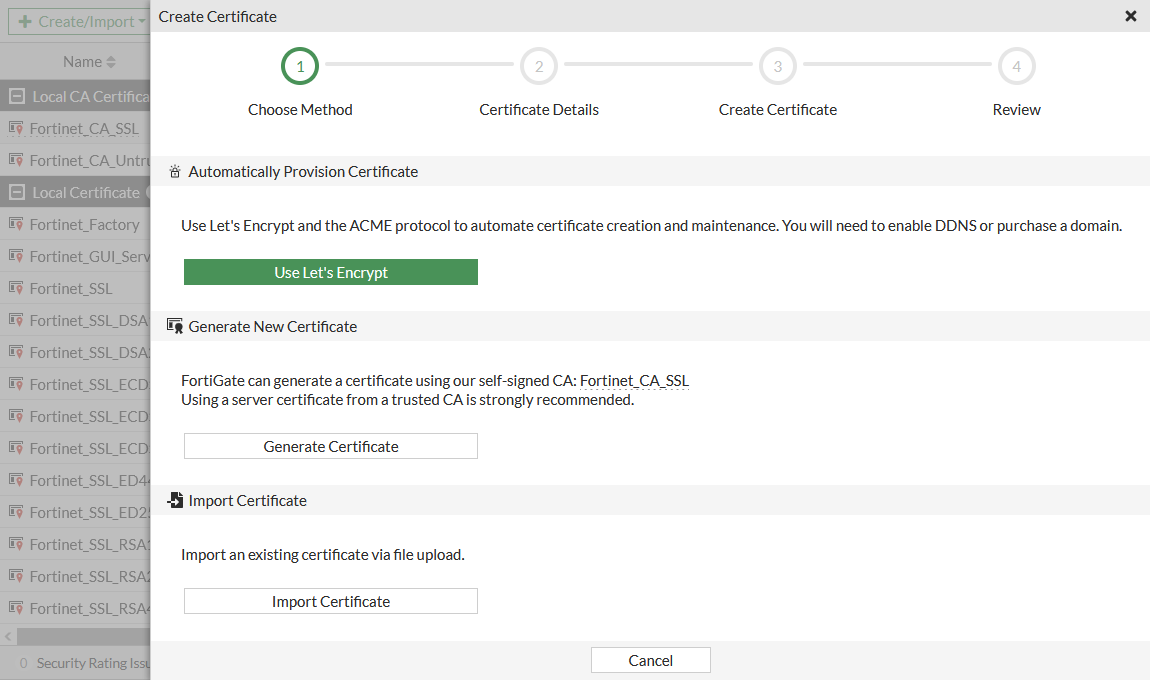
  2. Click Use Let's Encrypt.

  3. Set Certificate name to an appropriate name for the certificate. This is what is referenced when using the certificate in FortiGate configurations.

  4. Set Domain to the public FQDN of the FortiGate.

  5. Set Email to a valid email address. The email is not used during the enrollment process.
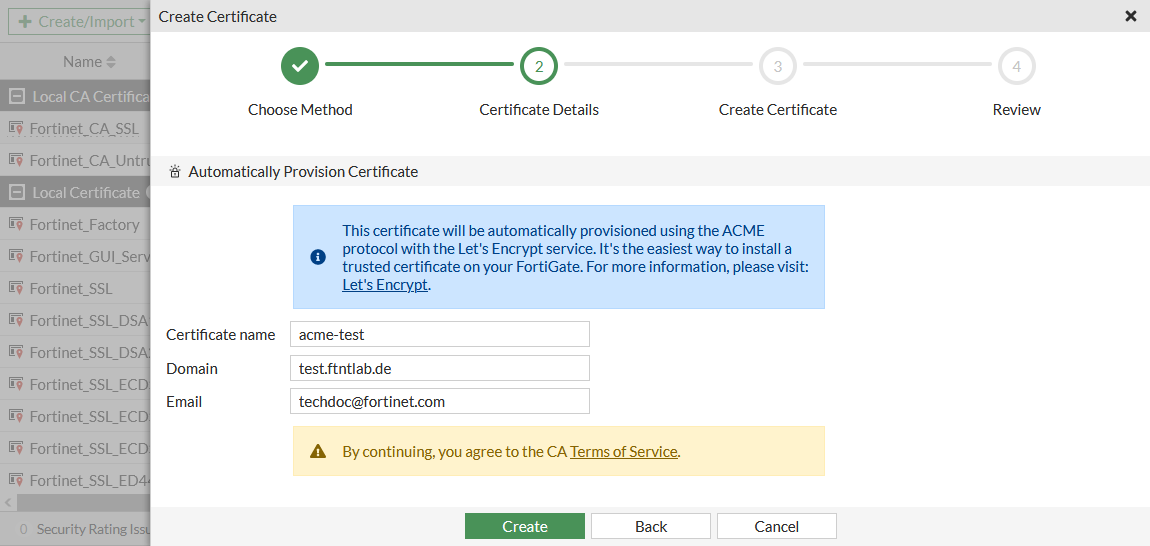
  6. Click Create.

  7. Set the ACME interface, on which the ACME client will listen for challenges in order to provision and renew certificates. The challenge is how the certificate signing request is validated by Let's Encrypt.
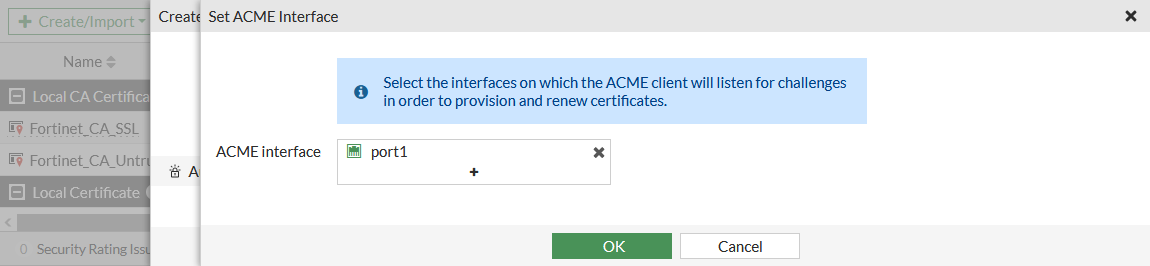
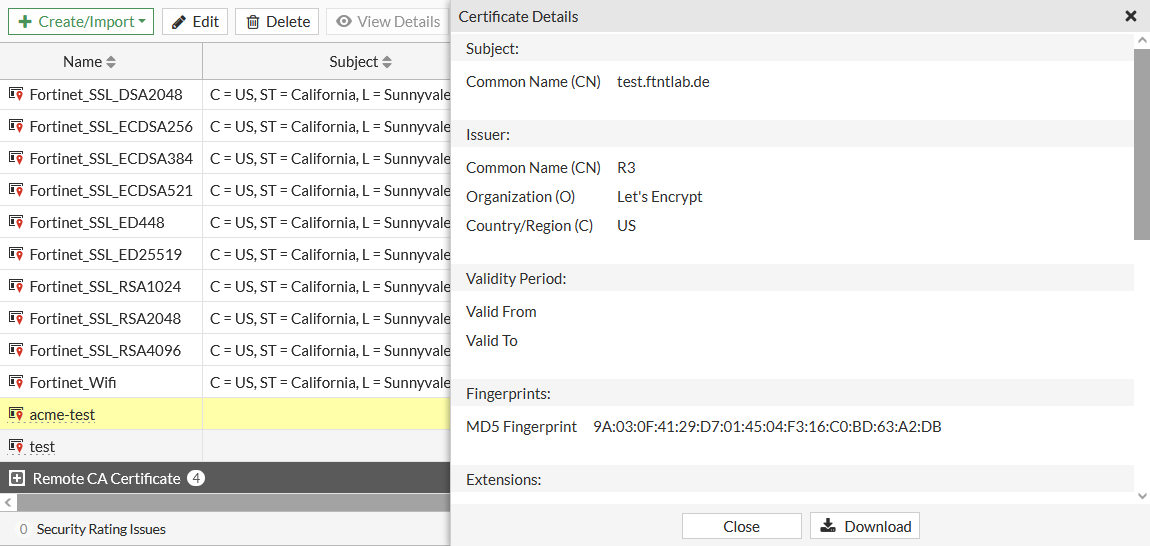
  8. Click OK. Let's Encrypt provisions the certificate and the certificate is added to the certificate list in the Local Certificates section.

  9. Click View Details to verify that the FortiGate's FQDN is in the certificate's Subject: Common Name (CN).
To import an ACME certificate in the CLI:
  1. Set the interface that the FortiGate communicates with Let's Encrypt on:

    config system acme
        set interface "port1"
    end
  2. Make sure that the FortiGate can contact the Let's Encrypt enrollment server:

    # execute ping acme-v02.api.letsencrypt.org
    PING ca80a1adb12a4fbdac5ffcbc944e9a61.pacloudflare.com (172.65.32.248): 56 data bytes
    64 bytes from 172.65.32.248: icmp_seq=0 ttl=60 time=2.0 ms
    64 bytes from 172.65.32.248: icmp_seq=1 ttl=60 time=1.7 ms
    64 bytes from 172.65.32.248: icmp_seq=2 ttl=60 time=1.7 ms
    64 bytes from 172.65.32.248: icmp_seq=3 ttl=60 time=2.1 ms
    64 bytes from 172.65.32.248: icmp_seq=4 ttl=60 time=2.0 ms
    
    --- ca80a1adb12a4fbdac5ffcbc944e9a61.pacloudflare.com ping statistics ---
    5 packets transmitted, 5 packets received, 0% packet loss
    round-trip min/avg/max = 1.7/1.9/2.1 ms
  3. Configure the local certificate request:

    config vpn certificate local
        edit "acme-test"
            set enroll-protocol acme2
            set acme-domain "test.ftntlab.de"
            set acme-email "techdoc@fortinet.com"
        next
    By enabling this feature you declare that you agree to the Terms of Service at https://acme-v02.api.letsencrypt.org/directory
    Do you want to continue? (y/n)y
    end
  4. Verify that the enrollment was successful:

    # get vpn certificate local details acme-test
    path=vpn.certificate, objname=local, tablename=(null), size=2632
    == [ acme-test ]
            Name:        acme-test
            Subject:     CN = test.ftntlab.de
            Issuer:      C = US, O = Let's Encrypt, CN = R3
            Valid from:  2021-03-11 17:43:04  GMT
            Valid to:    2021-06-09 17:43:04  GMT
            Fingerprint: 9A:03:0F:41:29:D7:01:45:04:F3:16:C0:BD:63:A2:DB
            Serial Num:  03:d3:55:80:d2:e9:01:b4:ca:80:3f:2e:fc:24:65:ad:7c:0c
    ACME details:
            Status: The certificate for the managed domain has been renewed successfully and can be used (valid since Thu, 11 Mar 2021 17:43:04 GMT).
            Staging status: Nothing in staging
  5. Check the ACME client full status log for the CN domain:

    # diagnose sys acme status-full test.ftntlab.de 
    {
      "name": "test.ftntlab.de",
      "finished": true,
      "notified": false,
      "last-run": "Thu, 11 Mar 2021 18:43:02 GMT",
      "valid-from": "Thu, 11 Mar 2021 17:43:04 GMT",
      "errors": 0,
      "last": {
        "status": 0,
        "detail": "The certificate for the managed domain has been renewed successfully and can be used (valid since Thu, 11 Mar 2021 17:43:04 GMT). A graceful server restart now is recommended.",
        "valid-from": "Thu, 11 Mar 2021 17:43:04 GMT"
      },
      "log": {
        "entries": [
          {
            "when": "Thu, 11 Mar 2021 18:43:05 GMT",
            "type": "message-renewed"
          },
          ...
          {
            "when": "Thu, 11 Mar 2021 18:43:02 GMT",
            "type": "starting"
          }
        ]
      }
    }
To exchange the default FortiGate administration server certificate for the new public Let's Encrypt server certificate in the GUI:
  1. Go to System > Settings.

  2. Set HTTPS server certificate to the new certificate.
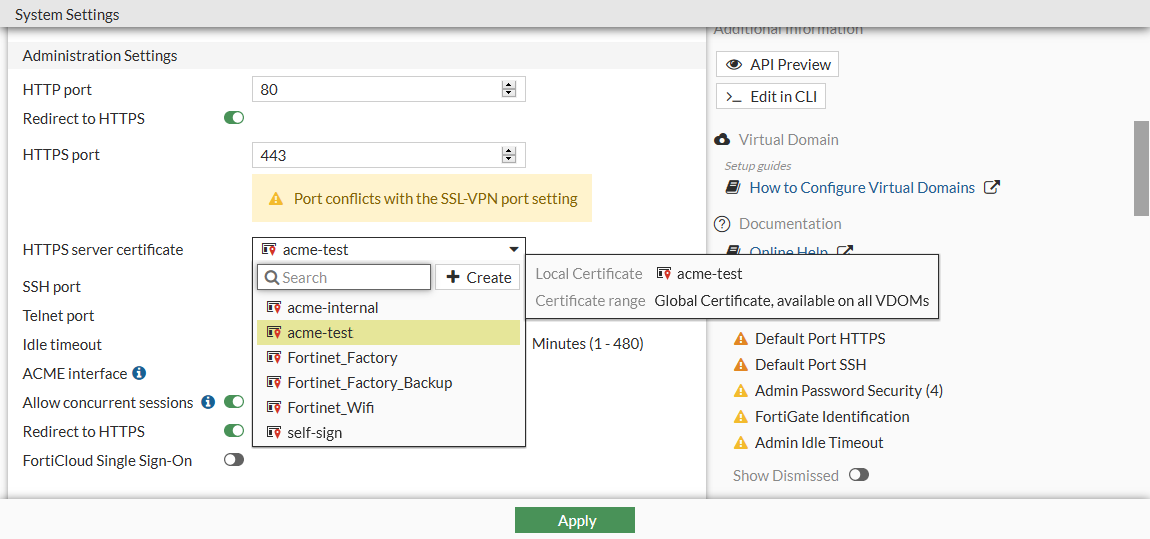
  3. Click Apply.

  4. Log in to the FortiGate using an administrator account from any internet browser. There should be no warnings related to non-trusted certificates, and the certificate path should be valid.

To exchange the default FortiGate administration server certificate for the new public Let's Encrypt server certificate in the CLI:
config system global
    set admin-server-cert "acme-test"
end

When you log in to the FortiGate using an administrator account there should be no warnings related to non-trusted certificates, and the certificate path should be valid.

Automatically provision a certificate

Automatically provision a certificate

The Automated Certificate Management Environment (ACME), as defined in RFC 8555, is used by the public Let's Encrypt certificate authority (https://letsencrypt.org) to provide free SSL server certificates. The FortiGate can be configured to use certificates that are managed by Let's Encrypt, and other certificate management services, that use the ACME protocol. The server certificates can be used for secure administrator log in to the FortiGate.

Note

ACME certificates do not support loopback interfaces.

  • The FortiGate must have a public IP address and a hostname in DNS (FQDN) that resolves to the public IP address.

  • The configured ACME interface must be publicly reachable, and port TCP/443 or TCP/80 must not be used by other services.

  • By default, the challenge is sent on TCP/80. By default, port 80 on the FortiGate redirects to TCP/443 for security purposes.

  • If TCP/443 is in use by a process on the FortiGate (such as HTTPS daemon), the ACME daemon will fall back to TCP/80 for the challenge.

  • If TCP/80 is also used by another service, the ACME process will fail.

  • If a VIP is in use on any of these ports, then the incoming ACME challenge will be processed by the VIP rather than the system/ACME daemon.

    A VIP can be intentionally used to allow servers behind the FortiGate to participate in the ACME process, and can also be used to forward ACME challenges to a management VDOM that is not directly reachable by the ACME service.

  • The Subject Alternative Name (SAN) field is automatically filled with the FortiGate DNS hostname. It cannot be edited, wildcards cannot be used, and multiple SANs cannot be added.

Security

FortiOS supports two forms of ACME challenge for Let's Encrypt: TLS-ALPN-01 (on TCP/443) and HTTP-01 (on TCP/80). By default, it uses the TLS-ALPN-01 challenge. See Challenge Types for an overview of the Let's Encrypt challenge types.

TLS-ALPN-01

This challenge requires the FortiGate to provide a self-signed certificate that includes specific requirements for ACME, such as SAN and acmeIdentifier. This self-signed certificate is often identified by security scans as an issue, but this is expected behavior for the TLS-ALPN-01 challenge. See RFC 8737 for details.

HTTP-01

As indicated by the lack of an s in the protocol name, HTTP-01 uses an unencrypted protocol (HTTP) to complete the challenge on TCP/80. This is often identified by security scans as an issue, but this is expected behavior.

Example

This example shows how to import an ACME certificate from Let's Encrypt, and use it for secured remote administrator access to the FortiGate.

To generate a certificate using ACME and Let’s Encrypt:
  1. Go to System > Certificates and click Create/Import > Certificate.

  2. Click Use Let's Encrypt.

  3. Set Certificate name to an appropriate name for the certificate. This is what is referenced when using the certificate in FortiGate configurations.

  4. Set Domain to the public FQDN of the FortiGate.

  5. Set Email to a valid email address. The email is not used during the enrollment process.

  6. Click Create.

  7. Set the ACME interface, on which the ACME client will listen for challenges in order to provision and renew certificates. The challenge is how the certificate signing request is validated by Let's Encrypt.

  8. Click OK. Let's Encrypt provisions the certificate and the certificate is added to the certificate list in the Local Certificates section.

  9. Click View Details to verify that the FortiGate's FQDN is in the certificate's Subject: Common Name (CN).

To import an ACME certificate in the CLI:
  1. Set the interface that the FortiGate communicates with Let's Encrypt on:

    config system acme
        set interface "port1"
    end
  2. Make sure that the FortiGate can contact the Let's Encrypt enrollment server:

    # execute ping acme-v02.api.letsencrypt.org
    PING ca80a1adb12a4fbdac5ffcbc944e9a61.pacloudflare.com (172.65.32.248): 56 data bytes
    64 bytes from 172.65.32.248: icmp_seq=0 ttl=60 time=2.0 ms
    64 bytes from 172.65.32.248: icmp_seq=1 ttl=60 time=1.7 ms
    64 bytes from 172.65.32.248: icmp_seq=2 ttl=60 time=1.7 ms
    64 bytes from 172.65.32.248: icmp_seq=3 ttl=60 time=2.1 ms
    64 bytes from 172.65.32.248: icmp_seq=4 ttl=60 time=2.0 ms
    
    --- ca80a1adb12a4fbdac5ffcbc944e9a61.pacloudflare.com ping statistics ---
    5 packets transmitted, 5 packets received, 0% packet loss
    round-trip min/avg/max = 1.7/1.9/2.1 ms
  3. Configure the local certificate request:

    config vpn certificate local
        edit "acme-test"
            set enroll-protocol acme2
            set acme-domain "test.ftntlab.de"
            set acme-email "techdoc@fortinet.com"
        next
    By enabling this feature you declare that you agree to the Terms of Service at https://acme-v02.api.letsencrypt.org/directory
    Do you want to continue? (y/n)y
    end
  4. Verify that the enrollment was successful:

    # get vpn certificate local details acme-test
    path=vpn.certificate, objname=local, tablename=(null), size=2632
    == [ acme-test ]
            Name:        acme-test
            Subject:     CN = test.ftntlab.de
            Issuer:      C = US, O = Let's Encrypt, CN = R3
            Valid from:  2021-03-11 17:43:04  GMT
            Valid to:    2021-06-09 17:43:04  GMT
            Fingerprint: 9A:03:0F:41:29:D7:01:45:04:F3:16:C0:BD:63:A2:DB
            Serial Num:  03:d3:55:80:d2:e9:01:b4:ca:80:3f:2e:fc:24:65:ad:7c:0c
    ACME details:
            Status: The certificate for the managed domain has been renewed successfully and can be used (valid since Thu, 11 Mar 2021 17:43:04 GMT).
            Staging status: Nothing in staging
  5. Check the ACME client full status log for the CN domain:

    # diagnose sys acme status-full test.ftntlab.de 
    {
      "name": "test.ftntlab.de",
      "finished": true,
      "notified": false,
      "last-run": "Thu, 11 Mar 2021 18:43:02 GMT",
      "valid-from": "Thu, 11 Mar 2021 17:43:04 GMT",
      "errors": 0,
      "last": {
        "status": 0,
        "detail": "The certificate for the managed domain has been renewed successfully and can be used (valid since Thu, 11 Mar 2021 17:43:04 GMT). A graceful server restart now is recommended.",
        "valid-from": "Thu, 11 Mar 2021 17:43:04 GMT"
      },
      "log": {
        "entries": [
          {
            "when": "Thu, 11 Mar 2021 18:43:05 GMT",
            "type": "message-renewed"
          },
          ...
          {
            "when": "Thu, 11 Mar 2021 18:43:02 GMT",
            "type": "starting"
          }
        ]
      }
    }
To exchange the default FortiGate administration server certificate for the new public Let's Encrypt server certificate in the GUI:
  1. Go to System > Settings.

  2. Set HTTPS server certificate to the new certificate.

  3. Click Apply.

  4. Log in to the FortiGate using an administrator account from any internet browser. There should be no warnings related to non-trusted certificates, and the certificate path should be valid.

To exchange the default FortiGate administration server certificate for the new public Let's Encrypt server certificate in the CLI:
config system global
    set admin-server-cert "acme-test"
end

When you log in to the FortiGate using an administrator account there should be no warnings related to non-trusted certificates, and the certificate path should be valid.