Private cloud K8s SDN connector using secret token
FortiOS automatically updates dynamic and cluster IP addresses for Kubernetes (K8s) by using a K8s SDN connector, enabling FortiOS to manage K8s pods as global address objects, as with other connectors. This includes mapping the following attributes from K8s instances to dynamic address groups in FortiOS:
|
Filter |
Description |
|---|---|
|
Namespace |
Filter service IP addresses in a given namespace. |
|
ServiceName |
Filter service IP addresses by the given service name. |
|
NodeName |
Filter node IP addresses by the given node name. |
|
PodName |
Filter IP addresses by the pod name. |
|
Label.XXX |
Filter service or node IP addresses with the given label XXX. For example: |
FortiOS 6.2.3 and later collect cluster IP addresses in addition to external IP addresses for exposed K8s services.

|
There is no maximum limit for the number of IP addresses populated with the filters. |
To configure K8s SDN connector using the GUI:
-
Configure the K8s SDN connector:
-
Go to Security Fabric > External Connectors and click Create New.
-
Select Kubernetes.
-
Enter a name for the connector.
-
In the IP field, enter the IP address that you obtained in Obtaining the IP address, port, and secret token in Kubernetes.
-
In the Port field, select Specify, then enter the port that you obtained in Obtaining the IP address, port, and secret token in Kubernetes.
-
In the Secret token field, enter the token that you obtained in Obtaining the IP address, port, and secret token in Kubernetes.
-
Configure the remaining fields as needed.
-
-
Create a dynamic firewall address for the configured K8s SDN connector:
-
Go to Policy & Objects > Addresses and, on the Address tab, click Create new.
-
Set the address name, and configure the interface.
-
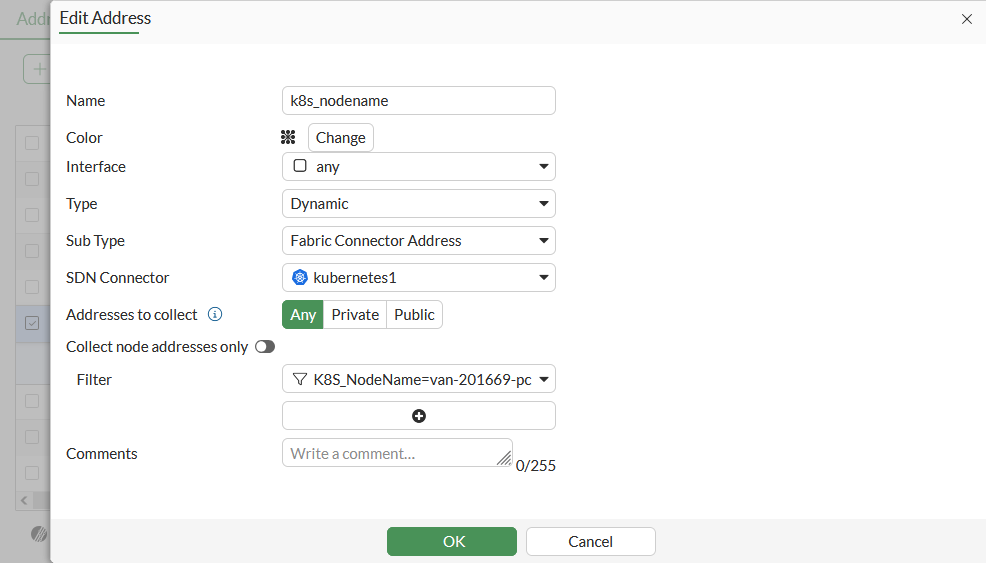
Set Type to Dynamic and Sub Type to Fabric Connector Address.
-
Select the required filter from the Filter dropdown list. In this example, the K8s SDN connector will automatically populate and update IP addresses only for node instances that match the specified node name:
-
-
Ensure that the K8s SDN connector resolves dynamic firewall IP addresses:
-
Go to Policy & Objects > Addresses.
-
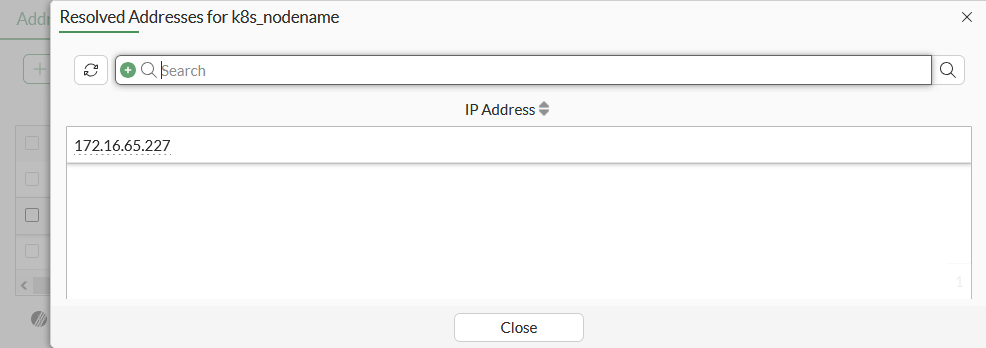
Hover over the just created address and click View Matched Addresses in the pop up to see a list of IP addresses for node instances that match the node name:
-
To configure K8s SDN connector using CLI commands:
-
Configure the K8s SDN connector:
See Obtaining the IP address, port, and secret token in Kubernetes.
config system sdn-connector edit "kubernetes1" set type kubernetes set server <IP address> set server-port <port> set secret-token <secret token> set update-interval 30 next end -
Create a dynamic firewall address for the configured K8s SDN connector with the supported K8s filter. In this example, the K8s SDN connector will automatically populate and update IP addresses only for node instances that match the specified node name:
config firewall address edit "k8s_nodename" set type dynamic set sdn "kubernetes1" set filter "K8S_NodeName=van-201669-pc1" next end -
Confirm that the K8s SDN connector resolves dynamic firewall IP addresses using the configured filter:
config firewall address
    edit "k8s_nodename"
        set type dynamic
        set sdn "kubernetes1"
        set filter "K8S_NodeName=van-201669-pc1"
        config list
            edit "172.16.65.227"
            next
        end
    next
end
To troubleshoot the connection:
-
In FortiOS, run the following commands:
diagnose deb application kubed -1
diagnose debug enable
-
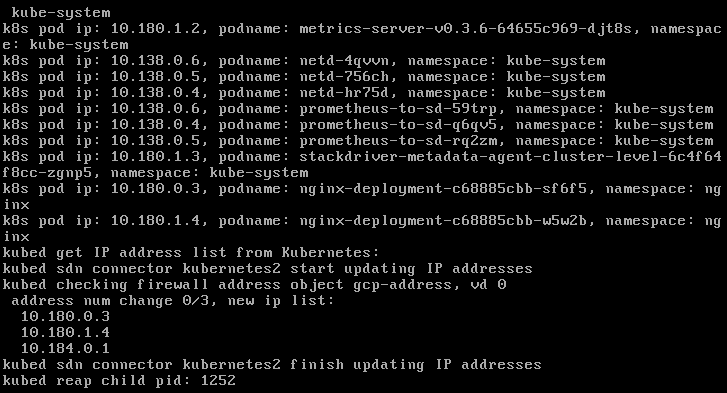
Reset the connection on the web UI to generate logs and troubleshoot the issue. The following shows the output in the case of a failure:
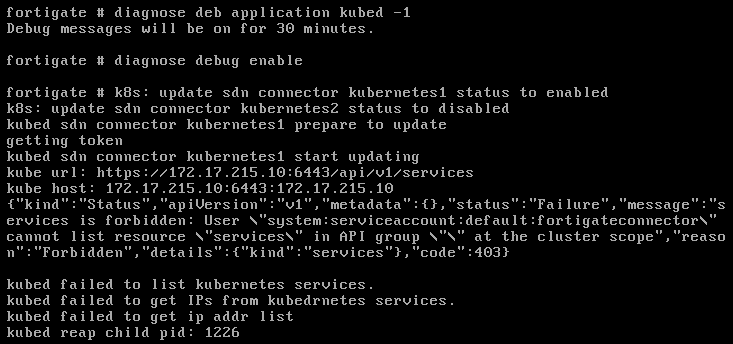
The following shows the output in the case of a success: