
Fortinet white logo
Fortinet white logo

Administration Guide

Configuring FortiNAC

Configuring FortiNAC

A FortiNAC device can be added to the Security Fabric on the root FortiGate. After the device has been added and authorized, you can log in to the FortiNAC from the FortiGate topology views.

FortiNAC requires REST API access to FortiGate.

Note

Adding a FortiNAC to the Security Fabric requires a FortiNAC with a license issued in the year 2020 or later that includes an additional certificate. The device cannot be added if it has an older license. Use the licensetool in the FortiNAC CLI to determine if your license includes the additional certificate.

To add FortiNAC to the Security Fabric in the GUI:
  1. In FortiOS, ensure that FortiGate is prepared to add FortiNAC to the Security Fabric. See Preparing FortiGate for supported Security Fabric devices. On the root FortiGate, Allow downstream device REST API access must be enabled.

  2. (Optional) In FortiOS, configure pre-authorization of FortiNAC to enable the device to join the Security Fabric as soon as it connects. See Configuring pre-authorization of supported Security Fabric devices.

  3. On FortNAC, configure telemetry and input the IP address of the root FortiGate. See the FortiNAC Security Fabric SSO guide for more information.

  4. In FortiOS on the root FortiGate, authorize the FortiNAC. See Authorizing supported connectors.

    If FortiNAC is pre-authorized, you can skip this step.

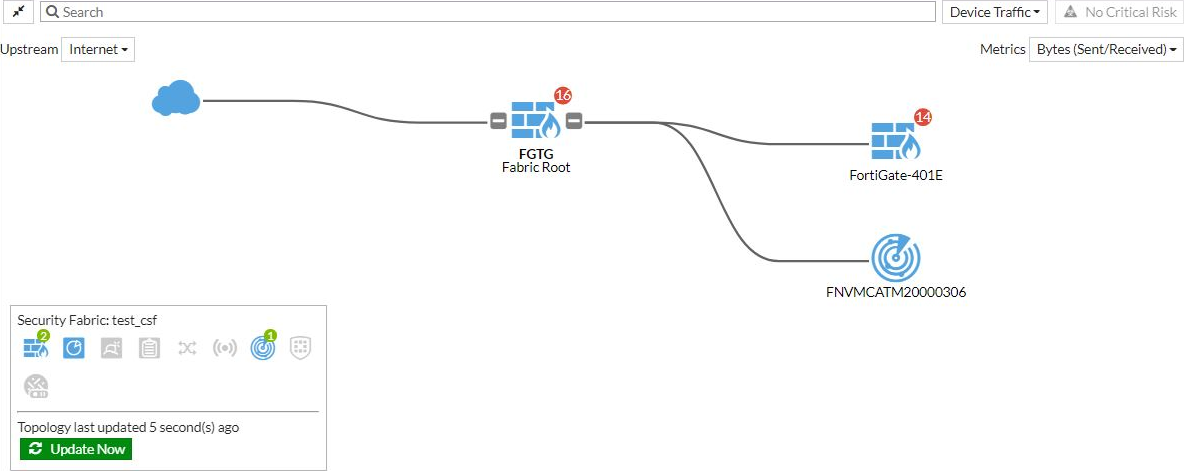
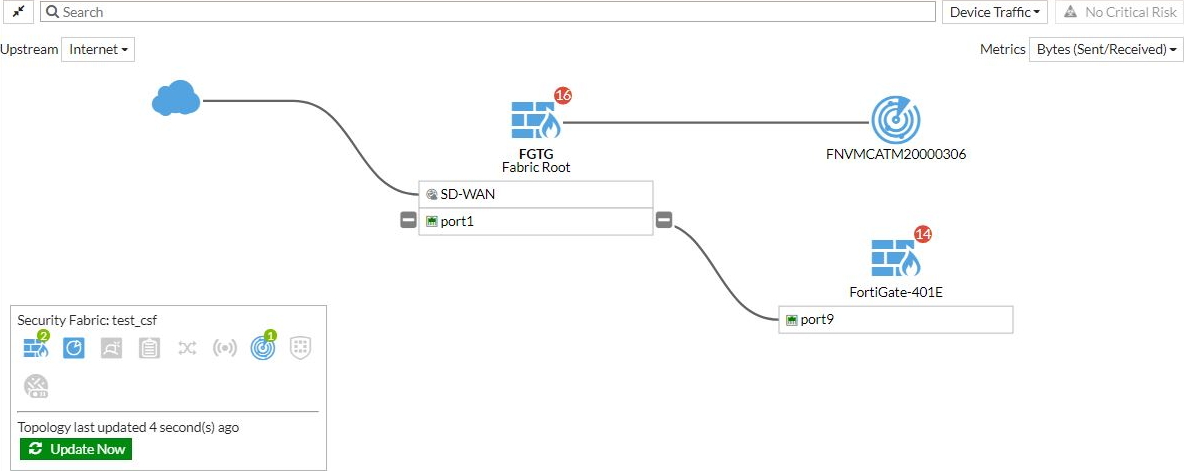
  5. Go to Security Fabric > Physical Topology or Security Fabric > Logical Topology to view more information.

    Physical topology view:
    Logical topology view:
  6. Run the following command in the CLI to view information about the FortiNAC device's status:

    # diagnose sys csf downstream-devices fortinac 
    {
      "path":"FG5H1E5818900126:FNVMCATM20000306",
      "mgmt_ip_str":"10.1.100.197",
      "mgmt_port":0,
      "admin_port":8443,
      "serial":"FNVMCATM20000306",
      "host_name":"adnac",
      "device_type":"fortinac",
      "upstream_intf":"port2",
      "upstream_serial":"FG5H1E5818900126",
      "is_discovered":true,
      "ip_str":"10.1.100.197",
      "downstream_intf":"eth0",
      "authorizer":"FG5H1E5818900126",
      "idx":1
    }

Configuring FortiNAC

Configuring FortiNAC

A FortiNAC device can be added to the Security Fabric on the root FortiGate. After the device has been added and authorized, you can log in to the FortiNAC from the FortiGate topology views.

FortiNAC requires REST API access to FortiGate.

Note

Adding a FortiNAC to the Security Fabric requires a FortiNAC with a license issued in the year 2020 or later that includes an additional certificate. The device cannot be added if it has an older license. Use the licensetool in the FortiNAC CLI to determine if your license includes the additional certificate.

To add FortiNAC to the Security Fabric in the GUI:
  1. In FortiOS, ensure that FortiGate is prepared to add FortiNAC to the Security Fabric. See Preparing FortiGate for supported Security Fabric devices. On the root FortiGate, Allow downstream device REST API access must be enabled.

  2. (Optional) In FortiOS, configure pre-authorization of FortiNAC to enable the device to join the Security Fabric as soon as it connects. See Configuring pre-authorization of supported Security Fabric devices.

  3. On FortNAC, configure telemetry and input the IP address of the root FortiGate. See the FortiNAC Security Fabric SSO guide for more information.

  4. In FortiOS on the root FortiGate, authorize the FortiNAC. See Authorizing supported connectors.

    If FortiNAC is pre-authorized, you can skip this step.

  5. Go to Security Fabric > Physical Topology or Security Fabric > Logical Topology to view more information.

    Physical topology view:

    Logical topology view:

  6. Run the following command in the CLI to view information about the FortiNAC device's status:

    # diagnose sys csf downstream-devices fortinac 
    {
      "path":"FG5H1E5818900126:FNVMCATM20000306",
      "mgmt_ip_str":"10.1.100.197",
      "mgmt_port":0,
      "admin_port":8443,
      "serial":"FNVMCATM20000306",
      "host_name":"adnac",
      "device_type":"fortinac",
      "upstream_intf":"port2",
      "upstream_serial":"FG5H1E5818900126",
      "is_discovered":true,
      "ip_str":"10.1.100.197",
      "downstream_intf":"eth0",
      "authorizer":"FG5H1E5818900126",
      "idx":1
    }