Action - CLI Script
This feature adds support for calling a CLI script when an automation stitch is triggered. You can use this feature to add CLI script actions for Security Fabric automation.
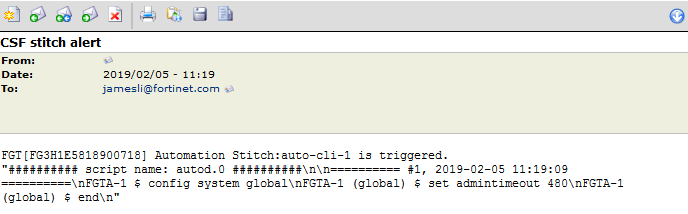
CLI scripts can be manually entered, uploaded as a file, or recorded in CLI console. The CLI script output can be sent in an Automation Action email.
To configure a Security Fabric Automation Stitch using the GUI:
- Go to Security Fabric > Automation.
- In the Action section, select CLI Script and Email.
- Configure a CLI script.
- To manually enter a CLI script, enter the script in the Script box.
- To upload a script file, click Upload and specify the script file.

- To record a script in CLI console, click >_Record in CLI console and then save the script.

- Enter the other fields as required and click OK.
To configure a Security Fabric Automation Stitch using the CLI:
config system automation-trigger
    edit "auto-cli-1"
        set trigger-type event-based
        set event-type security-rating-summary
    next
end

config system automation-action
    edit "set admintimeout480"
        set action-type cli-script
        set minimum-interval 0
        set delay 0
        set required enable
        set script "config system global
            set admintimeout 480
            end"
    next
    edit "auto-cli-1_email"
        set action-type email
        set email-to "jamesli@fortinet.com"
        set email-subject "CSF stitch alert"
        set email-body "%%results%%"
        set minimum-interval 0
    next
end

config system automation-stitch
    edit "auto-cli-1"
        set status enable
        set trigger "auto-cli-1"
        set action "set admintimeout480" "auto-cli-1_email"
    next
end
To execute the CLI script automatically after the Automation Stitch is triggered:

To execute the CLI script automatically after the Automation Stitch is triggered:
FGTA-1 # show system global
config system global
    set admintimeout 480
...
end
Sample of script output sent in automation action email