

AWS SDN connector using access keys
FortiOS automatically updates dynamic addresses for AWS using an AWS SDN connector, including mapping attributes from AWS instances to dynamic address groups in FortiOS.
Configuring the SDN connector using the GUI, then checking the configuration using the CLI is recommended.

|
This topic describes one of multiple configuration methods available with this SDN connector type. See More Links on the right sidebar for other methods. |
To configure an AWS SDN connector using the GUI:
-
Configure the AWS SDN connector:
-
Go to Security Fabric > External Connectors.
-
Click Create New, and select Amazon Web Services (AWS).
-
In the Access key ID field, enter the key created in the AWS management portal.
-
In the Secret access key field, enter the secret access key accompanying the above access key.
-
In the Region name field, enter the region name. Refer to AWS service endpoints for the desired region name.
-
If desired, enable VPC ID. In the VPC ID field, enter the VPC ID within the specified region you desire to cover with the SDN connector.
-
Click OK.
-
-
Check the configuration using the CLI:
config system sdn-connector
    edit "<connector-name>"
        show
The output resembles the following:
config system sdn-connector
    edit "<connector-name>"
        set access-key "<example-access-key>"
        set secret-key ENC <example-secret-key>
        set region "us-west-2"
        set vpc-id "vpc-e1e4b587"
        set update-interval 1
    next
end
If you see that the SDN connector is disabled in Security Fabric > External Connectors in the GUI, run the following commands to enable the SDN connector:
diagnose debug application awsd -1
diagnose debug enable
The output may display an error like the following:
FGT # awsd sdn connector AWS_SDN prepare to update
awsd sdn connector AWS_SDN start updating
aws curl response err, 403
<?xml version="1.0" encoding="UTF-8"?>
<Response><Errors><Error><Code>UnauthorizedOperation</Code><Message>You are not authorized to perform this operation.</Message></Error></Errors><RequestID>8403cc11-b185-41da-ad6d-23bb4db7d00a</RequestID></Response>
awsd curl failed 403
awsd sdn connector AWS_SDN failed to get instance list
aws curl response err, 403
{"Message":"User: arn:aws:iam::956224459807:user/jcarcavallo is not authorized to perform: eks:ListClusters on resource: arn:aws:eks:us-east-1:956224459807:cluster/*"}
awsd sdn connector AWS_SDN get EKS cluster list failed
awsd sdn connector AWS_SDN list EKS cluster failed
awsd sdn connector AWS_SDN start updating IP addresses
awsd sdn connector AWS_SDN finish updating IP addresses
awsd reap child pid: 569
In this case, you must configure power user access for the current administrator in the AWS management console:
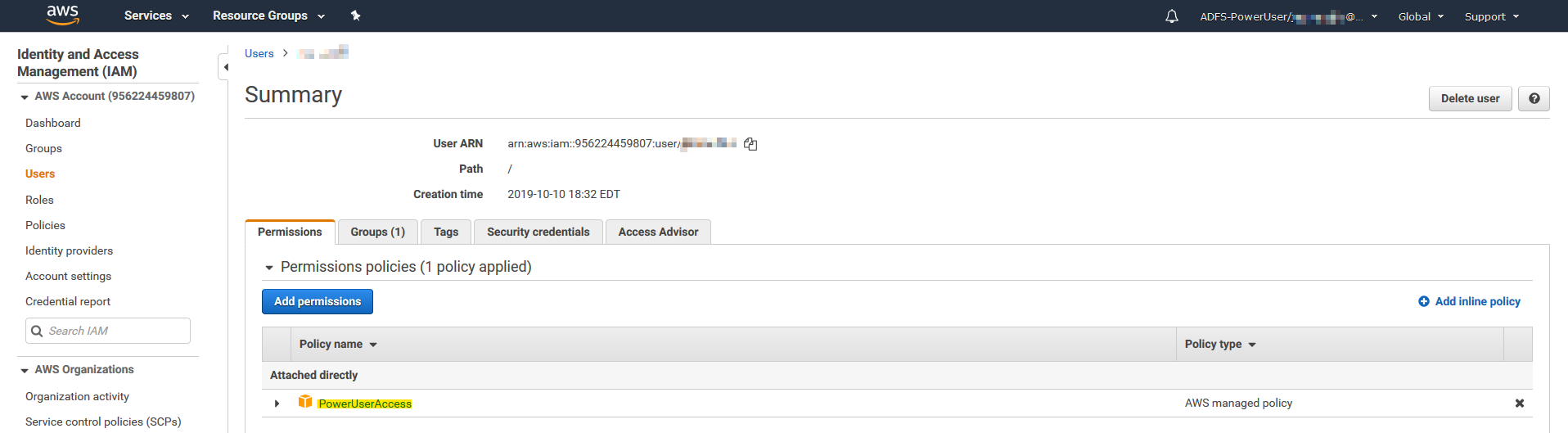
After configuring power user access, run the following commands:
diagnose debug application awsd -1
diagnose debug enable
The output should display without error, as follows:
FGT # AWSD: update sdn connector AWS_SDN status to enabled
awsd sdn connector AWS_SDN prepare to update
awsd sdn connector AWS_SDN start updating
awsd get ec2 instance info successfully
awsd sdn connector AWS_SDN start updating IP addresses
awsd sdn connector AWS_SDN finish updating IP addresses
awsd reap child pid: 893
The AWS connector is now enabled.
-
Create a dynamic firewall address for the configured AWS SDN connector:
-
Go to Policy & Objects > Addresses.
-
Click Create New, then select Address.
-
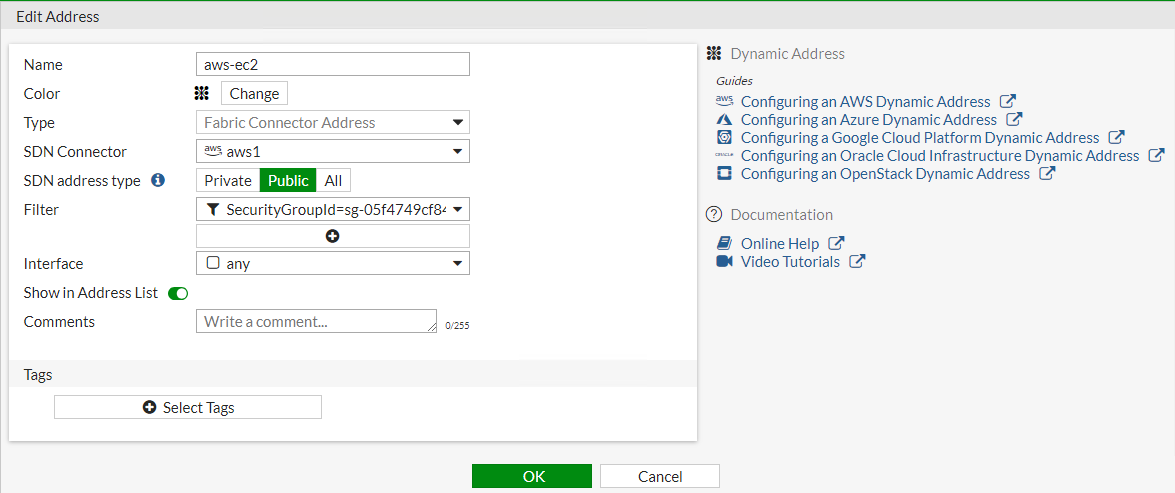
From the Type dropdown list, select Dynamic.
-
From the Sub Type dropdown list, select Fabric Connector Address.
-
From the SDN Connector dropdown list, select the AWS connector that you created.
-
In the Filter field, add the desired filters. The following filters are supported:
Description
Key
Example value
Architecture
architecture
x86
Autoscaling group
AutoScaleGroup
10703c-4f731e90-fortigate-payg-auto-scaling-group
AZ
placement.availabilityzone
us-east-1a
Endpoint DNS name
EndpointDNSName
vpce-06795...
This filter spports the following ENI IP address types:
-
API gateway private endpoint
-
VPC endpoint for data API for Aurora
-
AWS PrivateLink for S3
-
VPC endpoints for Lamdba
Group name
placement.groupname
Image ID
imageId
ami-123456
Instance ID
instanceId
i-12345678
Instance type
instanceType
t2.micro
Key name
keyName
Kubernetes (K8s) cluster
k8s_cluster
K8s label and its name
k8s_label.Name
K8s namespace
k8s_namespace
K8s node name
k8s_nodename
K8s pod name
k8s_podname
K8s region
k8s_region
K8s service name
k8s_servicename
K8s zone
k8s_zone
Private DNS name
privateDnsName
ip-172-31-10-211.us-west-2.compute.internal
Public DNS name
publicDnsName
ec2-54-202-168-254.us-west-2.compute.amazonaws.com
Security group ID
SecurityGroupId
Subnet ID
subnetId
sub-123456
Tag and its name. This key supports a maximum of eight tags.
tag.Name
Tenancy placement
placement.tenancy
VPC ID
VpcId
-
-
-
Ensure that the AWS SDN connector resolves dynamic firewall IP addresses:
-
Go to Policy & Objects > Addresses.
-
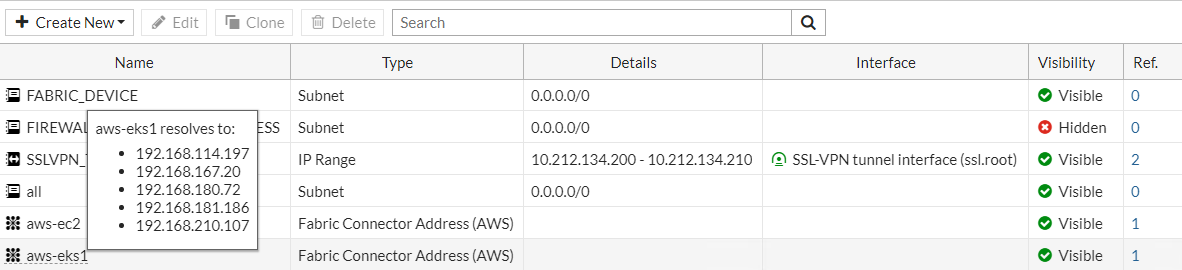
Hover over the address that you created to see a list of IP addresses for instances that belong to the configured security group. The following is an example for a public SDN address type:

The following is an example for a private SDN address type:
-
To configure AWS SDN connector using CLI commands:
-
Configure the AWS connector:
config system sdn-connector edit "<connector-name>" set access-key "<example-access-key>" set secret-key ENC <example-secret-key> set region "us-west-2" set vpc-id "vpc-e1e4b587" set update-interval 1 next end -
Create a dynamic firewall address for the configured AWS SDN connector with the supported filter:
config firewall address edit "aws-ec2" set type dynamic set sdn "<connector-name>" set filter "SecurityGroupId=sg-05f4749cf84267548" set sdn-addr-type public next edit "aws-eks1" set type dynamic set sdn "<connector-name>" set filter "K8S_Region=us-west-2" next end -
Confirm that the AWS SDN connector resolves dynamic firewall IP addresses using the configured filter:
config firewall address
    edit "aws-ec2"
        set type dynamic
        set sdn "<connector-name>"
        set filter "SecurityGroupId=sg-05f4749cf84267548"
        set sdn-addr-type public
        config list
            edit "34.222.246.198"
            next
            edit "54.188.139.177"
            next
            edit "54.218.229.229"
            next
        end
    next
    edit "aws-eks1"
        set type dynamic
        set sdn "<connector-name>"
        set filter "K8S_Region=us-west-2"
        config list
            edit "192.168.114.197"
            next
            edit "192.168.167.20"
            next
            edit "192.168.180.72"
            next
            edit "192.168.181.186"
            next
            edit "192.168.210.107"
            next
        end
    next
end
To add an EC2 instance to test automatic address population:
-
Assume that you want to boot up another instance with an IP address of 34.222.246.178, which is currently stopped. This instance belongs to the security group that the aws-ec2 address is filtering for. In the AWS management portal, start the instance.
-
Verify that the instance is running.
-
At this point, running
showagain shows the SDN connector has automatically populated and added the 34.222.246.178 instance:config firewall address edit "aws-ec2" set type dynamic set sdn "<connector-name>" set filter "SecurityGroupId=sg-05f4749cf84267548" set sdn-addr-type public config list edit "34.222.246.198" next edit "54.188.139.177" next edit "54.218.229.229" next edit "34.222.246.178" next end next endTherefore, administrators do not need to add this instance to the address manually. When you apply a firewall policy to this address, the policy automatically covers 34.222.246.178.