

Example 2: IPAM with automatically managed interfaces
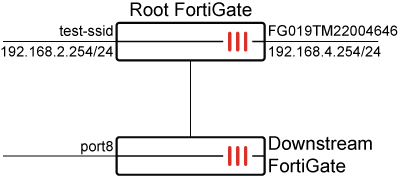
In this example, the FortiGate serves as the Security Fabric root and has two interfaces: test-ssid (vap-switch type) and FG019TM22004646 (lan-extension type). Currently, neither interface has an IP address assigned to it.

To configure IPAM on the root FortiGate:
-
Go to Network > IPAM and select the IPAM Settings tab.
-
Enable the Status, Interfaces with LAN role, FortiAP SSIDs, and FortiExtender LAN extensions settings.

IPAM is disabled by default, so all these options are disabled by default. Each option must be activated individually to function, and they do not depend on one another.
-
Click OK.
After enabling IPAM on the root FortiGate with the specified settings, FortiGates that are part of the Security Fabric and have an interface set to either the LAN role,
vap-switchtype, orlan-extensiontype will automatically receive an IP assignment from the IPAM server without requiring any additional configuration at the interface level. -
Verify the list of IPAM entries:
# diagnose sys ipam list entries
Entries: (sn, vdom, interface, subnet/mask, conflict)

IPAM Entries:
  FGVM08TM22004645 root FG019TM22004646 192.168.4.254/24
  FGVM08TM22004645 root test-ssid 192.168.2.254/24
When a downstream FortiGate joins the Security Fabric, port8 is set to a LAN role with no IP address assigned. The IPAM server assigns an IP to port8 of the downstream FortiGate since its role was set to LAN.
-
Verify the list of IPAM entries in the CLI:
# diagnose sys ipam list entries
Entries: (sn, vdom, interface, subnet/mask, conflict)

  IPAM Entries:
  FGVM08TM22004645 root FG019TM22004646 192.168.4.254/24
  FGVM08TM22004645 root test-ssid 192.168.2.254/24
  FGVM08TM22004647 root port8 192.168.3.254/24