
Fortinet white logo
Fortinet white logo

Administration Guide

Updating firmware for an HA cluster

Updating firmware for an HA cluster

You can initiate a firmware upgrade from any node within an HA cluster by enabling the HA Cluster Upgrade option from the system settings.

The upgrade process begins on the initiating FortiADC device and is sequentially propagated to each of the other nodes in the cluster. For example, when upgrading the firmware on a FortiADC cluster with eight nodes, the current device will sequentially synchronize the new firmware image to each of the remaining nodes, awaiting the completion of the upgrade on one of the other nodes before upgrading itself and rebooting.

The following process occurs when you perform the HA cluster upgrade from the current FortiADC device:

  1. The current node pushes the firmware image to the member nodes.

  2. The current node notifies the member nodes of the upgrade and handles their user traffic during the process.

  3. The upgrade command is executed on the member nodes. They reboot and send an acknowledgment to the current node confirming the completion of the upgrade.

  4. The upgrade command is then executed on the current node, which also undergoes a reboot. During this phase, the cluster may perform a new election process to designate a new Primary node based on the established election rules.

Upon completing the firmware upgrade, the system determines the role of the original node based on the HA Override setting:

  • If Override is enabled, the cluster uses the Device Priority setting to decide which node should be the Primary. Typically, this results in a secondary failover to restore the original roles of the nodes.

  • If Override is disabled, the cluster prioritizes uptime. Since the original Primary node will have a reduced uptime due to the reboot sequence during the firmware upgrade, it will not reclaim its active role. Instead, the node with the highest uptime remains as the Primary, and no additional failover occurs.

Reboot times can vary depending on the appliance model and the differences between the original and the new firmware versions being installed.

The procedure for upgrading firmware on an HA cluster closely mirrors that of a standalone appliance. To minimize service disruption, follow these steps. This procedure is applicable to both Active-Active and Active-Passive clusters.

If you need to downgrade to a previous firmware version, do not use the HA cluster upgrade function.

The HA daemon on a member node may recognize the primary node's older firmware and attempt to automatically upgrade it to synchronize with the other nodes, effectively undoing your downgrade. Instead, exit HA mode, perform the downgrade on each node individually, and then re-enable HA mode.

Before you begin:
  • Download the firmware file from the Fortinet Customer Service & Support website: https://support.fortinet.com/
  • Read the release notes for the version you plan to install.
  • Back up your configuration before beginning this procedure. Reverting to an earlier firmware version could reset settings that are not compatible with the new firmware.
  • You must have super user permission (user admin) to upgrade firmware.
  • Verify that the cluster node members are powered on and available on all of the network interfaces that you have configured. If required ports are not available, HA port monitoring could inadvertently trigger an additional failover, resulting in traffic interruption during the firmware update.
To upgrade the firmware for an HA cluster:
  1. Log in to the web UI of any node within the HA cluster as the admin administrator.
  2. Go to System > Settings.
  3. Click the Firmware tab.
  4. Click Upgrade Firmware to display the configuration editor.
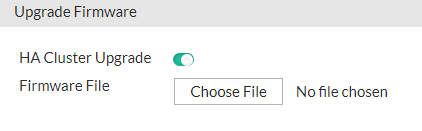
  5. Enable HA Cluster Upgrade.
  6. Click Choose File to locate and select the file.
  7. Click to upload the firmware and start the upgrade process.

After the new firmware has been installed, the system reboots.

When you update software, you are also updating the web UI. To ensure the web UI displays the updated pages correctly:

  • Clear your browser cache.
  • Refresh the page.

In most environments, press Ctrl+F5 to force the browser to get a new copy of the content from the web application.

Updating firmware for an HA cluster

Updating firmware for an HA cluster

You can initiate a firmware upgrade from any node within an HA cluster by enabling the HA Cluster Upgrade option from the system settings.

The upgrade process begins on the initiating FortiADC device and is sequentially propagated to each of the other nodes in the cluster. For example, when upgrading the firmware on a FortiADC cluster with eight nodes, the current device will sequentially synchronize the new firmware image to each of the remaining nodes, awaiting the completion of the upgrade on one of the other nodes before upgrading itself and rebooting.

The following process occurs when you perform the HA cluster upgrade from the current FortiADC device:

  1. The current node pushes the firmware image to the member nodes.

  2. The current node notifies the member nodes of the upgrade and handles their user traffic during the process.

  3. The upgrade command is executed on the member nodes. They reboot and send an acknowledgment to the current node confirming the completion of the upgrade.

  4. The upgrade command is then executed on the current node, which also undergoes a reboot. During this phase, the cluster may perform a new election process to designate a new Primary node based on the established election rules.

Upon completing the firmware upgrade, the system determines the role of the original node based on the HA Override setting:

  • If Override is enabled, the cluster uses the Device Priority setting to decide which node should be the Primary. Typically, this results in a secondary failover to restore the original roles of the nodes.

  • If Override is disabled, the cluster prioritizes uptime. Since the original Primary node will have a reduced uptime due to the reboot sequence during the firmware upgrade, it will not reclaim its active role. Instead, the node with the highest uptime remains as the Primary, and no additional failover occurs.

Reboot times can vary depending on the appliance model and the differences between the original and the new firmware versions being installed.

The procedure for upgrading firmware on an HA cluster closely mirrors that of a standalone appliance. To minimize service disruption, follow these steps. This procedure is applicable to both Active-Active and Active-Passive clusters.

If you need to downgrade to a previous firmware version, do not use the HA cluster upgrade function.

The HA daemon on a member node may recognize the primary node's older firmware and attempt to automatically upgrade it to synchronize with the other nodes, effectively undoing your downgrade. Instead, exit HA mode, perform the downgrade on each node individually, and then re-enable HA mode.

Before you begin:
  • Download the firmware file from the Fortinet Customer Service & Support website: https://support.fortinet.com/
  • Read the release notes for the version you plan to install.
  • Back up your configuration before beginning this procedure. Reverting to an earlier firmware version could reset settings that are not compatible with the new firmware.
  • You must have super user permission (user admin) to upgrade firmware.
  • Verify that the cluster node members are powered on and available on all of the network interfaces that you have configured. If required ports are not available, HA port monitoring could inadvertently trigger an additional failover, resulting in traffic interruption during the firmware update.
To upgrade the firmware for an HA cluster:
  1. Log in to the web UI of any node within the HA cluster as the admin administrator.
  2. Go to System > Settings.
  3. Click the Firmware tab.
  4. Click Upgrade Firmware to display the configuration editor.

  5. Enable HA Cluster Upgrade.
  6. Click Choose File to locate and select the file.
  7. Click to upload the firmware and start the upgrade process.

After the new firmware has been installed, the system reboots.

When you update software, you are also updating the web UI. To ensure the web UI displays the updated pages correctly:

  • Clear your browser cache.
  • Refresh the page.

In most environments, press Ctrl+F5 to force the browser to get a new copy of the content from the web application.