

Configuring an App Group
An App Group is a logical container that organizes application bookmarks—each representing a backend resource such as a remote desktop host, SSH server, or internal web application. App Groups define which applications are visible to users after authentication and are assigned to App Portals, which act as the user-facing interface for accessing published resources.
Each App Group can contain multiple bookmarks of various types (for example, Web RDP, Web SSH, or Web App – Internal). When users log in to the associated App Portal, only the applications defined within its linked App Groups are displayed.
Each VDOM supports up to 1,024 App Groups, and each App Portal can reference up to 32 App Groups.
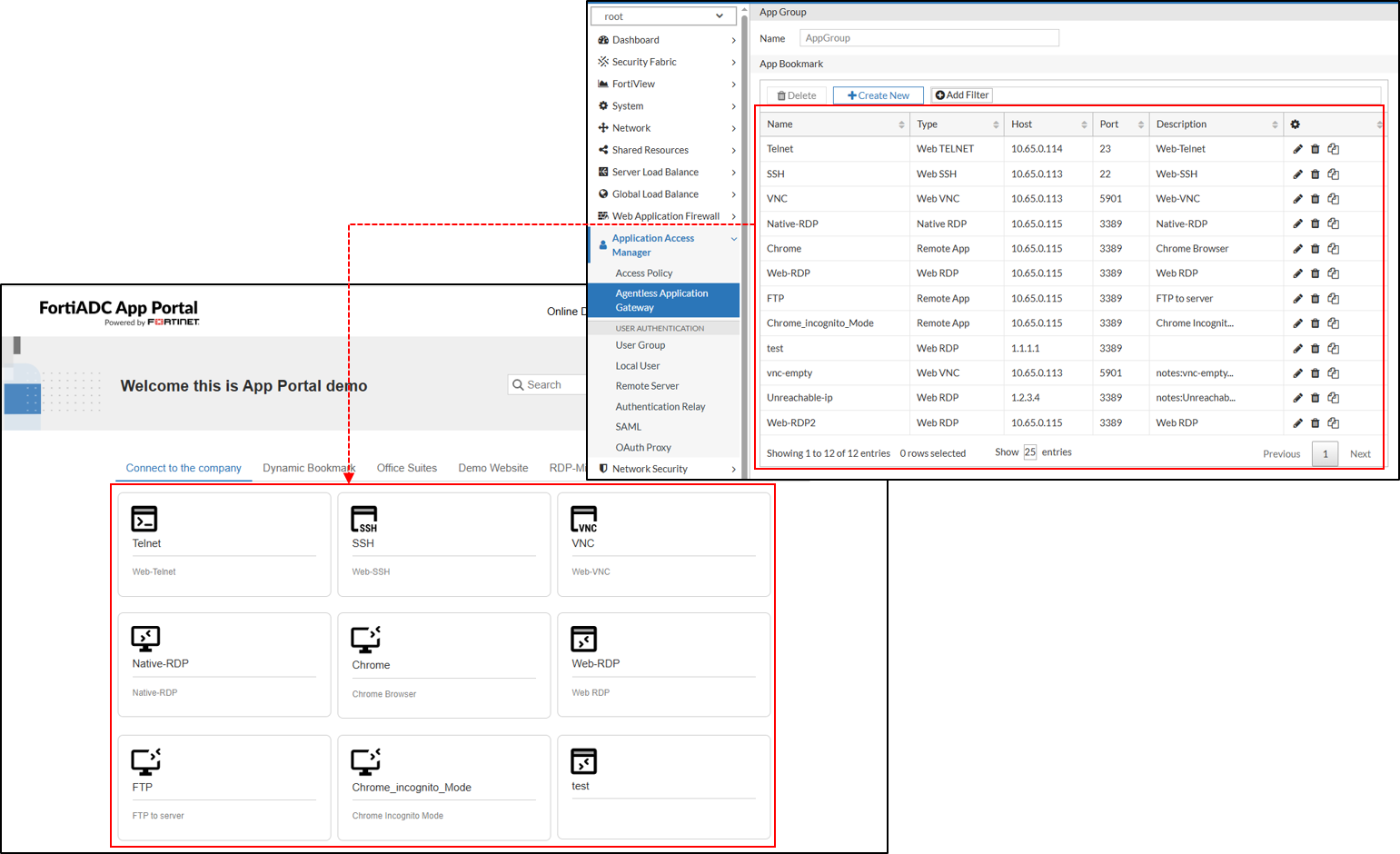
To create an App Group:
-
Navigate to Application Access Manager > Agentless Application Gateway.
The configuration page displays the App Portal tab. -
Click the App Group tab.
-
Click Create New to display the configuration editor.
-
In the Name field, specify a unique name for the App Group configuration object. Valid characters are
A-Z,a-z,0-9,_, and-. No space is allowed. -
Click Save.
Once the App Group is created, the App Bookmark section becomes configurable.
Each VDOM supports up to 1024 App Groups, but a single App Portal can be associated with a maximum of 32 App Groups.
Once the App Group is created, the App Bookmark section becomes available for configuration.
App Bookmark Configuration Overview
The App Bookmark configuration workflow is entirely dependent on the specific protocol. Each App Bookmark within an App Group is configured with application-specific parameters to ensure optimal access control and user experience. Once configured, an App Group can be added to an App Portal, making the applications available to authenticated users. The steps below outlines the basic workflow to configure an App Bookmark.
- Go to Application Access Manager > Agentless Application Gateway.
The configuration page displays the App Portal tab. -
Click the App Group tab.
-
Create a new App Group or edit an existing configuration.
-
Under the App Bookmark section, click Create New to display the configuration editor.
-
In the Name field, specify a unique name for the App Bookmark configuration object. Valid characters are
A-Z,a-z,0-9,_, and-. No space is allowed. - From the Type field, select an application from the drop-down menu. This selection determines the parameters to configure.
To view the configuration parameters for each application, see App Bookmark Types where you can navigate to the desired application type.
For Web RDP/Native RDP/Remote App Type, it is supported to use the variable$LDAP.attribute$in the Host field, so users with different attributes can connect to different hosts using the same bookmark. For more information about using variables, refer to Dynamic App Bookmark.and - Click Save to save the configuration.
Repeat the steps to add up to 256 Bookmarks per App Group.
After the bookmark is saved, administrators can optionally assign a custom icon to customize how it appears in the App Portal.
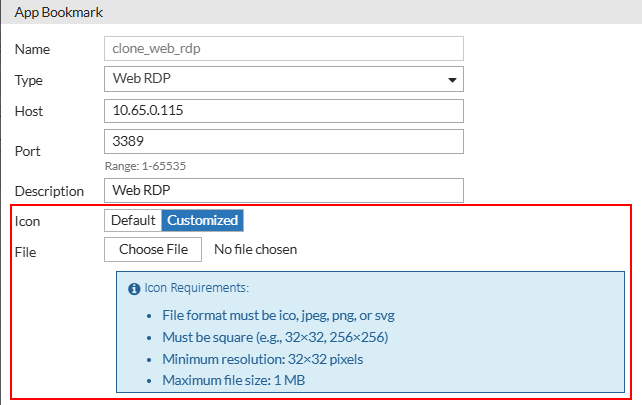
The Icon field becomes available when editing a saved bookmark, with the following options:
-
Default – Uses the standard system icon.
-
Custom – Allows upload of a custom image file.
Custom icons must meet the following requirements:
-
File format: .ico, .jpeg, .png, or .svg
-
Shape: Square (for example, 32×32 or 256×256 pixels)
-
Minimum resolution: 32×32 pixels
-
Maximum file size: 1 MB
Dynamic App Bookmark
When connecting to an LDAP server for user authentication, FortiADC can extract user attributes from the LDAP directory and use these values dynamically in the Host field of an App Bookmark. This allows different users to connect to different backend hosts using the same App Bookmark.
For example, suppose the LDAP server contains a user attribute named department. After authentication, FortiADC retrieves this attribute for the logged-in user.
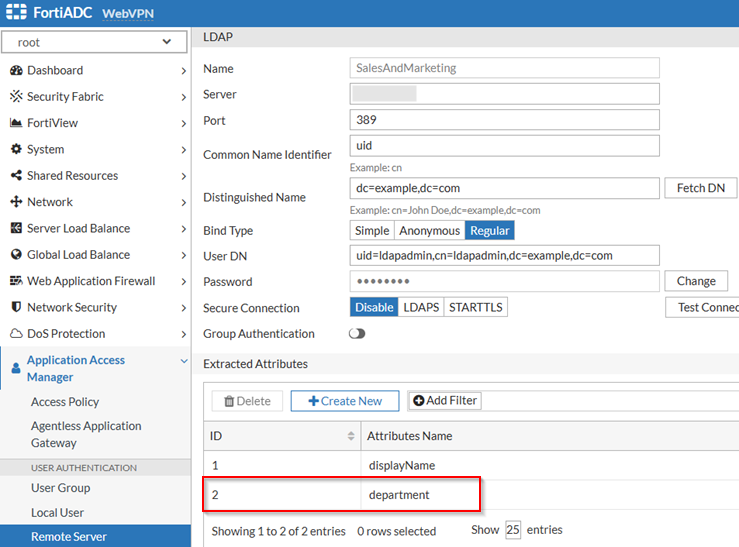
In the Host field of the App Bookmark, you can reference this attribute using the format: $LDAP.department$.example.com.
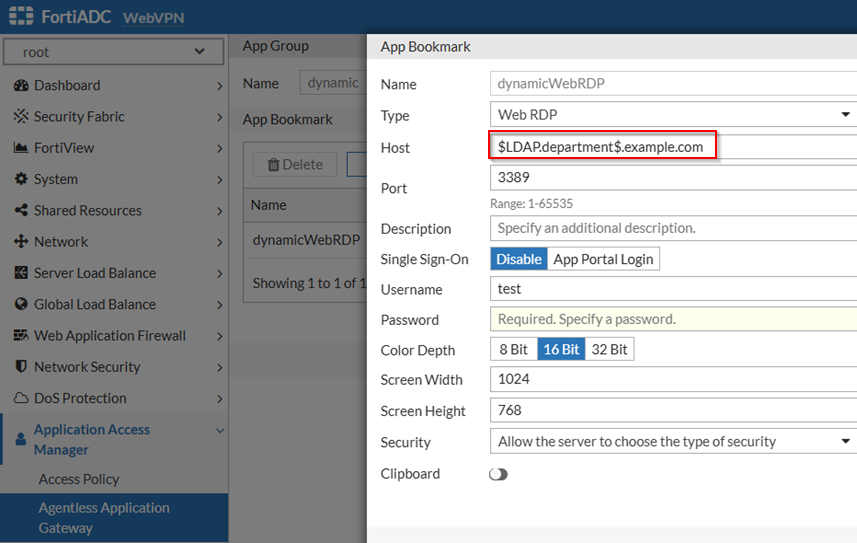
Example:
-
If User A has the attribute
department = IT, then when he clicks this App Bookmark, he will be directed to:it.example.com -
If User B has the attribute
department = admin, then clicking the same App Bookmark will direct him to:admin.example.com
This mechanism allows a single AAG bookmark to serve multiple users or departments, with FortiADC dynamically routing each user to the correct backend host based on LDAP attributes.
App Bookmark Types
Each App Bookmark Type requires specific parameters to be configured. The following table lists the supported Types and their usage. Use the links under the Application Type column to navigate to the configuration parameters applicable to each App Bookmark Type.
|
Application Type |
Usage |
|---|---|
| Web RDP | Provides web-based remote desktop access via an HTML5 client, eliminating the need for an RDP client on the user’s device. |
| Native RDP | Establishes a direct connection to an RDP server, requiring an installed RDP client on the user’s device. |
| RemoteApp | Enables access to specific Windows applications over RDP without exposing the full desktop session. |
| Web VNC |
Grants browser-based access to remote desktops running Virtual Network Computing (VNC). |
| Web SSH |
Allows command-line access to remote Linux or Unix servers via a secure, browser-based SSH session. |
| Web TELNET |
Provides browser-based access to Telnet-enabled devices for legacy terminal access. |
|
Connects to internal HTTP/HTTPS applications published through a FortiADC virtual server with Web App Proxy enabled. Users access these applications through the AAG App Portal using their portal login credentials. Direct access through the virtual server URL is also supported, with the same authentication enforcement. |

|
For application types that require login credentials—such as RDP, VNC, and SSH—you must specify a username and password within the App Group configuration. When cloning an App Group, all passwords are automatically cleared and must be re-entered manually to maintain secure handling. |
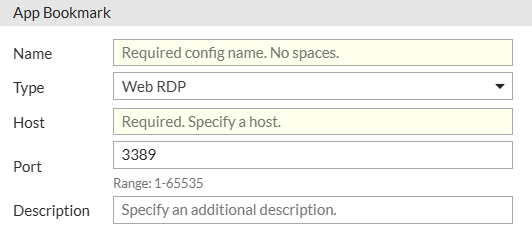
Web RDP
Web RDP (Remote Desktop Protocol) provides web-based access to a remote Windows desktop session without requiring an RDP client. It allows users to connect to Windows systems securely through their browser, making it ideal for remote administration, virtual desktop access, and troubleshooting.
|
Parameter |
Description |
|---|---|
| Host | The IP address or hostname of the target Windows machine. |
| Port | The port used for the RDP connection (default: 3389, range: 1-65535). |
| Description | Optional description for the Web RDP bookmark. |
| Advanced Setting | |
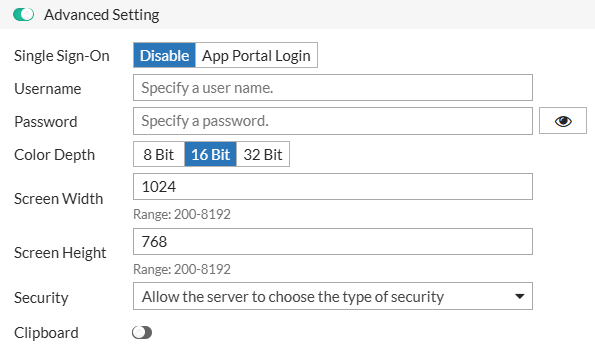
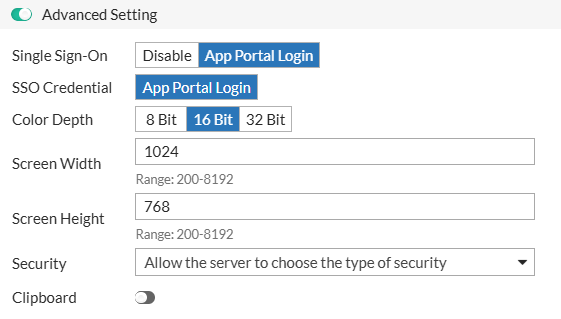
| Single Sign-On |
Determines whether Single Sign-On is used. Select from the following options:
|
| Username | The username for authentication when Single Sign-On is disabled. |
| Password | The password for authentication when Single Sign-On is disabled. |
|
SSO Credential |
Appears when Single Sign-On is set to App Portal Login. The SSO Credential is set to use the App Portal Login by default. |
|
Color Depth |
Sets the color depth for the remote session. Select from the following:
|
|
Screen Width |
Specifies the width of the remote session display (default: 1024, range: 200-8192). |
|
Screen Height |
Specifies the height of the remote session display (default: 768, range: 200-8192). |
|
Security |
Defines the security protocol for the RDP session. Select from the following:
|
|
Clipboard |
Enables or disables clipboard sharing between the remote session and the local machine. |
Native RDP
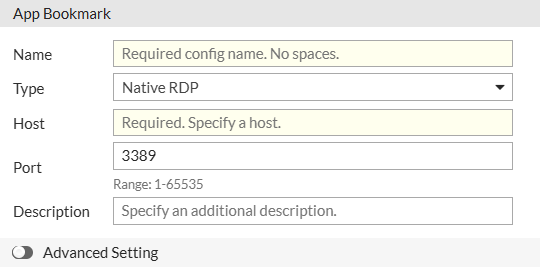
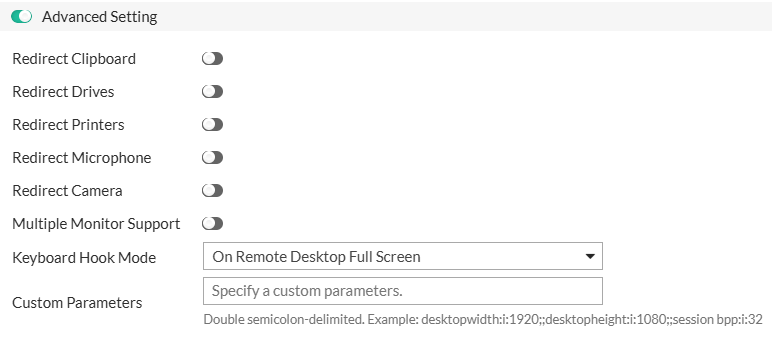
Native RDP allows users to launch a full remote desktop session using an installed RDP client. Unlike Web RDP, which runs in a browser, Native RDP opens the session in the system's RDP client, providing a more responsive experience and leveraging full client-side capabilities, including peripheral redirection, multiple monitor support, and enhanced performance.
|
Parameter |
Description |
|---|---|
| Host | The IP address or hostname of the target Windows machine. |
| Port | The port used for the RDP connection (default: 3389, range: 1-65535). |
| Description | Optional description for the Native RDP bookmark. |
| Advanced Setting | |
| Redirect Clipboard | Allows clipboard sharing between the remote and local machine. |
| Redirect Drives | Enables access to local drives within the remote session. |
| Redirect Printers | Allows remote access to local printers. |
| Redirect Microphone |
Enables microphone redirection for remote audio input. |
| Redirect Camera |
Enables camera redirection for video conferencing applications. |
| Multiple Monitor Support |
Allows the remote session to span multiple monitors. |
| Keyboard Hook Mode |
Defines how keyboard shortcuts (e.g., Alt+Tab) are handled in the session. Select from the following options:
|
| Custom Parameters |
Additional RDP client parameters for advanced configurations. |
RemoteApp
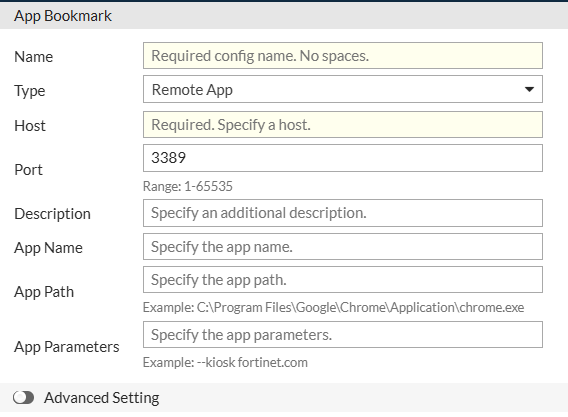
RemoteApp provides access to specific applications hosted on a remote Windows server without opening a full remote desktop session. Unlike Web RDP, which grants access to the entire remote desktop environment, RemoteApp launches only the selected application in a separate window, making it appear as if it is running locally on the user's device. This approach enhances security by restricting access to only approved applications and improves the user experience by integrating remote applications seamlessly into the local desktop environment.
|
|
When publishing RemoteApp bookmarks:
|
|
Parameter |
Description |
|---|---|
| Host | The IP address or hostname of the RemoteApp server. |
| Port | The port used for the RemoteApp connection (default: 3389, range: 1-65535). |
| Description | Optional description for the RemoteApp bookmark. |
|
App Name |
The display name of the RemoteApp application. |
|
App Path |
The full path to the executable of the RemoteApp. |
|
App Parameters |
Additional command-line arguments for the RemoteApp. |
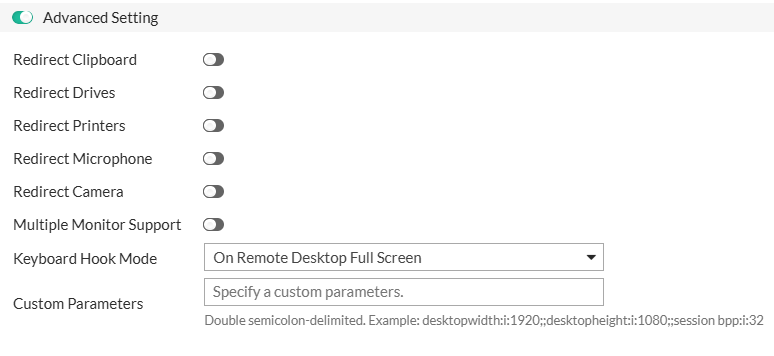
| Advanced Setting | |
| Redirect Clipboard | Allows clipboard sharing between the remote and local machine. |
| Redirect Drives | Enables access to local drives within the RemoteApp session. |
| Redirect Printers | Allows remote access to local printers. |
| Redirect Microphone |
Enables microphone redirection for remote audio input. |
| Redirect Camera |
Enables camera redirection for video conferencing applications. |
| Multiple Monitor Support |
Allows the RemoteApp session to span multiple monitors. |
| Keyboard Hook Mode |
Defines how keyboard shortcuts (e.g., Alt+Tab) are handled in the session. Select from the following options:
|
| Custom Parameters |
Additional RDP client parameters for advanced configurations. |
Web VNC
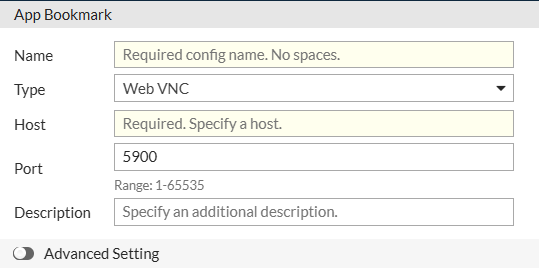
Web VNC (Virtual Network Computing) enables web-based remote access to graphical desktops on Linux, macOS, and other VNC-compatible systems. It is commonly used for remote system administration and technical support.
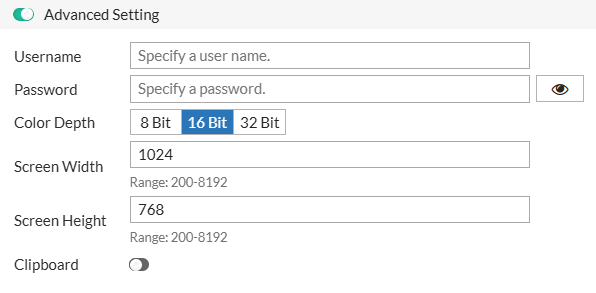
|
Parameter |
Description |
|---|---|
| Host | The IP address or hostname of the VNC server. |
| Port | The port used for the VNC connection (default: 5900, range: 1-65535). |
| Description | Optional description for the Web VNC bookmark. |
| Advanced Setting | |
| Username | The username for VNC authentication, if required. |
| Password | The password for VNC authentication, if required. |
| Color Depth |
Sets the color depth for the VNC session. Select from the following:
|
| Screen Width | Specifies the width of the VNC session display. The default value is 1024, with a valid range of 200-8192. |
| Screen Height | Specifies the height of the VNC session display. The default value is 768, with a valid range of 200-8192. |
| Clipboard | Enables or disables clipboard sharing between the remote and local system. |
Web SSH
Web SSH (Secure Shell) provides secure, web-based command-line access to remote Linux and Unix systems. It is commonly used for server administration and troubleshooting.
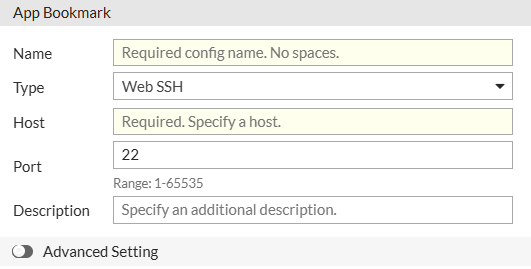
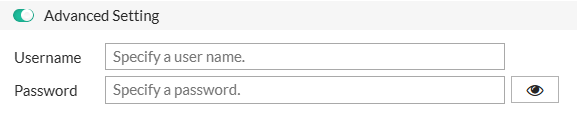
|
Parameter |
Description |
|---|---|
| Host | The IP address or hostname of the SSH server. |
| Port | The port used for the SSH connection (default: 22, range: 1-65535). |
| Description | Optional description for the Web SSH bookmark. |
| Advanced Setting | |
| Username | The SSH login username. |
| Password | The SSH login password (if password authentication is used). |
Web TELNET
Web Telnet provides browser-based access to network devices and legacy systems that use the Telnet protocol. It is commonly used for managing routers, switches, and older mainframe systems.
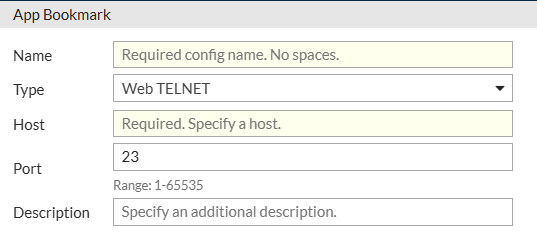
|
Parameter |
Description |
|---|---|
| Host | The IP address or hostname of the Telnet server. |
| Port | The port used for the Telnet connection (default: 23, range: 1-65535). |
| Description | Optional description for the Web Telnet bookmark. |
Web APP – Internal
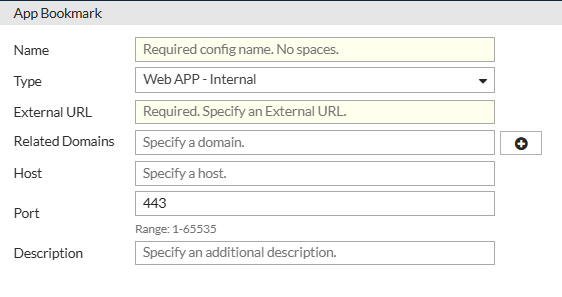
The Web App – Internal bookmark type integrates internal web applications published through FortiADC into the AAG App Portal, allowing users to reach internal HTTP/HTTPS resources—such as intranet sites, dashboards, or collaboration platforms—securely through a browser. Traffic to these applications is proxied by FortiADC, which authenticates users through the AAG App Portal and applies centralized access policies.
Before you configure this bookmark, ensure that the internal application has already been published on a FortiADC virtual server configured with Web App Proxy (HTTP or HTTPS). The virtual server provides the reverse-proxy function that handles session termination and authentication redirection, while the Web App – Internal bookmark links that published resource to the App Portal. For details, see Publishing Internal Web Applications for AAG Access.
Users can access the published application in either of the following ways:
-
From the App Portal: Authenticated users select the bookmark to launch the internal web application. The session is proxied through the Web App Proxy virtual server using their existing portal credentials.
-
Directly through the published URL: Users who access the application URL without an active session are redirected to the AAG App Portal login page. After authentication, FortiADC returns them to the requested application.
This integration allows administrators to publish internal web applications securely through FortiADC without requiring VPN software, while maintaining consistent authentication, policy enforcement, and session logging across all application types.
|
Parameter |
Description |
|---|---|
| External URL | Specifies the bookmark URL — the homepage address of the internal web application, in the format http(s)://<fqdn>:<port>. The domain name must resolve to the Internal App virtual server configured with Web App Proxy enabled. This is the URL users access through the App Portal or directly in a browser. |
| Related Domains |
Lists additional subdomains or domains used by the web application, in addition to the homepage domain (for example, for content delivery or APIs). Enter each entry in the format Example: For an application accessed at |
| Host | (Optional) Specifies the backend server IP address or hostname (and optionally the port number) to which the Internal App virtual server routes traffic. If not set, FortiADC uses DNS resolution on the hostname portion of the URL to obtain the backend server IP address. |
| Port |
(Optional) Specifies the TCP port (1–65535) used by the backend server for the application. This value must match the port configured on the Internal App virtual server that proxies the application. |
| Description | (Optional) Descriptive text for the bookmark. The label appears in the App Portal to help users identify the application (for example, Intranet Portal or SharePoint Site). |