Fortinet white logo
Fortinet white logo

Administration Guide

Accessing the AAG App Portal

Accessing the AAG App Portal

After setting up the App Portal and deploying the Agentless Application Gateway (AAG) Virtual Server with the appropriate Access Policy, users can securely log in through their browser to access internal enterprise applications. The AAG App Portal serves as a centralized interface for launching web, desktop, and terminal-based resources—no client agents required.

This section provides an overview of the end-user experience, including authentication flow, portal navigation, application access, and session handling.

Topics Covered:
  • Signing In and Session Management – Authentication flow, MFA, and interface language behavior.

  • Exploring the AAG Portal Interface – Layout and navigation overview.

  • Launching Applications – Accessing applications such as RDP, SSH, and web apps.

  • Managing Sessions and Logging Out – Viewing active sessions and secure logout.

Signing In and Session Management

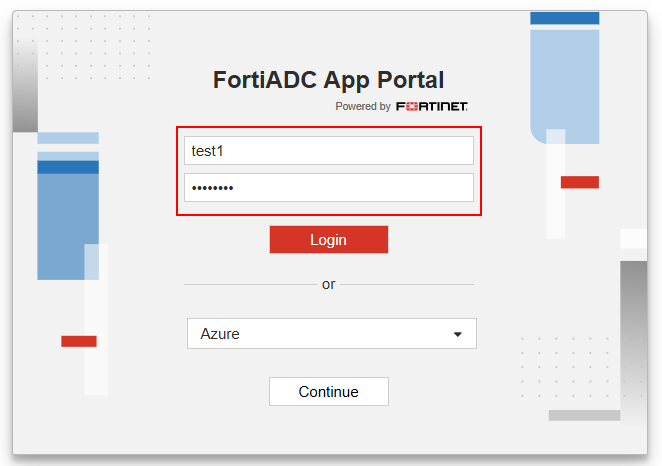
Users authenticate based on the method defined in the Access Policy bound to the AAG Virtual Server. FortiADC supports a range of authentication mechanisms, including:

  • Local authentication – Users enter credentials defined on FortiADC.

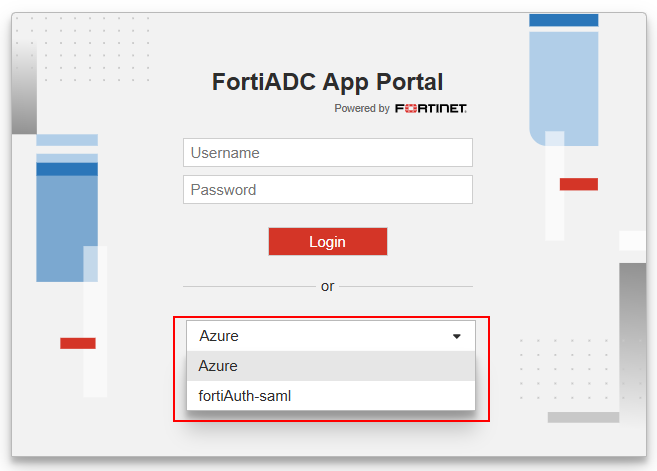
  • Remote authentication – Users authenticate via LDAP, RADIUS, or SAML-based identity providers.

Once authenticated, FortiADC initializes a user session, enforces idle timeouts, and supports reauthentication if required by policy.
Multi-Factor Authentication (MFA)

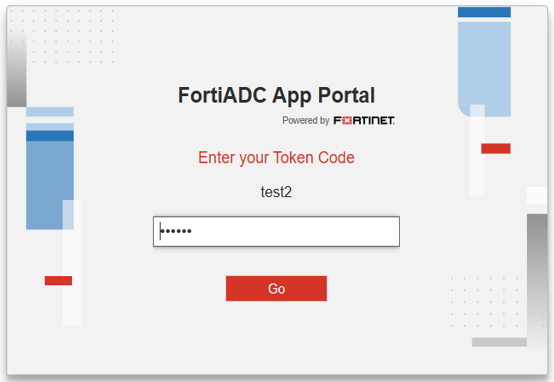
If multi-factor authentication (MFA) is enabled for Local or RADIUS users, the App Portal adds an additional verification step after successful primary credential entry.

Users are prompted to verify their identity using one of the following methods:

  • Enter a FortiToken one-time passcode (OTP).

  • Approve a push notification on their registered device.

Portal access is granted only after successful completion of the second-factor verification.
Automatic Language Detection

FortiADC automatically adapts the App Portal interface language to match the user’s browser settings. No configuration is required—language detection occurs automatically at login.

When a browser requests one of the supported languages, the App Portal displays all pages and login prompts in that language. If the browser requests an unsupported language, the interface defaults to English.

Supported languages:
  • English

  • Simplified Chinese

  • Traditional Chinese

  • Japanese

  • Spanish

  • Portuguese

Exploring the AAG Portal Interface

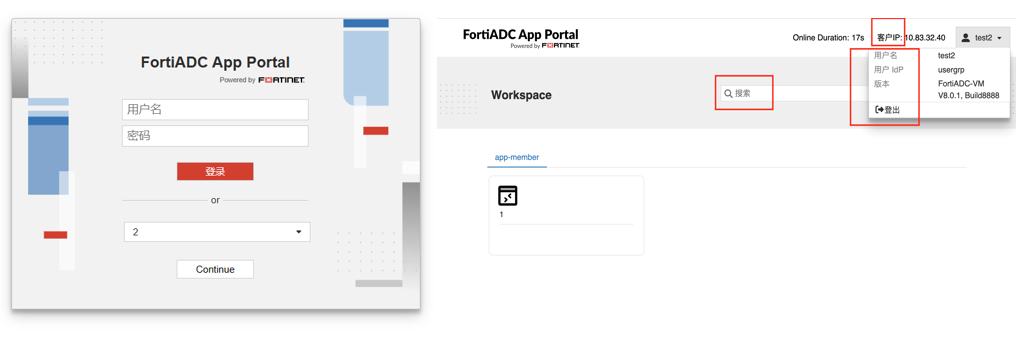
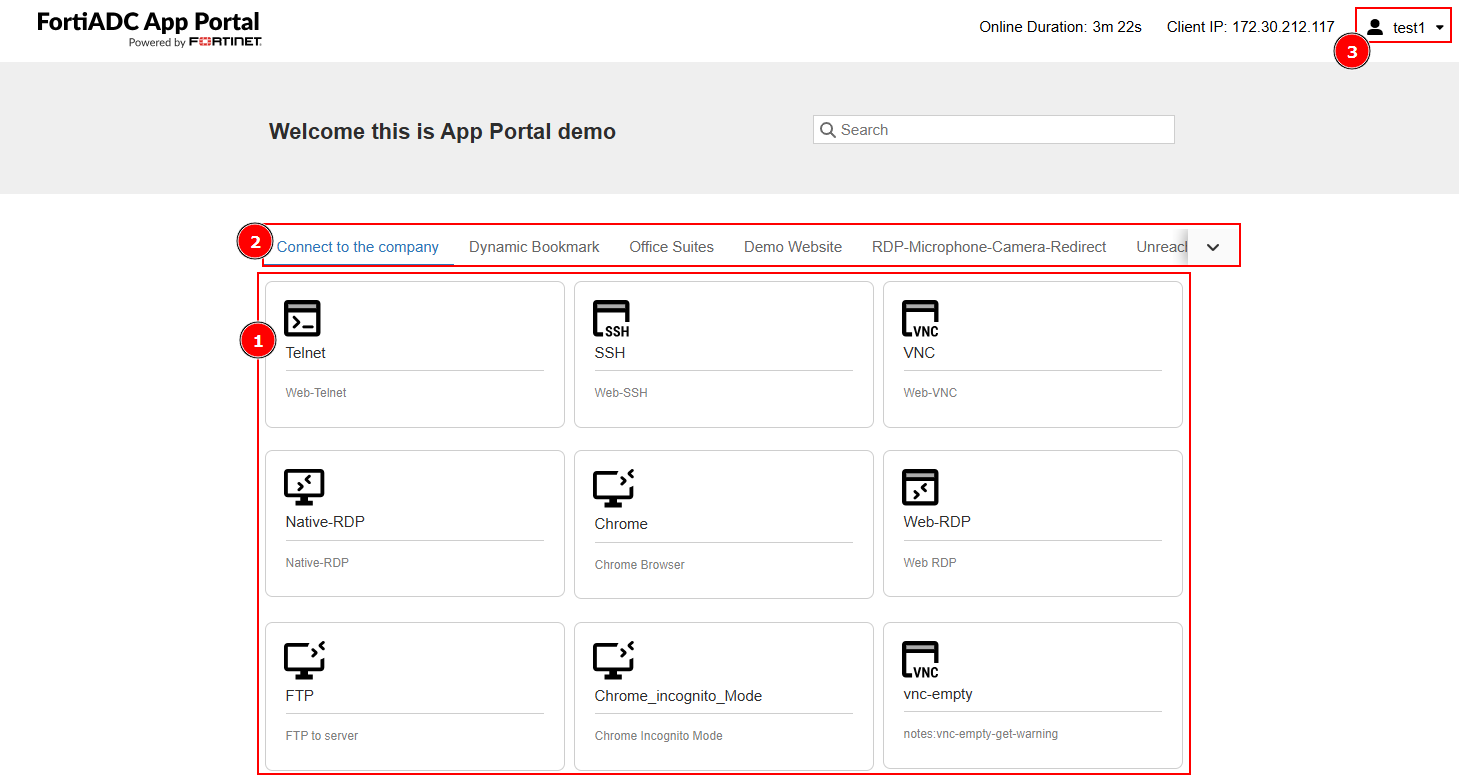
Upon successful login, users are presented with the AAG App Portal interface. The interface is browser-based, intuitive, and dynamically reflects the user's access permissions.

The portal includes:

  • Application Tiles – Icons representing RDP, SSH, VNC, or web-based resources.

  • App Grouping – Applications grouped by assigned App Group.

  • User Information – Includes user information and option to logout.
Launching Applications

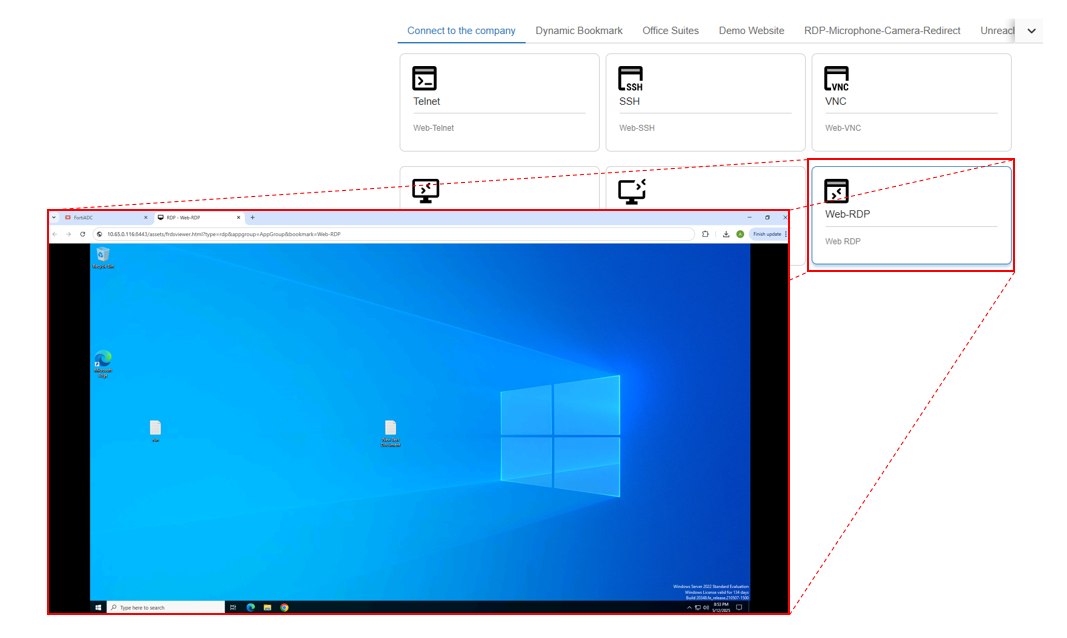
Users can launch applications directly from the portal without requiring any local agents. Supported connection types include:

  • Web Applications – Opens in a new tab or embedded frame.

  • Remote Desktop (RDP) – Rendered using HTML5 viewer via FortiADC proxy.

  • SSH / Telnet / VNC – Browser-based terminal access.

RDP connections honor the settings configured in the APP Access profile:

  • RDP Proxy Access Token Timeout – Controls how long a token remains valid.

  • RDP Online User Access Limit – Limits the number of concurrent RDP sessions per user.
Managing Sessions and Logging Out

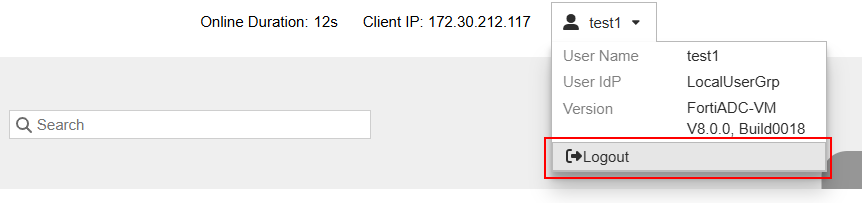
Users can track their active sessions within the portal and safely log out once done. FortiADC enforces session cleanup and authentication token removal on logout.

Session-related capabilities:

  • Switching Between Applications – Seamless navigation without reauthentication.

  • Manual Logout – Ends session and removes tokens.
Accessing the AAG App Portal

Accessing the AAG App Portal

After setting up the App Portal and deploying the Agentless Application Gateway (AAG) Virtual Server with the appropriate Access Policy, users can securely log in through their browser to access internal enterprise applications. The AAG App Portal serves as a centralized interface for launching web, desktop, and terminal-based resources—no client agents required.

This section provides an overview of the end-user experience, including authentication flow, portal navigation, application access, and session handling.

Topics Covered:
  • Signing In and Session Management – Authentication flow, MFA, and interface language behavior.

  • Exploring the AAG Portal Interface – Layout and navigation overview.

  • Launching Applications – Accessing applications such as RDP, SSH, and web apps.

  • Managing Sessions and Logging Out – Viewing active sessions and secure logout.

Signing In and Session Management

Users authenticate based on the method defined in the Access Policy bound to the AAG Virtual Server. FortiADC supports a range of authentication mechanisms, including:

  • Local authentication – Users enter credentials defined on FortiADC.

  • Remote authentication – Users authenticate via LDAP, RADIUS, or SAML-based identity providers.

Once authenticated, FortiADC initializes a user session, enforces idle timeouts, and supports reauthentication if required by policy.

Multi-Factor Authentication (MFA)

If multi-factor authentication (MFA) is enabled for Local or RADIUS users, the App Portal adds an additional verification step after successful primary credential entry.

Users are prompted to verify their identity using one of the following methods:

  • Enter a FortiToken one-time passcode (OTP).

  • Approve a push notification on their registered device.

Portal access is granted only after successful completion of the second-factor verification.

Automatic Language Detection

FortiADC automatically adapts the App Portal interface language to match the user’s browser settings. No configuration is required—language detection occurs automatically at login.

When a browser requests one of the supported languages, the App Portal displays all pages and login prompts in that language. If the browser requests an unsupported language, the interface defaults to English.

Supported languages:
  • English

  • Simplified Chinese

  • Traditional Chinese

  • Japanese

  • Spanish

  • Portuguese

Exploring the AAG Portal Interface

Upon successful login, users are presented with the AAG App Portal interface. The interface is browser-based, intuitive, and dynamically reflects the user's access permissions.

The portal includes:

  • Application Tiles – Icons representing RDP, SSH, VNC, or web-based resources.

  • App Grouping – Applications grouped by assigned App Group.

  • User Information – Includes user information and option to logout.

Launching Applications

Users can launch applications directly from the portal without requiring any local agents. Supported connection types include:

  • Web Applications – Opens in a new tab or embedded frame.

  • Remote Desktop (RDP) – Rendered using HTML5 viewer via FortiADC proxy.

  • SSH / Telnet / VNC – Browser-based terminal access.

RDP connections honor the settings configured in the APP Access profile:

  • RDP Proxy Access Token Timeout – Controls how long a token remains valid.

  • RDP Online User Access Limit – Limits the number of concurrent RDP sessions per user.

Managing Sessions and Logging Out

Users can track their active sessions within the portal and safely log out once done. FortiADC enforces session cleanup and authentication token removal on logout.

Session-related capabilities:

  • Switching Between Applications – Seamless navigation without reauthentication.

  • Manual Logout – Ends session and removes tokens.