
Fortinet white logo
Fortinet white logo

Administration Guide

Analysis - How to Use FortiADC's AAG Feature to Serve the Requirements in This Use Case

Analysis - How to Use FortiADC's AAG Feature to Serve the Requirements in This Use Case

FortiADC’s Agentless Application Gateway (AAG) feature perfectly fits the requirements in this use case. It provides two primary functions:

  • Remote access

    AAG enables secure remote access to RDP servers, and web-based secure access to VNC, Telnet, and SSH servers.

    In this use case, access to remote servers running Windows, Linux, UNIX, or legacy systems can be achieved by creating corresponding application bookmarks within AAG.

    For more information, see Analysis - How to Use FortiADC's AAG Feature to Serve the Requirements in This Use Case.

  • Application publishing

    AAG offers authenticated, browser-based access to internal websites that are not publicly exposed on the Internet. Acting as a reverse proxy, AAG communicates with backend web servers and securely renders the responses to client browsers.

    For example, an internal site such as the HR Portal (https://hrportal.univ.local) is ideal for publication through AAG, as it is intended only for authenticated administrative staff, not external visitors.

    For more information, see Web App – Internal.
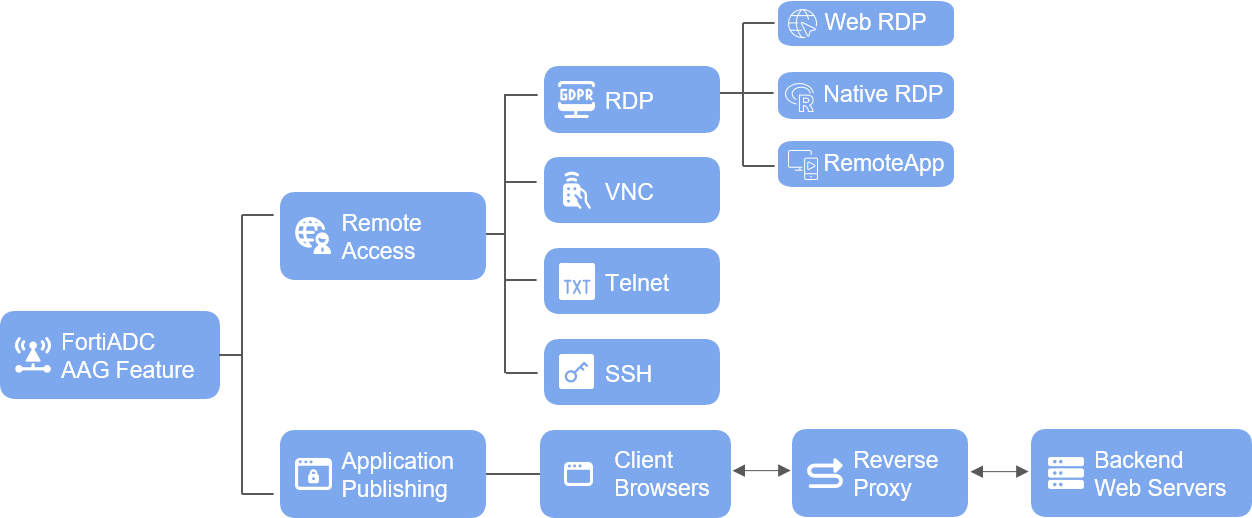
The following sections introduce the application group types supported by AAG and describe their suitable usage scenarios in detail.

RDP

FortiADC supports the following RDP connection types:

  • Web RDP – Browser-based access using HTML5. For more information, see Web RDP vs. Native RDP.

  • Native RDP – Launches the local Remote Desktop client through a downloaded .rdp file. For more information, see Web RDP vs. Native RDP.

  • RemoteApp – Streams only a single Windows application instead of the full desktop. For more information, see RemoteApp.

Web RDP vs. Native RDP

Both Web RDP and Native RDP provide remote desktop access, yet they serve different needs, user types, and environments.

  • Web RDP: Browser-based remote desktop access (HTML5 viewer). The user connects through the AAG web portal using only a browser — no RDP client or VPN needed.

  • Native RDP: RDP access via the installed Remote Desktop Client (e.g., Windows MSTSC, Microsoft Remote Desktop app). The AAG portal acts as a gateway that hands off the session to the native client through FortiADC’s RDP Proxy.

Web RDP Native RDP
How user accesses it
  1. User logs into AAG web portal, clicks Web RDP bookmark.

  2. Access the RDP through HTML5 inside the browser.

  1. User logs into the AAG portal, and clicks Native RDP bookmark.

  2. An .rdp file is downloaded to user's local directory.

  3. User runs the .rdp file, re-directing the connection to the user’s local RDP client (MSTSC).

Platform Support Cross-platform (Windows/macOS/Linux/iPad/ChromeOS) Windows only

Peripheral Redirection

Limited (clipboard only)

Full (drive, printer, USB, camera, etc.)

Security Channel

HTTPS (443)

RDP over proxy (443 or 3389)

Best For

  • Remote employees on unmanaged or personal devices (BYOD) because no client installation is required.

  • Users who need quick access to Windows VMs from browser.

  • Corporate or managed laptops with RDP client installed.

  • IT administrators requiring multi-monitor and drive/printer redirection.

  • Users needing high performance, such as video playback or heavy GUI operations.

  • Environments with RDP Proxy enabled and strict user session control.

In this use case, access requirements such as Virtual Lab Desktop and Department Server (Windows) can be fulfilled by configuring RDP App bookmarks within AAG.

It’s recommended to create both web RDP and native RDP application bookmarks for the same remote server to maximize user flexibility. This dual setup eliminates access barriers, letting users connect reliably regardless of their environment.

RemoteApp

RemoteApp lets you stream a single Windows application—not the entire desktop—to remote users.

Instead of opening a full Windows desktop session through RDP, RemoteApp isolates only the specified application (for example, Word, Excel, SAP GUI, Visual Studio, or other apps) and renders it directly on the user’s local desktop. Below is how it works:

  1. User logs into AAG web portal, and clicks RemoteApp bookmark.

  2. An .rdp file is automatically downloaded.

  3. The user runs the .rdp file, which launches only the designated application through FortiADC’s RDP Proxy.

  4. The application window appears directly on the user’s desktop — not inside a full remote desktop session — giving the impression that the app is running locally.

RemoteApp supports full peripheral redirection, including drives, printers, USB devices, microphones, and cameras, just like a native RDP session.

In this use case, the Online Exam Application for students can be published as a RemoteApp in AAG. This ensures that students can seamlessly use local peripherals such as their microphone or camera while interacting with the remote application hosted on the campus RDS server.

Web VNC

Web VNC offers secure, clientless, browser-based access to systems that support the VNC protocol, such as legacy UNIX desktops, data center consoles, or specialized engineering equipment. This allows administrators to control non-Windows or legacy systems that require GUI-based management without installing any VNC client.

In this use case, the "Server Maintenance Console (VNC): legacy-srv01.univ.local" can be published as a VNC application in AAG.

Web SSH

Web SSH delivers secure, encrypted command-line access to Linux and UNIX systems. It is ideal for administrators and faculty who need quick CLI access to perform maintenance, research computing, or automation tasks directly from a browser session.

In this use case, faculty members can access the Research Server (Linux) through web SSH for running research scripts or managing datasets.

Web Telnet

Web Telnet enables text-based terminal access to legacy or embedded systems that use the Telnet protocol. Although largely replaced by SSH, Telnet remains in use for certain industrial, laboratory, or network devices that do not support encryption.

In this use case, the Core Switch Console still relies on Telnet for command-line configuration. FortiADC’s AAG supports this requirement through the Telnet application type, allowing administrators to connect securely via the AAG portal while maintaining centralized authentication and access control.

Web App – Internal

Through the "Web App – Internal" function, FortiADC’s Agentless Application Gateway (AAG) extends beyond traditional remote desktop access.

It enables FortiADC to publish internal web applications through a secure, authenticated reverse proxy, similar in concept to how FortiADC delivers services through a Layer 7 virtual server. In this mode, FortiADC handles client requests on behalf of web servers. It forwards the requests to the backend web servers and returns the responses securely to the clients.

However, unlike websites published through a standard Layer 7 virtual server, applications published via AAG’s "Web App – Internal" are accessible only to authenticated users who log into the AAG portal. The applications can be accessed through the following ways:

  • Users log in to the AAG portal and simply click the Web App – Internal bookmark. The application URL opens directly in their local browser.

  • Users enter the application URL directly in their browser. If they are not already authenticated, the AAG login page will appear. After successful authentication, AAG automatically redirects the user to the requested application page. (This behavior will be implemented in FortiADC 8.0.3. In earlier versions, users will see an error message if they enter the application URL directly in their browser.)

This approach ensures that internal web resources remain private and protected, while still allowing remote or authorized users to access them conveniently through a browser, without requiring a VPN or dedicated client.

In this use case, the internal applications are suitable for publishing as "Web App – Internal" applications. For example, the Learning Portal (https://learn.univ.local) used by students can be published through AAG. After logging in to the AAG portal, students can simply click the application icon to open the URL https://learn.univ.local directly in their local browser, providing secure and seamless access to the internal learning platform.

Analysis - How to Use FortiADC's AAG Feature to Serve the Requirements in This Use Case

Analysis - How to Use FortiADC's AAG Feature to Serve the Requirements in This Use Case

FortiADC’s Agentless Application Gateway (AAG) feature perfectly fits the requirements in this use case. It provides two primary functions:

  • Remote access

    AAG enables secure remote access to RDP servers, and web-based secure access to VNC, Telnet, and SSH servers.

    In this use case, access to remote servers running Windows, Linux, UNIX, or legacy systems can be achieved by creating corresponding application bookmarks within AAG.

    For more information, see Analysis - How to Use FortiADC's AAG Feature to Serve the Requirements in This Use Case.

  • Application publishing

    AAG offers authenticated, browser-based access to internal websites that are not publicly exposed on the Internet. Acting as a reverse proxy, AAG communicates with backend web servers and securely renders the responses to client browsers.

    For example, an internal site such as the HR Portal (https://hrportal.univ.local) is ideal for publication through AAG, as it is intended only for authenticated administrative staff, not external visitors.

    For more information, see Web App – Internal.

The following sections introduce the application group types supported by AAG and describe their suitable usage scenarios in detail.

RDP

FortiADC supports the following RDP connection types:

  • Web RDP – Browser-based access using HTML5. For more information, see Web RDP vs. Native RDP.

  • Native RDP – Launches the local Remote Desktop client through a downloaded .rdp file. For more information, see Web RDP vs. Native RDP.

  • RemoteApp – Streams only a single Windows application instead of the full desktop. For more information, see RemoteApp.

Web RDP vs. Native RDP

Both Web RDP and Native RDP provide remote desktop access, yet they serve different needs, user types, and environments.

  • Web RDP: Browser-based remote desktop access (HTML5 viewer). The user connects through the AAG web portal using only a browser — no RDP client or VPN needed.

  • Native RDP: RDP access via the installed Remote Desktop Client (e.g., Windows MSTSC, Microsoft Remote Desktop app). The AAG portal acts as a gateway that hands off the session to the native client through FortiADC’s RDP Proxy.

Web RDP Native RDP
How user accesses it
  1. User logs into AAG web portal, clicks Web RDP bookmark.

  2. Access the RDP through HTML5 inside the browser.

  1. User logs into the AAG portal, and clicks Native RDP bookmark.

  2. An .rdp file is downloaded to user's local directory.

  3. User runs the .rdp file, re-directing the connection to the user’s local RDP client (MSTSC).

Platform Support Cross-platform (Windows/macOS/Linux/iPad/ChromeOS) Windows only

Peripheral Redirection

Limited (clipboard only)

Full (drive, printer, USB, camera, etc.)

Security Channel

HTTPS (443)

RDP over proxy (443 or 3389)

Best For

  • Remote employees on unmanaged or personal devices (BYOD) because no client installation is required.

  • Users who need quick access to Windows VMs from browser.

  • Corporate or managed laptops with RDP client installed.

  • IT administrators requiring multi-monitor and drive/printer redirection.

  • Users needing high performance, such as video playback or heavy GUI operations.

  • Environments with RDP Proxy enabled and strict user session control.

In this use case, access requirements such as Virtual Lab Desktop and Department Server (Windows) can be fulfilled by configuring RDP App bookmarks within AAG.

It’s recommended to create both web RDP and native RDP application bookmarks for the same remote server to maximize user flexibility. This dual setup eliminates access barriers, letting users connect reliably regardless of their environment.

RemoteApp

RemoteApp lets you stream a single Windows application—not the entire desktop—to remote users.

Instead of opening a full Windows desktop session through RDP, RemoteApp isolates only the specified application (for example, Word, Excel, SAP GUI, Visual Studio, or other apps) and renders it directly on the user’s local desktop. Below is how it works:

  1. User logs into AAG web portal, and clicks RemoteApp bookmark.

  2. An .rdp file is automatically downloaded.

  3. The user runs the .rdp file, which launches only the designated application through FortiADC’s RDP Proxy.

  4. The application window appears directly on the user’s desktop — not inside a full remote desktop session — giving the impression that the app is running locally.

RemoteApp supports full peripheral redirection, including drives, printers, USB devices, microphones, and cameras, just like a native RDP session.

In this use case, the Online Exam Application for students can be published as a RemoteApp in AAG. This ensures that students can seamlessly use local peripherals such as their microphone or camera while interacting with the remote application hosted on the campus RDS server.

Web VNC

Web VNC offers secure, clientless, browser-based access to systems that support the VNC protocol, such as legacy UNIX desktops, data center consoles, or specialized engineering equipment. This allows administrators to control non-Windows or legacy systems that require GUI-based management without installing any VNC client.

In this use case, the "Server Maintenance Console (VNC): legacy-srv01.univ.local" can be published as a VNC application in AAG.

Web SSH

Web SSH delivers secure, encrypted command-line access to Linux and UNIX systems. It is ideal for administrators and faculty who need quick CLI access to perform maintenance, research computing, or automation tasks directly from a browser session.

In this use case, faculty members can access the Research Server (Linux) through web SSH for running research scripts or managing datasets.

Web Telnet

Web Telnet enables text-based terminal access to legacy or embedded systems that use the Telnet protocol. Although largely replaced by SSH, Telnet remains in use for certain industrial, laboratory, or network devices that do not support encryption.

In this use case, the Core Switch Console still relies on Telnet for command-line configuration. FortiADC’s AAG supports this requirement through the Telnet application type, allowing administrators to connect securely via the AAG portal while maintaining centralized authentication and access control.

Web App – Internal

Through the "Web App – Internal" function, FortiADC’s Agentless Application Gateway (AAG) extends beyond traditional remote desktop access.

It enables FortiADC to publish internal web applications through a secure, authenticated reverse proxy, similar in concept to how FortiADC delivers services through a Layer 7 virtual server. In this mode, FortiADC handles client requests on behalf of web servers. It forwards the requests to the backend web servers and returns the responses securely to the clients.

However, unlike websites published through a standard Layer 7 virtual server, applications published via AAG’s "Web App – Internal" are accessible only to authenticated users who log into the AAG portal. The applications can be accessed through the following ways:

  • Users log in to the AAG portal and simply click the Web App – Internal bookmark. The application URL opens directly in their local browser.

  • Users enter the application URL directly in their browser. If they are not already authenticated, the AAG login page will appear. After successful authentication, AAG automatically redirects the user to the requested application page. (This behavior will be implemented in FortiADC 8.0.3. In earlier versions, users will see an error message if they enter the application URL directly in their browser.)

This approach ensures that internal web resources remain private and protected, while still allowing remote or authorized users to access them conveniently through a browser, without requiring a VPN or dedicated client.

In this use case, the internal applications are suitable for publishing as "Web App – Internal" applications. For example, the Learning Portal (https://learn.univ.local) used by students can be published through AAG. After logging in to the AAG portal, students can simply click the application icon to open the URL https://learn.univ.local directly in their local browser, providing secure and seamless access to the internal learning platform.