AAG Configurations
FortiADC’s Agentless Application Gateway (AAG) consists of several configuration components that work together to deliver secure, role-based access to remote and internal applications.
Configuration components for AAG Portal

Additional configuration components for Web App - Internal

To help you better understand AAG configuration, we’ve prepared the following video FortiADC AAG End-to-End Configuration Flow and FortiADC Virtual Server Configurations for AAG.
-
App bookmark
An App Bookmark represents a specific remote resource or internal application that you want to display to users in the AAG portal.
Each bookmark corresponds to a backend destination—such as an RDP server, SSH host, VNC session, Telnet device, or internal web application.
Configuration path: Application Access Manager > Agentless Application Gateway > App Group tab > App Bookmark section
-
App group
An App Group is a logical collection of App Bookmarks. Bookmarks are typically grouped according to application functions.
For example, you might create separate App Groups for Remote Access Servers, Internal Applications, or Administrative Tools.
Configuration path: Application Access Manager > Agentless Application Gateway > App Group tab
-
App Portal
The App Portal is a collection of App Groups and serves as the web-based homepage that users see after authentication.
If multiple App Groups are attached to the same App Portal, each App Group appears as a separate tab on the portal page.
Typically, each user role has its own App Portal.
For example:
-
Students App Portal – contains all bookmarks for student resources such as Virtual Lab and Exam applications.
-
Administrative Staff App Portal – contains all bookmarks for staff-related applications such as HR Portal and Finance Tools.
How you design the hierarchy of App Portals and App Groups depends on the complexity of your access requirements. For instance, you can create a Student App Portal, and under it, configure one App Group for all remote access servers and another App Group for internal web applications.
Configuration path: Application Access Manager > Agentless Application Gateway > App Portal tab
-
-
Remote authentication servers
Although AAG supports authentication using local users stored on FortiADC, the more common deployment scenario is to integrate with a remote authentication server for verifying user credentials.
Among the supported options, the LDAP server is the most widely used method for centralized user authentication and group management.
-
FortiADC can connect to one or more LDAP servers for user authentication.
-
You can configure multiple LDAP entries pointing to the same physical LDAP server, each with a different Distinguished Name (DN) to serve different organizational units or user groups.
Configuration path: Application Access Manager > Remote Server, or Application Access Manager > Local User, depending on whether you want to store user credentials locally on FortiADC or through remote authentication server.
In this use case, it is assumed that the university uses an LDAP server as the authentication source for verifying user credentials.
-
-
User group
A User Group is a collection of authentication servers.
When a user logs in, FortiADC uses the user login information such as email address or username to search across the configured authentication servers. If a match is found, the user is identified as belonging to the user group that contains the authentication server holding that user’s credentials.
This association enables FortiADC to dynamically display the App Portal linked to the user group, ensuring users see only the applications they are authorized to access.
Configuration path: Application Access Manager > User Group
-
Access policy
In Access Policy, you can bind a User Group to a specific App Portal. Each pair is called a member. You can add multiple members in an Access Policy.
This enables role-based access control, ensuring each user sees only the applications relevant to their permissions.
Configuration path: Application Access Manager > Access Policy
-
Application Profile
In Application Profile, you must set the Type as APP Access. This type is specifically used for AAG application profiles and operates natively over HTTP/HTTPS.
Configuration path: Server Load Balance > Application Resources
-
Virtual Server for AAG Portal
The Virtual Server for AAG Portal defines the public IP address of the AAG Portal, then reference the Access Policy and Application Profile.
Configuration path: Server Load Balance > Virtual Server
-
Virtual Server for Web App - Internal applications
The Virtual Server for Web App - Internal applications defines the public IP address of the Web App - Internal application, then reference the Application Profile.
Configuration path: Server Load Balance > Virtual Server
Main configurations
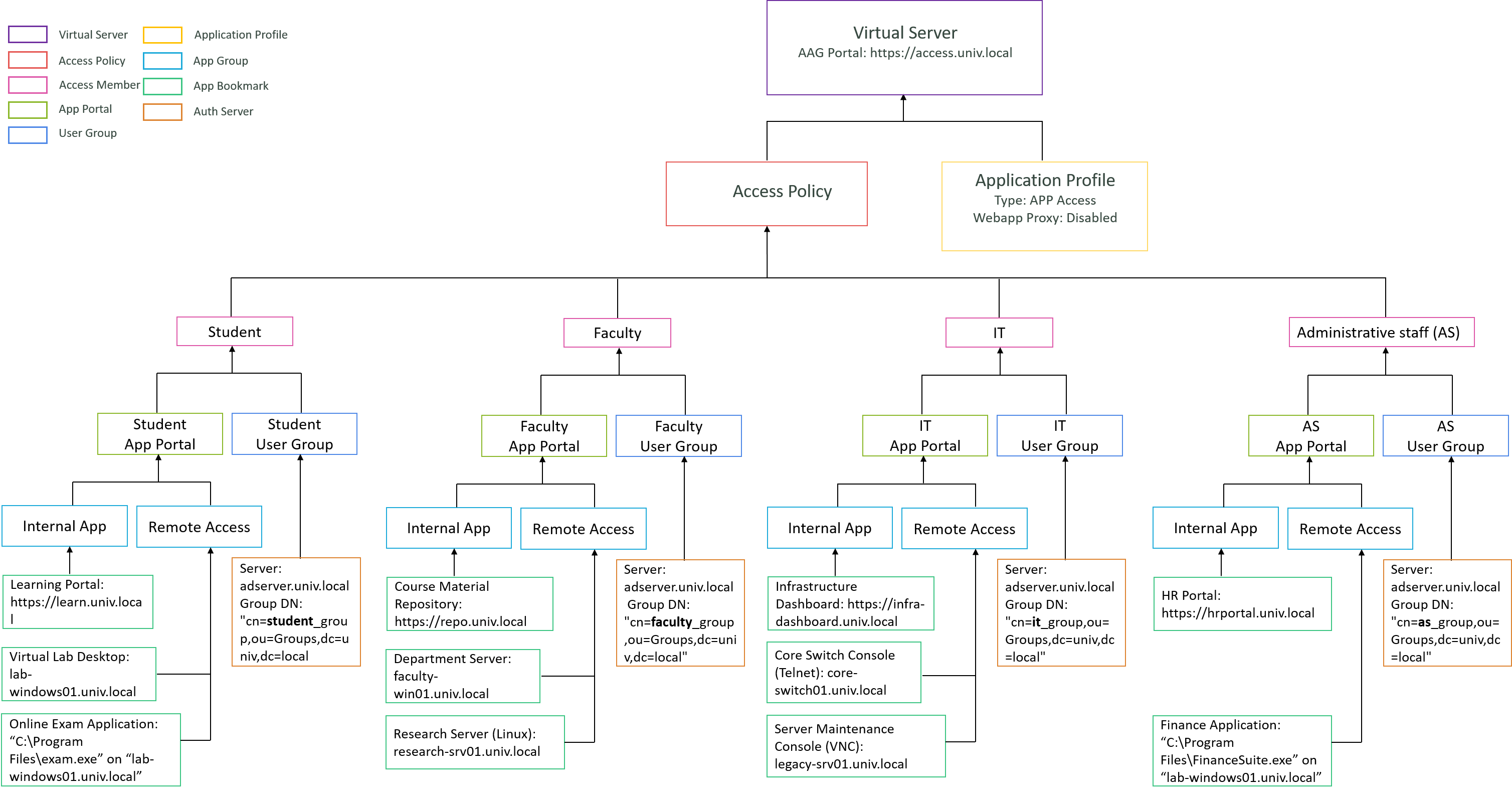
The diagram below provides an overview of the key configurations for the AAG portal https://access.univ.local.
Each colored frame represents a different AAG configuration component, illustrating how FortiADC’s AAG ties together user authentication, access control, and application publishing.
Additional Configurations for Web App - Internal Applications
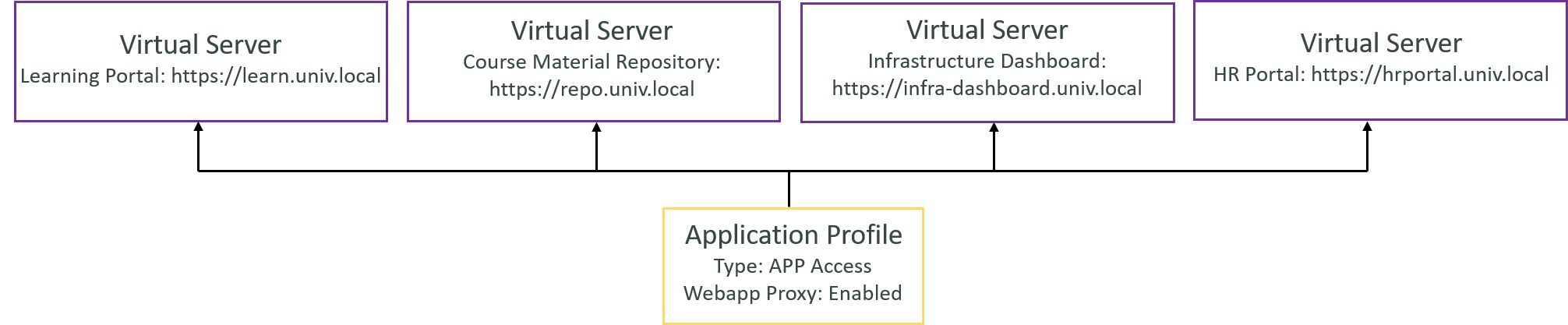
To ensure proper traffic flow for the Web App - Internal applications, you must create Virtual Servers that define each application's public-facing address and apply the appropriate Application Profile. This enables FortiADC to process, secure, and route the traffic correctly.
-
Each Web App – Internal application requires its own Virtual Server configuration, although they can share the same Application Profile.
-
Make sure the Webapp Proxy option is enabled in the Application Profile—this instructs FortiADC to proxy access to the application through the AAG portal.
This Virtual Server does not reference an Access Policy because user authentication has already been completed at the AAG portal. By the time a user accesses a Web App – Internal application, no additional authentication step is required.
For the definition of Web App - Internal Applications, see Web App – Internal.
Configuration Steps
In the following sections, we will introduce the configuration steps in detail.
-
Access Policy for Student Portal (RDP, RemoteApp, Web App Internal)
-
Access Policy for Faculty Member Portal (RDP, Web SSH, Web App Internal)
-
Access Policy for IT Portal (Web VNC, Web Telnet, Web App Internal)
-
Access Policy for Administrative Staff Portal (RemoteApp, Web App Internal)
-
Creating Virtual Servers for "Web App - Internal" Applications