
Fortinet white logo
Fortinet white logo

Administration Guide

Generating Lua Scripts with Text-to-Script

Generating Lua Scripts with Text-to-Script

The Text-to-Script capability transforms the FortiAI Assistant from a knowledge base into a functional development tool. By describing traffic management requirements in plain language, you can generate Lua script templates that serve as a foundation for custom content routing, header manipulations, and security logic.

This functionality is particularly useful for administrators who may not be fluent in Lua syntax but understand the logic required for their network environment.

To ensure the generated code is functional, prompts should ideally reference FortiADC-specific actions (like redirecting, logging, or header persistence).

The Conversational Workflow

Because there is no dedicated "scripting mode," generating code is a natural part of the conversation. You simply describe the desired behavior, and the assistant provides a formatted code block.

One of the most powerful aspects of this workflow is iterative refinement. Since the assistant maintains the context of the thread, you do not need to repeat your entire requirement to make a change. You can "talk" to the code to adjust it:

  • Initial Prompt: "Write a FortiADC Lua script to redirect traffic to a maintenance page if the HTTP host header is not example.com."

  • Refinement: "Update the script to include the client's original IP in the log message."

  • Final Touch: "Make the redirect use a 302 status code."

Implementing the Script Object

Once the assistant provides a script that meets your requirements, you must manually move the code into the FortiADC environment by creating a script object.

  1. Define the Script Object:

    Copy the code from the chat window and navigate to Server Load Balance > Scripting. You must choose the configuration page based on the network layer the script targets:

    • HTTP: Select this for scripts that modify Layer 7 (HTTP/HTTPS) traffic. These scripts typically use events like when HTTP_REQUEST or when HTTP_RESPONSE and are used for tasks like header manipulation, URL redirects, or cookie management.

    • Stream: Select this for scripts that handle Layer 7 (TCP/UDP) traffic. These scripts use events like when CLIENT_ACCEPTED or when TCP_DATA and are used for raw data inspection or transport-layer steering.

    Click Create New, give the script a name, and paste the code into the editor. At this stage, perform a manual review of the syntax. Ensure that placeholders generated by the AI (such as specific IP addresses, port numbers, or header names) are updated to align with your specific environment.
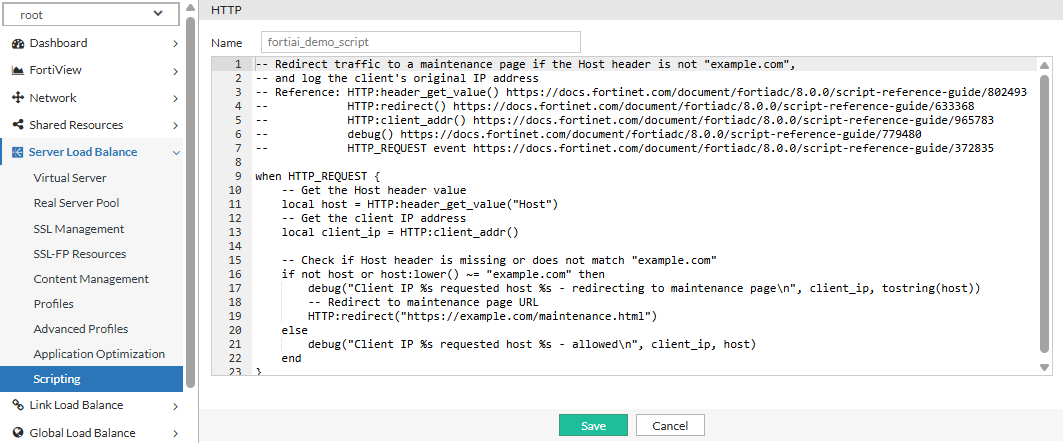
  2. Apply to a Virtual Server:

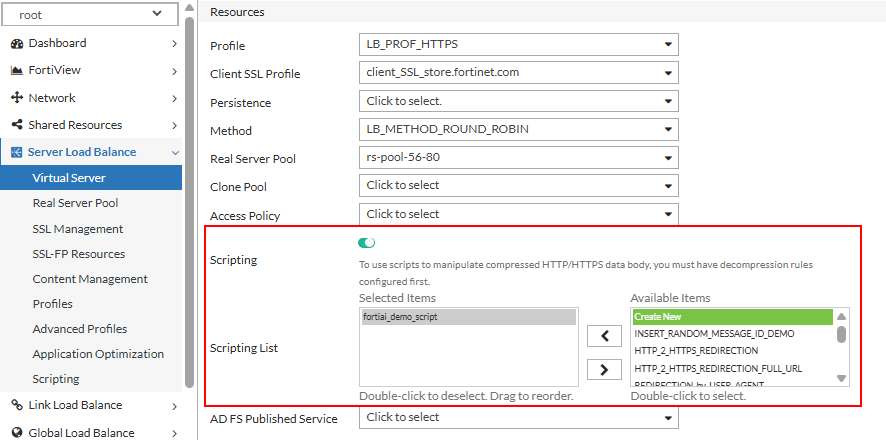
    A script object remains inactive until it is associated with a traffic policy. Navigate to Server Load Balance > Virtual Server and edit the target server. In the General tab, enable the Scripting toggle, then move your new script object from the Available list to the Selected list.
Usage Guidelines and System Stability

While Text-to-Script significantly accelerates development, AI-generated code should be treated as a draft that requires human validation.

  • Logic Validation: The administrator is responsible for the final integrity of the code. FortiAI provides logic based on your prompt, but it does not have visibility into your specific network topology or potential conflicts with existing scripts.

  • Functional Testing: It is a best practice to test all new script objects in a non-production VDOM. This ensures the script handles edge cases correctly and does not introduce unexpected latency or processing overhead to the Virtual Server.

Generating Lua Scripts with Text-to-Script

Generating Lua Scripts with Text-to-Script

The Text-to-Script capability transforms the FortiAI Assistant from a knowledge base into a functional development tool. By describing traffic management requirements in plain language, you can generate Lua script templates that serve as a foundation for custom content routing, header manipulations, and security logic.

This functionality is particularly useful for administrators who may not be fluent in Lua syntax but understand the logic required for their network environment.

To ensure the generated code is functional, prompts should ideally reference FortiADC-specific actions (like redirecting, logging, or header persistence).

The Conversational Workflow

Because there is no dedicated "scripting mode," generating code is a natural part of the conversation. You simply describe the desired behavior, and the assistant provides a formatted code block.

One of the most powerful aspects of this workflow is iterative refinement. Since the assistant maintains the context of the thread, you do not need to repeat your entire requirement to make a change. You can "talk" to the code to adjust it:

  • Initial Prompt: "Write a FortiADC Lua script to redirect traffic to a maintenance page if the HTTP host header is not example.com."

  • Refinement: "Update the script to include the client's original IP in the log message."

  • Final Touch: "Make the redirect use a 302 status code."

Implementing the Script Object

Once the assistant provides a script that meets your requirements, you must manually move the code into the FortiADC environment by creating a script object.

  1. Define the Script Object:

    Copy the code from the chat window and navigate to Server Load Balance > Scripting. You must choose the configuration page based on the network layer the script targets:

    • HTTP: Select this for scripts that modify Layer 7 (HTTP/HTTPS) traffic. These scripts typically use events like when HTTP_REQUEST or when HTTP_RESPONSE and are used for tasks like header manipulation, URL redirects, or cookie management.

    • Stream: Select this for scripts that handle Layer 7 (TCP/UDP) traffic. These scripts use events like when CLIENT_ACCEPTED or when TCP_DATA and are used for raw data inspection or transport-layer steering.

    Click Create New, give the script a name, and paste the code into the editor. At this stage, perform a manual review of the syntax. Ensure that placeholders generated by the AI (such as specific IP addresses, port numbers, or header names) are updated to align with your specific environment.

  2. Apply to a Virtual Server:

    A script object remains inactive until it is associated with a traffic policy. Navigate to Server Load Balance > Virtual Server and edit the target server. In the General tab, enable the Scripting toggle, then move your new script object from the Available list to the Selected list.

Usage Guidelines and System Stability

While Text-to-Script significantly accelerates development, AI-generated code should be treated as a draft that requires human validation.

  • Logic Validation: The administrator is responsible for the final integrity of the code. FortiAI provides logic based on your prompt, but it does not have visibility into your specific network topology or potential conflicts with existing scripts.

  • Functional Testing: It is a best practice to test all new script objects in a non-production VDOM. This ensures the script handles edge cases correctly and does not introduce unexpected latency or processing overhead to the Virtual Server.