

Using HTTP scripting
Enable scripting for Layer 2 and Layer 7 HTTP/HTTPS virtual servers to perform actions that are not supported by the current built-in feature set. You can import HTTP scripts from the GUI, Server Load Balance > Scripting > HTTP tab. To get you started, FortiADC provides system predefined HTTP scripts that can be cloned for customization. The HTTP scripts are event-triggered, allowing you to manipulate HTTP requests and responses, redirection, and dynamically change backend routing. This functionality can be combined with other HTTP related functions such as WAF, SSL, and Authentication.
FortiADC HTTP scripts are based on Lua 5.3.

|
FortiADC does not support all Lua functions. For the full list of supported functions, see the Script Reference Guide. Please note that Scripting is an as is feature and does not come with any functionality or performance guarantees. |
This section includes the following:
- Create a script object
- Import a script
- Export a script
- Delete a script
- Predefined HTTP scripts
- Multi-script support
Create a script object
To create a script configuration object:
- Go to Server Load Balance > Scripting.
The configuration page displays the HTTP tab. - Click Create New to display the configuration editor.
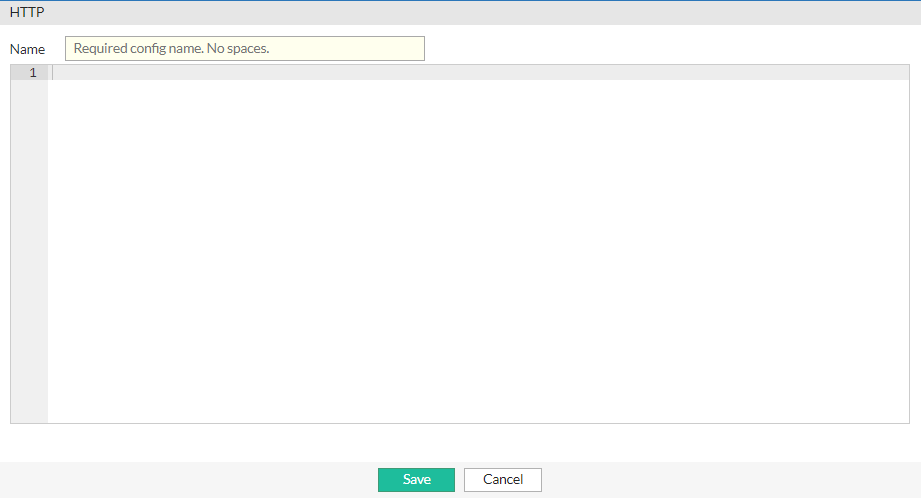
- Enter a unique name for the HTTP script configuration. Valid characters are
A-Z,a-z,0-9,_, and-. No spaces. After you initially save the configuration, you cannot edit the name. - In the text box, type or paste your HTTP script.
If you want to include this script as part of a multi-script configurations that allows you to execute multiple scripts in a certain order, ensure to set its priority. For more information, see Multi-script support. - Click Save.
Once the HTTP script configuration is saved, you can specify it in the virtual server.
Import a script
HTTP scripts can be imported as TAR, TAR GZ, or ZIP files.
To import a script:
-
Go to Server Load Balance > Scripting.
The configuration page displays the HTTP tab. -
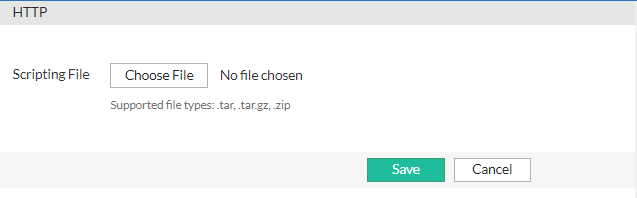
Click Import to display the file import options.
-
Click Choose File and browse for the script file. Supported file types are .tar, .tar.gz, and .zip.
-
Click Save.
Once the file is successfully imported, it will be listed in the Scripting > HTTP page.
Export a script
HTTP script configurations can be exported as TAR files.
To export a script:
-
Go to Server Load Balance > Scripting.
The configuration page displays the HTTP tab. -
From the HTTP page, select an HTTP script configuration.
In the example below, the HTTP_2_HTTPS_REDIRECTION script is selected.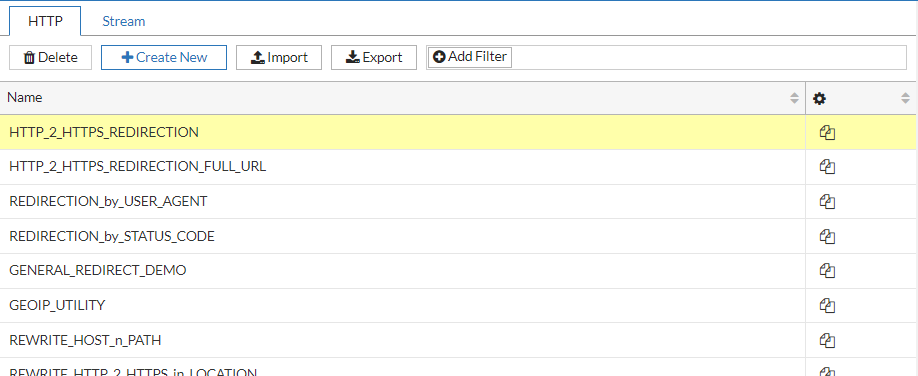
-
Click Export initiate the file download.
The selected script configuration will be exported as a .tar file.
Delete a script
User-defined HTTP script configurations can be deleted.
To delete a script:
-
Go to Server Load Balance > Scripting.
The configuration page displays the HTTP tab. -
From the HTTP page, select a user-defined HTTP script configuration. System predefined scripts cannot be deleted.
In the example below, the testing script configuration is selected.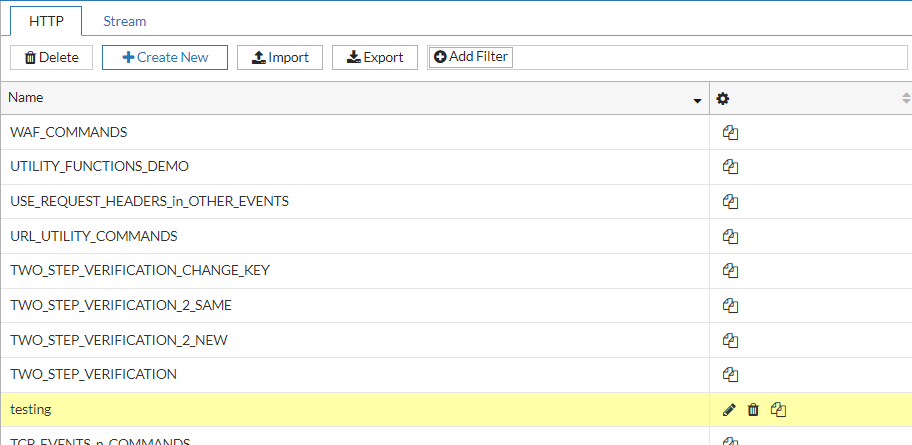
-
Click Delete from the top navigation, or click
 (delete icon) of the configuration.
Multiple script configurations can be deleted using the Delete button on the top navigation.
Predefined HTTP scripts
You can view and use predefined HTTP scripts by going to Server Load Balance > Scripting > HTTP.
Scripts and predefined commands highlights the functions of these scripts and commands and shows how to use them.
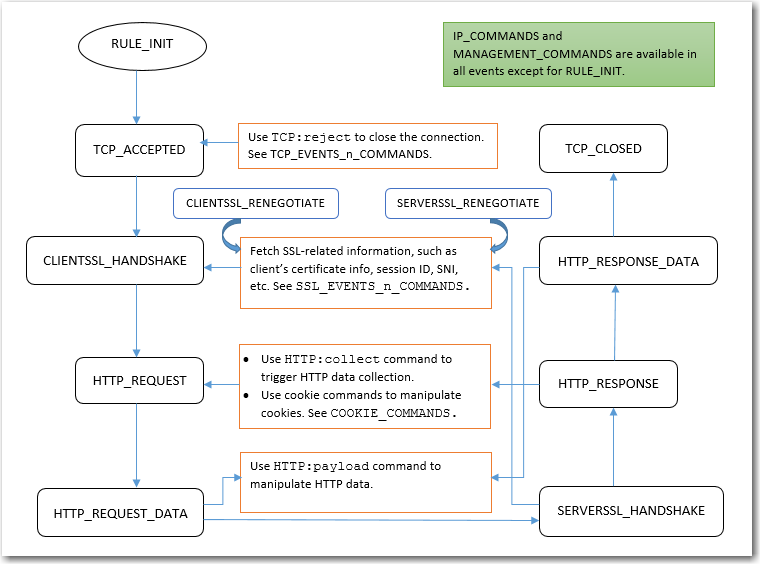
Note:
- UTILITY_FUNCTIONS_DEMO and CLASS_SEARCH_n_MATCH provide various utility commands.
- MULTIPLE_SCRIPT_CONTROL_DEMO_1 and MULTIPLE_SCRIPT_CONTROL_DEMO_2 show how to use multiple-script support.
- HTTP_DATA_FIND_REMOVE_REPLACE_DEMO and HTTP_DATA_FETCH_SET_DEMO show how to manipulate HTTP data.
- SPECIAL_CHARACTERS_HANDLING_DEMO shows how to handle certain special characters.
- INSERT_RANDOM_MESSAGE_ID_DEMO shows how to generate random message IDs.
- OPTIONAL_CLIENT_AUTHENTICATION shows how to perform optional client authentication based on a request URL.
- COMPARE_IP_ADDR_2_ADDR_GROUP_DEMO shows how to perform IP address match.
- USE_REQUEST_HEADERS_in_OTHER_EVENTS shows how to share information across events.
- Many more predefined scripts are provided for load balance content routing, HTTP redirection, and HTTP content rewriting.
The following table lists the FortiADC predefined scripts available for users to apply and customize.
|
Group |
Predefined script |
Usage |
|---|---|---|
|
Authentication |
AUTH_COOKIE_BAKE | Allows you to retrieve the baked cookie and edit the cookie content. |
| AUTH_EVENTS_n_COMMANDS | Lists the authentication event and commands. | |
| CUSTOMIZE_AUTH_KEY | Demonstrates how to customize the crypto key for authentication cookie. | |
| TWO_STEP_VERIFICATION | Demonstrates how to perform 2-Step Verification using FortiToken. One needs have authentication policy configured and selected in a virtual-server. | |
| TWO_STEP_VERIFICATION_2_NEW | Demonstrates how to perform 2-Step Verification using FortiToken for the second authentication group. | |
| TWO_STEP_VERIFICATION_2_SAME | Demonstrates how to perform 2-Step Verification for the second authentication group using the same token group. | |
| TWO_STEP_VERIFICATION_CHANGE_KEY | Demonstrates how to change the AES key and its size for stored token group. | |
|
Cookie
|
COOKIE_COMMANDS |
Lists the two cookie commands and shows how to use them. |
|
COOKIE_COMMANDS_USAGE |
Demonstrates the sub-function to handle the cookie attribute "SameSite" and others. |
|
|
COOKIE_CRYPTO_COMMANDS |
Used to perform cookie encryption/decryption on behalf of the real server. |
|
|
Feature |
WAITING_ROOM |
The sample Waiting Room script demonstrates how you can place visitors in a virtual queue instead of denying them service directly when the server side reaches its configured capacity limit during high-demand situations. In this virtual Waiting Room, visitors can see their position in line and when their turn arrives, they are redirected to the requested page. Configuration parameters include the waiting room name, total resource limit threshold (default is 1000), and the Resource URL applicable to the waiting room. You can also customize the message displayed to users when they are placed in the waiting room by editing the HTML page section of the script. Required data structures such as atomic counters and shared tables are already built into the script; however, you have the option to apply user-defined atomic counters and shared tables to customize the script. |
|
HTTP
|
GENERAL_REDIRECT_DEMO |
Redirects requests to a URL with user-defined code and cookie. Note: Do not use this script "as is". Instead, copy and customize the code, URL, and cookie. |
|
HTTP_2_HTTPS_REDIRECTION |
Redirects requests to the HTTPS site. Note: This script can be used directly without making any changes. |
|
|
HTTP_2_HTTPS_REDIRECTION_FULL_URL |
Redirects requests to the specified HTTPS URL. Note: This script can be used directly without making any changes. |
|
|
HTTP_DATA_FETCH_SET_DEMO |
Collects data in HTTP request body or HTTP response body. In Note: Do not use this script "as is". Instead, copy it and manipulate the collected data. |
|
|
HTTP_DATA_FIND_REMOVE_REPLACE_DEMO |
Finds a specified string, removes a specified string, or replaces a specified string to new content in HTTP data. Note: Do not use this script "as is". Instead, copy it and manipulate the collected data. |
|
|
INSERT_RANDOM_MESSAGE_ID_DEMO |
Inserts a 32-bit hex string into the HTTP header with a parameter “Message-ID”. Note: This script can be used directly without making any changes. |
|
|
REDIRECTION_by_STATUS_CODE |
Redirects requests based on the status code of server HTTP response (for example, a redirect to the mobile version of a site). Note: Do not use this script "as is". Instead, copy it and customize the condition in the server HTTP response status code and the URL values. |
|
|
REDIRECTION_by_USER_AGENT |
Redirects requests based on User Agent (for example, a redirect to the mobile version of a site). Note: You should not use this script "as is". Instead, copy it and customize the User Agent and URL values. |
|
|
REWRITE_HOST_n_PATH |
Rewrites the host and path in the HTTP request, for example, if the site is reorganized. You should not use this script as is. Instead, copy it and customize the "old" and "new" hostnames and paths. |
|
|
REWRITE_HTTP_2_HTTPS_in_LOCATION |
Rewrites HTTP location to HTTPS, for example, Note: This script can be used directly without making any changes. |
|
|
REWRITE_HTTP_2_HTTPS_in_REFERER |
Rewrites HTTP referer to HTTPS, for example, Note: This script can be used directly without making any changes. |
|
|
REWRITE_HTTPS_2_HTTP_in_LOCATION |
Rewrites HTTPS location to HTTP, for example, Note: This script can be used directly without making any changes. |
|
|
REWRITE_HTTPS_2_HTTP_in_REFERER |
Rewrites HTTPS referer to HTTP, for example, Note: This script can be used directly without making any changes. |
|
|
SPECIAL_CHARACTERS_HANDLING_DEMO |
Shows how to use those "magic characters" which have special meanings when used in a certain pattern. The magic characters are ( ) . % + - * ? [ ] ^ $ |
|
|
USE_REQUEST_HEADERS_in_OTHER_EVENTS |
Stores a request header value in an event and uses it in other events. For example, you can store a URL in a request event, and use it in a response event. Note: Do not use this script "as is". Instead, copy it and customize the content you want to store, use |
|
|
IP |
IP_COMMANDS |
Used to get various types IP Address and port number between client and server side. |
|
Optimization
|
MULTIPLE_SCRIPT_CONTROL_DEMO_1 |
Uses Note: You could enable or disable other events. Do NOT use this script "as is". Instead, copy it and customize the operation. |
|
MULTIPLE_SCRIPT_CONTROL_DEMO_2 |
Uses Note: You can enable or disable other events. Do not use this script "as is". Instead, copy it and customize the operation. |
|
|
RAM_CACHING_COMMANDS |
Lists the RAM caching event and commands. |
|
|
RAM_CACHING_DYNAMIC |
Demonstrates how to use script to do dynamic RAM caching. Note: Dynamic caching is identified by a configured ID. Ensure the RAM caching configuration is selected in the HTTP or HTTPS profile. |
|
|
RAM_CACHING_GROUPING |
Demonstrates how to create multiple variations based on client IP address. The sort of grouping applies to both regular caching and dynamic caching. Note: Ensure the RAM caching configuration is selected in HTTP or HTTPS profile. |
|
|
Routing
|
CONTENT_ROUTING_by_URI |
Routes to a pool member based on URI string matches. Note: You should not use this script as is. Instead, copy it and customize the URI string matches and pool member names. |
|
CONTENT_ROUTING_by_X_FORWARDED_FOR |
Routes to a pool member based on IP address in the X-Forwarded-For header. Note: You should not use this script as is. Instead, copy it and customize the X-Fowarded-For header values and pool member names. |
|
|
PERSIST_COMMANDS |
Demonstrates how to use persistence commands and event. The PERSISTENCE event is triggered when FortiADC receives the HTTP REQ and is ready to dispatch to the real server. You can set the entry in PERSISTENCE, then look up it in POST_PERSIST. FortiADC will dispatch to the dedicated server according to your entry set in PERSISTENCE if this session has not been assigned to the real server before. |
|
|
SSL
|
OPTIONAL_CLIENT_AUTHENTICATION |
Performs optional client authentication. Note: Before using this script, you must have the following four parameters configured in the client-ssl-profile:
|
|
SSL_EVENTS_n_COMMANDS |
Demonstrates how to fetch the SSL certificate information and some of the SSL connection parameters between server and client side. |
|
|
TCP
|
SNAT_COMMANDS |
Allows you to overwrite client source address to a specific IP for certain clients, also support IPv4toIPv6 or IPv6toIPv4 type. Note: Make sure the flag SOURCE ADDRESS is selected in the HTTP or HTTPS type of profile. |
|
SOCKOPT_COMMAND_USAGE |
Allows user to customize the TCP_send buffer and TCP_receive buffer size. |
|
|
SOCKOPT_COMMANDS |
Demonstrates how to the TCP:sockopt with usage examples. |
|
|
TCP_EVENTS_n_COMMANDS |
Demonstrates how to reject a TCP connection from a client in TCP_ACCEPTED event. |
|
|
Utility
|
AES_DIGEST_SIGN_2F_COMMANDS |
Demonstrates how to use AES to encryption/decryption data and some tools to generate the digest. |
|
ATOMIC_COUNTER_COMMANDS |
Allows you to create and configure shared atomic counters that are accessible by multiple httproxy processes within one VS. The stored data is located in shared memories. In the Waiting Room setup, the atomic counters track variables at running time, including the current resource count, the current position in line, and the current total number of users in the waiting queue. |
|
|
CLASS_SEARCH_n_MATCH |
Demonstrates how to use the |
|
|
COMPARE_IP_ADDR_2_ADDR_GROUP_DEMO |
Compares an IP address to an address group to determine if the IP address is included in the specified IP group. For example ,192.168.1.2 is included in 192.168.1.0/24. Note: Do not use this script "as is". Instead, copy it and customize the IP address and the IP address group. |
|
|
GEOIP_UTILITY |
Used to fetch the GEO information country and possible province name of an IP address. |
|
| MANAGEMENT_COMMANDS | Allow you to disable/enable rest of the events from executing. | |
|
SHARED_TABLE_COMMANDS |
Allows you to create and configure shared hash tables that are accessible by multiple httproxy processes within one VS. Both the table and stored data are located in shared memories. In the Waiting Room setup, the shared table is used to track current active resource occupiers such as active sessions. |
|
|
URL_UTILITY_COMMANDS |
Demonstrates how to use those URL tools to encode/decode/parser/compare. |
|
|
UTILITY_FUNCTIONS_DEMO |
Demonstrates how to use the basic string operations and random number/alphabet, time, MD5, SHA1, SHA2, BASE64, BASE32, table to string conversion, network to host conversion utility function |
|
|
WAF |
WAF_COMMANDS |
Demonstrates how to use WAF related functions and events. |
Multi-script support
Linking multiple scripts to the same virtual server
FortiADC supports the use of a single script file containing multiple scripts and applies them to a single virtual server in one execution. Different scripts can contain the same event. You can specify the priority for each event in each script file to control the sequence in which multiple scripts are executed or allow the system to execute the individual scripts in the order they are presented in the multi-script file.
Currently, up to 16 individual scripts can be added to create a large multi-script file.
If desired, you can disable the processing of remaining scripts in the multi-script, or you can even complete disable the processing of certain events (for example, you can disable the processing of the HTTP RESPONSE event in a HTTP REQUEST script). FortiADC also supports multiple calls of HTTP:redirect(), HTTP:redirect_with_cookie(), LB:routing(), and HTTP:close() functions such that the final call prevails.
In practice, instead of creating a single large and complex script containing all necessary logic, it's often more advantageous to decompose it into smaller functional components represented by individual scripts. This approach offers several benefits. Firstly, executing multiple scripts concurrently is more efficient than running them sequentially. Additionally, breaking down a massive script into smaller units enhances flexibility, particularly when applying scripts to various virtual servers. Some servers may require only specific scripts, while others may utilize all available ones. With smaller, modular scripts, you have the flexibility to select and combine only the necessary components to construct a comprehensive multi-script file, each with its designated priority, and apply them collectively to a virtual server.
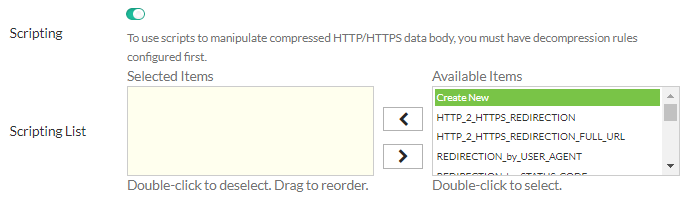
Apply multiple scripts shows how to link multiple scripts to a single virtual server from the GUI.
Setting script priority
Priority in a multi-script is optional, but is highly recommended. When executing a big multiple-script file, care must be taken to avoid conflicting commands among the scripts. You can set the priority for each script using the script editor on FortiADC's GUI. Valid values range from 1 to 1,000, with 500 being the default. The smaller the value, the higher the priority. Below is an example script with a set priority:
when HTTP_REQUEST priority 100 {
LB:routing(“cr1”)
}
To display the priority information in the GUI, you can define one and only one event in each script file, as shown below:
Script 1:
when HTTP_REQUEST priority 500 {
LB:routing(“cr1”)
}
Script 2:
when HTTP_RESPONSE priority 500 {
HTTP:close()
}
Script 3:
when HTTP_REQUEST priority 400 {
LB:routing(“cr2”)
}
Script 4:
when HTTP_RESPONSE priority 600 {
HTTP:close()
}
Individual script files are loaded separately into the Lua stack. A numeric value (starting from 1) is appended to each event (e.g., for HTTP_REQUEST event, there are functions HTTP_REQUEST1, HTTP_REQUEST2, and so on so forth).
To support multiple scripts, FortiADC:
- Supports multiple calls of redirect/routing/close function, making them re-entrant so that the final one prevails. For that purpose, the system checks the behavior of multiple calls across
redirect(), close(), and routing(). Ifredirect()comes first, followed byclose(),thenclose()prevails. Ifclose()comes first, followed byredirect(), thenredirect()prevails. If you want toclose(), you must disable the event afterclose(). - Allows enabling or disabling events. There are times when you may want to disable the processing of the remaining scripts while a multi-script file is being executed, or want to disable processing the response completely. The mechanism serves that purpose.
- Allows enabling or disabling automatic event-enabling behavior. In the HTTP keep-alive mode, the system by default re-enables HTTP REQUEST and HTTP RESPONSE processing for the next transaction (even if they are disabled in the current transaction using the above enable or disable event mechanism). Now you can disable or enable this automatic enabling behavior.
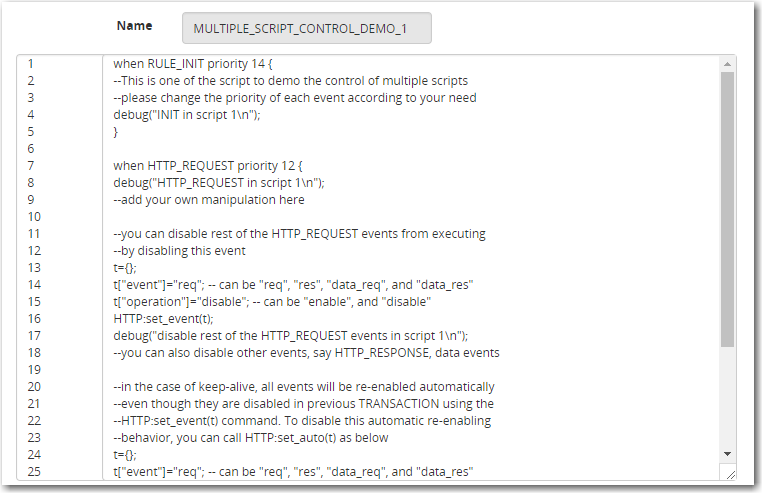
Script priority shows a sample multi-script with priority information.
Compiling principles
- All individual scripts should be pre-compiled when they are linked to a virtual server, where they can be combined into one big multi-script.
- For the same event, combine the commands in different scripts according to their priorities and orders.
- For commands of different priorities, FortiADC processes the high-priority commands first, and then the low-priority ones; for commands of the same priority, it processes them in the order they appear in the combined script.
- And if you are using multiple scripts with overlapping events for bidirectional traffic, you must ensure that the response traffic traverses the overlapping events in the expected order. By default, the scripts applied to the same virtual server will run in the order in which they are applied, regardless of the direction of traffic flow.
- For a specified event, you must make sure to avoid the conflict commands in different scripts. For example, if you have multiple scripts applied to the same virtual server and the scripts contain both request and response logic, the default execution order is like this:

but NOT like this:

As shown above, FortiADC cannot control the order in which events in the scripts are executed. The only way to enforce the execution order for response traffic is to use the event priority command, as we have discussed above. When setting the priorities, pay special attention to both request and response flows.
Special notes
When using the multi-script feature, keep the following in mind:
- The multi-script feature is supported on all FortiADC hardware platforms.
- Currently, the feature can be applied to layer-2 and Layer-7 virtual servers on HTTP/HTTPS protocol only.
- Scripts are VDOM-specific, and cannot be shared among different VDOMs.
- Session tables set up using scripts must be synced through high-availability (HA) configuration.
- Each multi-script script can contain up to 256 individual scripts, each being no more than 32 kilobytes.