Fortinet white logo
Fortinet white logo

Administration Guide

Import IPv6 addresses from an APIC controller

Import IPv6 addresses from an APIC controller

IPv6 addresses can be imported from an APIC controller. The ACI direct connection SDN connectors support the Tenant, Application, Epg, Tag, and Esg filters.

In the following example, an APIC controller with IPv6 addresses is configured. The IPv6 addresses are then imported to the FortiGate through an ACI direct connection SDN connector.

To import IPv6 addresses from an APIC controller in the CLI:
  1. Configure the external APIC controller with IPv6 addresses configured in the subnets.

  2. In the FortiGate, configure the ACI direct connection SDN connector to connector to the APIC controller:

    config system sdn-connector
        edit "aci_direct_van"
            set type aci-direct
            set verify-certificate disable
            set server-list "10.10.8.35"
            set username "admin"
            set password xxxxxx
        next
    end
  3. Confirm that the SDN connector status is up:

    # diagnose sys sdn status aci_direct_van
    SDN Connector                       Type        Status
    -------------------------------------------------------------
    aci_direct_van                      aci-direct  Up
  4. Create an IPv6 dynamic firewall address associated with the SDN connector and define specific filters to filter out needed addresses:

    config firewall address6
        edit "aci_direct_v6_epg_1"
            set type dynamic
            set sdn "aci_direct_van"
            set filter "Epg=*lzou*"
        next
        edit "aci_direct_v6_tenant_1"
            set type dynamic
            set sdn "aci_direct_van"
            set filter "Tenant=lzou-v6"
        next
        edit "aci_direct_v6_app_1"
            set type dynamic
            set sdn "aci_direct_van"
            set filter "Application=*ap*"
        next
        edit "aci_direct_v6_tag_1"
            set type dynamic
            set sdn "aci_direct_van"
            set filter "tag.lzou-app-key=lzou-app-val"
        next
        edit "aci_direct_v6_esg_1"
            set type dynamic
            set sdn "aci_direct_van"
            set filter "Esg=lzou-esg*"
        next
    end
  5. Review the resolved IPv6 addresses that were saved in the IPv6 firewall address configuration:

    # show firewall address6
    config firewall address6
    ......
        edit "aci_direct_v6_epg_1"
            set type dynamic
            set sdn "aci_direct_van"
            set filter "Epg=*lzou*"
            config list
                edit "fd00:0:0:1::111"
                next
                edit "fd00:0:0:2::222"
                next
            end
        next
        edit "aci_direct_v6_tenant_1"
            set type dynamic
            set sdn "aci_direct_van"
            set filter "Tenant=lzou-v6"
            config list
                edit "fd00:0:0:1::111"
                next
                edit "fd00:0:0:2::222"
                next
            end
        next
        edit "aci_direct_v6_app_1"
            set type dynamic
            set sdn "aci_direct_van"
            set filter "Application=*ap*"
            config list
                edit "2001:db8:3333:4444:cccc:dddd:eeee:ffff"
                next
                edit "2001:db8:85a3::8a2e:370:1122"
                next
            end
        next
        edit "aci_direct_v6_tag_1"
            set type dynamic
            set sdn "aci_direct_van"
            set filter "tag.lzou-app-key=lzou-app-val"
            config list
                edit "fd00:0:0:1::111"
                next
            end
        next
        edit "aci_direct_v6_esg_1"
            set type dynamic
            set sdn "aci_direct_van"
            set filter "Esg=lzou-esg*"
            config list
                edit "fd00:0:0:1::111"
                next
            end
        next
    end
To import IPv6 addresses from an APIC controller in the GUI:
  1. Configure the external APIC controller with IPv6 addresses configured in the subnets.

  2. In the FortiGate, configure the ACI direct connection SDN connector to connector to the APIC controller:

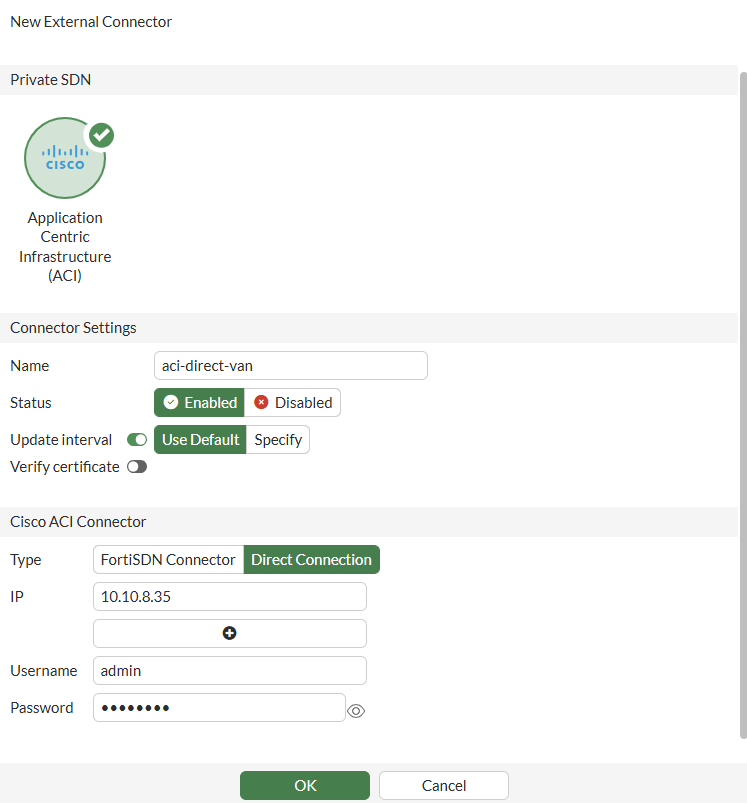
    1. Go to Security Fabric > External Connectors.

    2. Click Create New.

    3. Select the SDN type.

    4. Enter a Name.

    5. Set the Type to Direct Connection.

    6. Enter the IP address.

    7. Configure other fields, as needed.

    8. Click OK.

  3. Confirm that the SDN connector status is up in the CLI:

    # diagnose sys sdn status aci_direct_van
    SDN Connector                       Type        Status
    -------------------------------------------------------------
    aci-direct-van                      aci-direct  Up
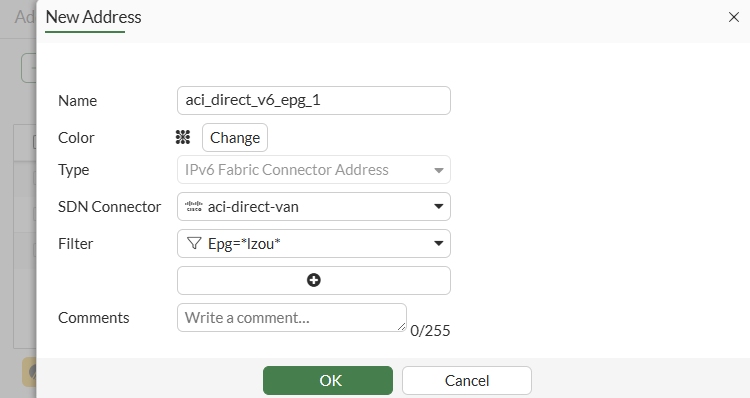
  4. Create an IPv6 dynamic firewall address associated with the SDN connector:

    1. Go to Policy & Objects > Addresses.

    2. Select the IPv6 Address tab.

    3. Click Create New.

    4. Enter a Name.

    5. Set the Type to IPv6 Fabric Connector Address.

    6. Select the SDN Connector previously created.

    7. Set the Filter selection to filter out needed addresses.

    8. Click OK.

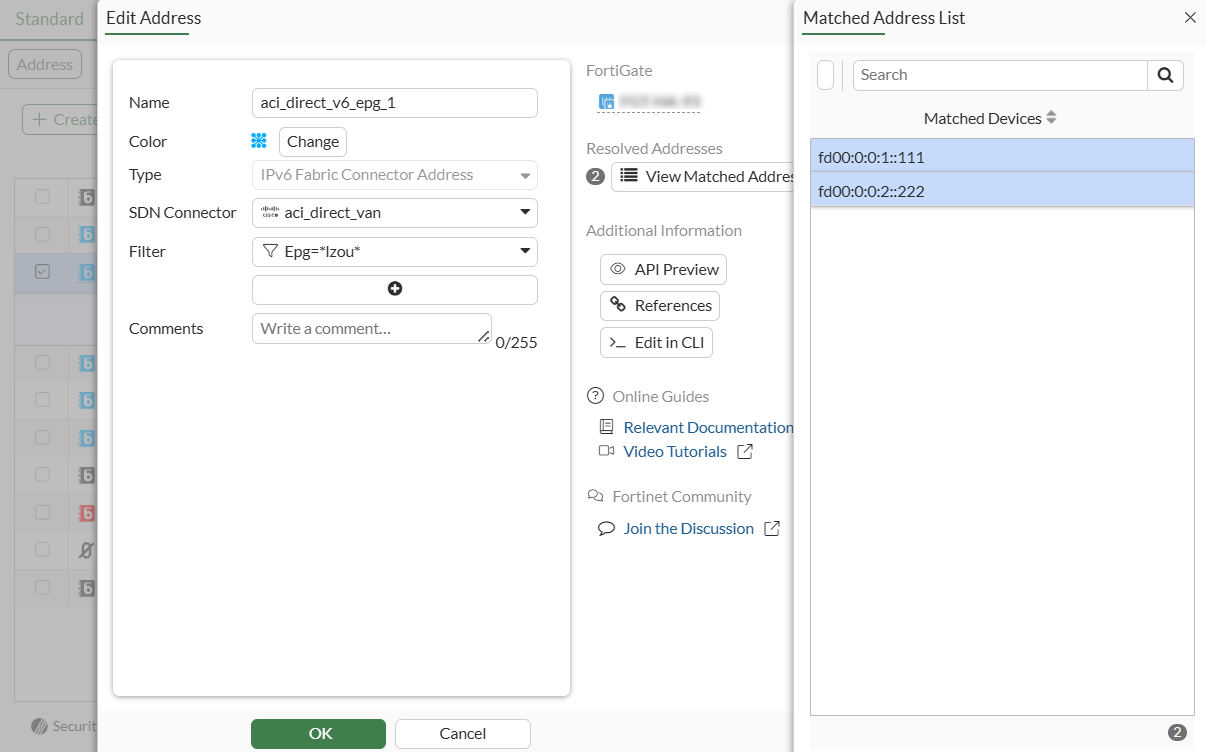
  5. Review the resolved IPv6 addresses that were saved in the IPv6 firewall address configuration:

    1. Go to Policy & Objects > Addresses.

    2. Select the IPv6 Address tab.

    3. Edit the new address.

    4. Click View Matched Addresses. A list is displayed of resolved IPv6 addresses.
Import IPv6 addresses from an APIC controller

Import IPv6 addresses from an APIC controller

IPv6 addresses can be imported from an APIC controller. The ACI direct connection SDN connectors support the Tenant, Application, Epg, Tag, and Esg filters.

In the following example, an APIC controller with IPv6 addresses is configured. The IPv6 addresses are then imported to the FortiGate through an ACI direct connection SDN connector.

To import IPv6 addresses from an APIC controller in the CLI:
  1. Configure the external APIC controller with IPv6 addresses configured in the subnets.

  2. In the FortiGate, configure the ACI direct connection SDN connector to connector to the APIC controller:

    config system sdn-connector
        edit "aci_direct_van"
            set type aci-direct
            set verify-certificate disable
            set server-list "10.10.8.35"
            set username "admin"
            set password xxxxxx
        next
    end
  3. Confirm that the SDN connector status is up:

    # diagnose sys sdn status aci_direct_van
    SDN Connector                       Type        Status
    -------------------------------------------------------------
    aci_direct_van                      aci-direct  Up
  4. Create an IPv6 dynamic firewall address associated with the SDN connector and define specific filters to filter out needed addresses:

    config firewall address6
        edit "aci_direct_v6_epg_1"
            set type dynamic
            set sdn "aci_direct_van"
            set filter "Epg=*lzou*"
        next
        edit "aci_direct_v6_tenant_1"
            set type dynamic
            set sdn "aci_direct_van"
            set filter "Tenant=lzou-v6"
        next
        edit "aci_direct_v6_app_1"
            set type dynamic
            set sdn "aci_direct_van"
            set filter "Application=*ap*"
        next
        edit "aci_direct_v6_tag_1"
            set type dynamic
            set sdn "aci_direct_van"
            set filter "tag.lzou-app-key=lzou-app-val"
        next
        edit "aci_direct_v6_esg_1"
            set type dynamic
            set sdn "aci_direct_van"
            set filter "Esg=lzou-esg*"
        next
    end
  5. Review the resolved IPv6 addresses that were saved in the IPv6 firewall address configuration:

    # show firewall address6
    config firewall address6
    ......
        edit "aci_direct_v6_epg_1"
            set type dynamic
            set sdn "aci_direct_van"
            set filter "Epg=*lzou*"
            config list
                edit "fd00:0:0:1::111"
                next
                edit "fd00:0:0:2::222"
                next
            end
        next
        edit "aci_direct_v6_tenant_1"
            set type dynamic
            set sdn "aci_direct_van"
            set filter "Tenant=lzou-v6"
            config list
                edit "fd00:0:0:1::111"
                next
                edit "fd00:0:0:2::222"
                next
            end
        next
        edit "aci_direct_v6_app_1"
            set type dynamic
            set sdn "aci_direct_van"
            set filter "Application=*ap*"
            config list
                edit "2001:db8:3333:4444:cccc:dddd:eeee:ffff"
                next
                edit "2001:db8:85a3::8a2e:370:1122"
                next
            end
        next
        edit "aci_direct_v6_tag_1"
            set type dynamic
            set sdn "aci_direct_van"
            set filter "tag.lzou-app-key=lzou-app-val"
            config list
                edit "fd00:0:0:1::111"
                next
            end
        next
        edit "aci_direct_v6_esg_1"
            set type dynamic
            set sdn "aci_direct_van"
            set filter "Esg=lzou-esg*"
            config list
                edit "fd00:0:0:1::111"
                next
            end
        next
    end
To import IPv6 addresses from an APIC controller in the GUI:
  1. Configure the external APIC controller with IPv6 addresses configured in the subnets.

  2. In the FortiGate, configure the ACI direct connection SDN connector to connector to the APIC controller:

    1. Go to Security Fabric > External Connectors.

    2. Click Create New.

    3. Select the SDN type.

    4. Enter a Name.

    5. Set the Type to Direct Connection.

    6. Enter the IP address.

    7. Configure other fields, as needed.

    8. Click OK.

  3. Confirm that the SDN connector status is up in the CLI:

    # diagnose sys sdn status aci_direct_van
    SDN Connector                       Type        Status
    -------------------------------------------------------------
    aci-direct-van                      aci-direct  Up
  4. Create an IPv6 dynamic firewall address associated with the SDN connector:

    1. Go to Policy & Objects > Addresses.

    2. Select the IPv6 Address tab.

    3. Click Create New.

    4. Enter a Name.

    5. Set the Type to IPv6 Fabric Connector Address.

    6. Select the SDN Connector previously created.

    7. Set the Filter selection to filter out needed addresses.

    8. Click OK.

  5. Review the resolved IPv6 addresses that were saved in the IPv6 firewall address configuration:

    1. Go to Policy & Objects > Addresses.

    2. Select the IPv6 Address tab.

    3. Edit the new address.

    4. Click View Matched Addresses. A list is displayed of resolved IPv6 addresses.