
Fortinet white logo
Fortinet white logo

Administration Guide

Implementing VRF

Implementing VRF

VRFs are always enabled and, by default, all routing is done in VRF 0. To use additional VRFs, assign a VRF ID to an interface. All routes relating to that interface are isolated to that VRF specific routing table. Interfaces in one VRF cannot reach interfaces in a different VRF.

If some traffic does have to pass between VRFs, route leaking can be used. See Route leaking between VRFs with BGP.

Note

VRF 0 is a special VRF, by default, all routing is done in VRF 0, so all routes in different VRFs will all be included in VRF 0. VRF 0 cannot be used in the cross-VRF case.

For local-in/out traffic, all routes relating to one VRF are isolated from other VRFs so interfaces in one VRF cannot reach interfaces in a different VRF except VRF 0.

Note

Enable Advanced Routing in System > Feature Visibility to configure VRFs.

To configure a VRF ID on an interface in the GUI:
  1. Go to Network > Interfaces and click Create New > Interface.

  2. Enter a value in the VRF ID field.

  3. Configure the other settings as needed.
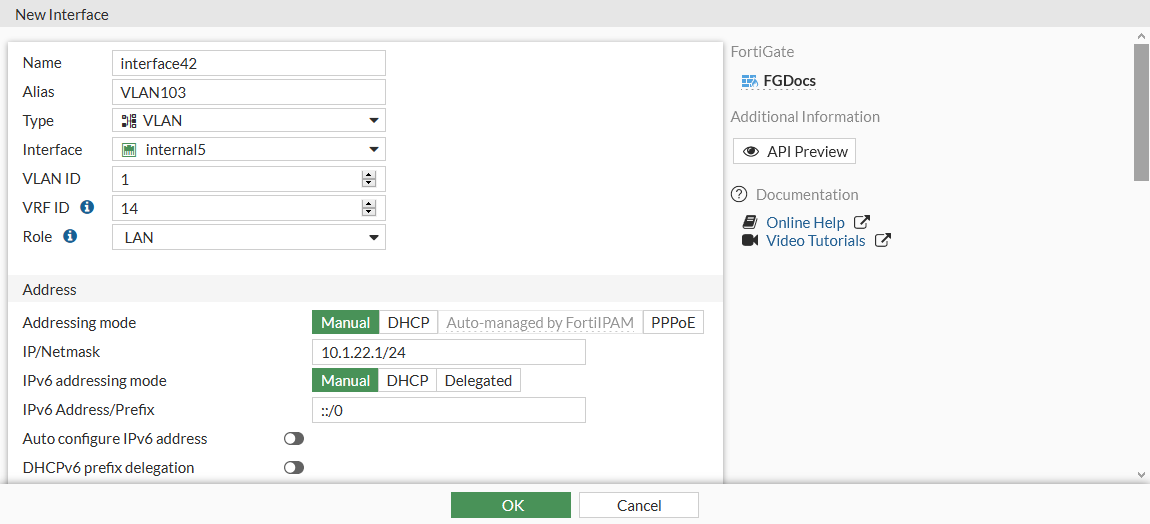
  4. Click OK.

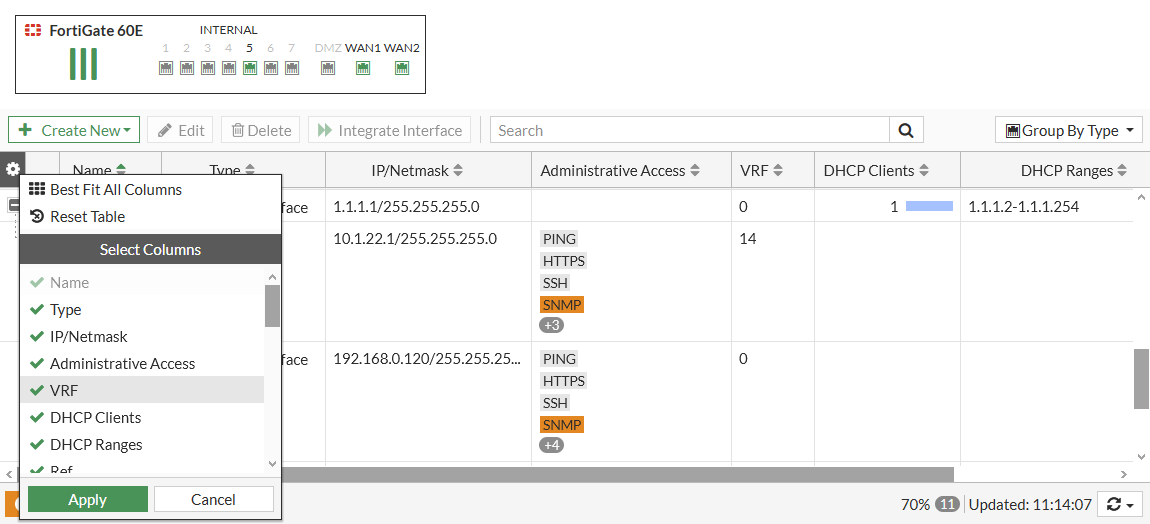
  5. To add the VRF column in the interface table, click the gear icon, select VRF, and click Apply.
To configure a VRF ID on an interface in the CLI:
config system interface
    edit interface42
        ...
        set vrf 14
    next
end

Implementing VRF

Implementing VRF

VRFs are always enabled and, by default, all routing is done in VRF 0. To use additional VRFs, assign a VRF ID to an interface. All routes relating to that interface are isolated to that VRF specific routing table. Interfaces in one VRF cannot reach interfaces in a different VRF.

If some traffic does have to pass between VRFs, route leaking can be used. See Route leaking between VRFs with BGP.

Note

VRF 0 is a special VRF, by default, all routing is done in VRF 0, so all routes in different VRFs will all be included in VRF 0. VRF 0 cannot be used in the cross-VRF case.

For local-in/out traffic, all routes relating to one VRF are isolated from other VRFs so interfaces in one VRF cannot reach interfaces in a different VRF except VRF 0.

Note

Enable Advanced Routing in System > Feature Visibility to configure VRFs.

To configure a VRF ID on an interface in the GUI:
  1. Go to Network > Interfaces and click Create New > Interface.

  2. Enter a value in the VRF ID field.

  3. Configure the other settings as needed.

  4. Click OK.

  5. To add the VRF column in the interface table, click the gear icon, select VRF, and click Apply.

To configure a VRF ID on an interface in the CLI:
config system interface
    edit interface42
        ...
        set vrf 14
    next
end