Fortinet white logo
Fortinet white logo

Administration Guide

IBM Cloud SDN connector using API keys

IBM Cloud SDN connector using API keys

FortiOS can automatically update dynamic addresses for IBM Cloud using an SDN connector. For information on creating and managing the API key, see the IBM Cloud documentation.

In 7.6.5, you do not need to specify the generation of IBM Compute Generation.

To configure an IBM Cloud SDN connector using the GUI:
  1. Create an SDN connector:

    1. Go to Security Fabric > External Connectors.

    2. Click Create New, then select IBM Cloud.

    3. In the Name field, enter the desired connector name.

    4. For Status, select Enabled.

    5. For Update interval, configure the desired update interval for dynamic object updates.

    6. From the Region dropdown list, select the IBM Cloud region.

    7. In the API key field, enter the IBM Cloud API key.
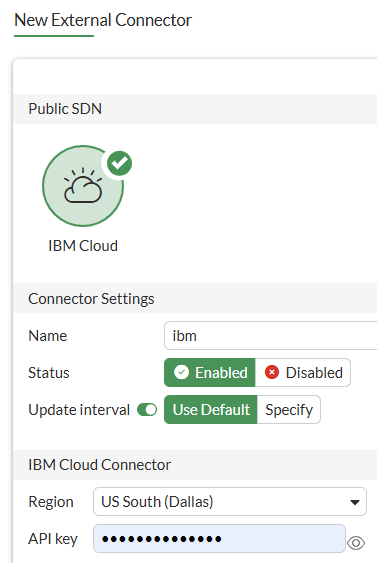
    8. Click OK.

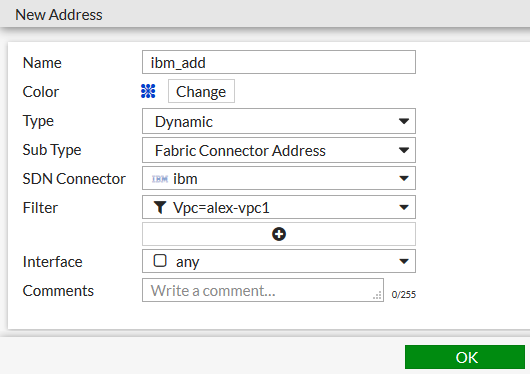
  2. Create dynamic firewall addresses for the configured connector:

    1. Go to Policy & Objects > Addresses and select Address.

    2. Click Create new.

    3. From the Type dropdown list, select Dynamic.

    4. From the Sub Type dropdown list, select Fabric Connector Address.

    5. From the SDN Connector dropdown list, select the IBM SDN connector.

    6. In the Filter field, add the desired filters. The following filters are supported:

      • <InstanceId>

      • <InstanceName>

      • <ImageId>

      • <ImageName>

      • <Architecture>

      • <Profile>

      • <Vpc>

      • <Zone>

      • <Subnet>

      • <ResourceGroup>

    7. Click OK.

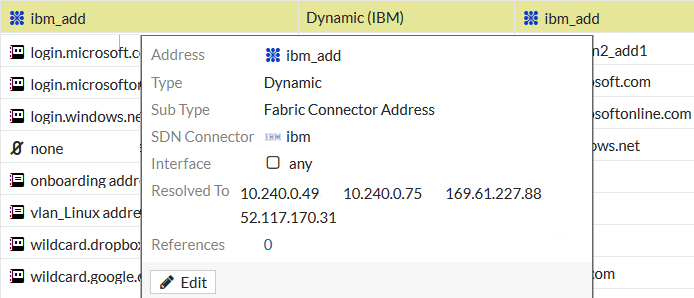
  3. Ensure that the connector resolves dynamic firewall IP addresses:

    1. Go to Policy & Objects > Addresses.

    2. Hover over the addresses created in step 2 to see a list of IP addresses that the connector has resolved:
To configure an IBM Cloud SDN connector using the CLI:
  1. Create SDN connector:

    config system sdn-connector
        edit "ibm"
            set status enable
            set type ibm
            set api-key xxxxxx
            set ibm-region us-south
            set update-interval 60
        next
    end
  2. Create dynamic firewall addresses for the configured connector:

    config firewall address
        edit "ibm_add"
            set type dynamic
            set sdn "ibm"
            set color 19
            set filter "Vpc=alex-vpc1"
        next
    end
  3. Ensure that the connector resolves dynamic firewall IP addresses:

    # show firewall address ibm_add
    config firewall address
        edit "ibm_gen1_add"
            set uuid 586841c4-7f46-51ea-dc66-dbf840af03d3
            set type dynamic
            set sdn "ibm"
            set color 19
            set filter "Vpc=alex-vpc1"
            config list
                edit "10.240.0.49"
                next
                edit "10.240.0.75"
                next
                edit "169.61.227.88"
                next
                edit "52.117.170.31"
                next
            end
        next
    end

IBM Cloud SDN connector using API keys

IBM Cloud SDN connector using API keys

FortiOS can automatically update dynamic addresses for IBM Cloud using an SDN connector. For information on creating and managing the API key, see the IBM Cloud documentation.

In 7.6.5, you do not need to specify the generation of IBM Compute Generation.

To configure an IBM Cloud SDN connector using the GUI:
  1. Create an SDN connector:

    1. Go to Security Fabric > External Connectors.

    2. Click Create New, then select IBM Cloud.

    3. In the Name field, enter the desired connector name.

    4. For Status, select Enabled.

    5. For Update interval, configure the desired update interval for dynamic object updates.

    6. From the Region dropdown list, select the IBM Cloud region.

    7. In the API key field, enter the IBM Cloud API key.

    8. Click OK.

  2. Create dynamic firewall addresses for the configured connector:

    1. Go to Policy & Objects > Addresses and select Address.

    2. Click Create new.

    3. From the Type dropdown list, select Dynamic.

    4. From the Sub Type dropdown list, select Fabric Connector Address.

    5. From the SDN Connector dropdown list, select the IBM SDN connector.

    6. In the Filter field, add the desired filters. The following filters are supported:

      • <InstanceId>

      • <InstanceName>

      • <ImageId>

      • <ImageName>

      • <Architecture>

      • <Profile>

      • <Vpc>

      • <Zone>

      • <Subnet>

      • <ResourceGroup>

    7. Click OK.

  3. Ensure that the connector resolves dynamic firewall IP addresses:

    1. Go to Policy & Objects > Addresses.

    2. Hover over the addresses created in step 2 to see a list of IP addresses that the connector has resolved:

To configure an IBM Cloud SDN connector using the CLI:
  1. Create SDN connector:

    config system sdn-connector
        edit "ibm"
            set status enable
            set type ibm
            set api-key xxxxxx
            set ibm-region us-south
            set update-interval 60
        next
    end
  2. Create dynamic firewall addresses for the configured connector:

    config firewall address
        edit "ibm_add"
            set type dynamic
            set sdn "ibm"
            set color 19
            set filter "Vpc=alex-vpc1"
        next
    end
  3. Ensure that the connector resolves dynamic firewall IP addresses:

    # show firewall address ibm_add
    config firewall address
        edit "ibm_gen1_add"
            set uuid 586841c4-7f46-51ea-dc66-dbf840af03d3
            set type dynamic
            set sdn "ibm"
            set color 19
            set filter "Vpc=alex-vpc1"
            config list
                edit "10.240.0.49"
                next
                edit "10.240.0.75"
                next
                edit "169.61.227.88"
                next
                edit "52.117.170.31"
                next
            end
        next
    end