Fortinet white logo
Fortinet white logo

Administration Guide

Command palette

Command palette

The command palette is a keyboard shortcut menu that can be used to quickly navigate to GUI pages, run specific actions like opening the CLI console and restoring a system configuration, and running troubleshooting or debug commands like get system status and show arp table.

The enhanced global search in the top header menu provides quick command palette access from the GUI and additional keyboard shortcuts.
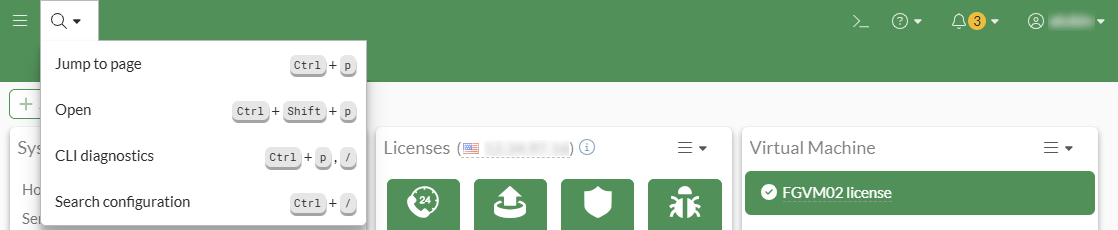
The following global search functions can be selected from the top header menu or by using keyboard shortcuts:

Search function

Keyboard shortcut

Definition

Jump to page

ctrl + p

Quickly navigate to a new GUI page.

Open

ctrl + shift + p

Open a monitor in a prompt without changing the current GUI page, such as packet capture and the CLI console.

CLI diagnostics

ctrl + p followed by /

Run a diagnostic CLI command without the CLI console. Recently used commands are listed first.

Once a command has been selected, you can search within the output, copy the output, download an output file, and run the command again.

Search configuration

ctrl + /

Search for and open a specific configuration in the GUI.

To navigate to a new GUI page using the command palette:
  1. Press ctrl+p (or cmd+p for Mac). The command palette is displayed with available navigation links.
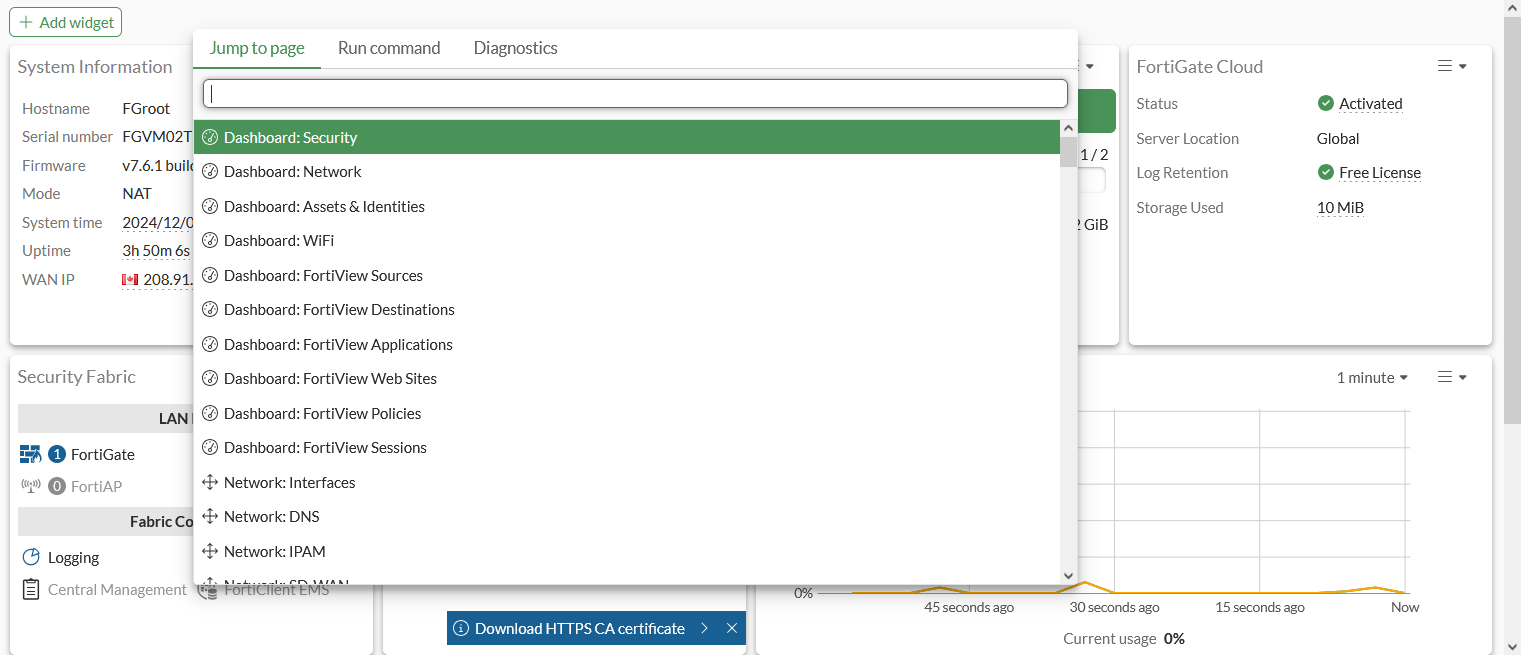
  2. Enter the required destination, or browse the list for it.
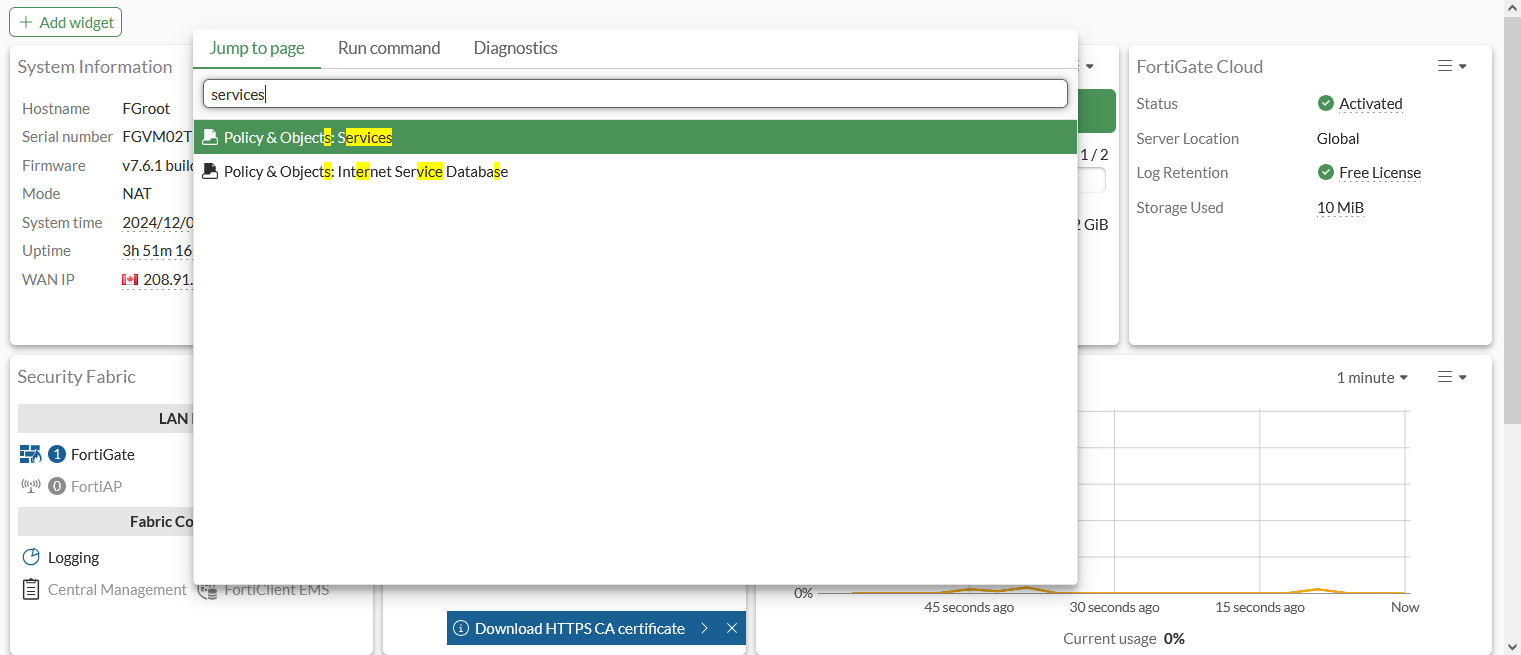
  3. Click on the location to jump to the select GUI page.
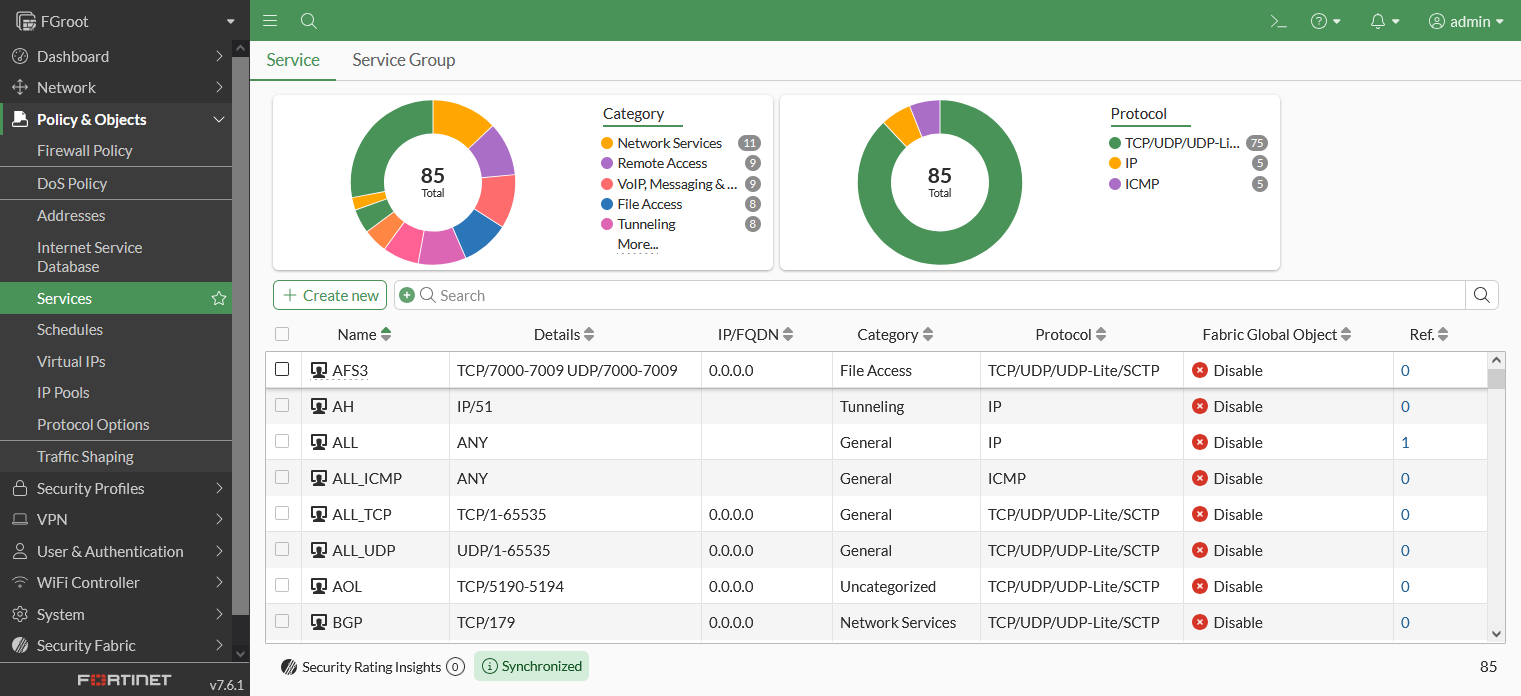
To activate an action using the command palette:
  1. Press ctrl+p (or cmd+p for Mac) and then enter a >, or select the Run command tab. On supported browsers, ctrl+shift+p (or cmd+shift+p for Mac) can be used.

    The command palette is displayed with a runnable command list.
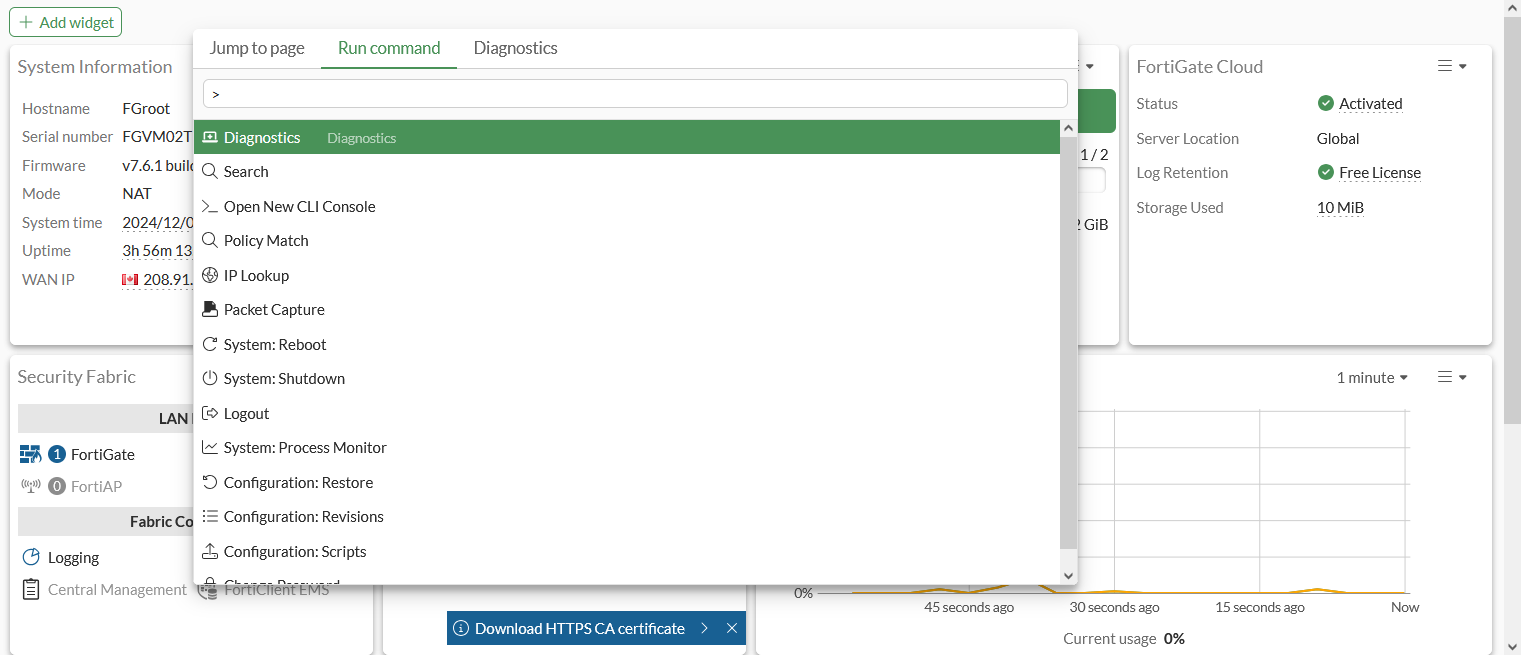
  2. Enter the command key word, or browse the list for the command.
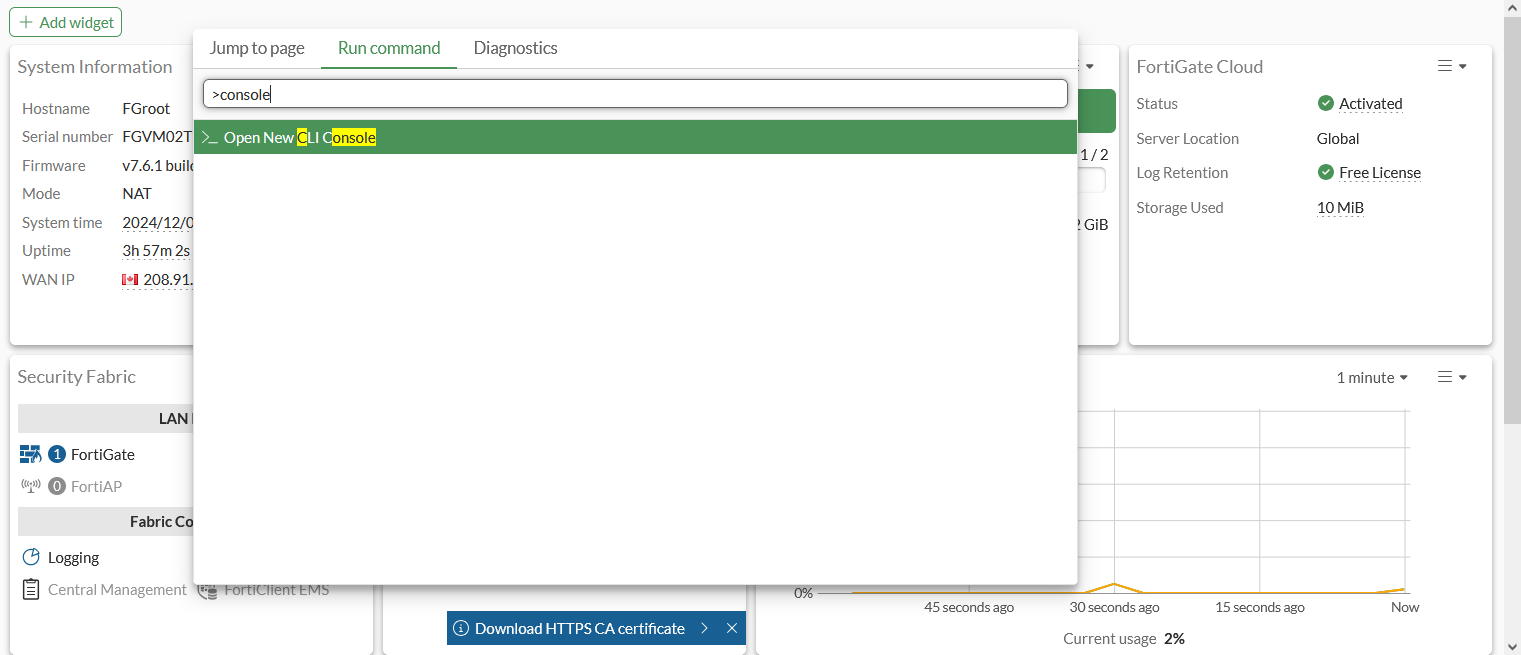
  3. Click the result, or press Enter, to run the action.

To use the Diagnostics command palette:
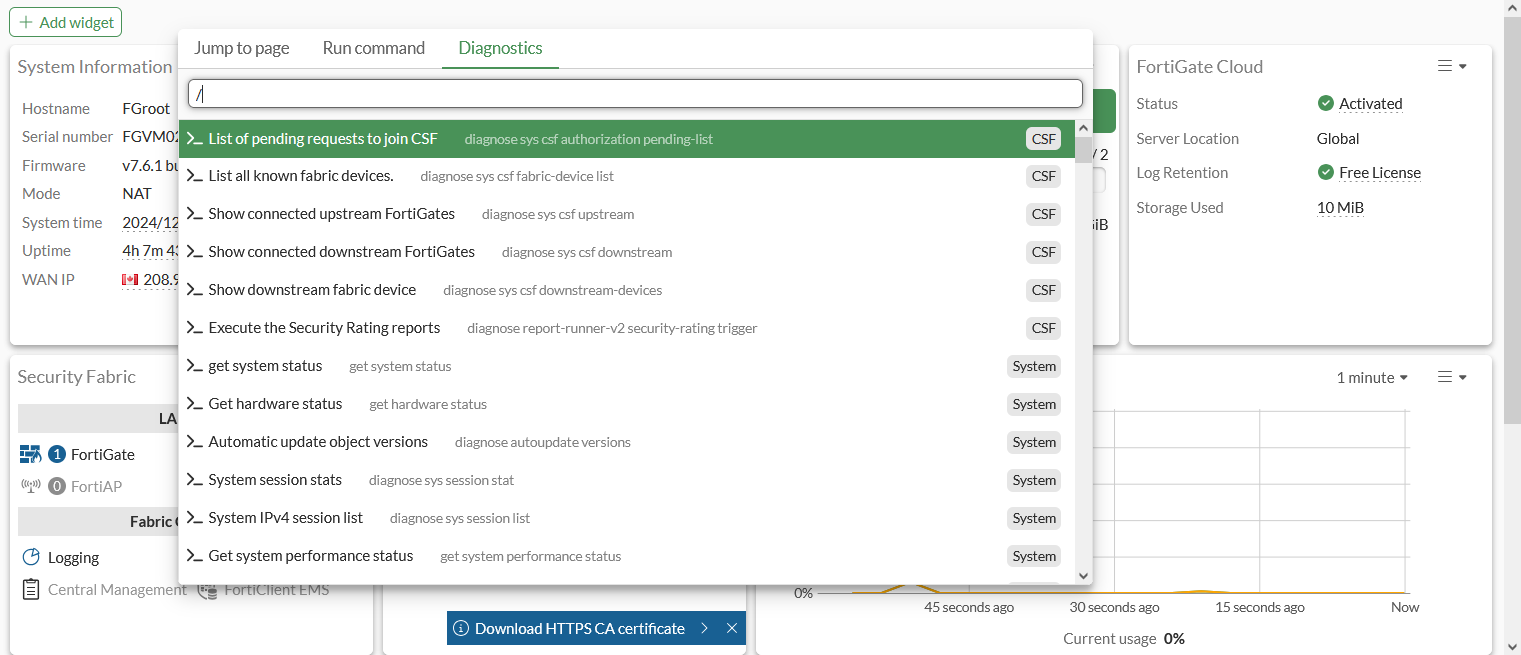
  1. Press ctrl+p (or cmd+p for Mac) and then enter a /, or select the Diagnostics tab.

  2. Enter the command name, or browse the list for the command.
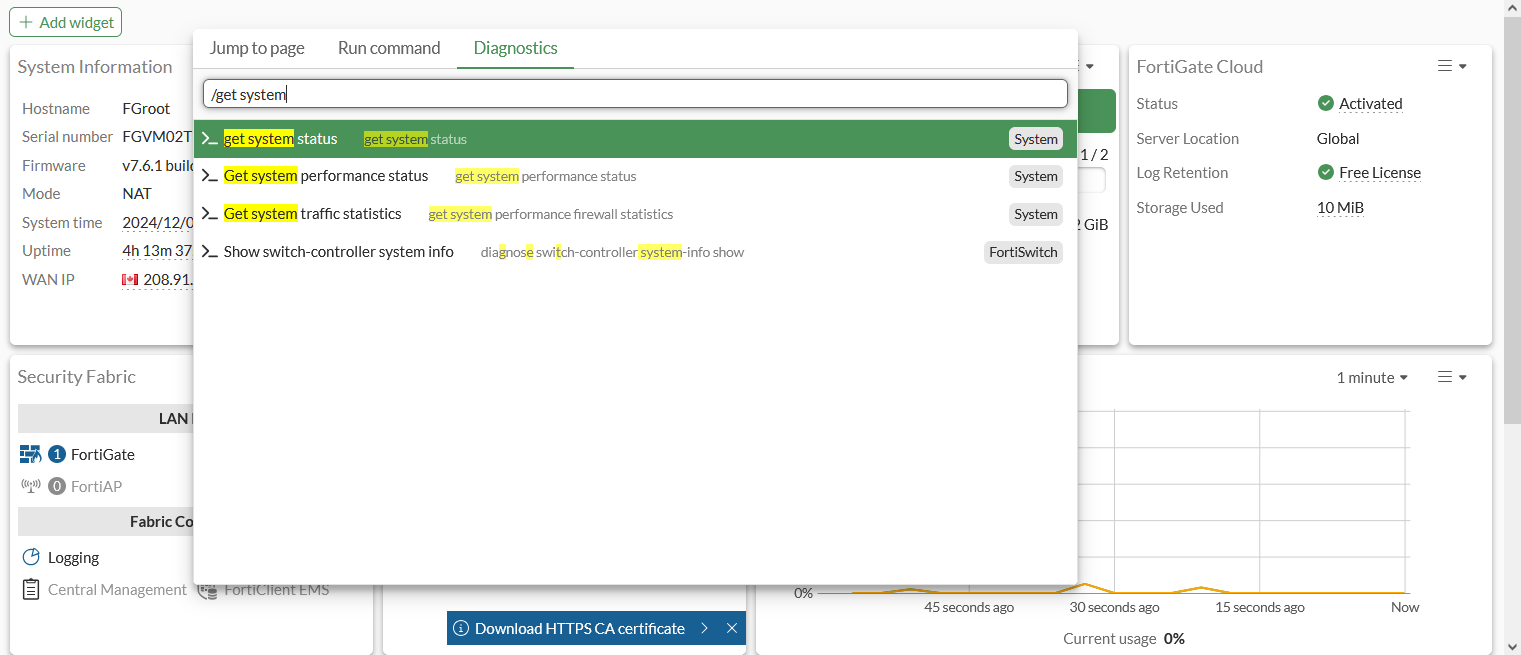
  3. Click the result, or press Enter, to run the command.
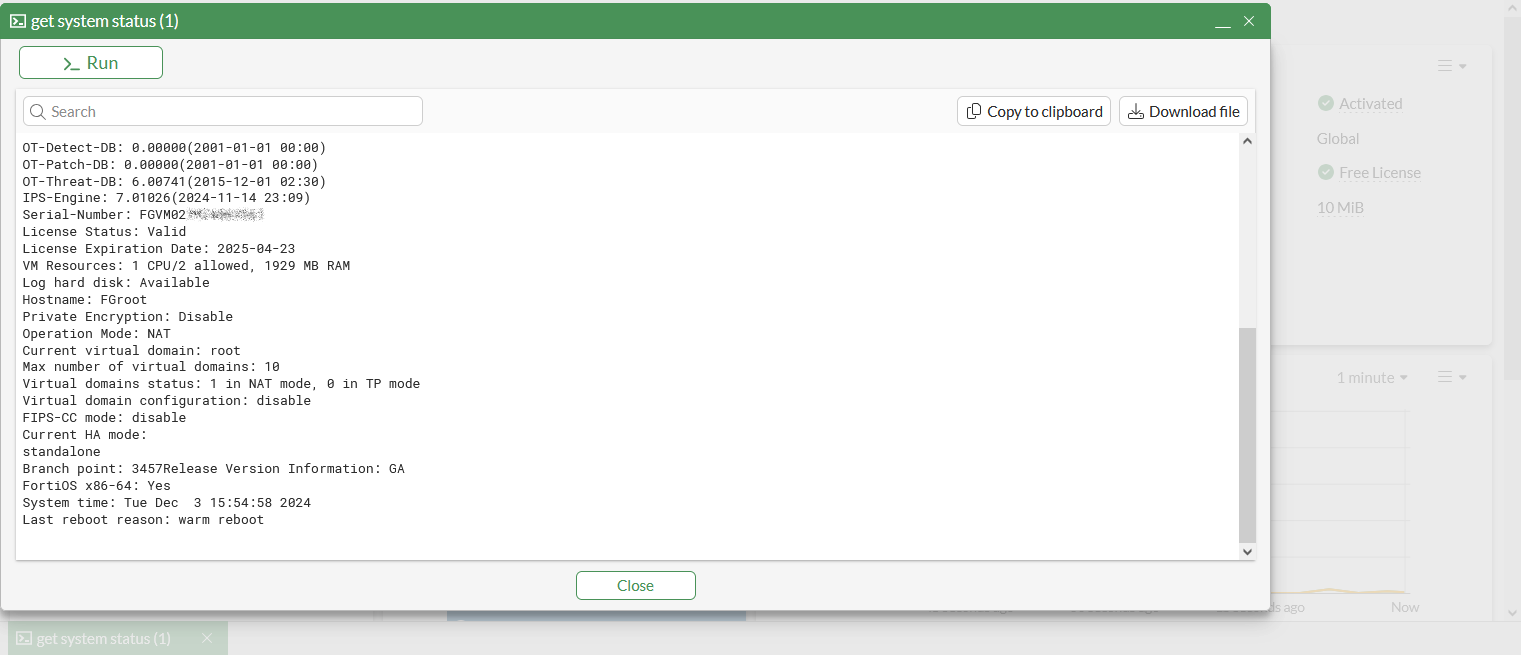
  4. Enter a search string in the search field to search the command output.
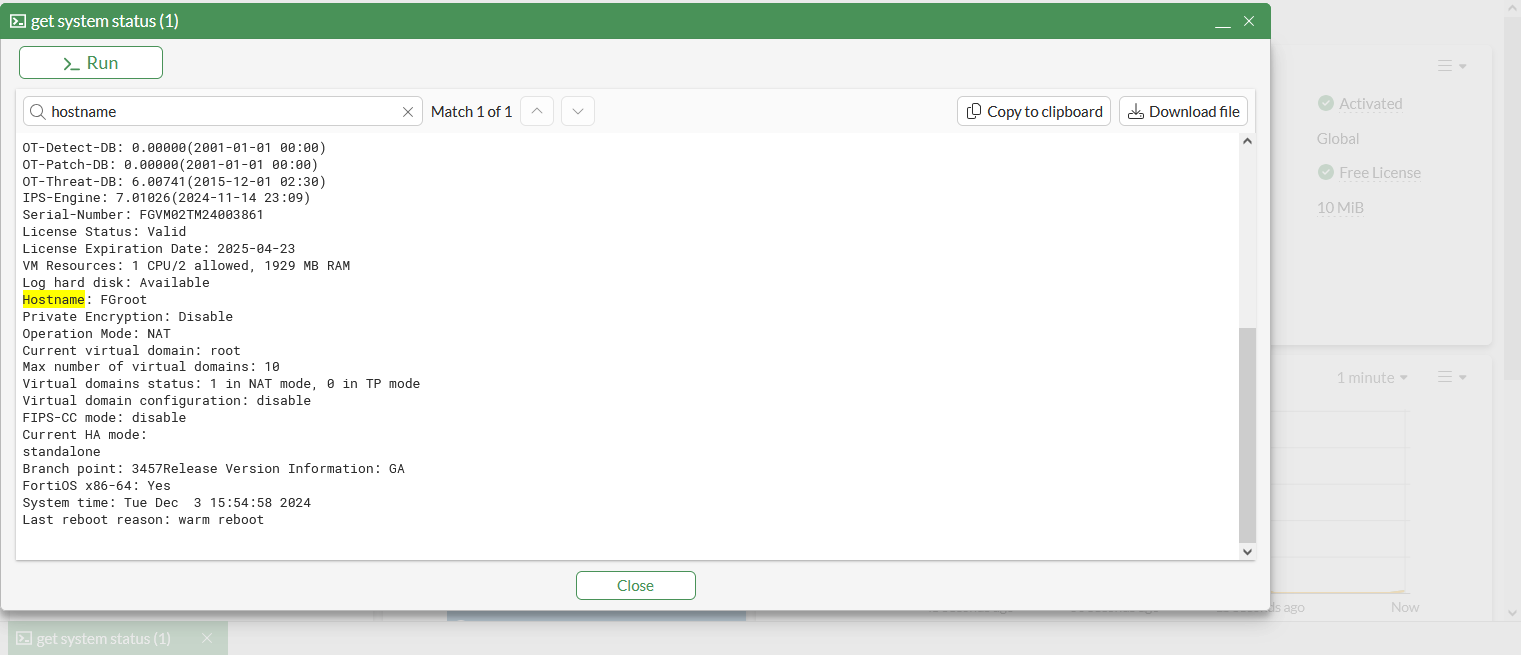
  5. Click Copy to clipboard to copy the output to the clipboard, or Download the file to download the output as a text file.

  6. Click Run to run the command again.

To search for a specific configuration:
  1. Select the global search menu.

  2. Select Search configuration.

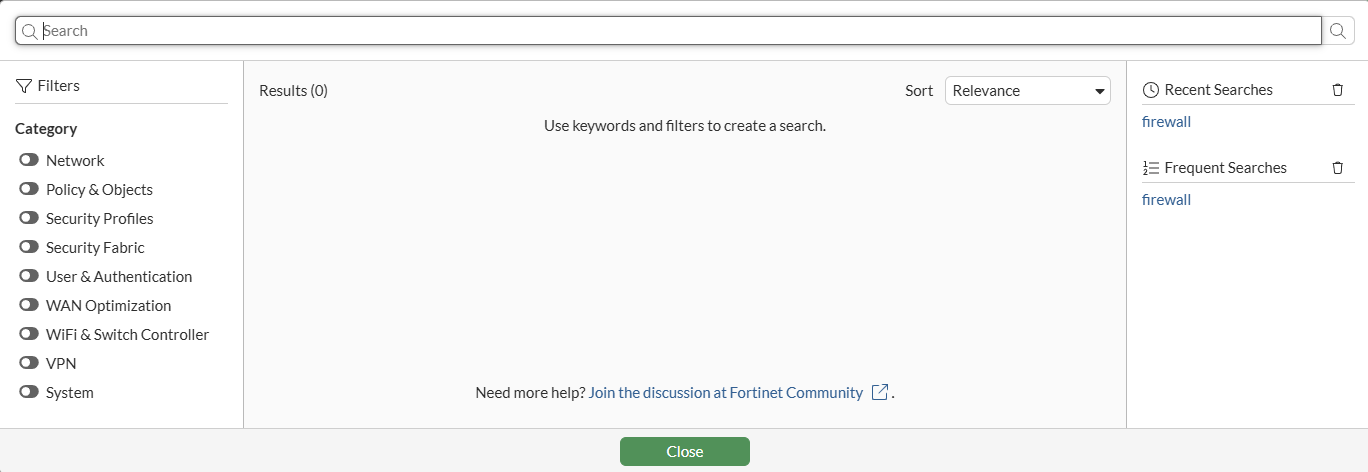
  3. Enter the configuration you want and press Enter. Suggested results are displayed.
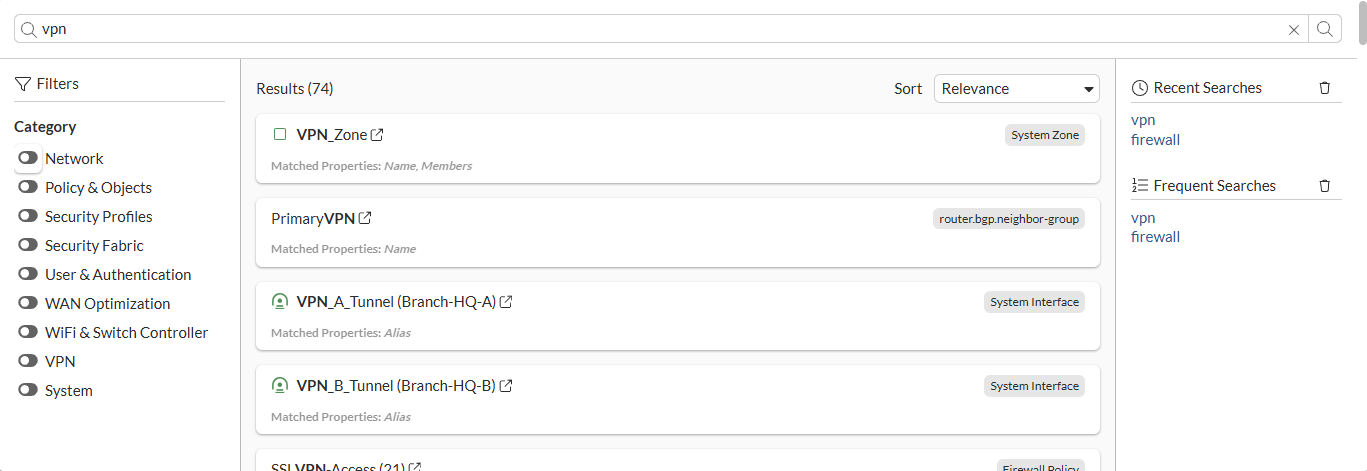
  4. Enable categories to filter the results.
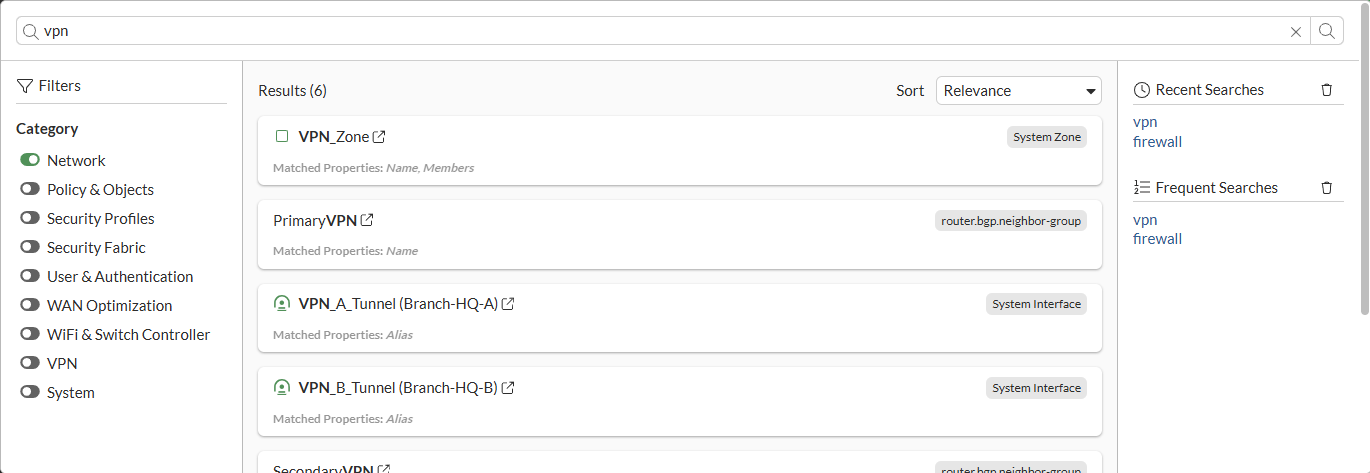
  5. Select a configuration. The configuration GUI page is displayed.
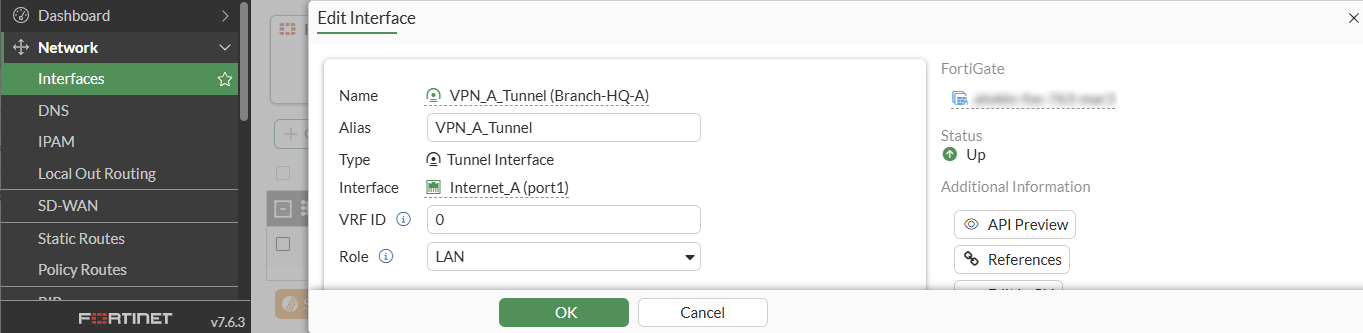
  6. Review and edit the configuration as needed.

Command palette

Command palette

The command palette is a keyboard shortcut menu that can be used to quickly navigate to GUI pages, run specific actions like opening the CLI console and restoring a system configuration, and running troubleshooting or debug commands like get system status and show arp table.

The enhanced global search in the top header menu provides quick command palette access from the GUI and additional keyboard shortcuts.

The following global search functions can be selected from the top header menu or by using keyboard shortcuts:

Search function

Keyboard shortcut

Definition

Jump to page

ctrl + p

Quickly navigate to a new GUI page.

Open

ctrl + shift + p

Open a monitor in a prompt without changing the current GUI page, such as packet capture and the CLI console.

CLI diagnostics

ctrl + p followed by /

Run a diagnostic CLI command without the CLI console. Recently used commands are listed first.

Once a command has been selected, you can search within the output, copy the output, download an output file, and run the command again.

Search configuration

ctrl + /

Search for and open a specific configuration in the GUI.

To navigate to a new GUI page using the command palette:
  1. Press ctrl+p (or cmd+p for Mac). The command palette is displayed with available navigation links.

  2. Enter the required destination, or browse the list for it.

  3. Click on the location to jump to the select GUI page.

To activate an action using the command palette:
  1. Press ctrl+p (or cmd+p for Mac) and then enter a >, or select the Run command tab. On supported browsers, ctrl+shift+p (or cmd+shift+p for Mac) can be used.

    The command palette is displayed with a runnable command list.

  2. Enter the command key word, or browse the list for the command.

  3. Click the result, or press Enter, to run the action.

To use the Diagnostics command palette:
  1. Press ctrl+p (or cmd+p for Mac) and then enter a /, or select the Diagnostics tab.

  2. Enter the command name, or browse the list for the command.

  3. Click the result, or press Enter, to run the command.

  4. Enter a search string in the search field to search the command output.

  5. Click Copy to clipboard to copy the output to the clipboard, or Download the file to download the output as a text file.

  6. Click Run to run the command again.

To search for a specific configuration:
  1. Select the global search menu.

  2. Select Search configuration.

  3. Enter the configuration you want and press Enter. Suggested results are displayed.

  4. Enable categories to filter the results.

  5. Select a configuration. The configuration GUI page is displayed.

  6. Review and edit the configuration as needed.