
Fortinet white logo
Fortinet white logo

Administration Guide

Prevent sensitive token leakage in HTTPS uploads using EDM

Prevent sensitive token leakage in HTTPS uploads using EDM

Exact Data Matching (EDM) enables precise matching of patterns or keywords from a predefined dataset, ensuring high accuracy. FortiGate can be configured to reference external resources containing lists of sensitive tokens, such as AWS Access Keys, JWTs (JSON Web Tokens), OAuth tokens, or other application secrets, that are used in your organization. These resources are dynamically synchronized and periodically updated, so any changes are automatically imported by FortiOS.

This configuration helps prevent accidental or intentional leakage of API keys, authentication tokens, or other secrets by blocking any code snippet containing these values when users attempt to upload files to external platforms such as GitHub, GitLab, or cloud storage services.

In this example, a file containing an AWS access token is being uploaded to an external GitHub repository using the HTTP POST method. FortiGate intercepts the traffic through deep inspection and blocks the upload because it matches the DLP profile configured on the device. This ensures that sensitive credentials, such as AWS Access Tokens, are not accidentally or intentionally leaked outside the organization.
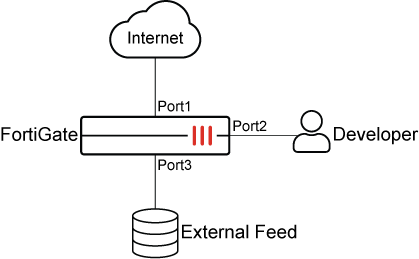
To block HTTPS upload traffic that includes AWS access tokens in the GUI:
  1. 1. Ensure that Data Loss Prevention is enabled:

    1. Go to System > Feature Visibility.

    2. Under Security Features, enable Data Loss Prevention.

    3. Click Apply.

  2. Create an EDM template with matching criteria:

    1. Go to Security Profiles > Data Loss Prevention, select the EDM Template tab, and click Create New.

    2. Enter a name for the template, such as AWS API Tokens.

    3. Set Resource type to External feed, and set External feed URL to the location of the file on the external server, such as https://13.13.13.13/aws_api_tokens.csv.

    4. Click +All of these fields to pair the column index of patterns with a DLP data type.

      In this example, column 1 in the external resource file contains the patterns for the edm-keyword data type.

    5. Click OK.

    6. Edit the DLP EDM template and click View Entries to view the data entries in the field.
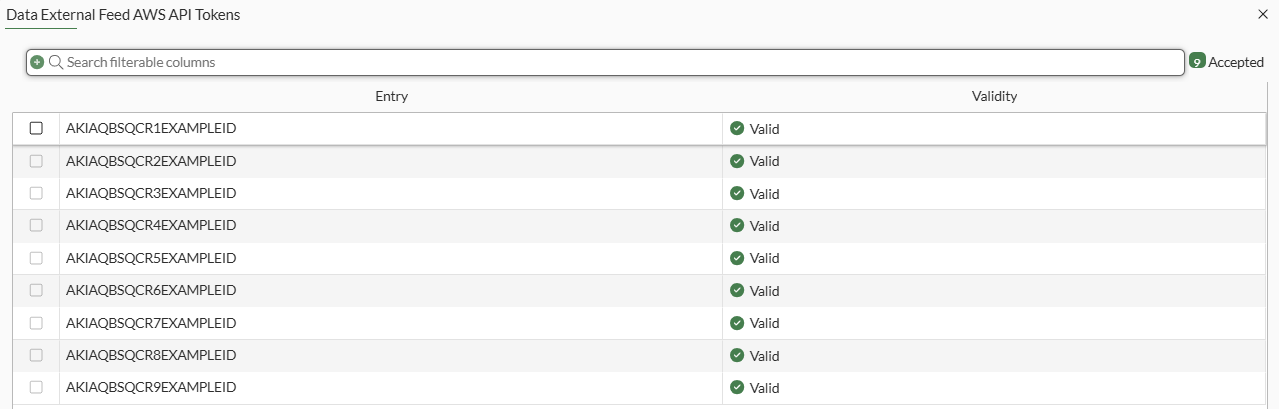
  3. Configure a DLP sensor for the EDM template:

    1. Go to Security Profiles > Data Loss Prevention, select the Sensor tab, and click Create New.

    2. Enter a name for the DLP sensor, such as AWS API Sensor.

    3. In the Sensor Entries table, click Add.

    4. In the drop-down list, select Managed Locally.

    5. Select AWS API Tokens then click Apply.

    6. Click OK.

  4. Create a DLP profile and select the DLP sensor for the EDM template:

    1. Go to Security Profiles > Data Loss Prevention, select the Profile tab, and click Create New.

    2. Enter a name for the DLP profile, such as AWS API Profile.

    3. In the Rules tables, click Create New.

    4. Enter a name for the rule, such as AWS API Rule.

    5. Configure the following, then click OK.

      Field

      Value

      Type

      Sensor

      Sensors

      AWS API Sensor

      Severity

      Critical

      Action

      Block

      Match type

      File

      File type

      (leave blank)

      Protocol

      HTTP-POST

    6. Click OK.

  5. Add the DLP profile to a firewall policy:

    1. Go to Policy & Objects > Firewall Policy. and click Create New.

    2. Set Inspection mode to Proxy-based.

    3. Under Security Profiles, enable DLP Profile and select AWS API Profile.

    4. Set SSL inspection to deep-inspection.

    5. Configure the other settings as needed.

    6. Click OK.

To block HTTPS upload traffic that includes AWS access tokens in the CLI:
  1. Create an EDM template with matching criteria:

    config dlp exact-data-match
        edit "AWS API Tokens"
            set data "AWS API Tokens"
            config columns
                edit 1
                    set type "edm-keyword"
                next
            end
        next
    end
  2. Configure a DLP sensor for the EDM template:

    config dlp sensor
        edit "AWS API Sensor"
            config entries
                edit 1
                    set dictionary "AWS API Tokens"
                next
            end
        next
    end
  3. Create a DLP profile and select the DLP sensor for the EDM template:

    config dlp profile
        edit "AWS API Profile"
            set feature-set proxy
            config rule
                edit 1
                    set name "AWS API Profile"
                    set severity critical
                    set proto http-post
                    set filter-by sensor
                    set sensor "AWS API Sensor"
                    set action block
                next
            end
        next
    end
  4. Add the DLP profile to a firewall policy:

    config firewall policy
        edit 1
            set name "AWS_Token_Block"
            set srcintf "port2"
            set dstintf "port1"
            set action accept
            set srcaddr "all"
            set dstaddr "all"
            set schedule "always"
            set service "ALL"
            set utm-status enable
            set inspection-mode proxy
            set ssl-ssh-profile "deep-inspection"
            set dlp-profile "AWS API Profile"
            set logtraffic all
            set nat enable
        next
    end
To verify the configuration:
  1. A developer attempts to upload a file containing AWS access tokens through HTTPS to github.com, and the file content matches the EDM template.
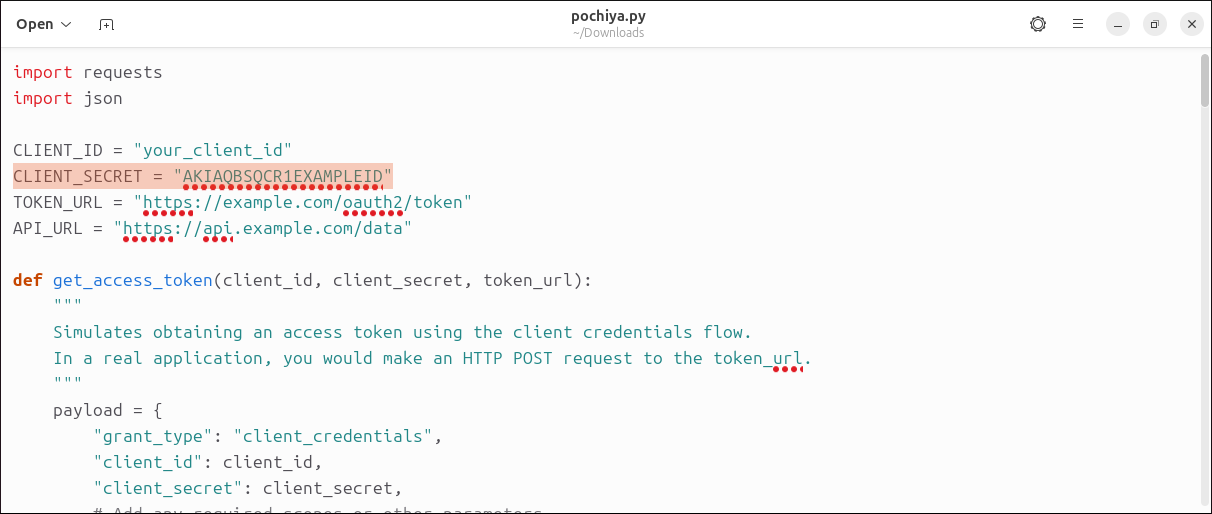
  2. FortiGate blocks the user's attempt and displays an error message:
  3. FortiGate generates a DLP log:

    1: date=2025-11-14 time=11:51:00 eventtime=1763077860331286861 tz="+1200" logid="0954024576" type="utm" subtype="dlp" eventtype="dlp" level="warning" vd="root" ruleid=1 rulename="AWS API Profile" dlpextra="Sensor 'AWS API Sensor' matching any: ('AWS API Tokens'=1) >= 1; match." filtertype="sensor" filtercat="file" severity="critical" policyid=1 poluuid="3c57da8c-c0de-51f0-6f4a-95b898d269b3" policytype="policy" sessionid=28834 epoch=834063557 eventid=1 srcip=10.10.10.10 srcport=53912 srccountry="United States" srcintf="port2" srcintfrole="undefined" srcuuid="d2f06fda-15e7-51ee-0d22-faaf5170dad2" dstip=140.82.113.21 dstport=443 dstcountry="United States" dstintf="port1" dstintfrole="undefined" dstuuid="d2f06fda-15e7-51ee-0d22-faaf5170dad2" proto=6 service="HTTPS" filetype="python" direction="outgoing" action="block" hostname="objects-origin.githubusercontent.com" url="https://objects-origin.githubusercontent.com/github-production-upload-manifest-file-7fdce7" agent="Mozilla/5.0 (X11; Ubuntu; Linux x86_64; rv:135.0) Gecko/20100101 Firefox/135.0" httpmethod="POST" referralurl="https://github.com/" filename="pochiya.py" filesize=2338 profile="AWS API Profile"

Prevent sensitive token leakage in HTTPS uploads using EDM

Prevent sensitive token leakage in HTTPS uploads using EDM

Exact Data Matching (EDM) enables precise matching of patterns or keywords from a predefined dataset, ensuring high accuracy. FortiGate can be configured to reference external resources containing lists of sensitive tokens, such as AWS Access Keys, JWTs (JSON Web Tokens), OAuth tokens, or other application secrets, that are used in your organization. These resources are dynamically synchronized and periodically updated, so any changes are automatically imported by FortiOS.

This configuration helps prevent accidental or intentional leakage of API keys, authentication tokens, or other secrets by blocking any code snippet containing these values when users attempt to upload files to external platforms such as GitHub, GitLab, or cloud storage services.

In this example, a file containing an AWS access token is being uploaded to an external GitHub repository using the HTTP POST method. FortiGate intercepts the traffic through deep inspection and blocks the upload because it matches the DLP profile configured on the device. This ensures that sensitive credentials, such as AWS Access Tokens, are not accidentally or intentionally leaked outside the organization.

To block HTTPS upload traffic that includes AWS access tokens in the GUI:
  1. 1. Ensure that Data Loss Prevention is enabled:

    1. Go to System > Feature Visibility.

    2. Under Security Features, enable Data Loss Prevention.

    3. Click Apply.

  2. Create an EDM template with matching criteria:

    1. Go to Security Profiles > Data Loss Prevention, select the EDM Template tab, and click Create New.

    2. Enter a name for the template, such as AWS API Tokens.

    3. Set Resource type to External feed, and set External feed URL to the location of the file on the external server, such as https://13.13.13.13/aws_api_tokens.csv.

    4. Click +All of these fields to pair the column index of patterns with a DLP data type.

      In this example, column 1 in the external resource file contains the patterns for the edm-keyword data type.

    5. Click OK.

    6. Edit the DLP EDM template and click View Entries to view the data entries in the field.

  3. Configure a DLP sensor for the EDM template:

    1. Go to Security Profiles > Data Loss Prevention, select the Sensor tab, and click Create New.

    2. Enter a name for the DLP sensor, such as AWS API Sensor.

    3. In the Sensor Entries table, click Add.

    4. In the drop-down list, select Managed Locally.

    5. Select AWS API Tokens then click Apply.

    6. Click OK.

  4. Create a DLP profile and select the DLP sensor for the EDM template:

    1. Go to Security Profiles > Data Loss Prevention, select the Profile tab, and click Create New.

    2. Enter a name for the DLP profile, such as AWS API Profile.

    3. In the Rules tables, click Create New.

    4. Enter a name for the rule, such as AWS API Rule.

    5. Configure the following, then click OK.

      Field

      Value

      Type

      Sensor

      Sensors

      AWS API Sensor

      Severity

      Critical

      Action

      Block

      Match type

      File

      File type

      (leave blank)

      Protocol

      HTTP-POST

    6. Click OK.

  5. Add the DLP profile to a firewall policy:

    1. Go to Policy & Objects > Firewall Policy. and click Create New.

    2. Set Inspection mode to Proxy-based.

    3. Under Security Profiles, enable DLP Profile and select AWS API Profile.

    4. Set SSL inspection to deep-inspection.

    5. Configure the other settings as needed.

    6. Click OK.

To block HTTPS upload traffic that includes AWS access tokens in the CLI:
  1. Create an EDM template with matching criteria:

    config dlp exact-data-match
        edit "AWS API Tokens"
            set data "AWS API Tokens"
            config columns
                edit 1
                    set type "edm-keyword"
                next
            end
        next
    end
  2. Configure a DLP sensor for the EDM template:

    config dlp sensor
        edit "AWS API Sensor"
            config entries
                edit 1
                    set dictionary "AWS API Tokens"
                next
            end
        next
    end
  3. Create a DLP profile and select the DLP sensor for the EDM template:

    config dlp profile
        edit "AWS API Profile"
            set feature-set proxy
            config rule
                edit 1
                    set name "AWS API Profile"
                    set severity critical
                    set proto http-post
                    set filter-by sensor
                    set sensor "AWS API Sensor"
                    set action block
                next
            end
        next
    end
  4. Add the DLP profile to a firewall policy:

    config firewall policy
        edit 1
            set name "AWS_Token_Block"
            set srcintf "port2"
            set dstintf "port1"
            set action accept
            set srcaddr "all"
            set dstaddr "all"
            set schedule "always"
            set service "ALL"
            set utm-status enable
            set inspection-mode proxy
            set ssl-ssh-profile "deep-inspection"
            set dlp-profile "AWS API Profile"
            set logtraffic all
            set nat enable
        next
    end
To verify the configuration:
  1. A developer attempts to upload a file containing AWS access tokens through HTTPS to github.com, and the file content matches the EDM template.

  2. FortiGate blocks the user's attempt and displays an error message:

  3. FortiGate generates a DLP log:

    1: date=2025-11-14 time=11:51:00 eventtime=1763077860331286861 tz="+1200" logid="0954024576" type="utm" subtype="dlp" eventtype="dlp" level="warning" vd="root" ruleid=1 rulename="AWS API Profile" dlpextra="Sensor 'AWS API Sensor' matching any: ('AWS API Tokens'=1) >= 1; match." filtertype="sensor" filtercat="file" severity="critical" policyid=1 poluuid="3c57da8c-c0de-51f0-6f4a-95b898d269b3" policytype="policy" sessionid=28834 epoch=834063557 eventid=1 srcip=10.10.10.10 srcport=53912 srccountry="United States" srcintf="port2" srcintfrole="undefined" srcuuid="d2f06fda-15e7-51ee-0d22-faaf5170dad2" dstip=140.82.113.21 dstport=443 dstcountry="United States" dstintf="port1" dstintfrole="undefined" dstuuid="d2f06fda-15e7-51ee-0d22-faaf5170dad2" proto=6 service="HTTPS" filetype="python" direction="outgoing" action="block" hostname="objects-origin.githubusercontent.com" url="https://objects-origin.githubusercontent.com/github-production-upload-manifest-file-7fdce7" agent="Mozilla/5.0 (X11; Ubuntu; Linux x86_64; rv:135.0) Gecko/20100101 Firefox/135.0" httpmethod="POST" referralurl="https://github.com/" filename="pochiya.py" filesize=2338 profile="AWS API Profile"
