Fortinet white logo
Fortinet white logo

Administration Guide

Configuring web filter profiles to block cryptocurrency

Configuring web filter profiles to block cryptocurrency

The following FortiGuard web filter category is available:

  • Cryptocurrency (category 101): sites that specialize in digital or virtual currencies that are secured by cryptography and operate on decentralized networks.

See also Protecting GenAI access using web filter.

To configure a web filter profile to block the cryptocurrency categories in the GUI:
  1. Go to Security Profiles > Web Filter and click Create New.

  2. Enter a name for the web filter profile.

  3. In the category table, locate the General Interest - Business section. Select the Cryptocurrency category, and set the Action to Block.
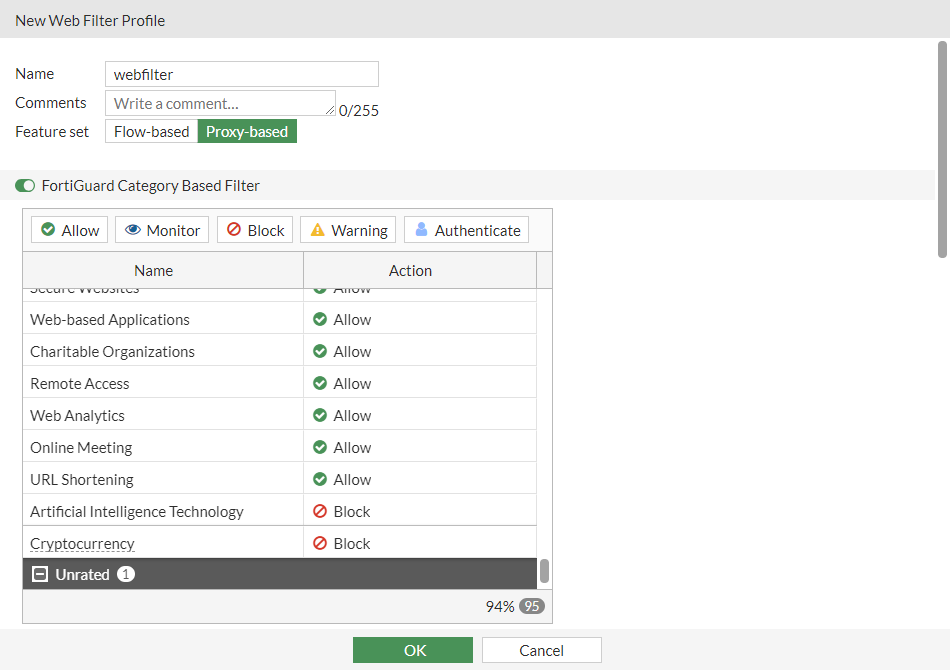
  4. Configure the remaining settings as needed.

  5. Click OK.

To configure a web filter profile to block the cryptocurrency category in the CLI:
config webfilter profile
    edit "webfilter"
        set feature-set proxy
        config ftgd-wf
            unset options
            config filters                
                edit 101
                    set category 101
                    set action block
                next
                edit 52
                    set category 52
                next
            end
        end
        set log-all-url enable
    next
end
To verify that the categories are blocked:
  1. Apply the web filter profile in a firewall policy.

  2. On a device that is connected through the FortiGate and uses the policy, visit the following test URL for the category:

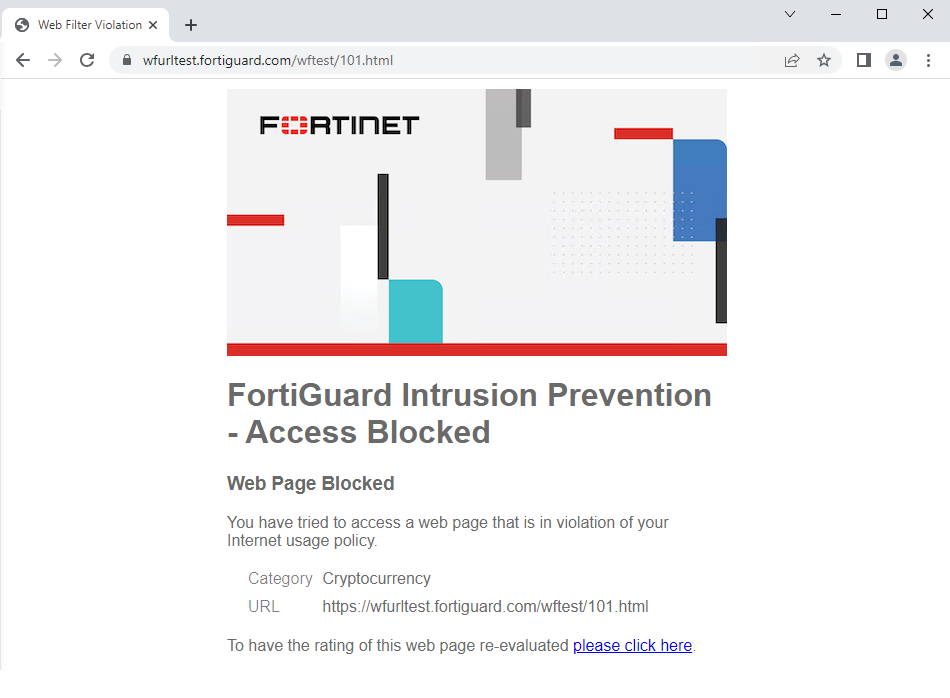
    1. https://wfurltest.fortiguard.com/wftest/101.html

    2. The browser displays a replacement message that the URL is blocked based on the FortiGuard category.

    • Cryptocurrency:

To verify the web filter logs:
  1. In the GUI, go to Log & Report > Security Events and click Web Filter.

  2. In the CLI, enter the following:

    # execute log filter category utm-webfilter
    # execute log display
    1: date=2023-07-12 time=10:39:18 eventtime=1689183557968026063 tz="-0700" logid="0316013056" type="utm" subtype="webfilter" eventtype="ftgd_blk" level="warning" vd="vdom1" policyid=1 poluuid="996b0a68-2055-51ee-b841-2b3f373c9b37" policytype="policy" sessionid=3258 srcip=10.1.100.31 srcport=35116 srccountry="Reserved" srcintf="port2" srcintfrole="undefined" srcuuid="124f368a-2055-51ee-c7d6-857ab36dd6cb" dstip=154.52.5.202 dstport=443 dstcountry="United States" dstintf="port1" dstintfrole="undefined" dstuuid="124f368a-2055-51ee-c7d6-857ab36dd6cb" proto=6 httpmethod="GET" service="HTTPS" hostname="wfurltest.fortiguard.com" agent="curl/7.68.0" profile="webfilter" action="blocked" reqtype="direct" url="https://wfurltest.fortiguard.com/wftest/101.html" sentbyte=849 rcvdbyte=3633 direction="outgoing" msg="URL belongs to a denied category in policy" ratemethod="domain" cat=101 catdesc="Cryptocurrency"

Configuring web filter profiles to block cryptocurrency

Configuring web filter profiles to block cryptocurrency

The following FortiGuard web filter category is available:

  • Cryptocurrency (category 101): sites that specialize in digital or virtual currencies that are secured by cryptography and operate on decentralized networks.

See also Protecting GenAI access using web filter.

To configure a web filter profile to block the cryptocurrency categories in the GUI:
  1. Go to Security Profiles > Web Filter and click Create New.

  2. Enter a name for the web filter profile.

  3. In the category table, locate the General Interest - Business section. Select the Cryptocurrency category, and set the Action to Block.

  4. Configure the remaining settings as needed.

  5. Click OK.

To configure a web filter profile to block the cryptocurrency category in the CLI:
config webfilter profile
    edit "webfilter"
        set feature-set proxy
        config ftgd-wf
            unset options
            config filters                
                edit 101
                    set category 101
                    set action block
                next
                edit 52
                    set category 52
                next
            end
        end
        set log-all-url enable
    next
end
To verify that the categories are blocked:
  1. Apply the web filter profile in a firewall policy.

  2. On a device that is connected through the FortiGate and uses the policy, visit the following test URL for the category:

    1. https://wfurltest.fortiguard.com/wftest/101.html

    2. The browser displays a replacement message that the URL is blocked based on the FortiGuard category.

    • Cryptocurrency:

To verify the web filter logs:
  1. In the GUI, go to Log & Report > Security Events and click Web Filter.

  2. In the CLI, enter the following:

    # execute log filter category utm-webfilter
    # execute log display
    1: date=2023-07-12 time=10:39:18 eventtime=1689183557968026063 tz="-0700" logid="0316013056" type="utm" subtype="webfilter" eventtype="ftgd_blk" level="warning" vd="vdom1" policyid=1 poluuid="996b0a68-2055-51ee-b841-2b3f373c9b37" policytype="policy" sessionid=3258 srcip=10.1.100.31 srcport=35116 srccountry="Reserved" srcintf="port2" srcintfrole="undefined" srcuuid="124f368a-2055-51ee-c7d6-857ab36dd6cb" dstip=154.52.5.202 dstport=443 dstcountry="United States" dstintf="port1" dstintfrole="undefined" dstuuid="124f368a-2055-51ee-c7d6-857ab36dd6cb" proto=6 httpmethod="GET" service="HTTPS" hostname="wfurltest.fortiguard.com" agent="curl/7.68.0" profile="webfilter" action="blocked" reqtype="direct" url="https://wfurltest.fortiguard.com/wftest/101.html" sentbyte=849 rcvdbyte=3633 direction="outgoing" msg="URL belongs to a denied category in policy" ratemethod="domain" cat=101 catdesc="Cryptocurrency"