

Email alerts
Alert emails are used to notify administrators about events on the FortiGate device, allowing a quick response to any issues.
There are two methods that can be used to configure email alerts:
The FortiGate has a default SMTP server, fortinet-notifications.com, that provides secure mail service with SMTPS. It is used for all emails that are sent by the FortiGate, including alert emails, automation stitch emails, and FortiToken Mobile activations. You can also configure a custom email service.
To configure a custom email service in the GUI:
-
Go to System > Settings.
-
In the Email Service section, enable Use custom settings.
-
Configure the following settings:
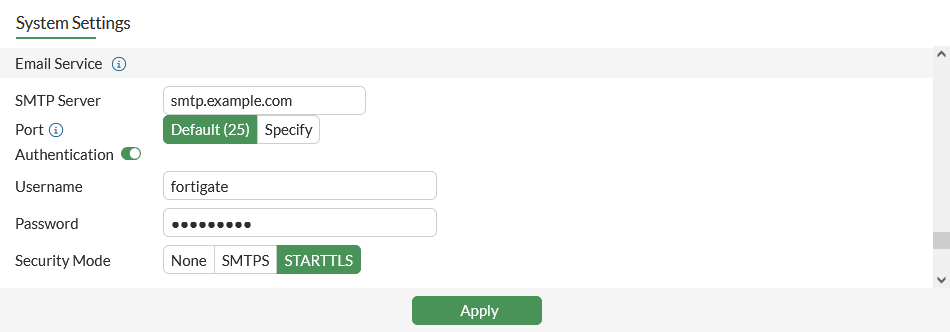
SMTP Server
If required, change the address or name of the SMTP server, such as smtp.example.com.
Port
If required, select Specify and enter a specific port number. The default is port depends on the selected security mode: None and STARTTLS default to port 25 and SMTPS defaults to 465.
Authentication
If required by the email server, enable authentication. If enabled, enter the Username and Password.
Security Mode
Set the security mode: None, SMTPS, or STARTTLS.
-
Click Apply.
To configure a custom email service in the CLI:
config system email-server
    set server "smtp.example.com"
    set port 465
    set authenticate enable
    set username "fortigate"
    set password *********
    set security smtps
end

|
The reply-to address for the source email is automatically set to DoNotReply@fortinet-notifications.com for all servers, including custom servers. For custom servers, if a username is configured, then MAIL FROM is set to the username, but if no username is configured, then MAIL FROM is the same as MAIL TO. You cannot customize the address when configuring a custom email server in the GUI or CLI. |
Automation stitches
Automation stitches can be configured to send emails based on a variety of triggers, giving you control over the events that cause an alert, and who gets alerted. For more information, see Automation stitches.
In this example, the default mail service sends an email to two recipients when an Admin login failed event occurs or there is a configuration change.
To configure the automation stitch in the GUI:
-
On the root FortiGate, go to Security Fabric > Automation and, on the Stitch tab, click Create New.
-
Enter a name for the stitch, such as Admin Fail.
-
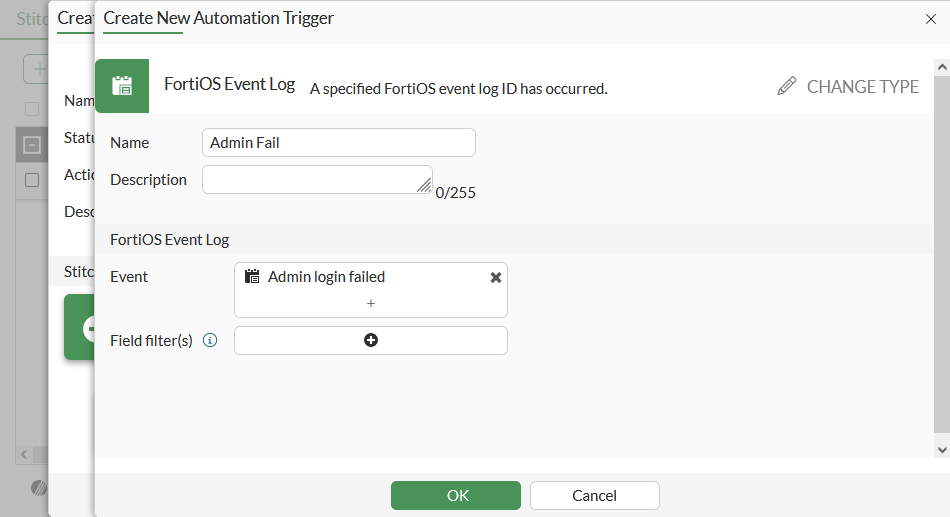
Configure the trigger:
-
Click Add Trigger.
- Click Create and select FortiOS Event Log.
-
Enter a name for the trigger, such as Admin Fail.
-
Click in the Event field, and in the slide out pane, search for and select Admin login failed.
-
Click OK.
-
Select the trigger in the list and click Apply.
-
-
Configure the action:
-
Click Add Action.
-
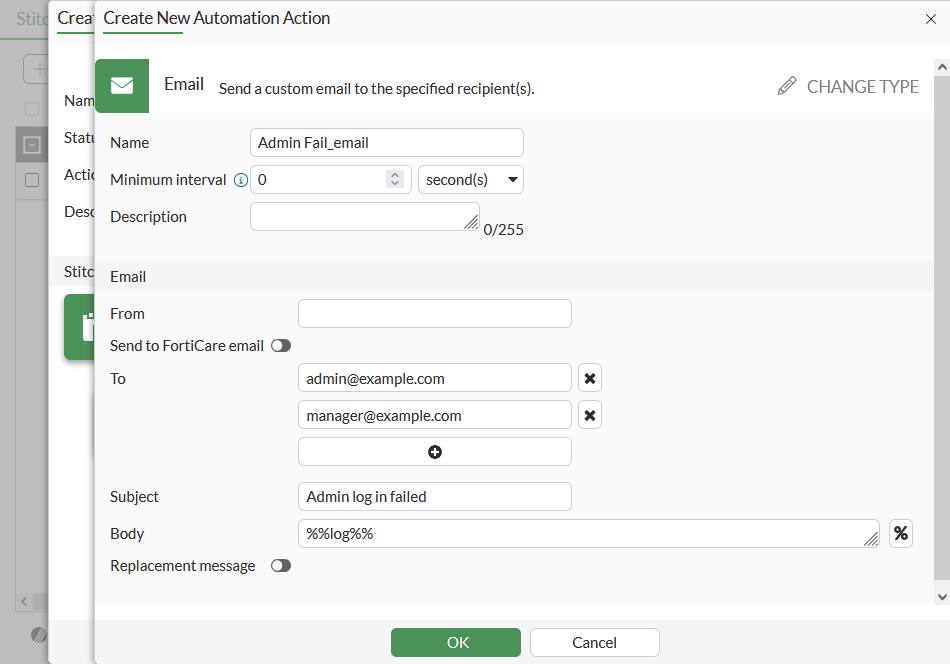
Click Create and select Email.
-
Configure the following settings:
Name
Enter a name for the action, such as Admin Fail_email.
To
Enter the two email recipients' addresses, such as admin@example.com and manager@example.com.
Subject
Enter an subject, such as Admin log in failed.
Body
Edit as required. By default, the email body will include all the fields from the log event that triggered the stitch.
- Click OK.
- Select the action in the list and click Apply.
-
-
Click OK.
-
Create a second stitch with Configuration Change as the trigger, and an email action with a different subject line (such as Configuration Change Detected).
To configure the automation stitch in the CLI:
- Create the automation triggers:
config system automation-trigger edit "Admin Fail" set event-type event-log set logid 32002 next edit "Config Change" set event-type config-change next end -
Create automation actions to send the email messages:
config system automation-action edit "Admin Fail_email" set action-type email set email-to "admin@example.com" "manager@example.com" set email-subject "Admin log in failed" next edit "Config Change_email" set action-type email set email-to "admin@example.com" "manager@example.com" set email-subject "Configuration Change Detected" next end -
Create the automation stitches:
config system automation-stitch
    edit "Admin Fail"
        set trigger "Admin Fail"
        config actions
            edit 1
                set action "Admin Fail_email"
                set required enable
            next
        end
    next
    edit "Config Change"
        set trigger "Config Change"
        config actions
            edit 1
                set action "Config Change_email"
                set required enable
            next
        end
    next
end
Alert emails
When configuring an alert email, you can define the threshold when an issue becomes critical and requires attention. When the threshold is reached, an email is sent to up to three recipients on the configured schedule to notify them of the issue.
Alert email messages can be configured in the CLI. For more information on the available CLI commands, see Configure alert email settings.
|
|
Alert email messages (under |
IPS, SSH, violation traffic, antivirus, and web filter logs are supported as triggers in automation stitches. For more information, see Event log category triggers.
In this example, the FortiGate is configured to send email messages to two addresses, admin@example.com and manager@example.com, every two minutes when multiple intrusions, administrator log in or out events, or configuration changes occur.
To configure an alert email:
config alertemail setting
    set username fortigate@example.com
    set mailto1 admin@example.com
    set mailto2 manager@example.com
    set filter-mode category
    set email-interval 2
    set IPS-logs enable
    set configuration-changes-logs enable
    set admin-login-logs enable
end