

Configuring IPAM
IPAM can be configured on the Network > IPAM page using the IPAM Settings, IPAM Rules, IPAM Interfaces, and IPAM Subnets tabs.
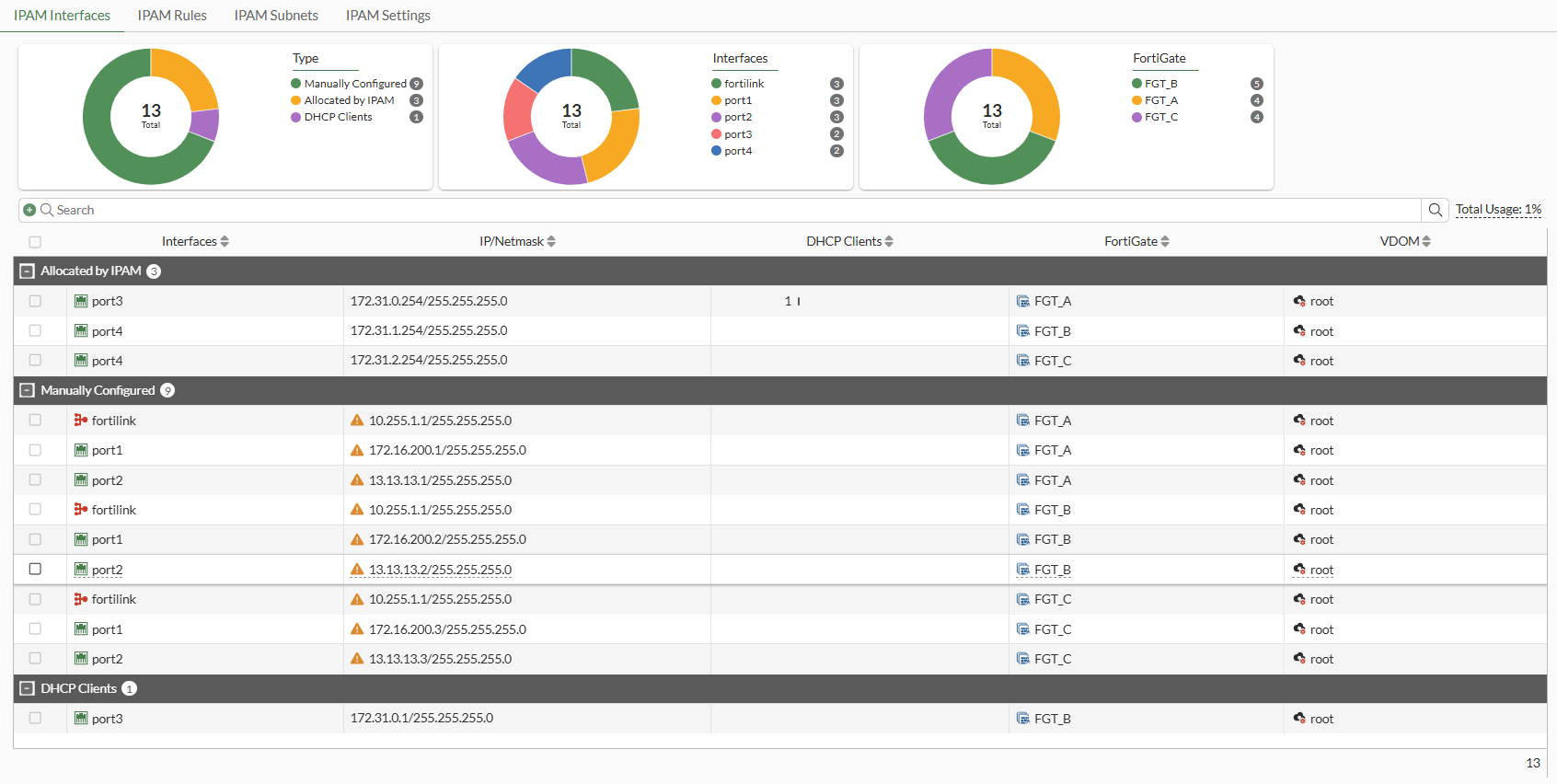

|
IPAM Interfaces, IPAM Rules, and IPAM Subnets can only be viewed or configured from the root FortiGate in a Security Fabric or from a standalone FortiGate. Additionally, IPAM Settings can only be enabled or disabled from the root FortiGate in a Security Fabric or from a standalone FortiGate. |
To configure IPAM settings in the GUI:
-
Go to Network > IPAM and select the IPAM Settings tab.
-
Enable or disable the following settings:
-
Status
-
Auto-resolve conflicts
-
Require subnet size match
-
Interfaces with LAN role
-
FortiAP SSIDs
-
FortiExtender LAN extensions
-
-
Click OK.
Once IPAM is enabled, users should be able to configure additional IPAM settings, such as subnets and rules.
To configure IPAM subnets in the GUI:
-
Go to Network > IPAM and select the IPAM Subnets tab.
-
Set Subnets to the subnet IP address and netmask. Click the plus field to add more subnets.
For the IPAM pool subnet, only class A or class B subnet can be configured.
-
Set Excluded subnets to the IP address and netmask of subnets that will be excluded. These subnets will not be assigned by private IP assignment. Click the plus field to add more.
-
Click OK. A chart is displayed showing free space and IP address overlap between IPAM-Managed and unallocated, Allocated by IPAM, Manually Configured, DHCP Clients, and Reserved IP addresses.
Once subnets are added, they are automatically included in the implicit IPAM rule called Implicit Rule. This rule encompasses all subnets with the role set to ANY and DHCP disabled. The Implicit Rule cannot be edited or deleted.
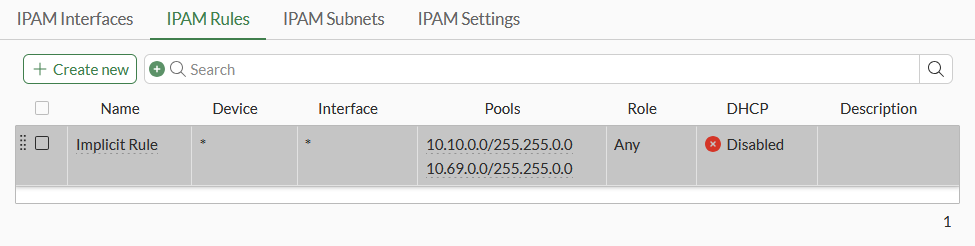
To configure IPAM rules in the GUI:
-
Go to Network > IPAM and select the IPAM Rules tab.
-
Click Create New and configure the settings:
Option
Description
Name
Set a name.
Description
Set a description.
FortiGates
Set the serial number or wildcard of a FortiGate to match. Click the plus field to add more FortiGates.
Role
Set the role of the interface to match.
Interfaces
Set the name or wildcard of an interface to match. Click the plus field to add more interfaces.
DHCP
Enabling this option will enable DHCP server on the matching interfaces.
Disabling this option will ignore the current DHCP server settings for the interfaces.
Pools
Click the plus field to add one or more subnets.
-
Click OK.
To configure IPAM settings in the CLI:
config system ipam
    set status {enable | disable}
    set automatic-conflict-resolution {enable | disable}
    set manage-lan-addresses {enable | disable}
    set manage-lan-extension-addresses {enable | disable}
    set manage-ssid-addresses {enable | disable}
    set require-subnet-match {enable | disable}
    config pools
        edit <pool_name>
            set subnet <IP address/netmask>
            config exclude
                edit <ID>
                    set exclude-subnet <IP address/netmask>
                next
            end
        next
    end
    config rules
        edit <rule_name>
            set device <name1> <name2> ...
            set interface <name1> <name2> ...
            set role {any | lan | wan | dmz | undefined}
            set dhcp {enable | disable}
            set pool <pool_name>
        next
    end
end
|
Command |
Description |
|---|---|
|
status {enable | disable} |
Enable/disable IP address management services. |
|
automatic-conflict-resolution {enable | disable} |
Enable/disable automatic conflict resolution. When |
|
manage-lan-addresses {enable | disable}* |
Enable/disable default management of LAN interface addresses. |
|
manage-lan-extension-addresses {enable | disable}* |
Enable/disable default management of FortiExtender LAN extension interface addresses. |
|
manage-ssid-addresses {enable | disable}* |
Enable/disable default management of FortiAP SSID addresses. |
|
require-subnet-match {enable | disable} |
Enable/disable reassignment of subnets to make requested and actual sizes match. |
|
config pools |
Set the subnet for the IP pool. Optionally, set the exclude-subnet for the exclude IP pool. |
|
config rules |
Set the device, interface, role, dhcp, and IP pool for IPAM rules. |
* See IPAM manage options for more information about the manage options.