
Fortinet white logo
Fortinet white logo

Administration Guide

Protecting GenAI Access using DLP

Protecting GenAI Access using DLP

The FortiGate Data Loss Prevention (DLP) system helps safeguard your network by inspecting traffic for sensitive data patterns. It scans both inbound and outbound traffic, and based on predefined rules, it can block, log, allow, or quarantine data that matches these patterns.

To prevent the upload of sensitive information to Large Language Model (LLM) applications over HTTPS, FortiGate can block traffic containing specific keywords using the predefined "keyword" data type in the DLP dictionary.

Since web-based chatbot implementations are highly dynamic and can vary significantly, it is recommended to configure both message-based and file-based DLP rules to improve detection accuracy. While this approach enhances protection, it may not be completely foolproof.

For stronger security, it is advisable to restrict access to LLM applications entirely. This can be achieved by:

  • Applying a web filter profile with the FortiGuard Artificial Intelligence Technology category set to block, or

  • Using an application control profile with the Generative AI category

This topic includes examples that incorporate several DLP use cases:

Example 1: prevent sensitive LLM searches in the browser

In this example, a user is conducting a search on an LLM application in the Chrome browser on an office computer, using a sensitive keyword that has been configured in the DLP dictionary. The FortiGate intercepts this traffic using deep inspection and prevents the search that contains sensitive keywords because it matches the DLP profile that has been set up on this FortiGate.

When a sensitive keyword is included in HTTPS upload traffic, the request is blocked and a DLP log is generated.
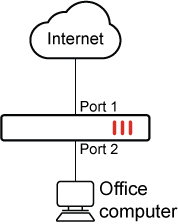
To block HTTPS upload traffic that includes sensitive keywords in the GUI:
  1. Configure the DLP dictionary:

    1. Go to Security Profiles > Data Loss Prevention, select the Dictionary tab, then click Create New.

    2. Set Name to llmapps.

    3. In the Dictionary Entries table click Create New:

      1. Set Type to keyword.

      2. Set Pattern to fortinet.

      3. Enable Case sensitive.

      4. Click OK.

    4. Repeat step c and set Pattern to source code.

    5. Click OK.

  2. Configure the DLP sensor:

    1. Go to Security Profiles > Data Loss Prevention, select the Sensor tab, then click Create New.

    2. Set Name to llmapps.

    3. In the Sensor Entries section, click Add. The Select Entries pane is displayed.

    4. Select Managed Locally from the dropdown menu.

    5. Select llmapps and click Apply.

    6. Click OK.

  3. Configure the DLP profile:

    1. Go to Security Profiles > Data Loss Prevention, select the Profile tab, then click Create New.

    2. Set Name to llmapps.

    3. In the Rules section, click Create New:

      1. Configure the following settings:

        Name

        llmapps1

        Sensors

        llmapps

        Severity

        Critical

        Action

        Block

        Type

        File

        File type

        builtin-patterns

        Protocol

        HTTP-POST

      2. Click OK.

    4. In the Rules section, click Create New again:

      1. Configure the following settings:

        Name

        llmapps2

        Sensors

        llmapps

        Severity

        Critical

        Action

        Block

        Type

        Message

        Protocol

        HTTP-POST

      2. Click OK.

    5. Click OK to save the profile.

    6. Unset the file type option to enable filtering of all file types, including unknown ones:

      config dlp profile
          edit "llmapps"
              config rule
                  edit 1
                      unset file-type 
                  next
              end
          next
      end
  4. Configure the firewall address for the LLM application:

    1. Go to Policy & Objects > Addresses, select the Standard tab, then click Create New.

    2. Set the following:

      Name

      <name>

      Type

      FQDN

      FQDN

      See FQDN for the FQDN on the specific LLM application.

    3. Click OK.

  5. Add the firewall address to a group:

    1. Go to Policy & Objects > Addresses, select the Address Group tab, then click Create New.

    2. Set the following:

      Group name

      llmapps

      Members

      ChatGpt, Gemini, DeepSeek

  6. Add the DLP profile and the address group to a firewall policy:

    1. Go to Policy & Objects > Firewall Policy and click Create New.

    2. Set the Inspection Mode to Proxy-based.

    3. Set the Destination to llmapps.

    4. In the Security Profiles section:

      1. Enable Application control and select the profile that QUIC is blocked in. In this example, the default profile is selected.

      2. Enable DLP Profile and select llmapps.

    5. Set SSL Inspection to deep-inspection.

    6. Configure the other settings as needed.

    7. Click OK.

To block HTTPS upload traffic that includes sensitive keywords in the CLI:
  1. Configure the DLP dictionary:

    config dlp dictionary
        edit "llmapps"
            config entries
                edit 1
                    set type "keyword"
                    set pattern "source code"
                    set ignore-case enable
                next
                edit 2
                    set type "keyword"
                    set pattern "fortinet"
                    set ignore-case enable
                next
            end
        next
    end
  2. Configure the DLP sensor:

    config dlp sensor
        edit "llmapps"
            config entries
                edit 1
                    set dictionary "llmapps"
                next
            end
        next
    end
  3. Configure the DLP profile:

    config dlp profile
        edit "llmapps"
            set feature-set proxy
            config rule
                edit 1
                    set name "llmapps1"
                    set severity critical
                    set proto http-post
                    set filter-by sensor
                    set sensor "llmapps"
                    set action block
                next
                edit 2
                    set name "llmapps2"
                    set type message
                    set proto http-post
                    set filter-by sensor
                    set sensor "llmapps"
                    set action block
                next
            end
        next
    end
  4. Configure the firewall address for the LLM application:

    config firewall address
        edit <name>
            set type fqdn
            set fqdn <string>
        next
    end

    See FQDN for the FQDN on the specific LLM application.

  5. Add the firewall addresses to a group:

    config firewall addrgrp
        edit "llmapps"
            set member "ChatGpt" "Gemini" "DeepSeek"
        next
    end
  6. Add the DLP profile and the FQDN address to a firewall policy:

    config firewall policy
        edit 1
            set name "llmapps "
            set srcintf "port2"
            set dstintf "port1"
            set action accept
            set srcaddr "all"
            set dstaddr "llmapps"
            set schedule "always"
            set service "ALL"
            set utm-status enable
            set inspection-mode proxy
            set ssl-ssh-profile "deep-inspection"
            set dlp-profile "llmapps"
            set application-list "default"
            set nat enable
        next
    end

FQDN

A firewall address should be created for each LLM application:

LLM application

FQDN

ChatGPT

chat.openai.com

Gemini

gemini.google.com

DeepSeek

chat.deepseek.com

Verification

ChatGPT:
  1. Visit https://chat.openai.com.

  2. Search for any phrase that includes keywords set up in the DLP dictionary.
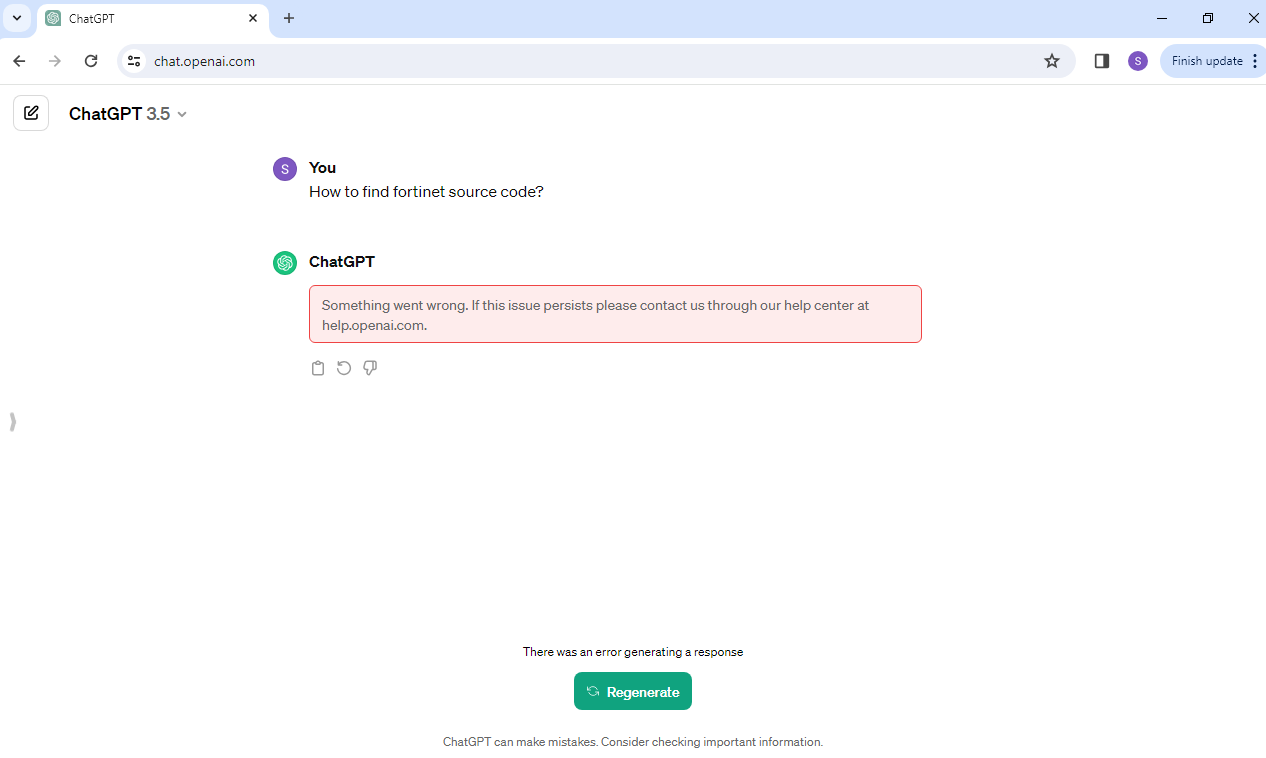
  3. Verify that the request failed and an error was generated.

  4. Review the log that was generated when the attempt was made to send an HTTP POST request containing sensitive keywords:

    1: date=2024-03-15 time=09:59:35 eventtime=1710453575538415503 tz="+1200" logid="0954024576" type="utm" subtype="dlp" eventtype="dlp" level="warning" vd="root" ruleid=1 rulename="llmapps1" dlpextra="Sensor 'llmapps' matching any: ('llmapps'=1) >= 1; match." filtertype="sensor" filtercat="file" severity="critical" policyid=1 poluuid="eea32b46-db4e-51ee-92a9-b46e5580db33" policytype="policy" sessionid=69254 epoch=424445846 eventid=1 srcip=13.13.13.13 srcport=56747 srccountry="United States" srcintf="port2" srcintfrole="undefined" srcuuid="d2f06fda-15e7-51ee-0d22-faaf5170dad2" dstip=104.18.37.228 dstport=443 dstcountry="United States" dstintf="port1" dstintfrole="undefined"
Gemini:
  1. Visit https://gemini.google.com .

  2. Search for any phrase that includes keywords set up in the DLP dictionary.
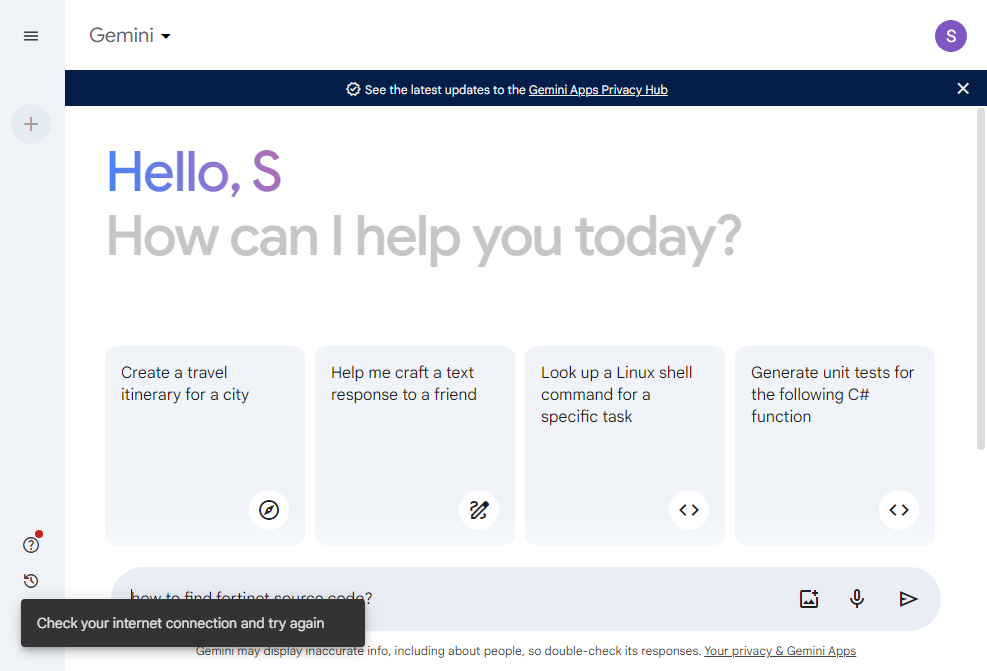
  3. Verify that the request failed and an error was generated.

  4. Review the log that was generated when the attempt was made to send an HTTP POST request containing sensitive keywords:

    1: date=2024-03-15 time=12:46:08 eventtime=1710463568053453203 tz="+1200" logid="0954024576" type="utm" subtype="dlp" eventtype="dlp" level="warning" vd="root" ruleid=1 rulename="llmapps1" dlpextra="Sensor 'llmapps' matching any: ('llmapps'=1) >= 1; match." filtertype="sensor" filtercat="file" severity="critical" policyid=1 poluuid="eea32b46-db4e-51ee-92a9-b46e5580db33" policytype="policy" sessionid=77832 epoch=424449372 eventid=1 srcip=13.13.13.13 srcport=58137 srccountry="United States" srcintf="port2" srcintfrole="undefined" srcuuid="d2f06fda-15e7-51ee-0d22-faaf5170dad2" dstip=142.251.33.110 dstport=443 dstcountry="United States" dstintf="port1" dstintfrole="undefined" dstuuid="d2f06fda-15e7-51ee-0d22-faaf5170dad2" proto=6 service="HTTPS" filetype="unknown" direction="outgoing" action="block" hostname="gemini.google.com" url="https://gemini.google.com/_/BardChatUi/data/assistant.lamda.BardFrontendService/StreamGenerate?bl=boq_assistant-bard-web-server_20240313.09_p0&f.sid=2103257702826212605&hl=en&_reqid=1474614&rt=c" agent="Mozilla/5.0 (Windows NT 10.0; Win64; x64) AppleWebKit/537.36 (KHTML, like Gecko) Chrome/122.0.0.0 Safari/537.36" httpmethod="POST" referralurl="https://gemini.google.com/" filename="StreamGenerate" filesize=2211 profile="llmapps"
DeepSeek:
  1. Visit https://chat.deepseek.com.

  2. Search for any phrase that includes keywords set up in the DLP dictionary.
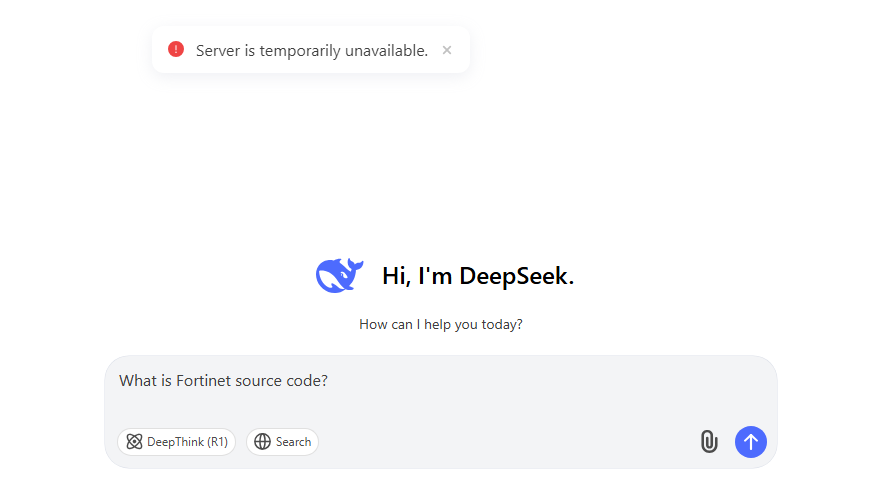
  3. Verify that the request failed and an error was generated.

  4. Review the log that was generated when the attempt was made to send an HTTP POST request containing sensitive keywords:

    1: date=2025-03-13 time=05:42:35 eventtime=1741797755180776410 tz="+1200" logid="0954024576" type="utm" subtype="dlp" eventtype="dlp" level="warning" vd="root" ruleid=1 rulename="llmapps1" dlpextra="Sensor 'lmapps' matching any: ('llmapps'=2) >= 1; match." filtertype="sensor" filtercat="file" severity="critical" policyid=3 poluuid="27681982-ff5c-51ef-61f2-c3db5a98100c" policytype="policy" sessionid=22163 epoch=1199369450 eventid=1 srcip=10.10.10.13 srcport=65353 srccountry="Reserved" srcintf="port2" srcintfrole="undefined" srcuuid="d2f06fda-15e7-51ee-0d22-faaf5170dad2" dstip=104.18.27.90 dstport=443 dstcountry="United States" dstintf="port1" dstintfrole="undefined" dstuuid="bb60c556-ff59-51ef-216d-86ad81ccf871" proto=6 service="HTTPS" filetype="unknown" direction="outgoing" action="block" hostname="chat.deepseek.com" url="https://chat.deepseek.com/api/v0/chat/completion" agent="Mozilla/5.0 (Windows NT 10.0; Win64; x64) AppleWebKit/537.36 (KHTML, like Gecko) Chrome/131.0.0.0 Safari/537.36" httpmethod="POST" referralurl="https://chat.deepseek.com/a/chat/s/fcd6fce1-bdd8-4999-b49f-c27eacb1f960" filename="completion" filesize=187 profile="llmapps"

Protecting GenAI Access using DLP

Protecting GenAI Access using DLP

The FortiGate Data Loss Prevention (DLP) system helps safeguard your network by inspecting traffic for sensitive data patterns. It scans both inbound and outbound traffic, and based on predefined rules, it can block, log, allow, or quarantine data that matches these patterns.

To prevent the upload of sensitive information to Large Language Model (LLM) applications over HTTPS, FortiGate can block traffic containing specific keywords using the predefined "keyword" data type in the DLP dictionary.

Since web-based chatbot implementations are highly dynamic and can vary significantly, it is recommended to configure both message-based and file-based DLP rules to improve detection accuracy. While this approach enhances protection, it may not be completely foolproof.

For stronger security, it is advisable to restrict access to LLM applications entirely. This can be achieved by:

  • Applying a web filter profile with the FortiGuard Artificial Intelligence Technology category set to block, or

  • Using an application control profile with the Generative AI category

This topic includes examples that incorporate several DLP use cases:

Example 1: prevent sensitive LLM searches in the browser

In this example, a user is conducting a search on an LLM application in the Chrome browser on an office computer, using a sensitive keyword that has been configured in the DLP dictionary. The FortiGate intercepts this traffic using deep inspection and prevents the search that contains sensitive keywords because it matches the DLP profile that has been set up on this FortiGate.

When a sensitive keyword is included in HTTPS upload traffic, the request is blocked and a DLP log is generated.

To block HTTPS upload traffic that includes sensitive keywords in the GUI:
  1. Configure the DLP dictionary:

    1. Go to Security Profiles > Data Loss Prevention, select the Dictionary tab, then click Create New.

    2. Set Name to llmapps.

    3. In the Dictionary Entries table click Create New:

      1. Set Type to keyword.

      2. Set Pattern to fortinet.

      3. Enable Case sensitive.

      4. Click OK.

    4. Repeat step c and set Pattern to source code.

    5. Click OK.

  2. Configure the DLP sensor:

    1. Go to Security Profiles > Data Loss Prevention, select the Sensor tab, then click Create New.

    2. Set Name to llmapps.

    3. In the Sensor Entries section, click Add. The Select Entries pane is displayed.

    4. Select Managed Locally from the dropdown menu.

    5. Select llmapps and click Apply.

    6. Click OK.

  3. Configure the DLP profile:

    1. Go to Security Profiles > Data Loss Prevention, select the Profile tab, then click Create New.

    2. Set Name to llmapps.

    3. In the Rules section, click Create New:

      1. Configure the following settings:

        Name

        llmapps1

        Sensors

        llmapps

        Severity

        Critical

        Action

        Block

        Type

        File

        File type

        builtin-patterns

        Protocol

        HTTP-POST

      2. Click OK.

    4. In the Rules section, click Create New again:

      1. Configure the following settings:

        Name

        llmapps2

        Sensors

        llmapps

        Severity

        Critical

        Action

        Block

        Type

        Message

        Protocol

        HTTP-POST

      2. Click OK.

    5. Click OK to save the profile.

    6. Unset the file type option to enable filtering of all file types, including unknown ones:

      config dlp profile
          edit "llmapps"
              config rule
                  edit 1
                      unset file-type 
                  next
              end
          next
      end
  4. Configure the firewall address for the LLM application:

    1. Go to Policy & Objects > Addresses, select the Standard tab, then click Create New.

    2. Set the following:

      Name

      <name>

      Type

      FQDN

      FQDN

      See FQDN for the FQDN on the specific LLM application.

    3. Click OK.

  5. Add the firewall address to a group:

    1. Go to Policy & Objects > Addresses, select the Address Group tab, then click Create New.

    2. Set the following:

      Group name

      llmapps

      Members

      ChatGpt, Gemini, DeepSeek

  6. Add the DLP profile and the address group to a firewall policy:

    1. Go to Policy & Objects > Firewall Policy and click Create New.

    2. Set the Inspection Mode to Proxy-based.

    3. Set the Destination to llmapps.

    4. In the Security Profiles section:

      1. Enable Application control and select the profile that QUIC is blocked in. In this example, the default profile is selected.

      2. Enable DLP Profile and select llmapps.

    5. Set SSL Inspection to deep-inspection.

    6. Configure the other settings as needed.

    7. Click OK.

To block HTTPS upload traffic that includes sensitive keywords in the CLI:
  1. Configure the DLP dictionary:

    config dlp dictionary
        edit "llmapps"
            config entries
                edit 1
                    set type "keyword"
                    set pattern "source code"
                    set ignore-case enable
                next
                edit 2
                    set type "keyword"
                    set pattern "fortinet"
                    set ignore-case enable
                next
            end
        next
    end
  2. Configure the DLP sensor:

    config dlp sensor
        edit "llmapps"
            config entries
                edit 1
                    set dictionary "llmapps"
                next
            end
        next
    end
  3. Configure the DLP profile:

    config dlp profile
        edit "llmapps"
            set feature-set proxy
            config rule
                edit 1
                    set name "llmapps1"
                    set severity critical
                    set proto http-post
                    set filter-by sensor
                    set sensor "llmapps"
                    set action block
                next
                edit 2
                    set name "llmapps2"
                    set type message
                    set proto http-post
                    set filter-by sensor
                    set sensor "llmapps"
                    set action block
                next
            end
        next
    end
  4. Configure the firewall address for the LLM application:

    config firewall address
        edit <name>
            set type fqdn
            set fqdn <string>
        next
    end

    See FQDN for the FQDN on the specific LLM application.

  5. Add the firewall addresses to a group:

    config firewall addrgrp
        edit "llmapps"
            set member "ChatGpt" "Gemini" "DeepSeek"
        next
    end
  6. Add the DLP profile and the FQDN address to a firewall policy:

    config firewall policy
        edit 1
            set name "llmapps "
            set srcintf "port2"
            set dstintf "port1"
            set action accept
            set srcaddr "all"
            set dstaddr "llmapps"
            set schedule "always"
            set service "ALL"
            set utm-status enable
            set inspection-mode proxy
            set ssl-ssh-profile "deep-inspection"
            set dlp-profile "llmapps"
            set application-list "default"
            set nat enable
        next
    end

FQDN

A firewall address should be created for each LLM application:

LLM application

FQDN

ChatGPT

chat.openai.com

Gemini

gemini.google.com

DeepSeek

chat.deepseek.com

Verification

ChatGPT:
  1. Visit https://chat.openai.com.

  2. Search for any phrase that includes keywords set up in the DLP dictionary.

  3. Verify that the request failed and an error was generated.

  4. Review the log that was generated when the attempt was made to send an HTTP POST request containing sensitive keywords:

    1: date=2024-03-15 time=09:59:35 eventtime=1710453575538415503 tz="+1200" logid="0954024576" type="utm" subtype="dlp" eventtype="dlp" level="warning" vd="root" ruleid=1 rulename="llmapps1" dlpextra="Sensor 'llmapps' matching any: ('llmapps'=1) >= 1; match." filtertype="sensor" filtercat="file" severity="critical" policyid=1 poluuid="eea32b46-db4e-51ee-92a9-b46e5580db33" policytype="policy" sessionid=69254 epoch=424445846 eventid=1 srcip=13.13.13.13 srcport=56747 srccountry="United States" srcintf="port2" srcintfrole="undefined" srcuuid="d2f06fda-15e7-51ee-0d22-faaf5170dad2" dstip=104.18.37.228 dstport=443 dstcountry="United States" dstintf="port1" dstintfrole="undefined"
Gemini:
  1. Visit https://gemini.google.com .

  2. Search for any phrase that includes keywords set up in the DLP dictionary.

  3. Verify that the request failed and an error was generated.

  4. Review the log that was generated when the attempt was made to send an HTTP POST request containing sensitive keywords:

    1: date=2024-03-15 time=12:46:08 eventtime=1710463568053453203 tz="+1200" logid="0954024576" type="utm" subtype="dlp" eventtype="dlp" level="warning" vd="root" ruleid=1 rulename="llmapps1" dlpextra="Sensor 'llmapps' matching any: ('llmapps'=1) >= 1; match." filtertype="sensor" filtercat="file" severity="critical" policyid=1 poluuid="eea32b46-db4e-51ee-92a9-b46e5580db33" policytype="policy" sessionid=77832 epoch=424449372 eventid=1 srcip=13.13.13.13 srcport=58137 srccountry="United States" srcintf="port2" srcintfrole="undefined" srcuuid="d2f06fda-15e7-51ee-0d22-faaf5170dad2" dstip=142.251.33.110 dstport=443 dstcountry="United States" dstintf="port1" dstintfrole="undefined" dstuuid="d2f06fda-15e7-51ee-0d22-faaf5170dad2" proto=6 service="HTTPS" filetype="unknown" direction="outgoing" action="block" hostname="gemini.google.com" url="https://gemini.google.com/_/BardChatUi/data/assistant.lamda.BardFrontendService/StreamGenerate?bl=boq_assistant-bard-web-server_20240313.09_p0&f.sid=2103257702826212605&hl=en&_reqid=1474614&rt=c" agent="Mozilla/5.0 (Windows NT 10.0; Win64; x64) AppleWebKit/537.36 (KHTML, like Gecko) Chrome/122.0.0.0 Safari/537.36" httpmethod="POST" referralurl="https://gemini.google.com/" filename="StreamGenerate" filesize=2211 profile="llmapps"
DeepSeek:
  1. Visit https://chat.deepseek.com.

  2. Search for any phrase that includes keywords set up in the DLP dictionary.

  3. Verify that the request failed and an error was generated.

  4. Review the log that was generated when the attempt was made to send an HTTP POST request containing sensitive keywords:

    1: date=2025-03-13 time=05:42:35 eventtime=1741797755180776410 tz="+1200" logid="0954024576" type="utm" subtype="dlp" eventtype="dlp" level="warning" vd="root" ruleid=1 rulename="llmapps1" dlpextra="Sensor 'lmapps' matching any: ('llmapps'=2) >= 1; match." filtertype="sensor" filtercat="file" severity="critical" policyid=3 poluuid="27681982-ff5c-51ef-61f2-c3db5a98100c" policytype="policy" sessionid=22163 epoch=1199369450 eventid=1 srcip=10.10.10.13 srcport=65353 srccountry="Reserved" srcintf="port2" srcintfrole="undefined" srcuuid="d2f06fda-15e7-51ee-0d22-faaf5170dad2" dstip=104.18.27.90 dstport=443 dstcountry="United States" dstintf="port1" dstintfrole="undefined" dstuuid="bb60c556-ff59-51ef-216d-86ad81ccf871" proto=6 service="HTTPS" filetype="unknown" direction="outgoing" action="block" hostname="chat.deepseek.com" url="https://chat.deepseek.com/api/v0/chat/completion" agent="Mozilla/5.0 (Windows NT 10.0; Win64; x64) AppleWebKit/537.36 (KHTML, like Gecko) Chrome/131.0.0.0 Safari/537.36" httpmethod="POST" referralurl="https://chat.deepseek.com/a/chat/s/fcd6fce1-bdd8-4999-b49f-c27eacb1f960" filename="completion" filesize=187 profile="llmapps"