

Inter-VDOM routing
VDOM links allow VDOMs to communicate internally without using additional physical interfaces.
Inter-VDOM routing is the communication between VDOMs. VDOM links are virtual interfaces that connect VDOMs. A VDOM link contains a pair of interfaces, each one connected to a VDOM and forming either end of the inter-VDOM connection.
When VDOMs are configured on your FortiGate unit, configuring inter-VDOM routing and VDOM links is like creating a VLAN interface. VDOM links can be managed in either the CLI or in the network interface list in the GUI.

|
VDOM link does not support traffic offload. If you want to use traffic offload, use NPU-VDOM-LINK. |
To configure a VDOM link in the GUI:
- In the Global VDOM, go to Network > Interfaces.
- Click Create New > VDOM Link.
- Configure the fields, including the Name, Virtual Domain, IP information, Administrative Access, and others, then click OK.
|
|
By default, VDOM links are created as point-to-point (ppp) links. If required, the link type can be changed in the CLI. For example, when running OSPF in IPv6, a link-local address is required in order to communicate with OSPF neighbors. For a VDOM link to obtain a link-local address its type must be set to |
To configure a VDOM link in the CLI:
config global
    config system vdom-link
        edit "<vdom-link-name>"
            set type {ppp | ethernet}
        next
    end
    config system interface
        edit "<vdom-link-name0>"
            set vdom "<VDOM Name>"
            set type vdom-link
        next
        edit "<vdom-link-name1>"
            set vdom "<VDOM Name>"
            set type vdom-link
        next
    end
end
To delete a VDOM link in the GUI:
- In the Global VDOM, go to Network > Interfaces.
- Select a VDOM Link and click Delete.
To delete a VDOM link in the CLI:
config global
    config system vdom-link
        delete <VDOM-LINK-Name>
    end
end
Example
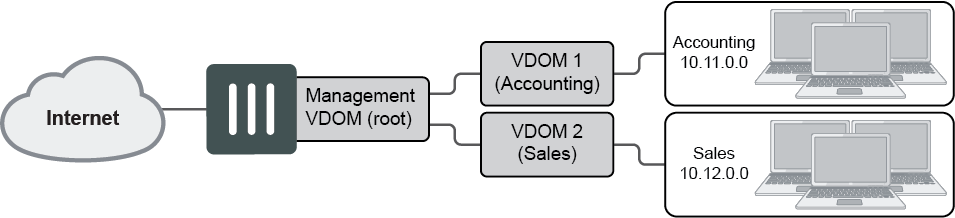
This example shows how to configure a FortiGate unit to use inter-VDOM routing.
Two departments of a company, Accounting and Sales, are connected to one FortiGate. The company uses a single ISP to connect to the Internet.
This example includes the following general steps. We recommend following the steps in the order below.
Create the VDOMs
To enable VDOMs:
config system global
    set vdom-mode multi-vdom
end
You will be logged out of the device when VDOM mode is enabled.
To create the Sales and Accounting VDOMs:
config global
    config vdom
        edit Accounting
        next
        edit Sales
        next
    end
end
Configure the physical interfaces
Next, configure the physical interfaces. This example uses three interfaces on the FortiGate unit: port2 (internal), port3 (DMZ), and port1 (external). Port2 and port3 interfaces each have a department’s network connected. Port1 is for all traffic to and from the Internet and uses DHCP to configure its IP address, which is common with many ISPs.
To configure the interfaces:
config global
    config system interface
        edit port2
            set alias AccountingLocal
            set vdom Accounting
            set mode static
            set ip 172.100.1.1 255.255.0.0
            set allowaccess https ping ssh
            set description "The accounting dept. internal interface"
        next
        edit port3
            set alias SalesLocal
            set vdom Sales
            set mode static
            set ip 192.168.1.1 255.255.0.0
            set allowaccess https ping ssh
            set description "The sales dept. internal interface"
        next
        edit port1
            set alias ManagementExternal
            set vdom root
            set mode dhcp
            set allowaccess https ssh snmp
            set description "The system wide management interface."
        next
    end
end
Configure the VDOM links
To complete the connection between each VDOM and the management VDOM, add the two VDOM links. One pair is the Accounting – management link and the other is the Sales – management link.
When configuring inter-VDOM links, you do not have to assign IP addresses to the links unless you are using advanced features such as dynamic routing that require them. Not assigning IP addresses results in faster configuration and more available IP addresses on your networks.
To configure the Accounting and management VDOM link:
config global
    config system vdom-link
        edit AccountVlnk
        next
    end
    config system interface
        edit AccountVlnk0
            set vdom Accounting
            set ip 11.11.11.2 255.255.255.0
            set allowaccess https ping ssh
            set description "Accounting side of the VDOM link"
        next
        edit AccountVlnk1
            set vdom root
            set ip 11.11.11.1 255.255.255.0
            set allowaccess https ping ssh
            set description "Management side of the VDOM link"
        next
    end
end
To configure the Sales and management VDOM link:
config global
    config system vdom-link
        edit SalesVlnk
        next
    end
    config system interface
        edit SalesVlnk0
            set vdom Sales
            set ip 12.12.12.2 255.255.255.0
            set allowaccess https ping ssh
            set description "Sales side of the VDOM link"
        next
        edit SalesVlnk1
            set vdom root
            set ip 12.12.12.1 255.255.255.0
            set allowaccess https ping ssh
            set description "Management side of the VDOM link"
        next
    end
end
Configure the firewall and security profile
With the VDOMs, physical interfaces, and VDOM links configured, the firewall must now be configured to allow the proper traffic. Firewalls are configured per-VDOM, and firewall objects and routes must be created for each VDOM separately.
To configure the firewall policies from AccountingLocal to Internet:
config vdom
    edit Accounting
        config firewall policy
            edit 1
                set name "Accounting-Local-to-Management"
                set srcintf port2
                set dstintf AccountVlnk0
                set srcaddr all
                set dstaddr all
                set action accept
                set schedule always
                set service ALL
                set nat enable
            next
        end
    next
    edit root
        config firewall policy
            edit 2
                set name "Accounting-VDOM-to-Internet"
                set srcintf AccountVlnk1
                set dstintf port1
                set srcaddr all
                set dstaddr all
                set action accept
                set schedule always
                set service ALL
                set nat enable
            next
        end
    next
end
To configure the firewall policies from SalesLocal to the Internet:
config vdom
    edit Sales
        config firewall policy
            edit 3
                set name "Sales-local-to-Management"
                set srcintf port3
                set dstintf SalesVlnk0
                set srcaddr all
                set dstaddr all
                set action accept
                set schedule always
                set service ALL
                set nat enable
            next
        end
    next
    edit root
        config firewall policy
            edit 4
                set name "Sales-VDOM-to-Internet"
                set srcintf SalesVlnk1
                set dstintf port1
                set srcaddr all
                set dstaddr all
                set action accept
                set schedule always
                set service ALL
                set nat enable
            next
        end
    next
end
Test the configuration
When the inter-VDOM routing has been configured, test the configuration to confirm proper operation. Testing connectivity ensures that physical networking connections, FortiGate unit interface configurations, and firewall policies are properly configured.
The easiest way to test connectivity is to use the ping and traceroute commands to confirm the connectivity of different routes on the network.
Test both from AccountingLocal to the internet and from SalesLocal to the internet.