
Fortinet white logo
Fortinet white logo

Administration Guide

Security Content Update

Security Content Update

Use the Profiles > Security > Security Content Update page to configure AV signature policies to define when and how Collector groups download AV signatures for each type (Active, Extended, Extreme, and URL DB) based on time-based rules and time zones.

To configure an AV signature policy:
  1. In the Profiles > Security > Security Content Update page, click the Add Policy button at the top left corner.

  2. Specify a name for the AV signature policy.

  3. Select the Collector groups that the AV signature policy applies to.

  4. Select the update method, which can be the following:

    Automatic FortiEndpoint automatically updates AV signatures to the latest or a specific version when it becomes available.
    Scheduled

    FortiEndpoint updates AV signatures to the latest or a specific version based on the configured schedule.

    Click Add Config to set up an update schedule. You can add multiple schedules.
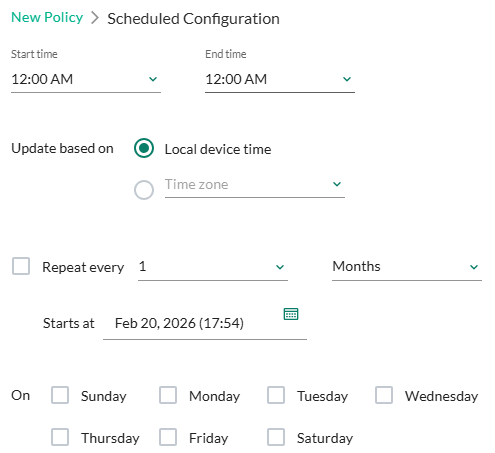
  5. Select the content types to update, which can be the following:

    • Active
    • Extended
    • Extreme
    • URL DB

    See the FortiOS documentation for details about the content types.

  6. Select the target version of AV signatures to update to, which can be the latest (default) or a specific version (you can specify the version for each type).

  7. Click Save to save the AV signature policy.

    The AV signature policy appears in the list.

  8. (Optional) Add or remove Collector groups for the AV signature policy in the Collector Groups column.

  9. Enable or disable the AV signature policy by clicking the Enabled/Disabled button in the State column.

    Once the configuration update with the new AV Signature updates, the Collectors will retrieve and download the signature updates according to the policy.

The AV signature versions are displayed at the top of the page.

Security Content Update

Security Content Update

Use the Profiles > Security > Security Content Update page to configure AV signature policies to define when and how Collector groups download AV signatures for each type (Active, Extended, Extreme, and URL DB) based on time-based rules and time zones.

To configure an AV signature policy:
  1. In the Profiles > Security > Security Content Update page, click the Add Policy button at the top left corner.

  2. Specify a name for the AV signature policy.

  3. Select the Collector groups that the AV signature policy applies to.

  4. Select the update method, which can be the following:

    Automatic FortiEndpoint automatically updates AV signatures to the latest or a specific version when it becomes available.
    Scheduled

    FortiEndpoint updates AV signatures to the latest or a specific version based on the configured schedule.

    Click Add Config to set up an update schedule. You can add multiple schedules.

  5. Select the content types to update, which can be the following:

    • Active
    • Extended
    • Extreme
    • URL DB

    See the FortiOS documentation for details about the content types.

  6. Select the target version of AV signatures to update to, which can be the latest (default) or a specific version (you can specify the version for each type).

  7. Click Save to save the AV signature policy.

    The AV signature policy appears in the list.

  8. (Optional) Add or remove Collector groups for the AV signature policy in the Collector Groups column.

  9. Enable or disable the AV signature policy by clicking the Enabled/Disabled button in the State column.

    Once the configuration update with the new AV Signature updates, the Collectors will retrieve and download the signature updates according to the policy.

The AV signature versions are displayed at the top of the page.