Fortinet white logo
Fortinet white logo

Administration Guide

All Events

All Events

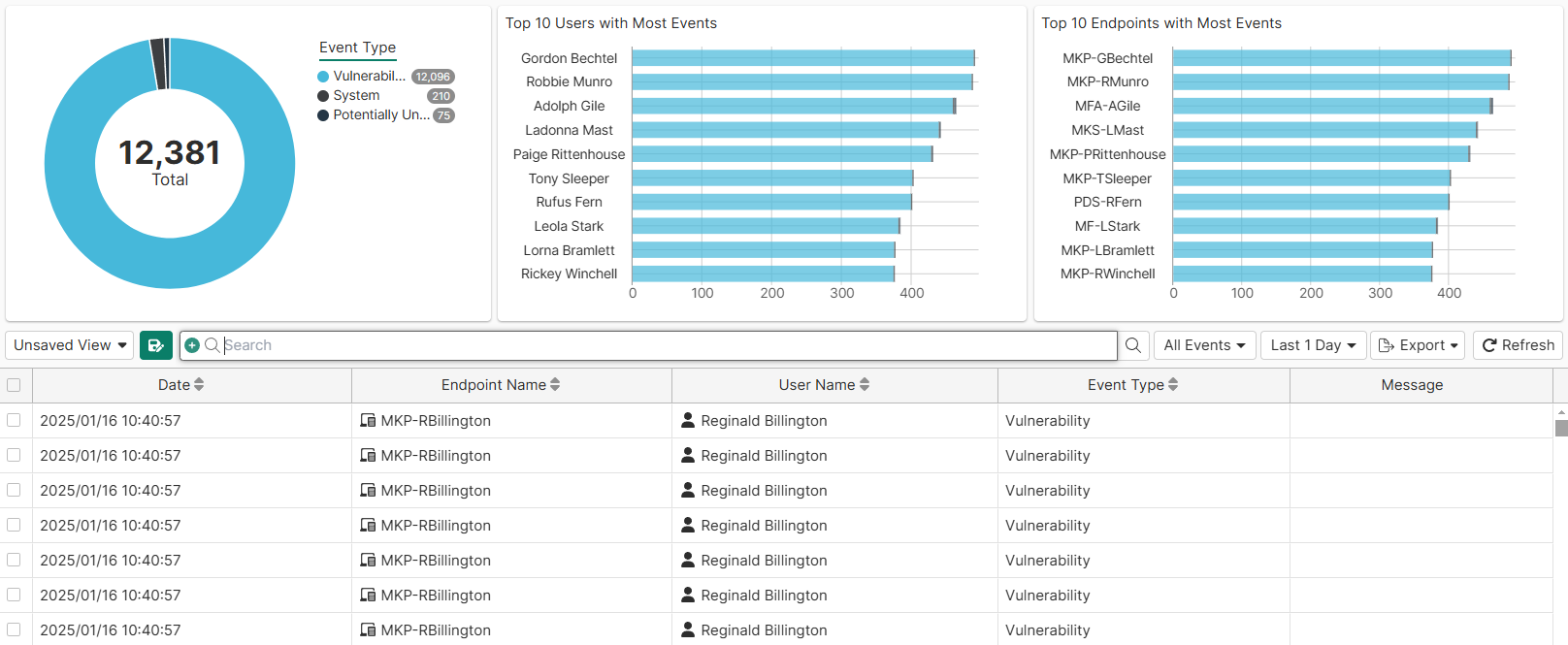
There is an Endpoints > All Events page available where you can view all events from all endpoints and take actions as necessary.

For Web Filter events, only events of the Block and Warn categories are displayed here. Events of the Allow and Monitor categories are not displayed.

The top of the page contains the following charts:

Chart

Description

Event Type

Donut chart that shows the ratio of events by type, the total number of events, and total number of each event type. You can click into a chart section to filter only for the selected event type.

Top 10 Users with Most Events

Bar chart that displays the endpoint users with the most endpoint events.

Top 10 Endpoints with Most Events

Bar chart that displays the endpoints with the most events.

The bottom of the page displays the endpoint event list. You can filter the list by the columns. For example, you can filter the list for a specific start and end date to only view events that occurred during that time range.
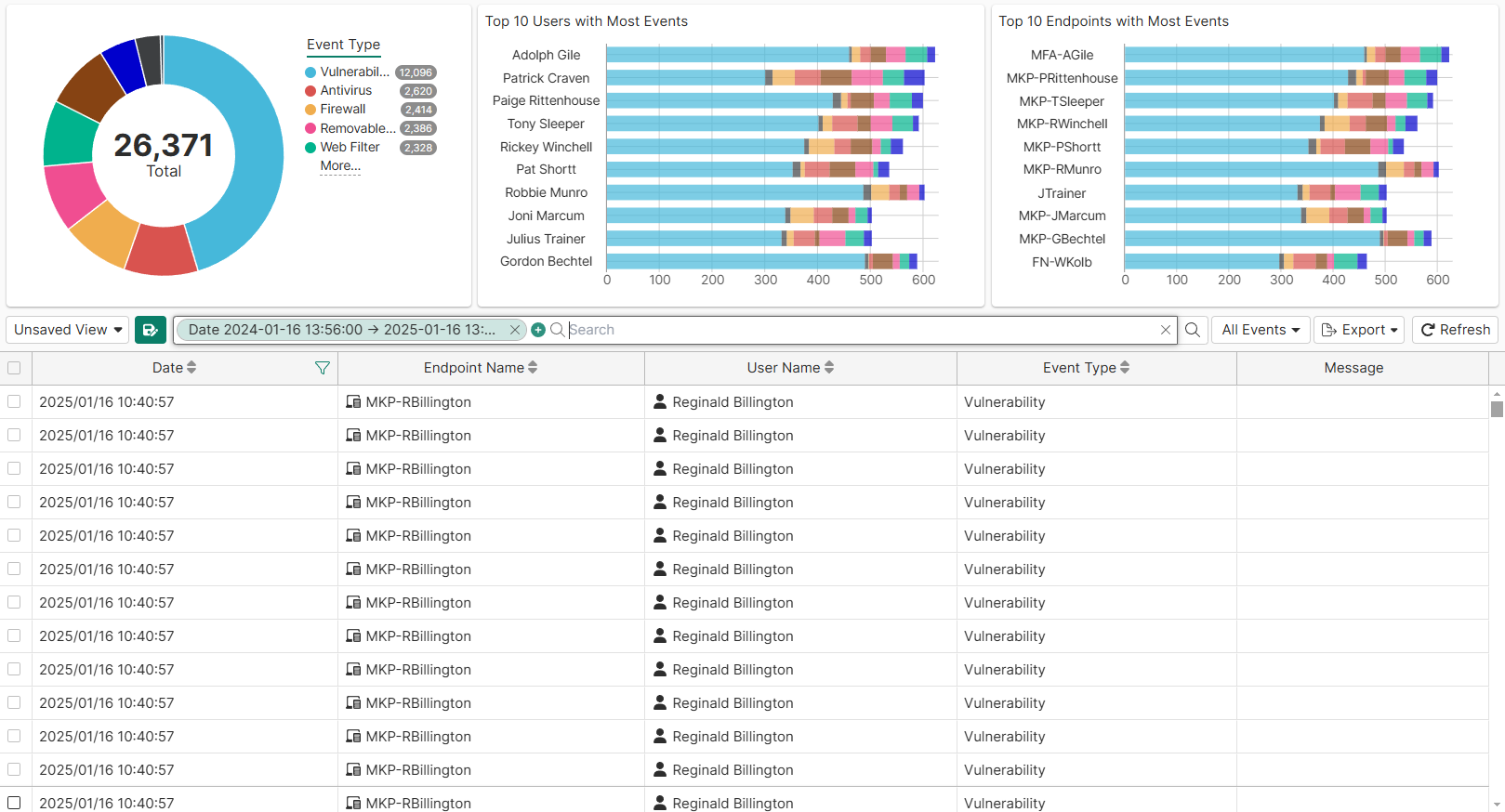
Clicking a donut chart section filters the endpoint list by that event type. The following shows only endpoint Vulnerability events for the selected time range:
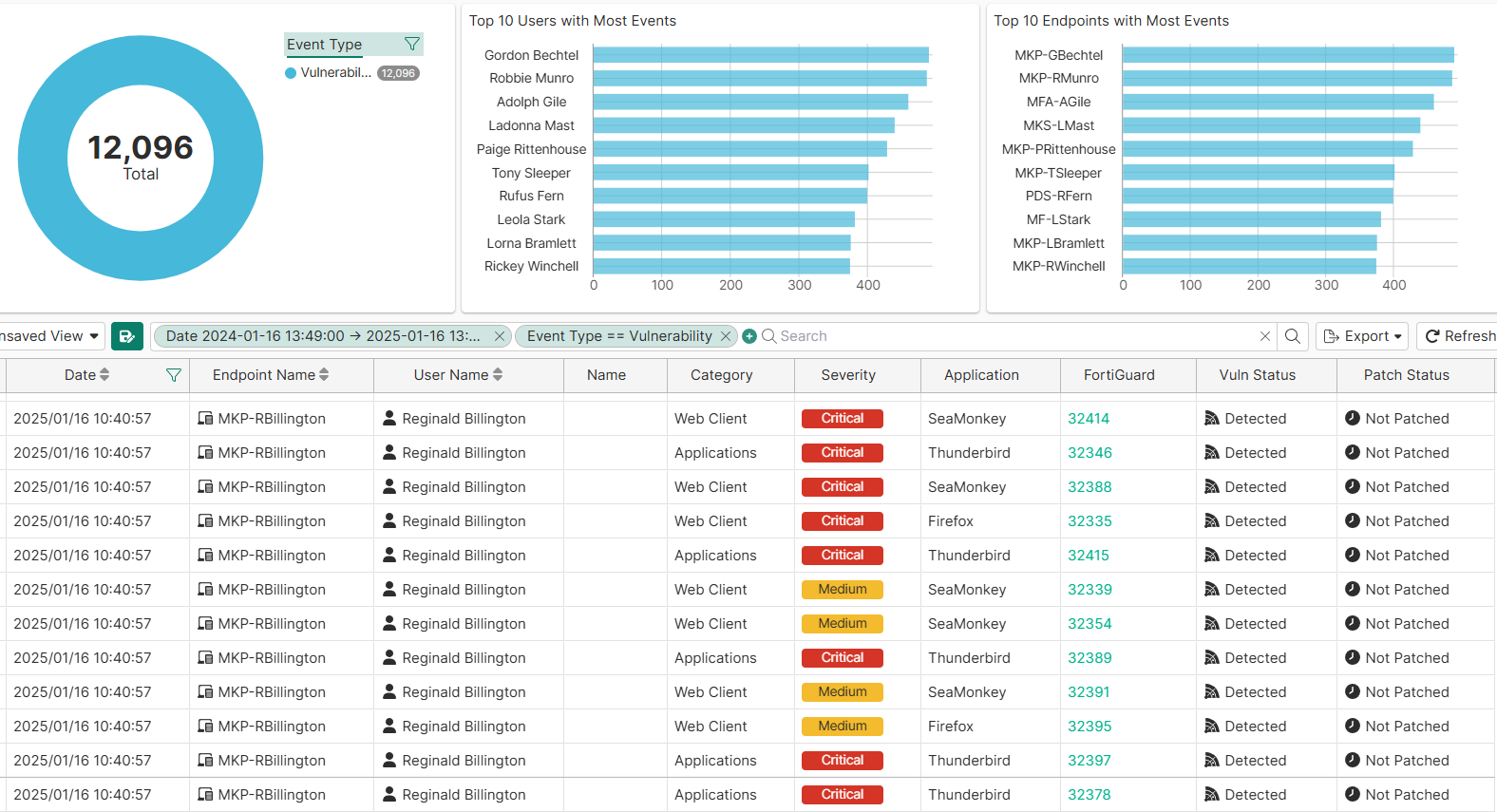
You can also select the desired event type from the All Events dropdown menu on the right.

You can create, update, or delete an event view. An event view is a saved combination of filters for the endpoint event list. When you save a view, you can simply select it later instead of reconfiguring the desired filters.

To create an event view:
  1. In Endpoints > All Events, configure the desired filters.
  2. Beside Unsaved View, click the save icon.
  3. In the Create View pane, for Action, select Create View.
  4. Configure other fields as desired, then click OK.
To export an event list:
  1. In Endpoints > All Events, in the upper right corner, click Export.
  2. Select CSV or JSON.
  3. Export the file as desired.

When you select events in the event list, you can use the Actions dropdown list to apply actions to the endpoints with the selected events. For descriptions of these actions, see Viewing the Endpoints pane.

All Events

All Events

There is an Endpoints > All Events page available where you can view all events from all endpoints and take actions as necessary.

For Web Filter events, only events of the Block and Warn categories are displayed here. Events of the Allow and Monitor categories are not displayed.

The top of the page contains the following charts:

Chart

Description

Event Type

Donut chart that shows the ratio of events by type, the total number of events, and total number of each event type. You can click into a chart section to filter only for the selected event type.

Top 10 Users with Most Events

Bar chart that displays the endpoint users with the most endpoint events.

Top 10 Endpoints with Most Events

Bar chart that displays the endpoints with the most events.

The bottom of the page displays the endpoint event list. You can filter the list by the columns. For example, you can filter the list for a specific start and end date to only view events that occurred during that time range.

Clicking a donut chart section filters the endpoint list by that event type. The following shows only endpoint Vulnerability events for the selected time range:

You can also select the desired event type from the All Events dropdown menu on the right.

You can create, update, or delete an event view. An event view is a saved combination of filters for the endpoint event list. When you save a view, you can simply select it later instead of reconfiguring the desired filters.

To create an event view:
  1. In Endpoints > All Events, configure the desired filters.
  2. Beside Unsaved View, click the save icon.
  3. In the Create View pane, for Action, select Create View.
  4. Configure other fields as desired, then click OK.
To export an event list:
  1. In Endpoints > All Events, in the upper right corner, click Export.
  2. Select CSV or JSON.
  3. Export the file as desired.

When you select events in the event list, you can use the Actions dropdown list to apply actions to the endpoints with the selected events. For descriptions of these actions, see Viewing the Endpoints pane.