
Fortinet white logo
Fortinet white logo

Administration Guide

Adding a security posture tag

Adding a security posture tag

To add a security posture tag:
  1. Go to Security Posture Tags > Tags, and click Create.
  2. In the Name field, enter the desired tag name.
  3. In the User Notification Message field, enter a message that explains to the end user why FortiOS denied their access. In FortiOS in Policy & Objects > ZTNA > Security Posture Tags, the Comments column displays the configured user notification message for a tag.
  4. Toggle Enabled on or off to enable or disable the rule.
  5. (Optional) In the Comments field, enter any desired comments.
  6. Click Add Rule.
  7. Configure the rules:
    1. For OS, select the desired OS. This affects what rule types are available.
    2. From the Rule Type dropdown list, select the rule type and configure the related options. Ensure that you click the + button after entering each criterion. See Security posture tagging rule types for descriptions of the rule types.
    3. Click Save.
    4. Configure additional rules as desired.
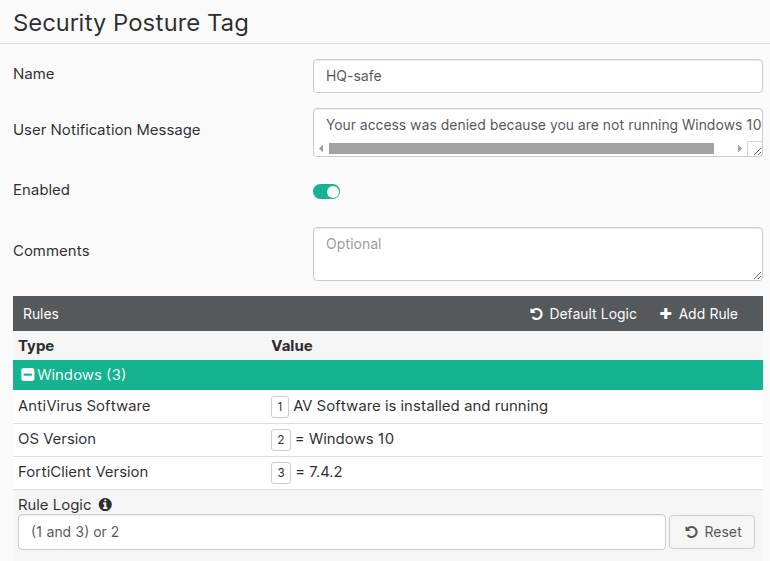
  8. By default, an endpoint must satisfy all configured rules to be eligible for the tag. You may want to apply the tag to endpoints that satisfy some, but not all, of the configured rules. In this case, you can modify the rule set logic. For example, consider that you want to apply the same tag to endpoints that fulfill one of the following criteria:
    • Running Windows 10
    • Running FortiClient 7.4.2 and antivirus (AV) software is installed and running

    With the default logic, an endpoint would be eligible for the rule set if it is running Windows 10 and FortiClient 7.4.2 and has AV software installed and running. To modify the rule set logic, do the following:

    1. Click Edit Logic.
    2. Clicking Edit Logic assigns numerical values to each configured rule. In the Rule Logic field, enter the desired logic for the rule set using the numerical values. You can use and and or to define the rule logic. You cannot use not when defining the rule logic. You can also use parentheses to group rules. For this example, you would enter (1 and 3) or 2, to indicate that endpoints that satisfy both the AV and FortiClient 7.4.2 rules (rules 1 and 3) or only the Windows 10 rule (rule 2) satisfy the rule set. To restore the default logic, you can click Default Logic.
  9. Click Save.

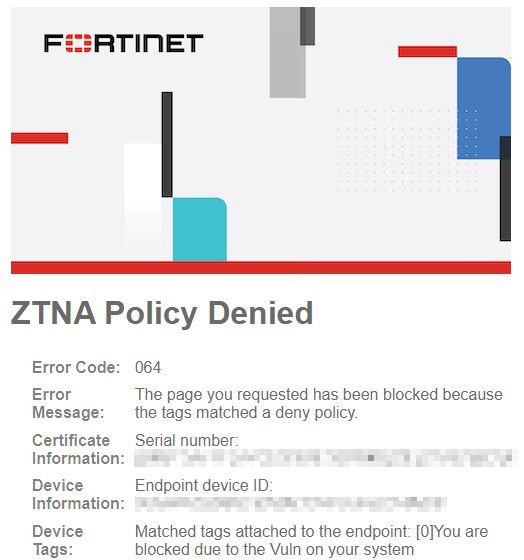
The following shows a ZTNA Policy Denied page. It shows the user notification message in the Device Tags field.
Related Videos

sidebar video

Configuring & Monitoring Zero Trust tags

  • 2,083 views
  • 4 years ago

Adding a security posture tag

Adding a security posture tag

To add a security posture tag:
  1. Go to Security Posture Tags > Tags, and click Create.
  2. In the Name field, enter the desired tag name.
  3. In the User Notification Message field, enter a message that explains to the end user why FortiOS denied their access. In FortiOS in Policy & Objects > ZTNA > Security Posture Tags, the Comments column displays the configured user notification message for a tag.
  4. Toggle Enabled on or off to enable or disable the rule.
  5. (Optional) In the Comments field, enter any desired comments.
  6. Click Add Rule.
  7. Configure the rules:
    1. For OS, select the desired OS. This affects what rule types are available.
    2. From the Rule Type dropdown list, select the rule type and configure the related options. Ensure that you click the + button after entering each criterion. See Security posture tagging rule types for descriptions of the rule types.
    3. Click Save.
    4. Configure additional rules as desired.
  8. By default, an endpoint must satisfy all configured rules to be eligible for the tag. You may want to apply the tag to endpoints that satisfy some, but not all, of the configured rules. In this case, you can modify the rule set logic. For example, consider that you want to apply the same tag to endpoints that fulfill one of the following criteria:
    • Running Windows 10
    • Running FortiClient 7.4.2 and antivirus (AV) software is installed and running

    With the default logic, an endpoint would be eligible for the rule set if it is running Windows 10 and FortiClient 7.4.2 and has AV software installed and running. To modify the rule set logic, do the following:

    1. Click Edit Logic.
    2. Clicking Edit Logic assigns numerical values to each configured rule. In the Rule Logic field, enter the desired logic for the rule set using the numerical values. You can use and and or to define the rule logic. You cannot use not when defining the rule logic. You can also use parentheses to group rules. For this example, you would enter (1 and 3) or 2, to indicate that endpoints that satisfy both the AV and FortiClient 7.4.2 rules (rules 1 and 3) or only the Windows 10 rule (rule 2) satisfy the rule set. To restore the default logic, you can click Default Logic.

  9. Click Save.

The following shows a ZTNA Policy Denied page. It shows the user notification message in the Device Tags field.