

Google Cloud Security Command Center (SCC)
To integrate EDR with Google Cloud Security Command Center (SCC) to collect activity log and issue eXtended detection alerts, you must configure Google SCC for threat logging and API access, configure an eXtended detection source connector with Google Cloud SCC in EDR, and enable the eXtended detection rules and EDR Threat Hunting events collection in EDR.
Prerequisites
Before you start integrating EDR with Google SCC, verify the following:
-
You have installed an EDR Core and configured the Core as a Jumpbox with connectivity to Google SCC. To request the EDR Core ISO, contact Fortinet Support.
- You have the Google Cloud licensing of Security Command Center Premium tier that has Event Threat Detection feature.
Configuring Google SCC
Perform the following steps to configure Google SCC:
- Enable threat logging in Google SCC:
- Enable Event Threat Detection per monitored project in the organization. The following Event Threat Detection rules are required:
- Malware: bad IP
- Malware: bad domain
Make sure to enable all log source types that are needed for these rules detectors to work, such as Cloud DNS logs and Admin Activity log. For more details about Event Threat Detection rules and the required log sources, see Google Documentation.
- Verify that raw log items now show on Google’s Logs Explorer and Event Threat Detection findings show on Security Command Center as described in Google Documentation.
- Enable Event Threat Detection per monitored project in the organization. The following Event Threat Detection rules are required:
- Enable API access to Google for fetching threat logs:
- Set up a service account on Google, as described in Google Documentation.
- Download the json key file for this service account. This file should be uploaded vian EDR console as part of setting up the extended detection source connector (see section below).
- Grant the following permission to the service account to allow API access:
Organization Admin (resourcemanager.organizationAdmin)
Security Command Center Admin (securityCenter.admin)
See Google Documentation for more details about permissions.
Setting up a connector for Google SCC
- Click the Add Connector button and select eXtended Detection Source in the Connectors dropdown list. The following displays:
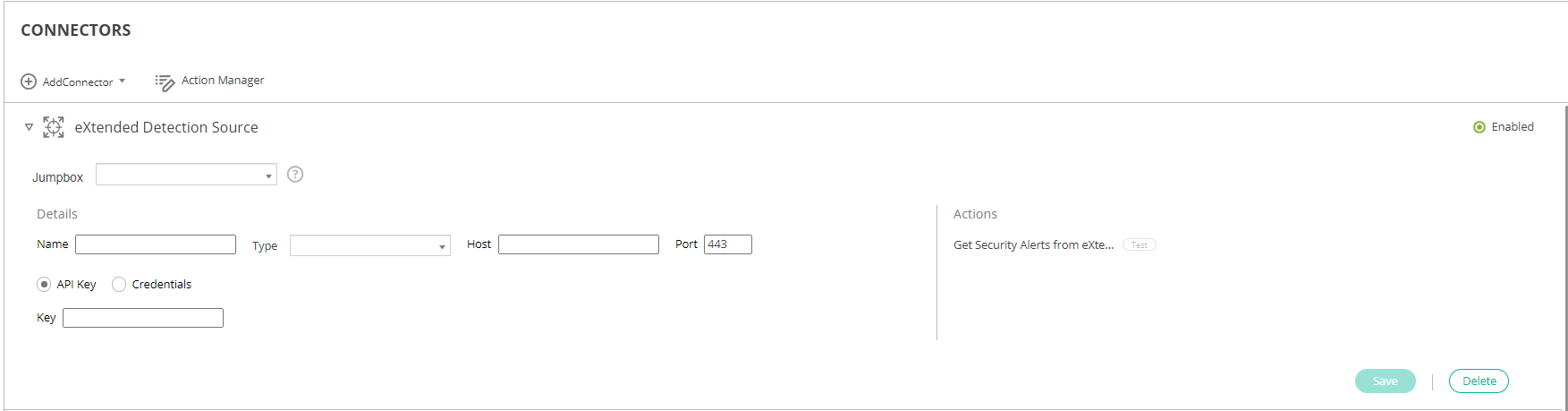
- Fill in the following fields:
Field
Definition
Enabled Check this checkbox to enable blocking of malicious IP addresses by Google SCC. Jumpbox Select the EDR Jumpbox that will communicate with Google SCC. Name Specify a name of your choice to identify the connector. Type Select Google SCC. Authentication Upload the JSON file that was created for your Google Service account. Actions
Specify the unique organization resource identifier in Google cloud or ID of Google cloud project to use for fetching alerts.

- Click Save.
Setting up EDR Central Manager
In order to complete the integration with Google SCC, the eXtended detection rules and EDR Threat Hunting events collection must be enabled with the EDR Central Manager, as follows.
To enable eXtended detection rules:
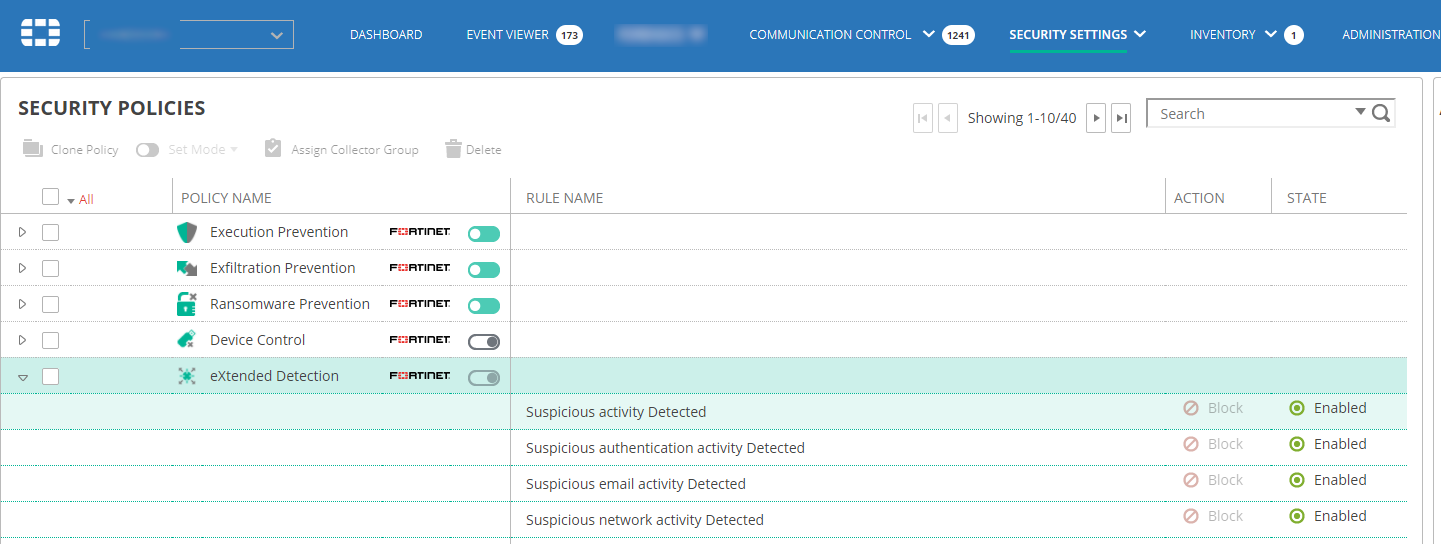
- Navigate to the SECURITY SETTINGS > Security Policies page.
- Open the eXtended detection policy that is applied on devices on which you want the eXtended detection policy to apply and click the Disabled button next to each of the underlying rules to enable it, as shown below:
To enable EDR Threat Hunting events collection:
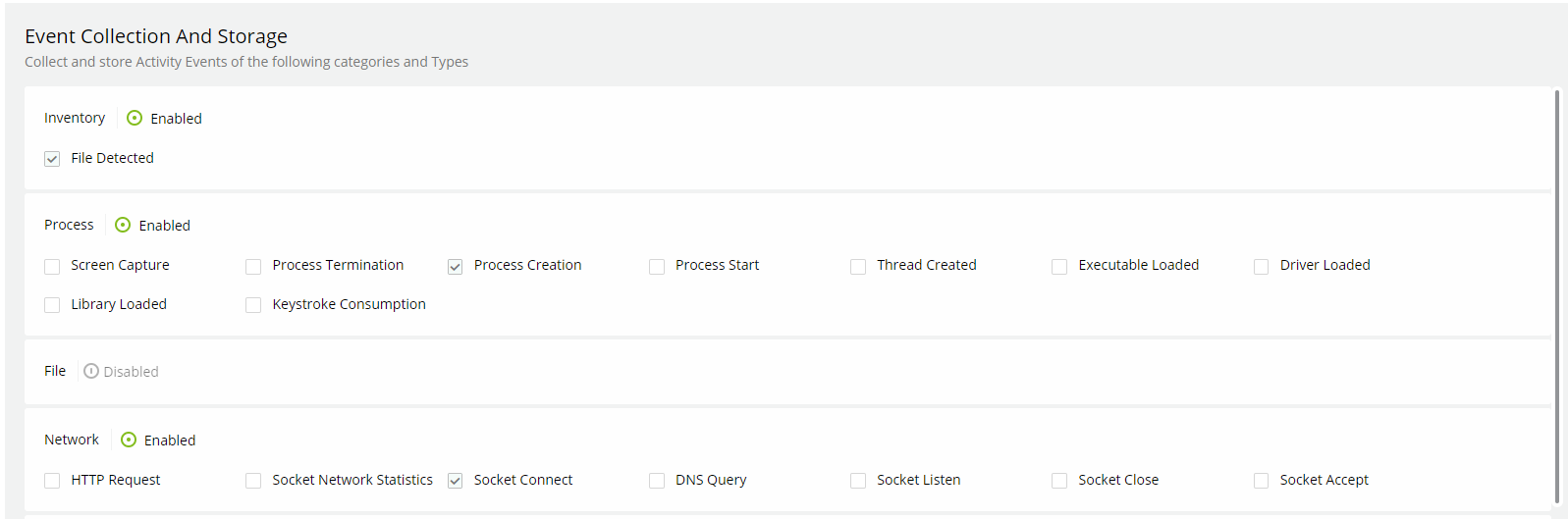
- Navigate to the SECURITY SETTINGS > Threat Hunting > Collection Profiles page.
- Open the Threat Hunting collection profile that is applied on devices on which you want the eXtended detection policy to apply.
- Select the following event types on that profile:
Socket Connect
Process Creation
File Create
File Detected
EDR is now configured to issue eXtended detection alerts from Google SCC.