

Host Firewall
Use the Communications Control > Host Firewall page to configure host firewall policies to control incoming and outgoing network traffic to protect endpoints against unwanted connections based on remote addresses, protocols, or applications in use to reflect the organization’s network policies. Host firewall policies reduce the attack surface by protecting the host while working outside the enterprise network (public Internet, home, or other networks).
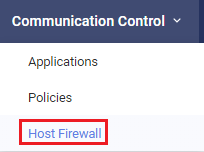
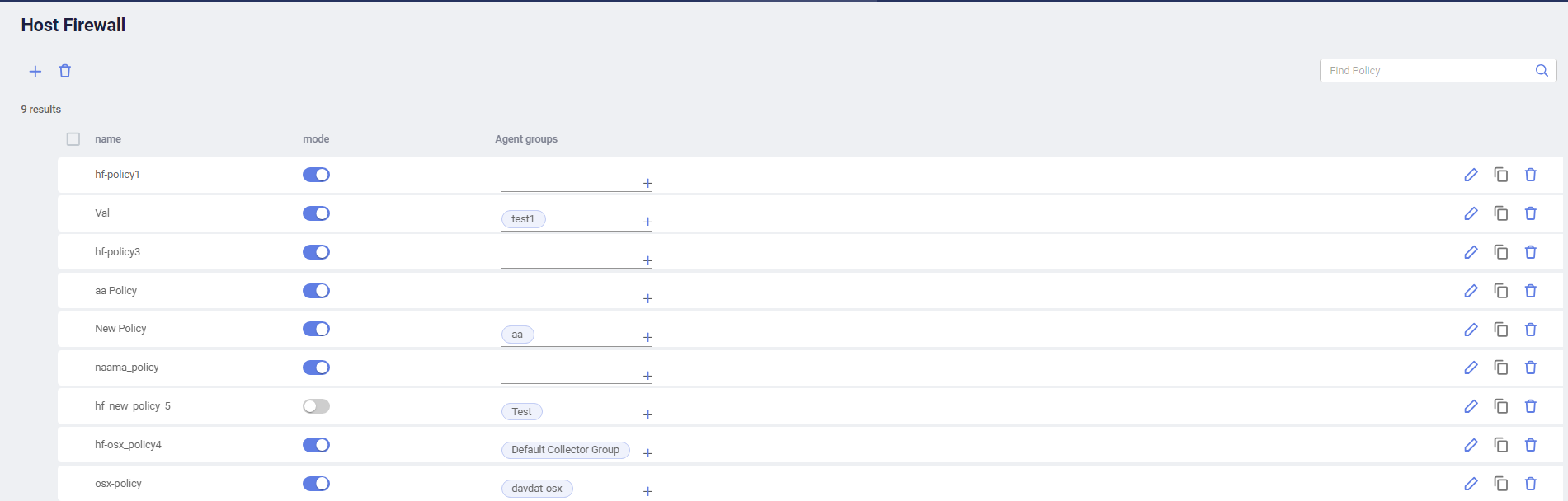
To configure a host firewall policy:
-
In the Communications Control > Host Firewall page, click the Add button at the top left corner.
-
Specify a name for the host firewall policy.
-
Select the Collector groups that the host firewall policy applies to.
-
Click Save to save the host firewall policy.
The host firewall policy appears in the list.
-
(Optional) Add or remove Collector groups for the host firewall policy in the Collector group column.
-
Define rules to associate with the host firewall policy:
-
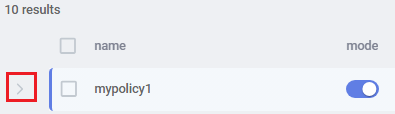
Expand the row of the host firewall policy in the table.
-
Click the Add button under the host firewall policy.
-
Enable the rule if you want to enforce the rule immediately after creation. You can also choose to enable it later.
-
Specify a name for the rule.
-
Specify the application name or IP address and port combination that the rule applies to.
The IP address and port can be single or a range, including wildcard. For example, 192.168.0.1 or 192.168.0.1-192.168.0.100.
-
Select the protocol, which can be TCP, UDP, or any.
-
In the Process field, specify an application name to apply the rule to one specific application or use the default Any, which means the rule applies to all applications.
-
In the Action dropdown, select whether to allow or deny matching connections.
The action applies to both incoming and outgoing traffic.
-
(Optional) Add a description for the rule.
-
Click Save to save the rule.
The rule appears under the host firewall policy in the table.
-
Add more rules by repeating the steps above as needed.
- When more than one rule exists, drag and drop the rules in the order of priority. When the criteria of multiple groups are met, the first matching rule will be used.
-
-
Enable or disable the host firewall policy or a specific rule using the mode button.
-
To log connections blocked by a Collector, check the Firewall Block action in the Collector's assigned Threat Hunting Collection profiles.

|
Host firewall policies work side by side with existing Communication Control policies. In case of contradictions, EDR applies the more restrictive out of the two. For example, if a group is assigned to a host firewall policy that allows any connection to a specific remote address but the Communication Control policy assigned to the group restricts connections to low reputation applications, connections to the remote address will be blocked if the connection goes to low reputation applications. |