
Fortinet white logo
Fortinet white logo

Administration Guide

Sandbox integration

Sandbox integration

When a sandbox such as FortiSandbox is configured and the Sandbox Analysis Policy rule is enabled, files that meet several conditions and that have not been previously analyzed trigger a sandbox analysis event on EDR and are sent to the sandbox. The conditions are a combination of several items, such as the file was downloaded from the Internet and was not signed by a known vendor. If the file is found to be clean, the event is automatically classified as safe and marked as handled. If the file is determined by the sandbox to be suspicious or malicious, then the event is classified as non-safe and any future execution attempt of the file in the environment is blocked by one of the Pre-execution (NGAV) Policy rules. Note that in all cases the first file execution is not delayed or blocked.

Before you start sandbox connector configuration, verify the following:

  • You have installed an EDR Core and configured the Core as a Jumpbox with connectivity to the sandbox. To request the EDR Core ISO, contact Fortinet Support.

  • (FortiSandbox) A FortiSandbox administrator account with JSON API access enabled. Refer to Configuring FortiSandbox on-premise for detailed instructions.
  • (FortiSandbox Cloud) A valid FortiCloud API user under a permission profile with read/write access to the FortiSandbox Cloud portal. See the FortiCloud IAM documentation for detailed instructions about creating a permission profile and an API user.

To set up a sandbox connector with EDR:
  1. Click the Add Connector button and select Sandbox in the Connectors dropdown list. The following displays:
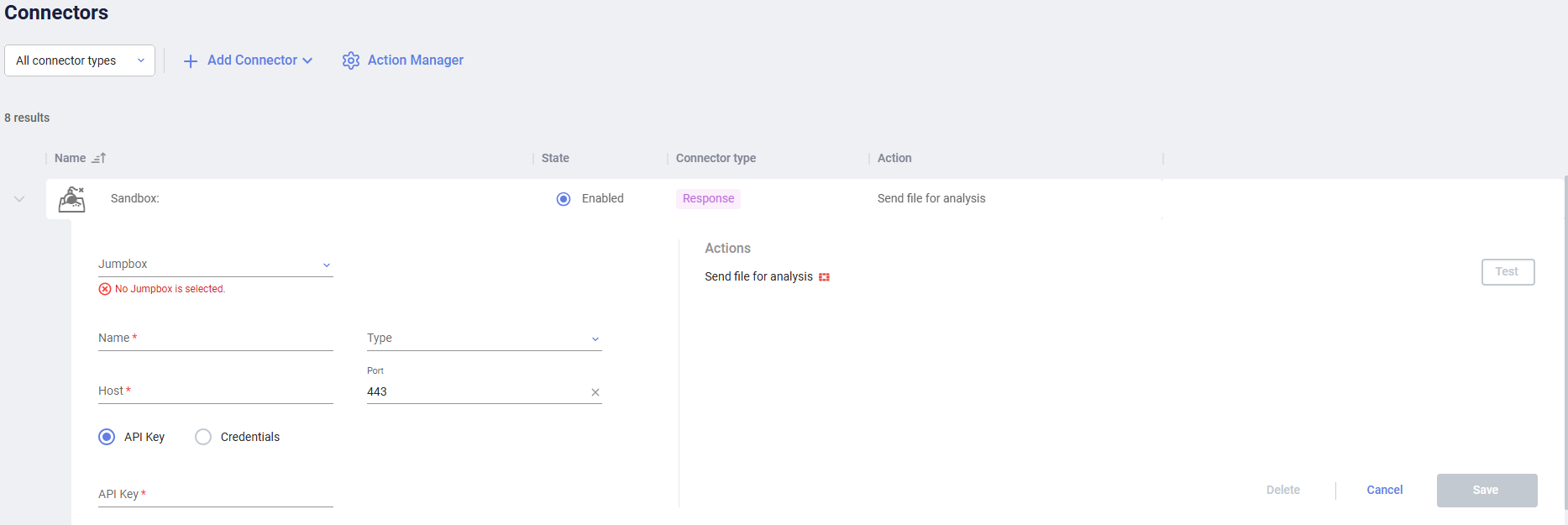
  2. Fill in the following fields:

    Field

    Definition

    JumpboxSelect the EDR Jumpbox that will communicate with this sandbox.
    NameSpecify a name of your choice which will be used to identify this sandbox.
    TypeSelect the type of sandbox to be used in the dropdown list, for example: FortiSandbox.
    HostSpecify the IP or DNS address of you sandbox.
    PortSpecify the port that is used for API communication with your sandbox.
    API Key / Credentials

    Specify authentication details of the FortiSandbox or FortiSandbox Cloud.

    • (FortiSandbox) To use an API token, select API Key and copy the token value into the text box. To use credentials, select Credentials and fill in the FortiSandbox username and password.

    • (FortiSandbox Cloud) Select API Key and copy the token value into the text box.

  3. Click Save.

    In order to complete sandbox integration, the Sandbox Scan rule must be enabled with the EDR Central Manager.

To enable the Sandbox scan rule:
  1. Navigate to the SECURITY SETTINGS > Security Policies page.
  2. Open the Execution Prevention policy that is applied on devices for which you want the sandbox scan to apply and click the Disabled button next to the Sandbox Analysis rule to enable it, as shown below:
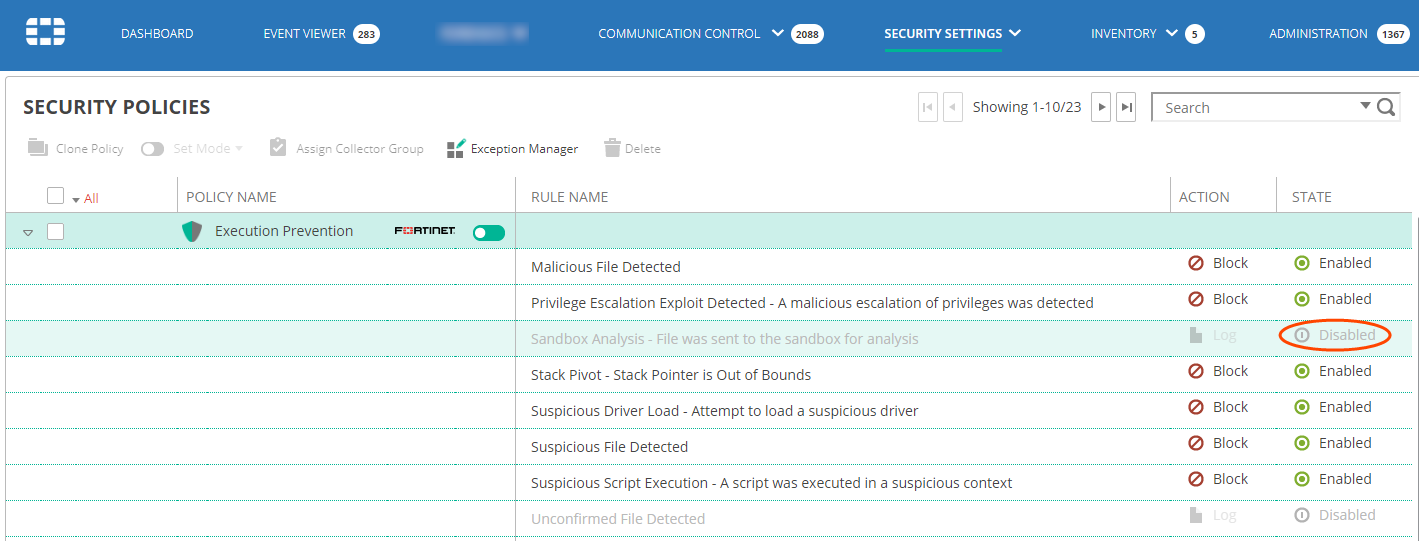
EDR is now configured to send unknown files to the sandbox.

You can check file analysis on your sandbox console.

In addition, you can see sandbox analysis events in theOverview tab when you select the incident and click Investigate in the Incidents pane. Events of files that were found to be clean appear under the Handled filter and events of files that were found to be risky are displayed under the All statuses filter. A sandbox analysis digest is added to the security event’s handling comment.

Sandbox integration

Sandbox integration

When a sandbox such as FortiSandbox is configured and the Sandbox Analysis Policy rule is enabled, files that meet several conditions and that have not been previously analyzed trigger a sandbox analysis event on EDR and are sent to the sandbox. The conditions are a combination of several items, such as the file was downloaded from the Internet and was not signed by a known vendor. If the file is found to be clean, the event is automatically classified as safe and marked as handled. If the file is determined by the sandbox to be suspicious or malicious, then the event is classified as non-safe and any future execution attempt of the file in the environment is blocked by one of the Pre-execution (NGAV) Policy rules. Note that in all cases the first file execution is not delayed or blocked.

Before you start sandbox connector configuration, verify the following:

  • You have installed an EDR Core and configured the Core as a Jumpbox with connectivity to the sandbox. To request the EDR Core ISO, contact Fortinet Support.

  • (FortiSandbox) A FortiSandbox administrator account with JSON API access enabled. Refer to Configuring FortiSandbox on-premise for detailed instructions.
  • (FortiSandbox Cloud) A valid FortiCloud API user under a permission profile with read/write access to the FortiSandbox Cloud portal. See the FortiCloud IAM documentation for detailed instructions about creating a permission profile and an API user.

To set up a sandbox connector with EDR:
  1. Click the Add Connector button and select Sandbox in the Connectors dropdown list. The following displays:

  2. Fill in the following fields:

    Field

    Definition

    JumpboxSelect the EDR Jumpbox that will communicate with this sandbox.
    NameSpecify a name of your choice which will be used to identify this sandbox.
    TypeSelect the type of sandbox to be used in the dropdown list, for example: FortiSandbox.
    HostSpecify the IP or DNS address of you sandbox.
    PortSpecify the port that is used for API communication with your sandbox.
    API Key / Credentials

    Specify authentication details of the FortiSandbox or FortiSandbox Cloud.

    • (FortiSandbox) To use an API token, select API Key and copy the token value into the text box. To use credentials, select Credentials and fill in the FortiSandbox username and password.

    • (FortiSandbox Cloud) Select API Key and copy the token value into the text box.

  3. Click Save.

    In order to complete sandbox integration, the Sandbox Scan rule must be enabled with the EDR Central Manager.

To enable the Sandbox scan rule:
  1. Navigate to the SECURITY SETTINGS > Security Policies page.
  2. Open the Execution Prevention policy that is applied on devices for which you want the sandbox scan to apply and click the Disabled button next to the Sandbox Analysis rule to enable it, as shown below:

EDR is now configured to send unknown files to the sandbox.

You can check file analysis on your sandbox console.

In addition, you can see sandbox analysis events in theOverview tab when you select the incident and click Investigate in the Incidents pane. Events of files that were found to be clean appear under the Handled filter and events of files that were found to be risky are displayed under the All statuses filter. A sandbox analysis digest is added to the security event’s handling comment.