

Factory default health checks
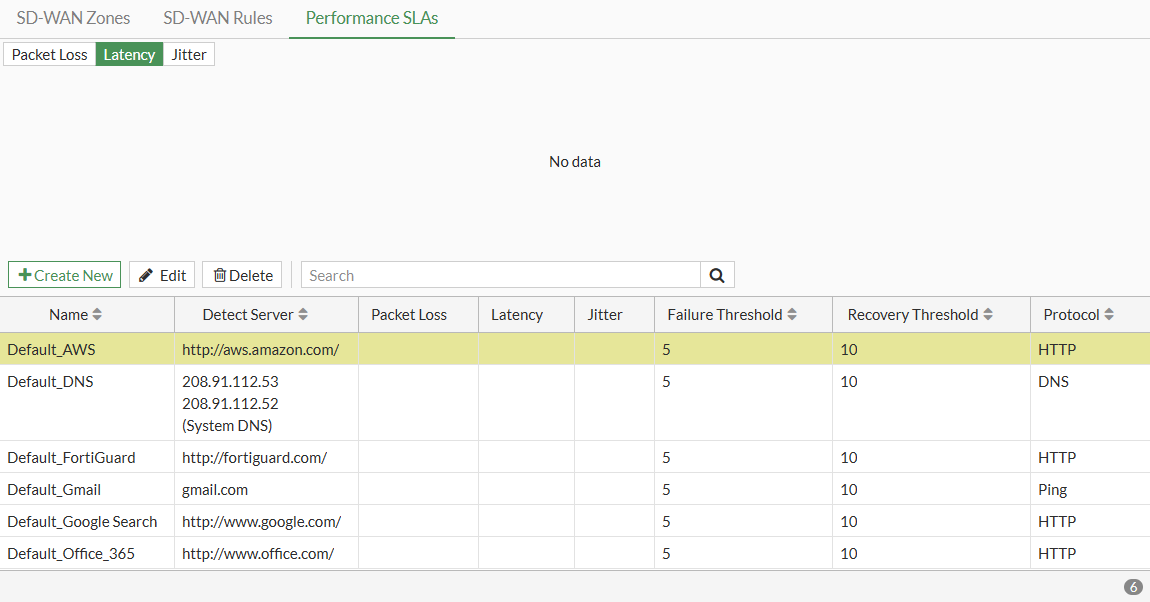
There are six predefined performance SLA profiles for newly created VDOMs or factory reset FortiGate devices:
- AWS
- System DNS
- FortiGuard
- Gmail
- Google Search
- Office 365
You can view and configure the SLA profiles by going to Network > SD-WAN and selecting the Performance SLAs tab.
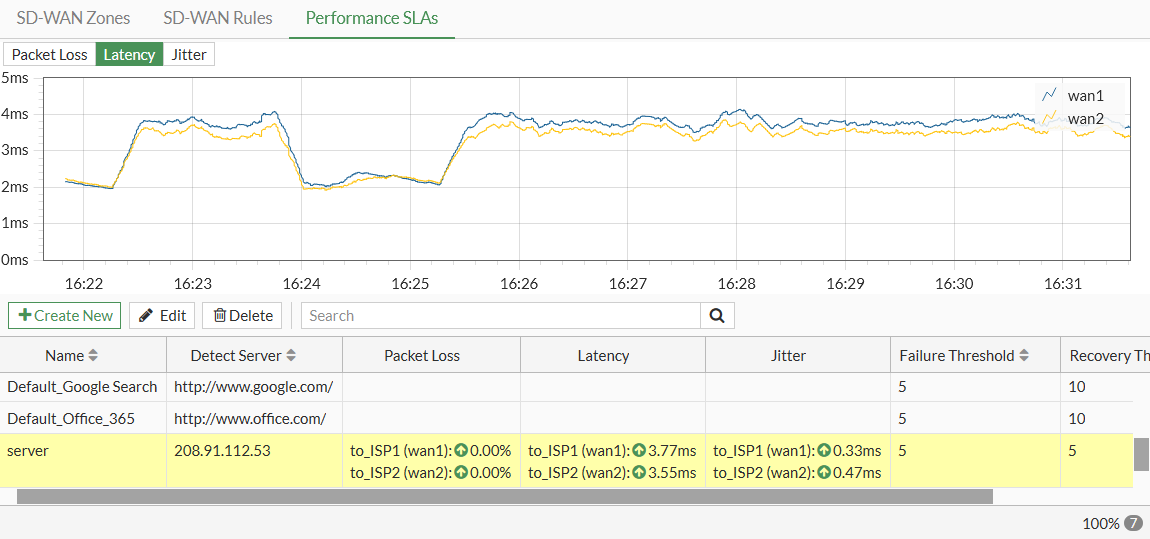
After configuring a health check, you will be able to view packet loss, latency, and jitter data for the SLA profiles. If a value is colored red, it means that it failed to meet the SLA requirements.
To configure the performance SLA profiles in the CLI:
config system sdwan
    config health-check
        edit "Default_DNS"
            set system-dns enable
            set interval 1000
            set probe-timeout 1000
            set recoverytime 10
            config sla
                edit 1
                    set latency-threshold 250
                    set jitter-threshold 50
                    set packetloss-threshold 5
                next
            end
        next
        edit "Default_Office_365"
            set server "www.office.com"
            set protocol http
            set interval 1000
            set probe-timeout 1000
            set recoverytime 10
            config sla
                edit 1
                    set latency-threshold 250
                    set jitter-threshold 50
                    set packetloss-threshold 5
                next
            end
        next
        edit "Default_Gmail"
            set server "gmail.com"
            set interval 1000
            set probe-timeout 1000
            set recoverytime 10
            config sla
                edit 1
                    set latency-threshold 250
                    set jitter-threshold 50
                    set packetloss-threshold 2
                next
            end
        next
        edit "Default_AWS"
            set server "aws.amazon.com"
            set protocol http
            set interval 1000
            set probe-timeout 1000
            set recoverytime 10
            config sla
                edit 1
                    set latency-threshold 250
                    set jitter-threshold 50
                    set packetloss-threshold 5
                next
            end
        next
        edit "Default_Google Search"
            set server "www.google.com"
            set protocol http
            set interval 1000
            set probe-timeout 1000
            set recoverytime 10
            config sla
                edit 1
                    set latency-threshold 250
                    set jitter-threshold 50
                    set packetloss-threshold 5
                next
            end
        next
        edit "Default_FortiGuard"
            set server "fortiguard.com"
            set protocol http
            set interval 1000
            set probe-timeout 1000
            set recoverytime 10
            config sla
                edit 1
                    set latency-threshold 250
                    set jitter-threshold 50
                    set packetloss-threshold 5
                next
            end
        next
    end
end