
Fortinet white logo
Fortinet white logo

User Guide

Logging into the portal

Logging into the portal

Users can log into the FortiNDR Cloud portal using either a FortiNDR Cloud account or Single Sign-On (SSO).

The following table provides an overview of how user accounts are managed in FortiNDR Cloud, including user creation, multi-factor authentication, and permission management.

Account

User creation

Multi-Factor Authentication

Permission management

FortiNDR Cloud

Admin creates user in FortiNDR Cloud

Managed by FortiNDR Cloud

  • Admin assigns permissions
  • Training access included automatically

SSO enabled

Admin creates user, or user logs in with SSO

  • Managed by SSO provider if logging in with SSO
  • Manged by FortiNDR Cloud if logging in with FortiNDR Cloud username and password.
  • Managed at the time the user is created in the portal (or later)
  • Training access included automatically

SSO enabled with SSO only

User logs in with SSO

Managed by SSO provider

  • May be added only after user logs in once
  • Training access only when first logged in

SSO not enabled

Admin creates user

Managed by FortiNDR Cloud

  • Managed at time user is created (or later)
  • Training access included automatically
Note
  • FortiNDR Cloud only supports IdP initiated SAML.
  • Assertions must always be signed.

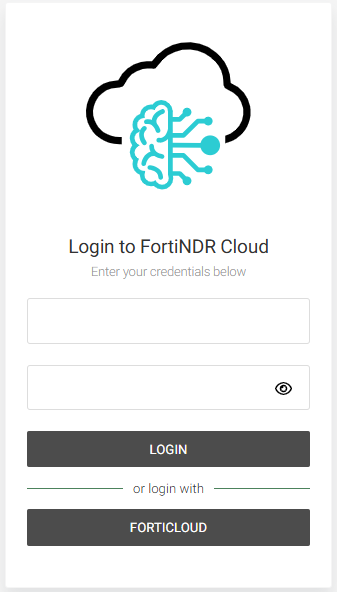
You can log into the FortiNDR Cloud portal with an email address or with a FortiCloud sub-user account.

To log into the portal:
  1. Go to https://portal.fortindr.forticloud.com/.
  2. Do one of the following:

    Log in with

    Description

    EmailEnter your email address and password, then click Login.
    FortiCloud
    1. Click FortiCloud. The FortiCloud login page opens.
    2. Enter your FortiCloud email address, password and token to login.
    Note

    You can only login in with a FortiCloud sub-user account. The FortiNDR Cloud portal does not support IAM users at this time. For information, see User permissions in the FortiCloud Services Guide.
Logging into the portal

Logging into the portal

Users can log into the FortiNDR Cloud portal using either a FortiNDR Cloud account or Single Sign-On (SSO).

The following table provides an overview of how user accounts are managed in FortiNDR Cloud, including user creation, multi-factor authentication, and permission management.

Account

User creation

Multi-Factor Authentication

Permission management

FortiNDR Cloud

Admin creates user in FortiNDR Cloud

Managed by FortiNDR Cloud

  • Admin assigns permissions
  • Training access included automatically

SSO enabled

Admin creates user, or user logs in with SSO

  • Managed by SSO provider if logging in with SSO
  • Manged by FortiNDR Cloud if logging in with FortiNDR Cloud username and password.
  • Managed at the time the user is created in the portal (or later)
  • Training access included automatically

SSO enabled with SSO only

User logs in with SSO

Managed by SSO provider

  • May be added only after user logs in once
  • Training access only when first logged in

SSO not enabled

Admin creates user

Managed by FortiNDR Cloud

  • Managed at time user is created (or later)
  • Training access included automatically
Note
  • FortiNDR Cloud only supports IdP initiated SAML.
  • Assertions must always be signed.

You can log into the FortiNDR Cloud portal with an email address or with a FortiCloud sub-user account.

To log into the portal:
  1. Go to https://portal.fortindr.forticloud.com/.
  2. Do one of the following:

    Log in with

    Description

    EmailEnter your email address and password, then click Login.
    FortiCloud
    1. Click FortiCloud. The FortiCloud login page opens.
    2. Enter your FortiCloud email address, password and token to login.
    Note

    You can only login in with a FortiCloud sub-user account. The FortiNDR Cloud portal does not support IAM users at this time. For information, see User permissions in the FortiCloud Services Guide.