
Fortinet white logo
Fortinet white logo

User Guide

Entity lookup

Entity lookup

An Entity Lookup (or search) is the starting point for an investigation if you have very little information to work with.

Tooltip

You can start an Entity Search by entering an IP address or domain in the Search field in the navigation menu at the top of the portal.

To perform an entity lookup:
  1. Go to Investigations > Entity Lookup.

  2. Enter an IP address or a domain name in the search field. Separate Multiple IP addresses and domain names by spaces.

  3. Click the date picker to select the time range. The default is Last Seven Days. The maximum is 90 days.
    Note

    If you are pivoting to the Entity Lookup from a page with a time range of more than the last 90 days, the date range picker will display a yellow border around the date field and default to the Last Seven Days.

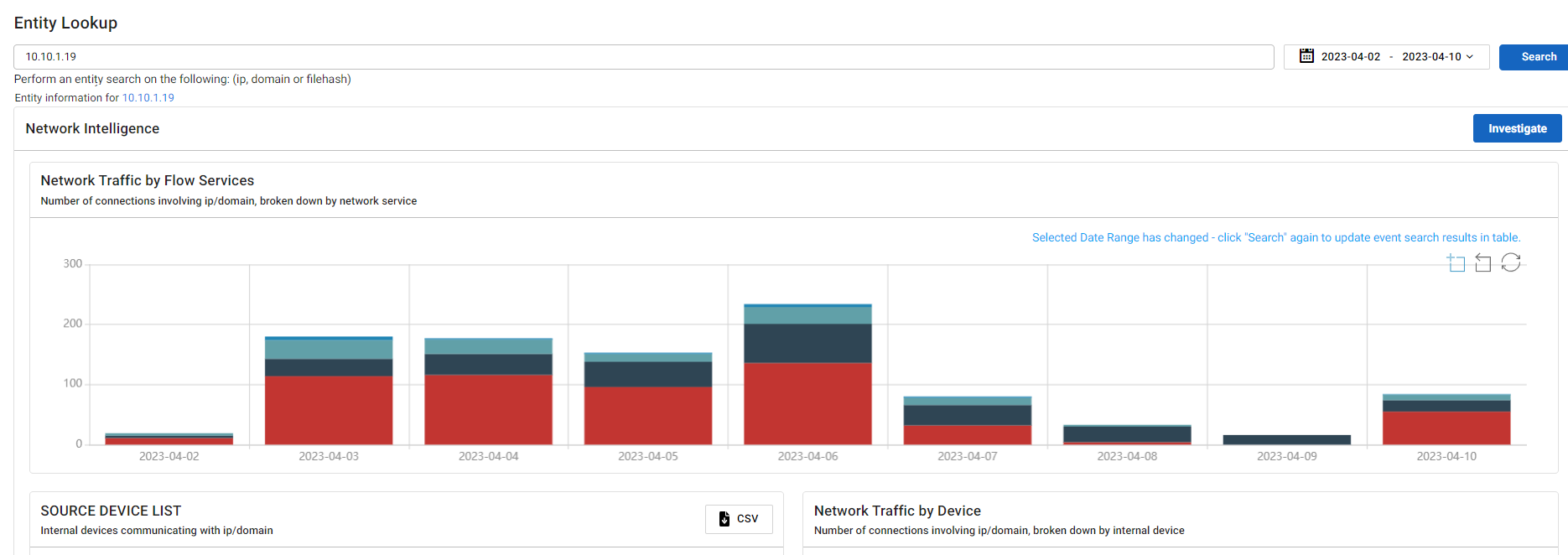
  4. Click Search. The following results are returned.
    Network Intelligence

    Network traffic by service, by device, and source addresses interacting with the entity

    Entity Intelligence WHOIS, IP History, Registrar History, Passive DNS
    Security IntelligenceAssociated VirusTotal Detections, VirusTotal Detections Over Time, Detections, and Observations,
    Tooltip

    You can view the Entity Panel by clicking the IP address at the top-left of the page next to Entity information for <IP address>.

  5. (Optional) If multiple IP addresses or domain names are looked up, right-click on a result and select Entity Lookup to view the intelligence panes.
  6. (Optional) Click Investigate to launch the new investigation.

To perform a bulk entity export:
  1. In the search field, enter IP addresses or a domain names separated by spaces.

  2. Click Search.

  3. Click the CSV button. A CSV file with the timestamp, action, param, user_uuid, account_uuid, and account are downloaded to your device.

Passive DNS

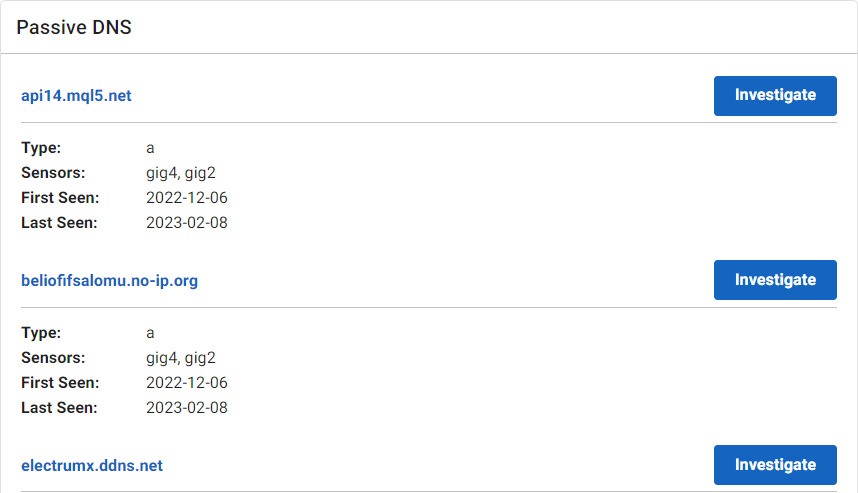
Passive DNS links on the entity panel function like normal links. Clicking the link replaces the entity panel with the panel for the clicked on element.
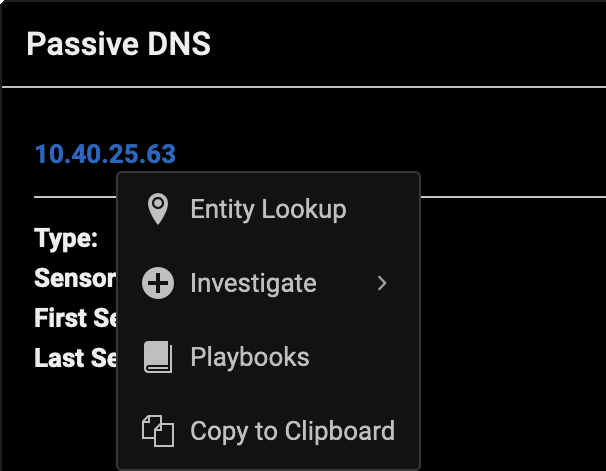
Right-clicking opens a context menu.
Option Description
Entity Lookup Open the entity lookup page for the item.
Copy to Clipboard Copy the item to the clipboard.
Guided Queries Launch Guided Queries. This options is not available for ad-hoc search result items
Investigate Show appropriate pivots for the item type. This options is not available for ad-hoc search result items.
Search Events

Show the event searches appropriate for the type. The text in the search box is replaced, but the search will not run automatically. This options is only available for ad-hoc search result items.

Types include:

  • IP:

    • ip='IP'

    • dst.ip='IP'

    • src.ip='IP'

  • domain:

    • domain='domain'

Entity lookup

Entity lookup

An Entity Lookup (or search) is the starting point for an investigation if you have very little information to work with.

Tooltip

You can start an Entity Search by entering an IP address or domain in the Search field in the navigation menu at the top of the portal.

To perform an entity lookup:
  1. Go to Investigations > Entity Lookup.

  2. Enter an IP address or a domain name in the search field. Separate Multiple IP addresses and domain names by spaces.

  3. Click the date picker to select the time range. The default is Last Seven Days. The maximum is 90 days.
    Note

    If you are pivoting to the Entity Lookup from a page with a time range of more than the last 90 days, the date range picker will display a yellow border around the date field and default to the Last Seven Days.

  4. Click Search. The following results are returned.
    Network Intelligence

    Network traffic by service, by device, and source addresses interacting with the entity

    Entity Intelligence WHOIS, IP History, Registrar History, Passive DNS
    Security IntelligenceAssociated VirusTotal Detections, VirusTotal Detections Over Time, Detections, and Observations,

    Tooltip

    You can view the Entity Panel by clicking the IP address at the top-left of the page next to Entity information for <IP address>.

  5. (Optional) If multiple IP addresses or domain names are looked up, right-click on a result and select Entity Lookup to view the intelligence panes.
  6. (Optional) Click Investigate to launch the new investigation.

To perform a bulk entity export:
  1. In the search field, enter IP addresses or a domain names separated by spaces.

  2. Click Search.

  3. Click the CSV button. A CSV file with the timestamp, action, param, user_uuid, account_uuid, and account are downloaded to your device.

Passive DNS

Passive DNS links on the entity panel function like normal links. Clicking the link replaces the entity panel with the panel for the clicked on element.

Right-clicking opens a context menu.

Option Description
Entity Lookup Open the entity lookup page for the item.
Copy to Clipboard Copy the item to the clipboard.
Guided Queries Launch Guided Queries. This options is not available for ad-hoc search result items
Investigate Show appropriate pivots for the item type. This options is not available for ad-hoc search result items.
Search Events

Show the event searches appropriate for the type. The text in the search box is replaced, but the search will not run automatically. This options is only available for ad-hoc search result items.

Types include:

  • IP:

    • ip='IP'

    • dst.ip='IP'

    • src.ip='IP'

  • domain:

    • domain='domain'