
Fortinet white logo
Fortinet white logo

User Guide

Account telemetry

Account telemetry

The Telemetry page displays aggregated telemetry data from all sensors in your account. The legend at the right side of the page lists the entries in descending order from highest to lowest. You can use the toggles in the legend to show or hide lines in the graph.

Tooltip

To view the telemetry for each sensor, click the Telemetry tab in the Sensor Status page. See Sensor details.

To view the Account Telemetry page:
  1. Click the gear icon at the top-right of page select Sensors.
  2. Click the Telemetry button at the top-right of the page. The Throughput page opens.
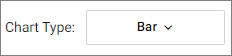
  3. (Optional) Click Chart Type to switch between Line and Bar views.
  4. (Optional) Filter the page.

    Group byView the telemetry data by Sensor, Event Type, or Interface when available.
    IntervalSelect Day, Hour or 5 minutes.
    Date RangeClick to configure the date range using the date picker, or choose a value from the Quick Ranges list.
  5. Click the CSV button to export the data as a CSV file. The CSV file will download everything in the graph. You can use the legend to select the sensor data you want to download.

Account telemetry

Account telemetry

The Telemetry page displays aggregated telemetry data from all sensors in your account. The legend at the right side of the page lists the entries in descending order from highest to lowest. You can use the toggles in the legend to show or hide lines in the graph.

Tooltip

To view the telemetry for each sensor, click the Telemetry tab in the Sensor Status page. See Sensor details.

To view the Account Telemetry page:
  1. Click the gear icon at the top-right of page select Sensors.
  2. Click the Telemetry button at the top-right of the page. The Throughput page opens.
  3. (Optional) Click Chart Type to switch between Line and Bar views.

  4. (Optional) Filter the page.

    Group byView the telemetry data by Sensor, Event Type, or Interface when available.
    IntervalSelect Day, Hour or 5 minutes.
    Date RangeClick to configure the date range using the date picker, or choose a value from the Quick Ranges list.
  5. Click the CSV button to export the data as a CSV file. The CSV file will download everything in the graph. You can use the legend to select the sensor data you want to download.