

Collector interface
The collector interface is a special type of TAP/monitoring sensor interface with the IP stack enabled. It is designed for packet-forwarding solutions that require a destination IP address, such as NetFlow and ERSPAN.
Configuring the collector Interface
Prerequisites
Before configuring a collector interface, ensure that the following prerequisites are met regarding the number of sensor ports required for each feature you plan to enable:
|
Feature / Use Case |
Azure, OCI, AWS (VXLAN Monitoring) |
Other Platforms |
|---|---|---|
|
SPAN Only |
1 × Management |
1 × Management, Min 1 × TAP |
|
NetFlow Only |
1 × Management, 1 × Collector |
1 × Management, 1 × Collector |
|
ERSPAN Only |
1 × Management, 1 × Collector |
1 × Management, 1 × Collector, Min 1 × TAP |
|
SPAN + ERSPAN |
1 × Management, 1 × Collector |
1 × Management, 1 × Collector, Min 1 × TAP |
|
SPAN + ERSPAN + NetFlow |
1 × Management, 1 × Collector |
1 × Management, 1 × Collector, Min 1 × TAP |
Interface requirements:
|
Interface |
Requirment |
|---|---|
| TAP | Requires a physical uplink connection to receive mirrored traffic. |
| Collector | The IPv4 stack must be enabled, and an uplink is required to receive ERSPAN and NetFlow traffic. |
To configure the collector interface:

|
It is best practice to keep the collector and management interfaces on separate subnets. |
- From the config menu, select Set Collector Interface (Press c).
- Highlight the monitoring interface you want to use as the collector.
- Ensure this interface has an IP stack enabled on the network.
- If DHCP is available on the collector subnet, choose Configure Using DHCP and select Submit.
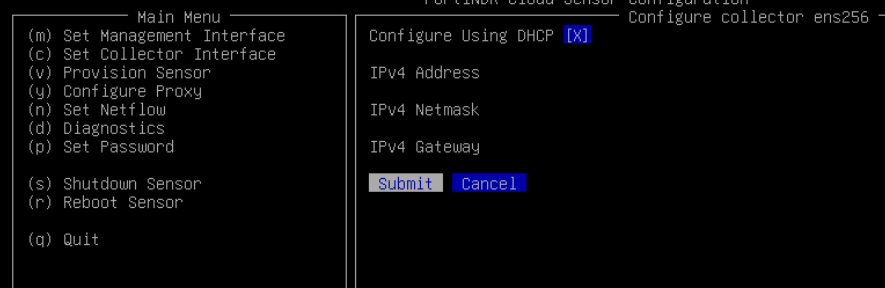
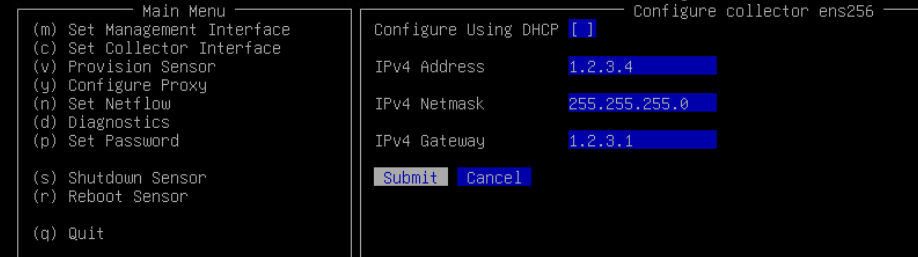
- To configure a static IP on collector interface:
- Deselect the DHCP by pressing the space bar.
- Enter the desired Address, Netmask, and default Gateway.
- Select Submit.
- The menu will redirect to the Interfaces section with the collector interface reflecting your settings.
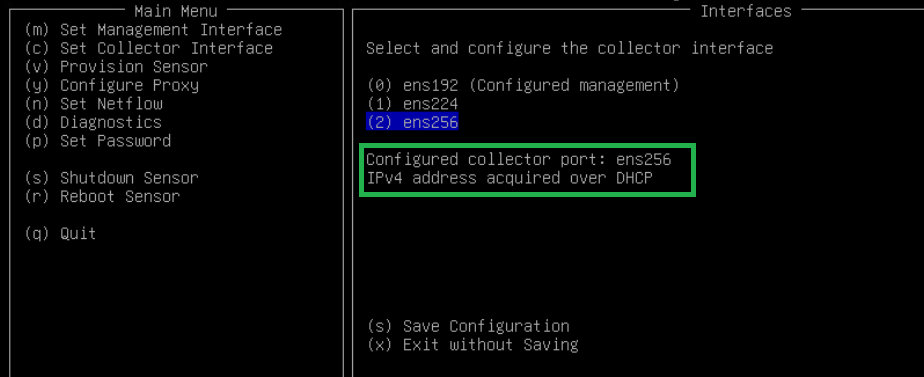
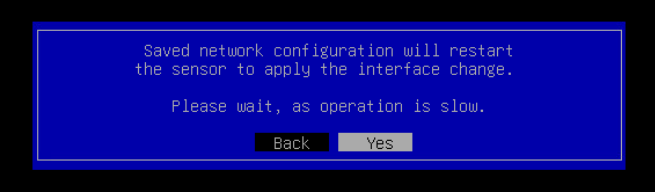
- Select Save Configuration. A confirmation dialog box will appear, requesting a sensor restart to apply the interface changes. Select Yes to proceed with the restart.
- Wait a few minutes until the restart completes and the message Successfully restarted sensord appears.

- Press Enter to return to the main menu.
- Select Save Configuration. A confirmation dialog box will appear, requesting a sensor restart to apply the interface changes. Select Yes to proceed with the restart.
The collector’s IP address will now appear in the status pane. Allow a few minutes for the sensor to update its status to Online.